

Overview
The qtivtransform plugin is a GStreamer video transformation element designed for real-time, hardware-accelerated manipulation of video frames. It plays a critical role in video and vision processing pipelines where performance, flexibility, and low latency are essential.
- Resizing: A video stream may need to be resized to fit the native resolution of a screen (e.g., resizing 1920×1080 to 1280×720 for a smaller display).
- Rotating: Mobile devices or webcams may produce rotated frames depending on how the device is held. Rotating the frame ensures proper display alignment.
- Flipping/Mirroring: Front cameras often produce mirrored images. Horizontal flipping corrects this for natural viewing.
- Cropping: Cropping can help convert non-standard aspect ratios (e.g., 4:3 or 21:9) to standard ones like 16:9 for compatibility with downstream encoders or players.
- Color conversion: Тransform between formats (e.g., RGB to NV12) for compatibility with downstream components.
Example Pipeline
1
Download Required Files
2
Copy files to device
3
Connect to device
4
Set environment variables
Run below command on your device
5
Run the pipeline
Hiearchy
GObjectGstObject
GstElement
GstBaseTransform
qtivtransform
Pad Templates
sink
src
Element Properties
Cropping Behavior
Cropping in qtivtransform is applied directly to the input frame, before any other transformation operations. This means the crop region is extracted from the original frame as it arrives at the input pad, ensuring that subsequent steps - such as scaling or color conversion - operate only on the cropped region. This approach improves performance by reducing the number of pixels processed downstream and ensures that transformations are applied precisely to the intended area of the frame. The diagram below illustrates this behavior: the crop region is selected from the full input frame, and only that region is passed forward for further processing.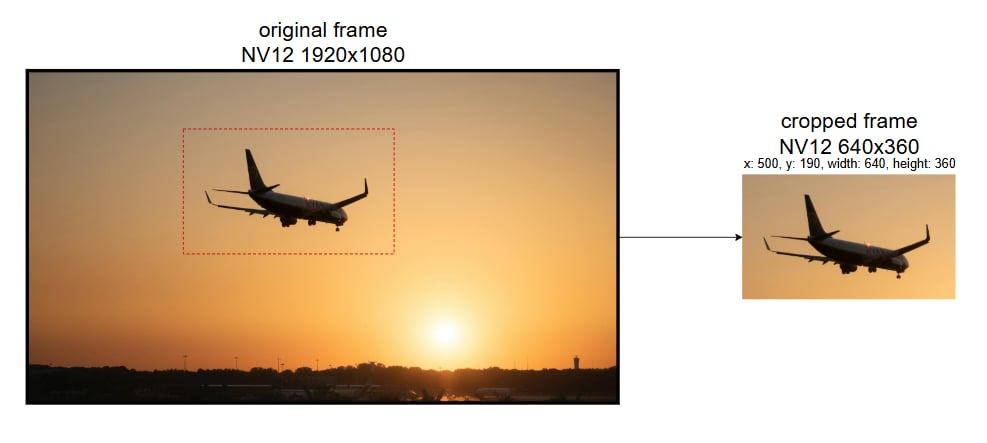
Internal Architecture
The qtivtransform plugin operates as a GStreamer element with a straightforward but efficient internal architecture. It consists of two pads:- Input Pad: Receives video frames from upstream elements (e.g. camera source, decoder).
- Output Pad: Sends transformed frames downstream (e.g. display, encoder).
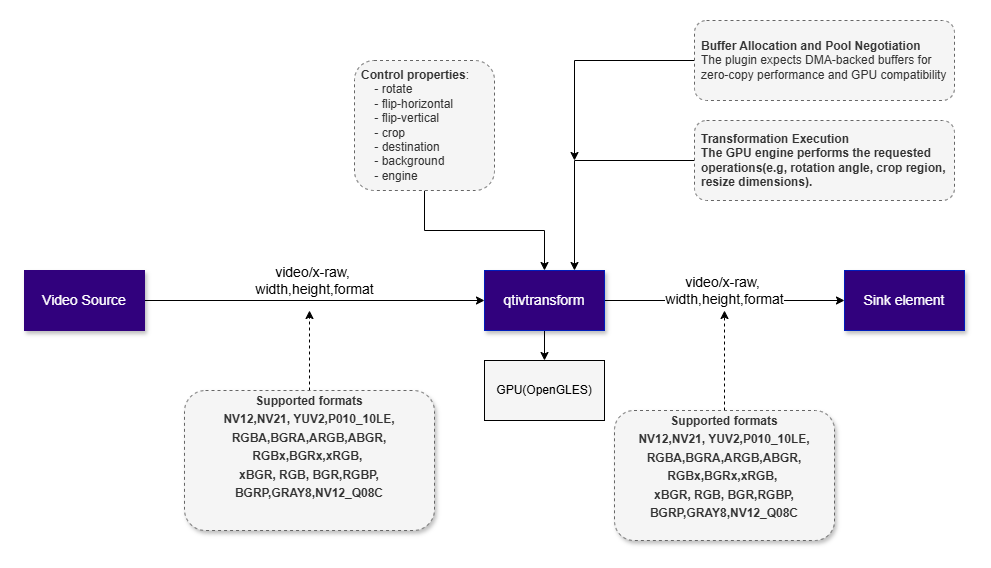
Processing Flow
Caps negotiation
- The output format and resolution in qtivtransform is determined by the negotiated output caps during the GStreamer pipeline setup.
- These caps define the resolution, color format, and other properties that downstream elements expect, and qtivtransform adapts its output accordingly.
Property Parsing and Configuration
- Transformation parameters (e.g., rotation angle, crop region, resize dimensions) are parsed from the element’s properties.
- These parameters are stored in an internal configuration structure that guides the transformation logic.
Frame Reception
- Incoming video frames are received through the sink pad (input pad).
- The plugin validates the frame format and dimensions.
Buffer Allocation and Pool Negotiation
- The plugin expects DMA-backed buffers for zero-copy performance and GPU compatibility.
- If the upstream element does not provide DMA buffers:
- qtivtransform offers its own buffer pool via GStreamer’s allocation mechanism.
- If the upstream accepts the pool, compatible buffers are allocated.
- If not, the plugin fails during negotiation and reports an error.
- This ensures buffer memory layout is optimized for the selected engine.
Transformation Execution
- The GPU engine performs the requested operations (e.g., rotation angle, crop region, resize dimensions).
- The scaling is performed before color conversion to minimize GPU memory bandwidth usage.
Frame Output
- The transformed frame is pushed to the source pad (output pad).
- Downstream elements (e.g. encoders, displays) receive the processed frame for further handling.
Buffer Management and Pool Requirements
qtivtransform is designed to operate efficiently with DMA-allocated buffers, which are essential for zero-copy performance and hardware acceleration. To ensure compatibility and optimal throughput, the plugin enforces specific buffer handling requirements:- DMA Buffer Requirement
- The plugin expects incoming buffers to be DMA-backed.
- This is crucial for interoperability with GPU-based backends and for minimizing memory copies during transformation.
- Buffer Pool Negotiation
- If the upstream element does not provide DMA buffers, qtivtransform can offer its own buffer pool to the upstream element via the standard GStreamer allocation mechanism.
- This allows the upstream plugin to allocate compatible buffers from qtivtransform’s pool.
- Fallback Behavior
- If the upstream element does not support buffer pool negotiation (i.e., cannot accept a pool from qtivtransform), the plugin will not function correctly.
- In such cases, pipeline setup will fail, and an error will be reported during negotiation.
Usage
Downscale a YUV video stream to RGB format
- This pipeline demonstrates how qtivtransform can be used to convert and downscale a YUV (NV12) video stream to RGB format.
- This is useful in scenarios where:
- You need to dump RGB frames to disk for use in a custom image processing or computer vision algorithm that expects raw RGB input.
- A downstream plugin or application requires RGB format instead of NV12.

Horizontal flip
- This pipeline captures video frames from a Qualcomm camera source (qticamsrc) at 1920×1080 resolution in NV12 format. The frames are passed to the qtivtransform, which applies a 90-degree clockwise rotation and horizontal flip.
After transformation, the frames are encoded using the hardware-accelerated H.264 encoder (v4l2h264enc). The encoded stream is parsed (h264parse), multiplexed into an MP4 container (mp4mux), and written to disk via filesink.

Cropping and Scaling
-
The following GStreamer pipeline demonstrates how qtivtransform performs cropping and scaling before encoding the video:
- Input: 1280×720 NV12 video stream from qticamsrc.
- Cropping: qtivtransform crops a 640×360 region starting at (320,180) from the input frame. This is done immediately upon receiving the frame.
- Scaling: The cropped region is then scaled up to 1920×1080 as specified by the output caps.
- Encoding: The transformed frame is encoded using v4l2h264enc and saved as an MP4 file.
