

Overview
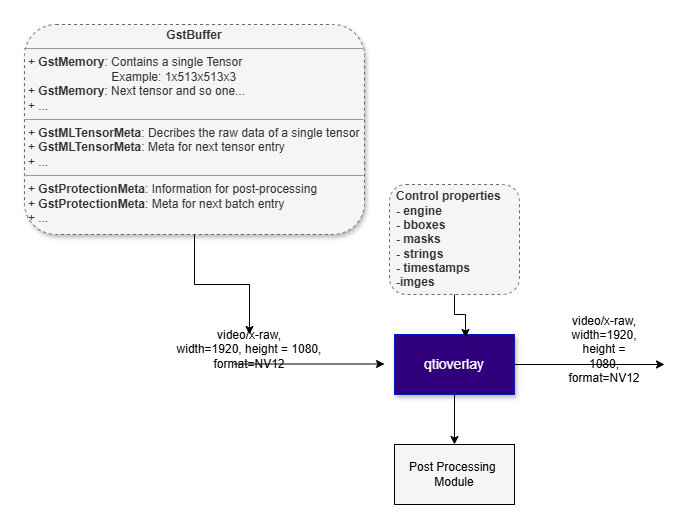
The qtivoverlay element is a hardware-accelerated, in-place drawing and blitting plugin designed to render visual overlay objects directly on top of incoming video frames, such as YUV or RGB buffers. By compositing overlays directly onto the frame data, it enables the processed video to be displayed on a screen or forwarded for encoding with minimal additional overhead. This makes it well suited for real-time video applications where performance and low latency are important. The element supports a wide range of overlay content, including user-defined graphics and annotations such as logos, bounding boxes, custom labels, date and time, buffer timestamps, privacy masks, and other visual indicators. In addition, qtivoverlay can render dynamic overlay information carried in GstMeta, which is commonly used to attach AI or analytics results to each frame for post-processing and visualization. To achieve efficient overlay rendering, qtivoverlay combines CPU-based drawing with GPU-based blending:- CPU rendering with Cairo: Overlay content is first drawn using the open-source Cairo graphics library into compact, memory-efficient overlay buffers.
- GPU hardware blending: These rendered overlay buffers are then blended with the main video frame using GPU hardware acceleration.
- Static images or logos
- Bounding boxes
- Date and/or time
- Buffer timestamps
- Custom text
- Privacy masks
- Detection overlays, including bounding boxes
- Segmentation overlays, such as semantic masks or mask images
- Classification overlays, such as labels or user text
- Pose graph overlays
Example Pipeline
1
Download Required Files
2
Copy files to device
3
Connect to device
4
Set environment variables
Run below command on your device
5
Run the pipeline
Hierarchy
GObjectGstObject
GstElement
GstBaseTransform
qtivoverlay
Pad Templates
sink
src
Element Properties
Metadata (AI Post-Process Information)
Incoming video buffers may contain additional metadata in the form of GstMeta. The element inspects each buffer for supported metadata types and renders any detected metadata directly on top of the corresponding image frame. Each supported metadata type is processed and displayed according to its own visual representation.Supported Metadata Types
GstVideoRegionOfInterestMeta
This metadata describes a region of interest (ROI) within the frame, typically representing an object such as a person, vehicle, keyboard, or any other detected item. A rectangle is drawn around the ROI using the specified X/Y coordinates, width, and height. The rectangle is rendered with a visible border and a transparent interior so that the object inside the region remains visible.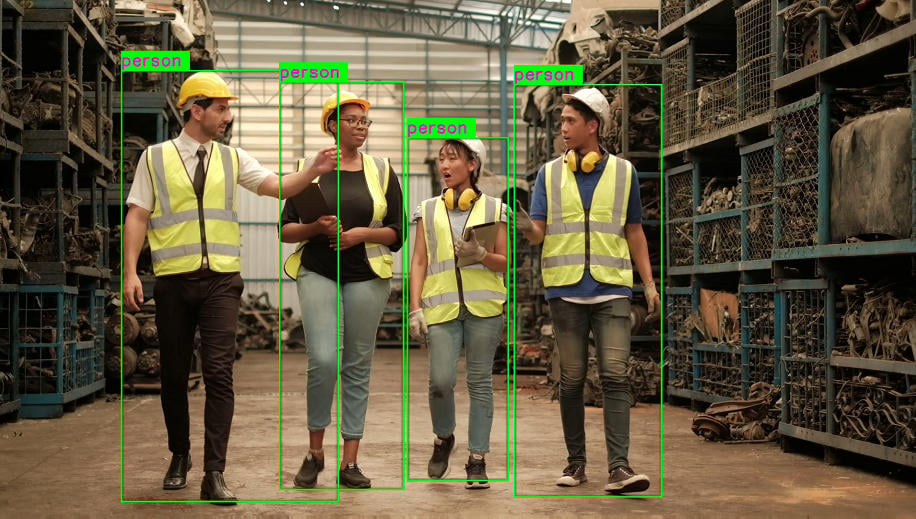
GstVideoLandmarksMeta
This metadata describes a collection of landmark points that may represent human pose key-points, facial features, hand joints, or other connected points of interest. Both the individual points and the lines connecting related points are drawn on the image, allowing the landmark structure to be visualized clearly.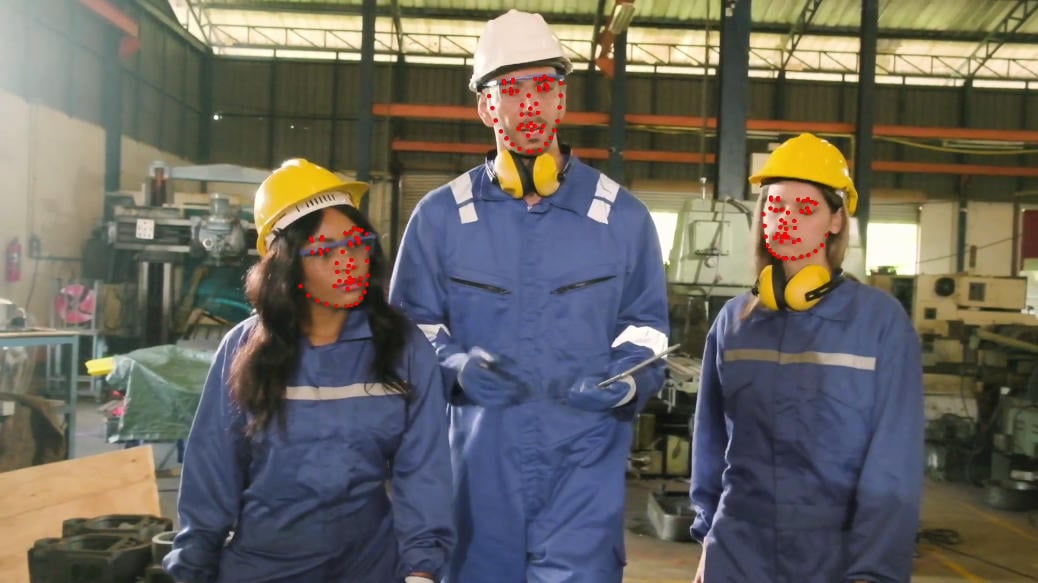
GstVideoClassificationMeta
This metadata contains a list of possible labels or classifications for the entire image. All associated labels are rendered in the top-left corner of the frame, making the classification results easy to view at a glance.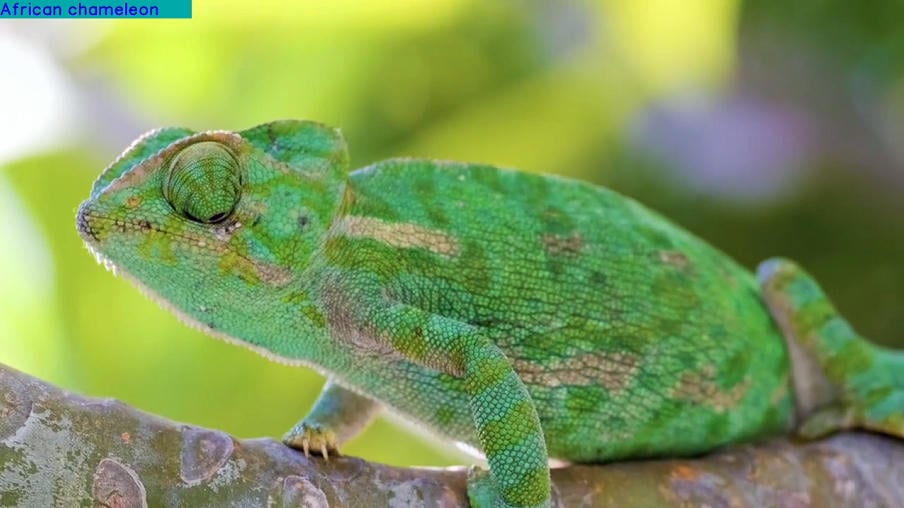
GstCvOptclFlowMeta
This metadata represents optical flow motion vectors, which describe the movement between pixels across two sequential video frames. The vectors indicate motion direction and magnitude, making it useful for visualizing frame-to-frame movement in the video stream.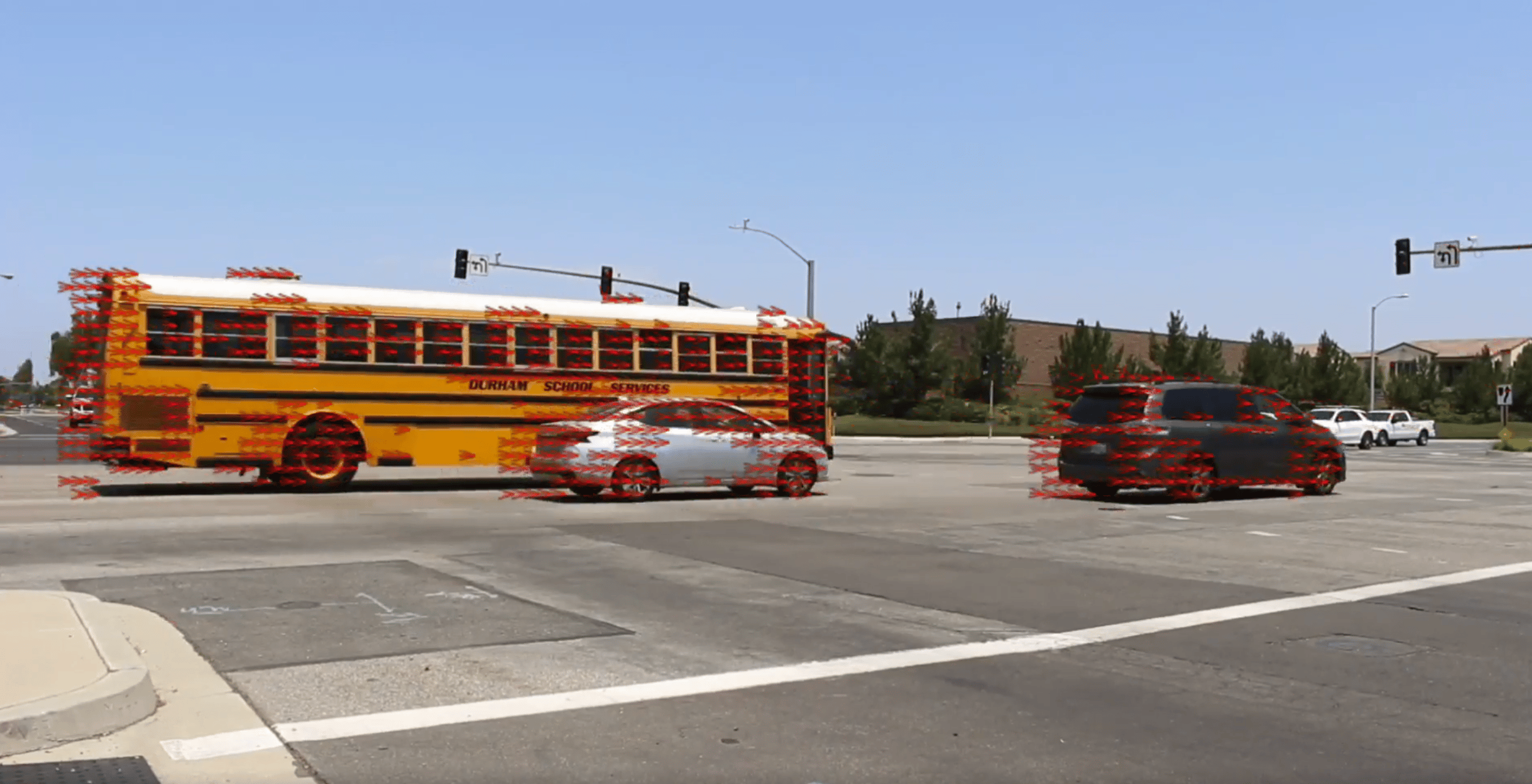
User-Defined Overlay Objects via Properties
In addition to buffer metadata, the plugin supports user-defined overlay objects that can be configured through properties. These overlays can be added, updated, or removed during runtime. Once configured, each overlay remains visible on every incoming video frame until the user explicitly removes it.Supported Property Types
Static Images
Static images such as logos, icons, or watermarks can be added using the images property. All images provided through this property must be in raw RGBA format. The property payload follows the GStreamer structure layout and requires the following mandatory parameters when first set: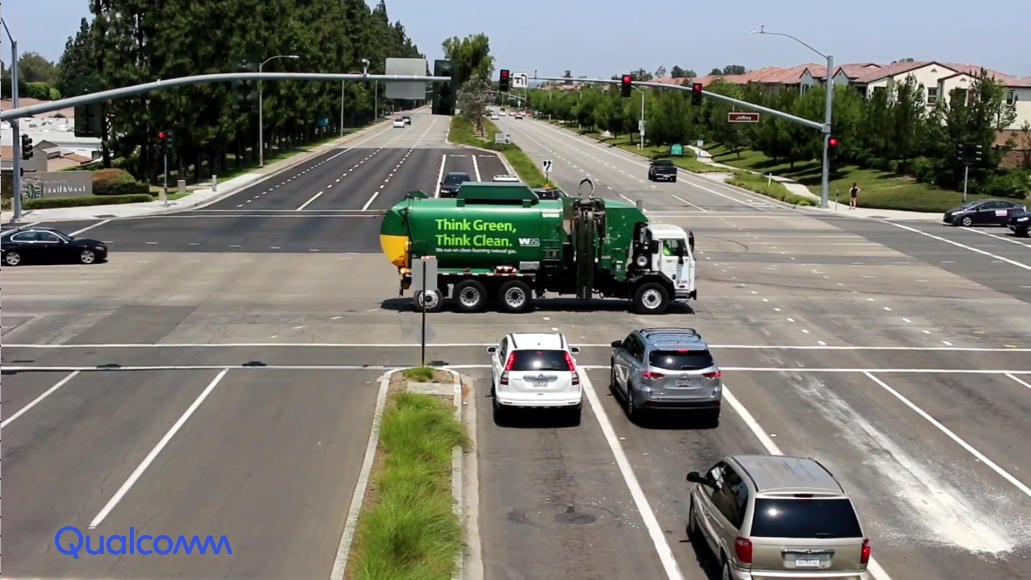
Custom Text
Text overlays such as captions, titles, annotations, or labels can be set using the strings property. The property payload follows the GStreamer structure layout and requires the following parameters when first set: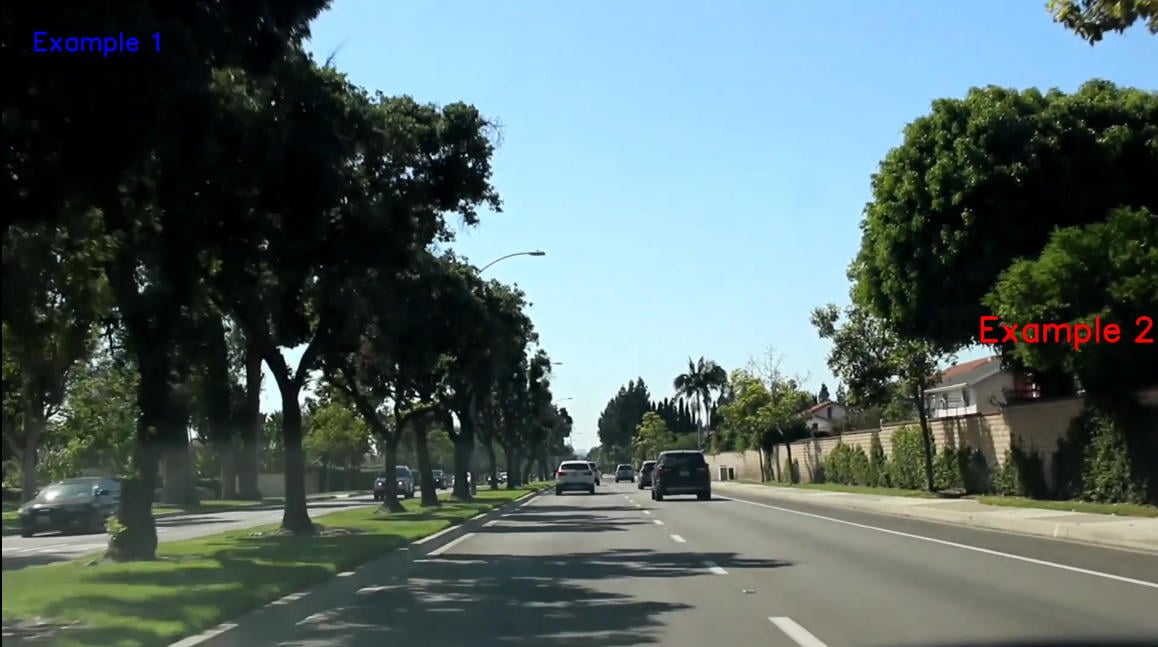
Timestamps
Timestamps such as the current date/time or buffer timestamps can be displayed using the timestamps property. The property payload follows the GStreamer structure layout and requires the following parameters when first set: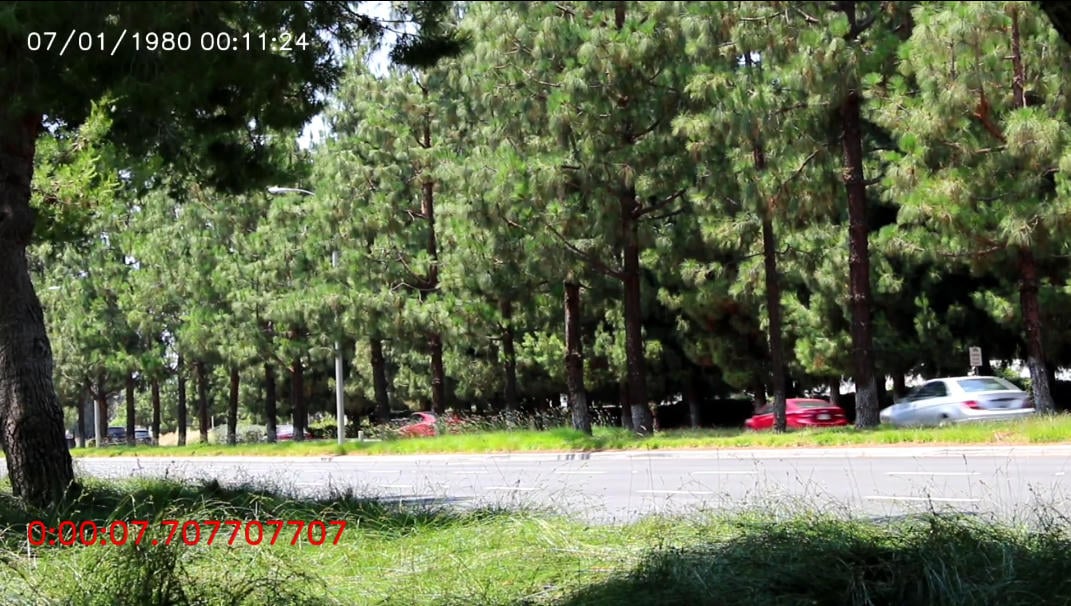
Privacy Masks
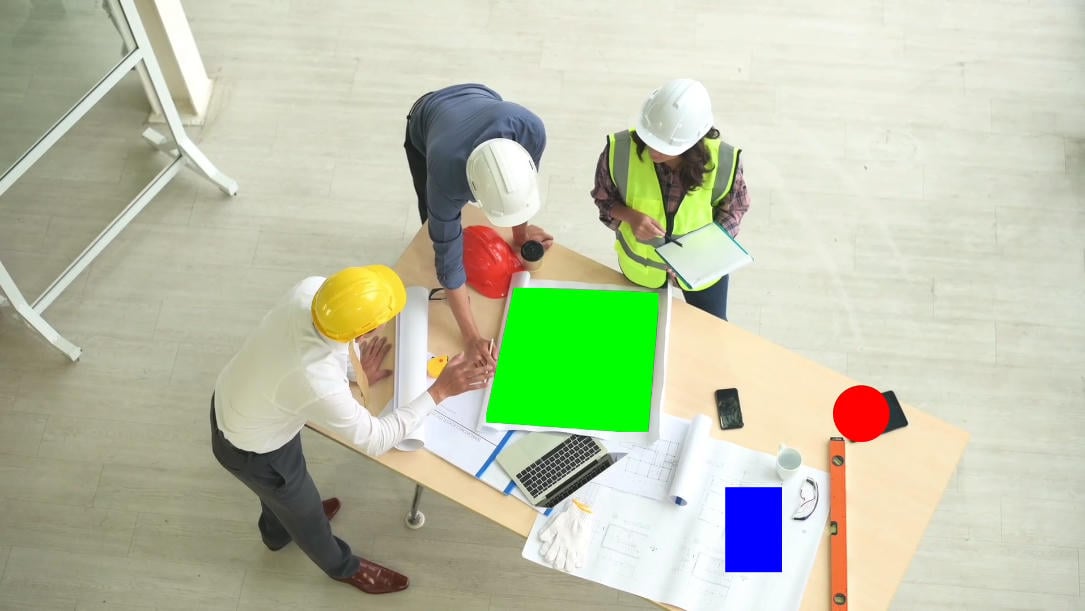
Privacy masks can be used to obscure specific portions of the image using the masks property. The property payload follows the GStreamer structure layout and requires a unique name along with acolor value and one of the supported shape definitions:
Additional parameter:
Bounding Boxes
Rectangles used to highlight a region or object within the frame can be configured using the bboxes property. The property payload follows the GStreamer structure layout and requires the following parameters when first set: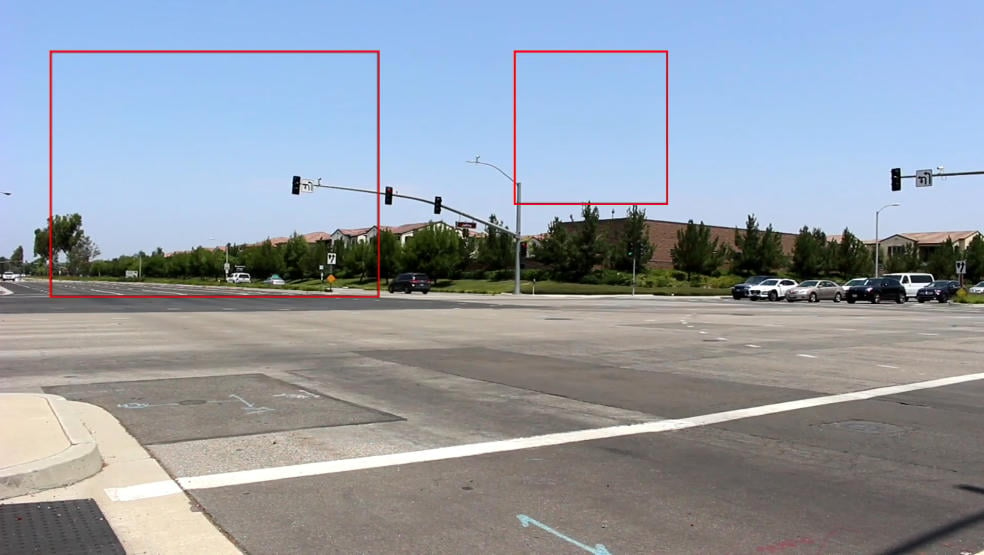
Usage
User-Defined Overlays with Live Camera Preview
Sample pipeline displaying user-defined text positioned at the top-left corner of the video frames (live preview from camera), along with a circular privacy mask applied to conceal a selected region of the image.
Single-Stage AI Inference with Overlay
Sample pipeline containing a single stage AI inference that performs object detection on the video frame. The AI stage generates ROI metadata in string format and attaches it to the main frame. This metadata is then rendered as an overlay using the qtivoverlay plugin and displayed on the output video.
1
Download Required Files
If any downloaded file is a
.zip archive, extract it on your host machine before copying:
unzip filename.zip2
Copy files to device
3
Connect to device
4
Set environment variables
Run below command on your device
5
Run the pipeline
Applying a Static Image as Overlay
This pipeline demonstrates how to blit a static image (e.g., a company logo or watermark) onto a live video stream using theimages property of qtivoverlay. The image is loaded once at pipeline start and composited onto every frame at the specified position and size.
The image file must be in raw BGRA format. Save your image as
logo.bgra before running this pipeline.1
Prepare Required Files
2
Copy files to device
3
Connect to device
4
Set environment variables
Run below command on your device
5
Run the pipeline
Applying Timestamp — DD/MM/YY and Time as Text Overlay
This pipeline demonstrates how to render the current date in DD/MM/YYYY format and the current time as a live text overlay on each video frame using thetimestamps property of qtivoverlay. The timestamp is updated automatically on every buffer.
Applying Circular and Rhombus Privacy Masks
This pipeline demonstrates how to apply multiple privacy masks of different shapes — a circle and a rhombus (polygon) — to obscure sensitive regions of the video frame using themasks property of qtivoverlay. Both masks are rendered simultaneously on every frame.