

Overview
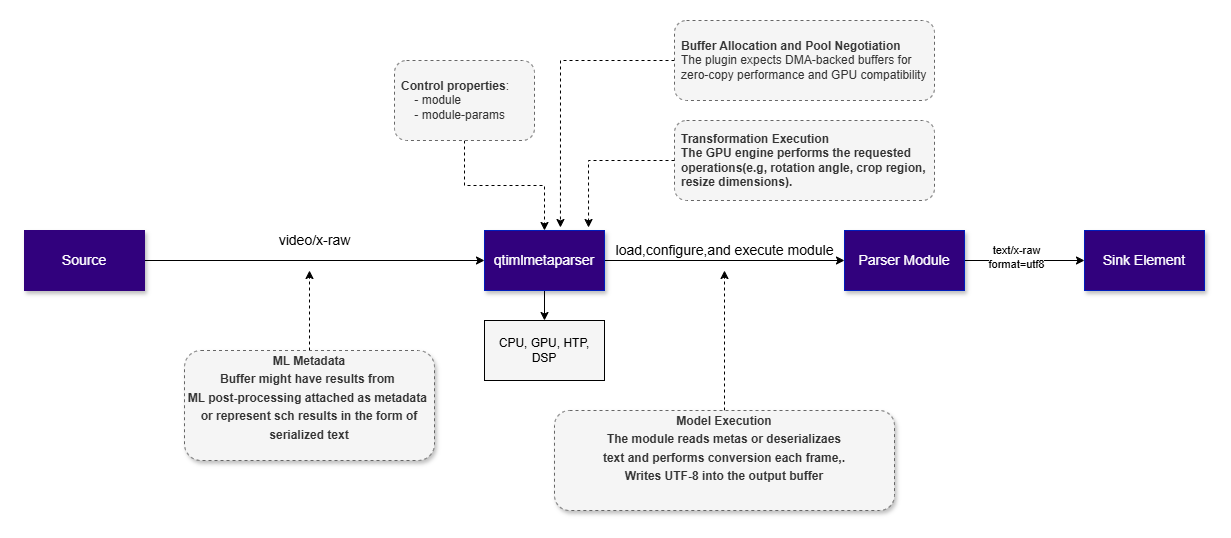
qtimlmetaparser is a GStreamer element that converts machine learning metadata into a human-readable and portable text representation. Its primary purpose is to transform inference results attached to GStreamer buffers into UTF-8 encoded text, making the metadata easier to inspect, log, store, or forward to external systems.
Regardless of the input format, qtimlmetaparser focuses on extracting and converting the associated internal ML metadata into a standardized textual representation.
Runtime Parser Architecture
qtimlmetaparser does not implement metadata translation logic internally. Instead, it serves as a lightweight wrapper that dynamically loads a runtime parser module and delegates the actual metadata conversion to that module. This design keeps the element extensible and allows different output formats to be supported without modifying the core element implementation.
One currently supported runtime module is the JSON parser module (ml-meta-parser-json). This module traverses the supported ML metadata structures and serializes them into a JSON document. The generated JSON output can then be used by downstream applications or external components for:
- logging and debugging
- result archival
- analytics pipelines
- inter-process communication
- integration with non-GStreamer software stacks
qtimlmetaparser provides a flexible mechanism for converting ML metadata into portable text formats suitable for both developer inspection and system-level integration.
Example Pipeline
1
Download Required Files
2
Copy files to device
3
Connect to device
4
Set environment variables
Run below command on your device
5
Run the pipeline
Hierarchy
GObjectGstObject
GstElement
GstBaseTransform
qtimlmetaparser
Pad Templates
sink
src
Element Properties
Internal Architecture
qtimlmetaparser is organized as a three-layer architecture composed of:
- GStreamer element
- Dynamic module loader
- Parser module
GStreamer Element
At the top level,qtimlmetaparser is exposed as a standard GStreamer element with two pads:
-
Sink pad
Accepts input buffers from upstream elements. Supported buffer types include JPEG images, raw video frames, and UTF-8 text buffers. -
Source pad
Produces a UTF-8 encoded, human-readable textual representation of the machine learning metadata associated with the input buffer.
Dynamic Module Loader
The module loader provides the abstraction layer between the GStreamer element and the parser backend. Its role is to load a parser implementation from a shared object at runtime and expose a small, stable interface to the element. This design provides two key benefits:-
Extensibility
New metadata translation backends can be added without changing the core element implementation. -
Simplified module development
A parser backend only needs to implement the predefined module interface. It does not need to be implemented as a GStreamer element or include any pipeline-specific logic.
Parser Module Implementation
The parser module implementation defines how machine learning metadata is traversed, interpreted, and converted into UTF-8 text. Each module is responsible for translating supported metadata structures into a portable textual representation suitable for downstream consumption. The following section provides additional details about the Module System and the parser module interface..Module System
qtimlmetaparser uses a lightweight runtime module system to delegate metadata serialization to a shared library loaded at runtime. This allows new output formats to be added without modifying the element.
A parser module is responsible for converting supported ML metadata attached to an input buffer into UTF-8 text output.
Typical metadata categories include:
Object Detection— label, confidence, color, and normalized bounding box
Landmarks / Pose — keypoints and optional links
Text — OCR output, captions, or other textual annotations, including VLM results
Classification — labels and scores from image or audio classification
JSON Module
The currently supported parser module is the JSON module. It is selected through the element’s module property:Example JSON Output
The following example shows object detection metadata serialized as an object_detection array, along with an attached Base64-encoded JPEG buffer. The buffer contents are truncated for readability.Module Parameters
Boolean
When enabled will map the input buffer and perform Base64 encoding of the data so it can be embedded alongside the metadata. Only valid for JPEG inputs
Flags: readable, writable
Default value:
Flags: readable, writable
Default value:
falseProcessing Flow
Caps NegotiationDuring pipeline setup, qtimlmetaparser negotiates supported sink and source caps with neighboring elements. The sink pad accepts multiple input types, including raw video, JPEG, and UTF-8 text, while the source pad always produces UTF-8 text. Property Parsing and Configuration
After caps negotiation, the element selects the parser module specified by the module property, loads it dynamically, and creates a module instance for the stream. The element determines the input type from the sink caps, extracts width and height when applicable, and combines this information with the user-provided module-params. The resulting configuration is passed to the module before buffer processing begins. Allocation and Buffer Preparation
For raw video input, the element requests video meta support during allocation negotiation to preserve metadata across the pipeline. For each input buffer, the element allocates a corresponding output buffer for the generated text. Input timestamps are preserved. If the input buffer is marked as GAP, the element propagates the GAP condition downstream. Module Execution
For each buffer, the element invokes the selected module to translate the attached ML metadata into UTF-8 text. When the json module is used, it serializes supported metadata into a JSON document. Depending on configuration, it may also embed Base64-encoded JPEG frame data and additional parameters such as timestamps. The serialized UTF-8 output is then written to the output buffer. Output
The element pushes the output buffer downstream on the source pad as text/x-raw.
Usage
This example demonstrates a basic live-camera inference pipeline using a YOLO detection model. Video frames from the ISP camera are processed by the inference branch, and the resulting AI metadata is attached to the corresponding video buffers using the qtimetamux element. The attached metadata is then parsed by qtimlmetaparser, serialized into JSON format, and written to a file for storage or further processing.Main Buffer, Metadata Synchronization and Latency control
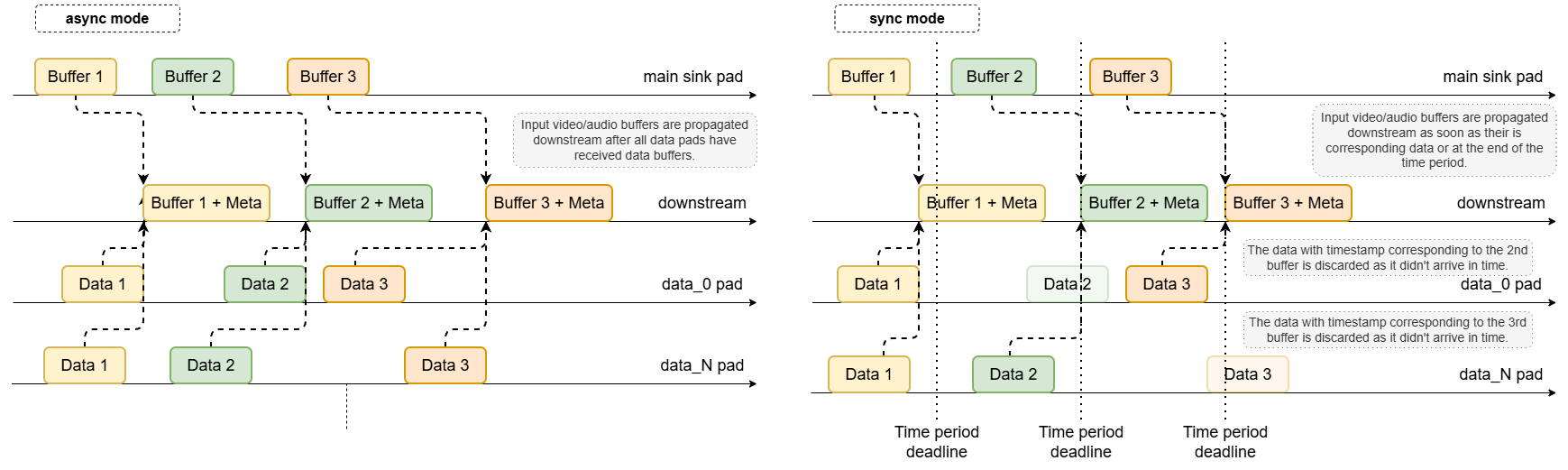
The plugin is designed with a single main sink pad that receives the primary video or audio buffers, and multiple auxiliary data pads that collect ML post-processing results or CV motion vectors. Data arriving on auxiliary pads may be provided in string or blob form and is parsed into structured representations. Once parsed, the plugin matches each data buffer to its corresponding main media frame and attaches the result as GstMeta.Async Mode
This is the default synchronization mode. No timestamp-based matching is performed. Instead, metadata buffers are associated with main frames in strict 1:1 order:- The N-th incoming video/audio frame is held until the N-th data buffer has been received on all data pads.
- Once all required data for that frame is available, the metadata is attached.
- The enriched buffer is then pushed downstream.
Sync Mode
In sync mode, the plugin performs timestamp-based synchronization. Each incoming main frame is held for a limited time window of up to1 / framerate seconds (video) or 1 / rate seconds
(audio). For example, at 30 fps, the frame may be held for approximately 33.3 ms.
During this hold period, the plugin waits for data buffers on its auxiliary pads whose timestamps
match the timestamp of the main frame:
- If all expected data buffers arrive within the time window, they are attached before forwarding.
- If one or more auxiliary pads do not provide matching buffers in time, only the successfully matched metadata is attached and the main buffer is released downstream.
Latency Control
In some use cases, the default hold period in sync mode may be too short — especially when metadata generation takes longer than expected. Thelatency property extends the waiting period by
accepting an integer value in nanoseconds, allowing the plugin to wait longer for late-arriving
data buffers before forwarding the main frame.
1
Download Required Files
2
Copy files to device
3
Connect to device
4
Set environment variables
Run below command on your device
5
Run the pipeline