

Overview

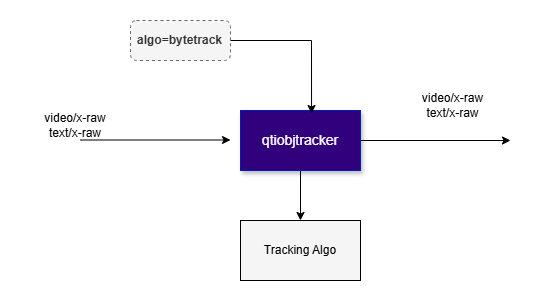
qtiobjtracker is a GStreamer plugin that provides real-time multi-object tracking by associating detected objects across consecutive video frames and assigning a persistent tracking ID to each object. The plugin operates on object detection metadata produced by upstream inference or post-processing elements. For each detected object, it analyzes temporal continuity across frames and updates the metadata with tracking information, allowing the same object to be identified consistently over time.

Key Responsibilities

The primary purpose of qtiobjtracker is to:
  • maintain stable object identities across frames using persistent track IDs
  • track object motion over time based on detection results
  • improve the temporal consistency of object-level analytics
  • enable downstream components to perform higher-level video analytics, event processing, and behavior analysis.
qtiobjtracker does not perform object detection itself. It depends on upstream pipeline elements to generate object detections and associated metadata. The tracker consumes that metadata, performs frame-to-frame association, and augments the object metadata with tracking IDs for downstream use.
Example Pipeline

1

Download Required Files

FileDownloadSave as
YOLOX W8A8 modelQualcomm AI Hub — YOLOXyolo_x_w8a8.tflite
Detection labelsyolov8.jsonyolov8.json
Sample videoInput videoai_demo_sample.mp4
If any downloaded file is a .zip archive, extract it on your host machine before copying: unzip filename.zip
2

Copy files to device

# Replace $HOME to the appropriate device path before running the commands.
# For QLI:    /root
# For Ubuntu: /home/ubuntu
# Modify this based on your platform and ensure files are copied to the correct location on the device.
# Run from your host machine — replace <user> and <device-ip>

ssh <user>@<device-ip> "mkdir -p $HOME/{models,labels,media,media/output}"
scp yolo_x_w8a8.tflite           <user>@<device-ip>:$HOME/models/
scp yolov8.json                  <user>@<device-ip>:$HOME/labels/
scp ai_demo_sample.mp4    <user>@<device-ip>:$HOME/media/
3

Connect to device

# Run from your host machine — replace <user> and <device-ip>
ssh <user>@<device-ip>
4

Set environment variables

Run below command on your device
export MODEL_NAME=yolo_x_w8a8.tflite
export LABELS_NAME=yolov8.json
export SRC_VIDEO_NAME=ai_demo_sample.mp4
5

Run the pipeline

gst-launch-1.0 -e --gst-debug=2 \
filesrc location=$HOME/media/$SRC_VIDEO_NAME ! qtdemux ! h264parse ! \
v4l2h264dec capture-io-mode=4 output-io-mode=4 ! video/x-raw,format=NV12 ! queue ! \
tee name=t ! qtimetamux name=obj_mux ! qtivoverlay ! waylandsink fullscreen=true sync=false \
t. ! queue ! qtimlvconverter ! queue ! \
qtimltflite model=$HOME/models/$MODEL_NAME delegate=external external-delegate-path=libQnnTFLiteDelegate.so \
  external-delegate-options="QNNExternalDelegate,backend_type=htp,log_level=(string)1;" ! queue ! \
qtimlpostprocess module=yolov8 labels=$HOME/labels/$LABELS_NAME \
  settings="{\"confidence\": 51.0}" ! text/x-raw ! queue ! obj_mux.

Hierarchy

GObject
   GstObject
      GstElement
         qtiobjtracker

Pad Templates

sink

Capabilities
video/x-rawformat: ANY
text/x-rawformat: utf8
Availability: Always
Direction: sink

src

Capabilities
video/x-rawformat: ANY
text/x-rawformat: utf8
Availability: Always
Direction: source

Element Properties

PropertyDescription
algoAlgorithm name used for the object tracker.

Type: Enum
Default: 0, "bytetrack"
Flags: readable/writable (changeable in NULL, READY, PAUSED, PLAYING)
Example: algo="bytetrack" (or) algo=0
parametersParameters used by the chosen object tracker algorithm in GstStructure string format. Applicable only for some algorithms.

Type: String
Default: NULL
Flags: readable/writable

Internal Architecture Details

Pluggable Tracking Backend Architecture

qtiobjtracker is designed with a modular tracking architecture that separates the GStreamer plugin framework from the underlying tracking algorithm implementation. The plugin exposes a common tracking interface while allowing different tracking algorithms to be implemented, selected, and maintained independently of the core element. Each tracking algorithm is packaged as a separate shared library, referred to as a tracking backend. The qtiobjtracker element is responsible for:
  • managing the GStreamer element lifecycle
  • integrating with the pipeline
  • receiving and forwarding detection metadata
  • loading and interfacing with the selected tracking backend
The tracking logic itself is implemented entirely within the backend library. Runtime Algorithm Selection The tracking algorithm is selected at runtime through the algo property. Based on the configured value, qtiobjtracker dynamically loads the corresponding backend library and initializes the selected implementation. This design provides several benefits:
  • runtime flexibility — tracking behavior can be selected per pipeline or use case
  • separation of concerns — algorithm implementation remains independent of the plugin core
  • maintainability — tracking backends can be developed and updated independently
  • extensibility — new tracking algorithms can be added without changing the public plugin interface
Only the backend associated with the selected algorithm is loaded and executed. Backend Responsibilities Each tracking backend implements a common interface and is responsible for:
  • associating detections across consecutive frames
  • creating, updating, and terminating tracks
  • applying motion prediction and/or spatial matching
  • maintaining internal tracking state
Backends operate exclusively on detection metadata, such as bounding boxes, class labels, and confidence scores. They do not perform object detection. The backend-based architecture allows qtiobjtracker to support multiple tracking strategies within a consistent plugin interface. This makes it easier to tune tracking behavior for different workloads, evaluate alternative algorithms, and optimize implementations for specific hardware or application requirements.

Input and Output Formats

qtiobjtracker operates entirely on object detection metadata and associated coordinates. It does not inspect, analyze, or modify pixel data from video frames. Tracking decisions are based only on the detection metadata received from upstream elements. For this reason, qtiobjtracker must be placed downstream of one or more elements that generate object detections and attach the corresponding metadata.

Supported Detection Metadata Formats

qtiobjtracker supports two input formats for detected objects. Both are commonly used in GStreamer-based AI pipelines. 1. Structured Text Metadata (text/x-raw) In this mode, detection results are transmitted separately from video buffers as structured text data.
  • buffer caps: text/x-raw
  • detection results are stored in the buffer payload
  • the payload contains a structured description of detected objects
  • the text representation can be converted to and from a GstStructure
  • bounding box coordinates are normalized in the range [0.0, 1.0]
  • coordinates are resolution-independent
This format allows the same detection data to be reused across streams of different resolutions, including resized or scaled video branches. 2. ROI Metadata on Video Buffers (GstROIMeta) In this mode, detection results are attached directly to video buffers as ROI metadata.
  • detection results are carried as GstROIMeta metadata attached to the original video buffer
  • each ROI entry represents one detected object
  • bounding box coordinates are expressed in the coordinate space of the video frame (absolute, resolution-dependent)

Tracking Behavior and Format Handling

qtiobjtracker is independent of the underlying video content and relies only on detection metadata for tracking. It supports both structured text metadata and ROI metadata without requiring conversion between the two formats. The plugin preserves the input metadata representation throughout processing. The output format always matches the input format:
  • if the input is text/x-raw, the output remains text/x-raw
  • if the input uses GstROI metadata, the output remains ROI metadata attached to the same video buffer
qtiobjtracker does not convert between text-based metadata and ROI-based metadata.

Output Tracking Information

qtiobjtracker preserves all input detection metadata and adds a single tracking attribute to each detected object:
  • Unique Track ID — a persistent identifier used to associate the same object across consecutive frames.
All existing detection attributes, including bounding boxes, class labels, confidence scores, and coordinate representation, are passed through unchanged. The plugin does not modify or extend any other object properties. The output metadata format always matches the input format. If detections are received as text/x-raw, the tracked results are emitted in the same format. If detections are provided as ROI metadata on video buffers, the updated tracking information is attached to the same metadata representation.

Usage

Attach Tracking ID to Each Detected Object

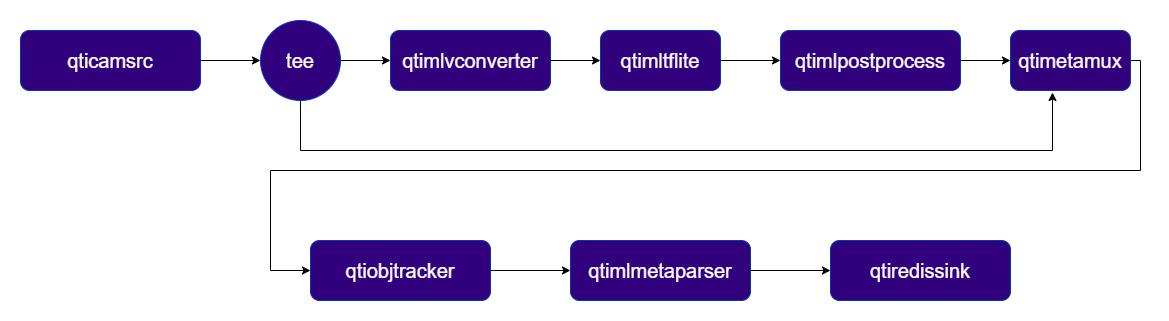
This example demonstrates real-time tracking of objects detected by an AI inference pipeline running on a live camera stream. The inference results are attached to each GstBuffer as MLMeta, after which qtiobjtracker tracks the detected objects across frames and adds persistent tracking IDs to the metadata. The resulting AI metadata, including the tracking information, is then serialized into JSON using qtimlmetaparser and published to a Redis server through the qtiredissink plugin.
1

Download Required Files

FileDownloadSave as
YOLOX W8A8 modelQualcomm AI Hub — YOLOXyolox_w8a8.tflite
Detection labelsyolov8.jsonyolov8.json
If any downloaded file is a .zip archive, extract it on your host machine before copying: unzip filename.zip
2

Copy files to device

# Run from your host machine — replace <user> and <device-ip>
ssh <user>@<device-ip> "mkdir -p $HOME/{models,labels}"
scp yolox_w8a8.tflite   <user>@<device-ip>:$HOME/models/
scp yolov8.json         <user>@<device-ip>:$HOME/labels/
3

Connect to device

# Run from your host machine — replace <user> and <device-ip>
ssh <user>@<device-ip>
4

Set environment variables

Run below command on your device
export MODEL_NAME=yolox_w8a8.tflite
export LABELS_NAME=yolov8.json
5

Run the pipeline

Run the pipeline
gst-launch-1.0 --gst-debug=2 \
qtimlvconverter name=stage_01_preproc \
qtimltflite model=$HOME/models/$MODEL_NAME delegate=external external-delegate-path=libQnnTFLiteDelegate.so \
  external-delegate-options="QNNExternalDelegate,backend_type=htp,log_level=(string)1;" name=stage_01_inference \
qtimlpostprocess name=stage_01_postproc results=10 module=yolov8 labels=$HOME/labels/$LABELS_NAME \
qticamsrc ! video/x-raw,format=NV12,width=1920,height=1080,framerate=30/1 ! queue ! tee name=t \
t. ! queue ! metamux. \
t. ! queue ! stage_01_preproc. stage_01_preproc. ! queue ! stage_01_inference. stage_01_inference. ! queue ! stage_01_postproc. stage_01_postproc. ! text/x-raw ! queue ! metamux. \
qtimetamux name=metamux ! queue ! qtiobjtracker algo=bytetrack ! queue ! qtimlmetaparser module=json ! queue ! qtiredissink host=127.0.0.1 port=6379 channel=ml_results

#Listen to the published data with Redis CLI from another shell:
redis-cli SUBSCRIBE ml_results

Attach Tracking ID and Propagate to Next Stage AI Inference

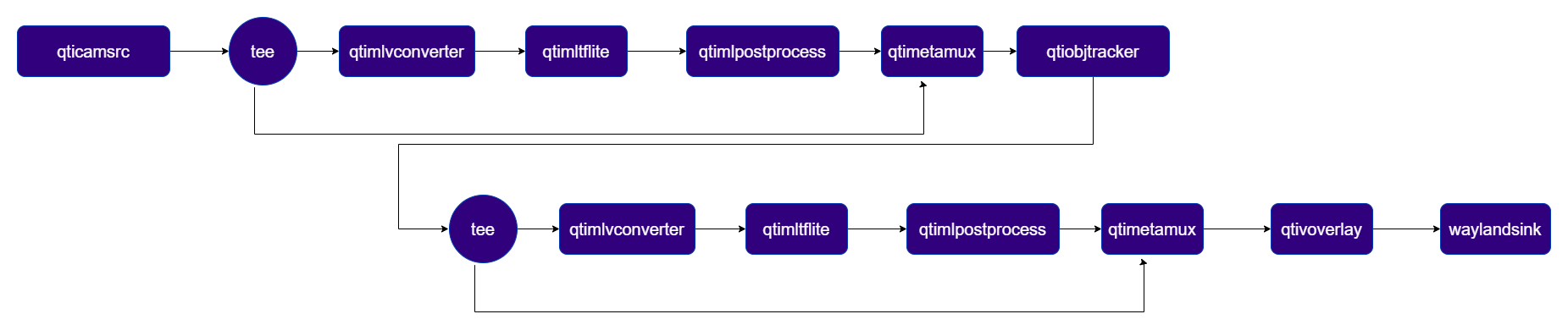
This example demonstrates a real-time, multi-stage AI pipeline running on a live camera stream. The first inference stage performs object detection and attaches the results to each GstBuffer as MLMeta. qtiobjtracker then associates the detected objects across frames and adds persistent tracking IDs to the metadata. The video frames, together with the enriched metadata, are passed to a subsequent pose-estimation stage for further inference. Finally, qtimetamux merges the metadata from all stages, and the overlay stage renders the combined results — including bounding boxes, tracking IDs, and estimated poses — for live display.
1

Download Required Files

FileDownloadSave as
Person/foot detection modelQualcomm AI Hub — Person Foot Detectionfoot_track_net_w8a8.tflite
Person detection labelsfoot_track_net.jsonfoot_track_net.json
Foot track net settingsfoot_track_net_settings.jsonfoot_track_net_settings.json
HRNet pose modelQualcomm AI Hub — HRNet Posehrnet_pose_w8a8.tflite
Pose labelshrnet.jsonhrnet.json
HRNet settingshrnet_settings.jsonhrnet_settings.json
If any downloaded file is a .zip archive, extract it on your host machine before copying: unzip filename.zip
2

Copy files to device

# Replace $HOME to the appropriate device path before running the commands.
# For QLI:    /root
# For Ubuntu: /home/ubuntu
# Modify this based on your platform and ensure files are copied to the correct location on the device.
# Run from your host machine — replace <user> and <device-ip>

ssh <user>@<device-ip> "mkdir -p $HOME/{models,labels}"
scp foot_track_net_w8a8.tflite         <user>@<device-ip>:$HOME/models/
scp foot_track_net.json                <user>@<device-ip>:$HOME/labels/
scp foot_track_net_settings.json       <user>@<device-ip>:$HOME/labels/
scp hrnet_pose_w8a8.tflite             <user>@<device-ip>:$HOME/models/
scp hrnet.json                         <user>@<device-ip>:$HOME/labels/
scp hrnet_settings.json                <user>@<device-ip>:$HOME/labels/
3

Connect to device

# Run from your host machine — replace <user> and <device-ip>
ssh <user>@<device-ip>
4

Set environment variables

Run below command on your device
export MODEL_NAME_1=foot_track_net_w8a8.tflite
export LABELS_NAME_1=foot_track_net.json
export LABELS_NAME_2=foot_track_net_settings.json
export MODEL_NAME_2=hrnet_pose_w8a8.tflite
export LABELS_NAME_3=hrnet.json
export LABELS_NAME_4=hrnet_settings.json
5

Run the pipeline

Run the pipeline
gst-launch-1.0 -e --gst-debug=2 \
qtimlvconverter name=stage_01_preproc mode=image-batch-non-cumulative \
qtimltflite name=stage_01_inference delegate=external external-delegate-path=libQnnTFLiteDelegate.so external-delegate-options="QNNExternalDelegate,backend_type=htp;" model=$HOME/models/$MODEL_NAME_1 \
qtimlpostprocess name=stage_01_postproc results=10 module=qpd labels=$HOME/labels/$LABELS_NAME_1 settings=$HOME/labels/$LABELS_NAME_2 \
qtimlvconverter name=stage_02_preproc image-disposition=centre mode=roi-batch-cumulative \
qtimltflite name=stage_02_inference delegate=external external-delegate-path=libQnnTFLiteDelegate.so external-delegate-options="QNNExternalDelegate,backend_type=htp,htp_performance_mode=(string)2;" model=$HOME/models/$MODEL_NAME_2 \
qtimlpostprocess name=stage_02_postproc results=1 module=hrnet labels=$HOME/labels/$LABELS_NAME_2 settings=$HOME/labels/$LABELS_NAME_4 \
qticamsrc ! video/x-raw,format=NV12,width=1920,height=1080,framerate=30/1 ! queue ! tee name=t_split_1 \
t_split_1. ! queue ! metamux_1. \
t_split_1. ! queue ! stage_01_preproc. stage_01_preproc. ! queue ! stage_01_inference. stage_01_inference. ! queue ! stage_01_postproc. stage_01_postproc. ! text/x-raw ! queue ! metamux_1. \
qtimetamux name=metamux_1 ! queue ! qtiobjtracker algo=bytetrack ! queue ! tee name=t_split_2 \
t_split_2. ! queue ! metamux_2. \
t_split_2. ! queue ! stage_02_preproc. stage_02_preproc. ! queue ! stage_02_inference. stage_02_inference. ! queue ! stage_02_postproc. stage_02_postproc. ! text/x-raw ! queue ! metamux_2. \
qtimetamux name=metamux_2 ! queue ! qtivoverlay ! queue ! waylandsink fullscreen=true sync=false async=false