

What is the QIM SDK Python App Builder?
Overview
The QIM SDK Python App Builder is a modern Python SDK for building, running, and managing multimedia and AI pipelines on Qualcomm platforms. It sits as a high-level abstraction layer on top of GStreamer, taking care of framework-level concerns such as element negotiation, pad linking, signal management, event loops, and state transitions, so developers can stay focused on application logic instead of framework boilerplate.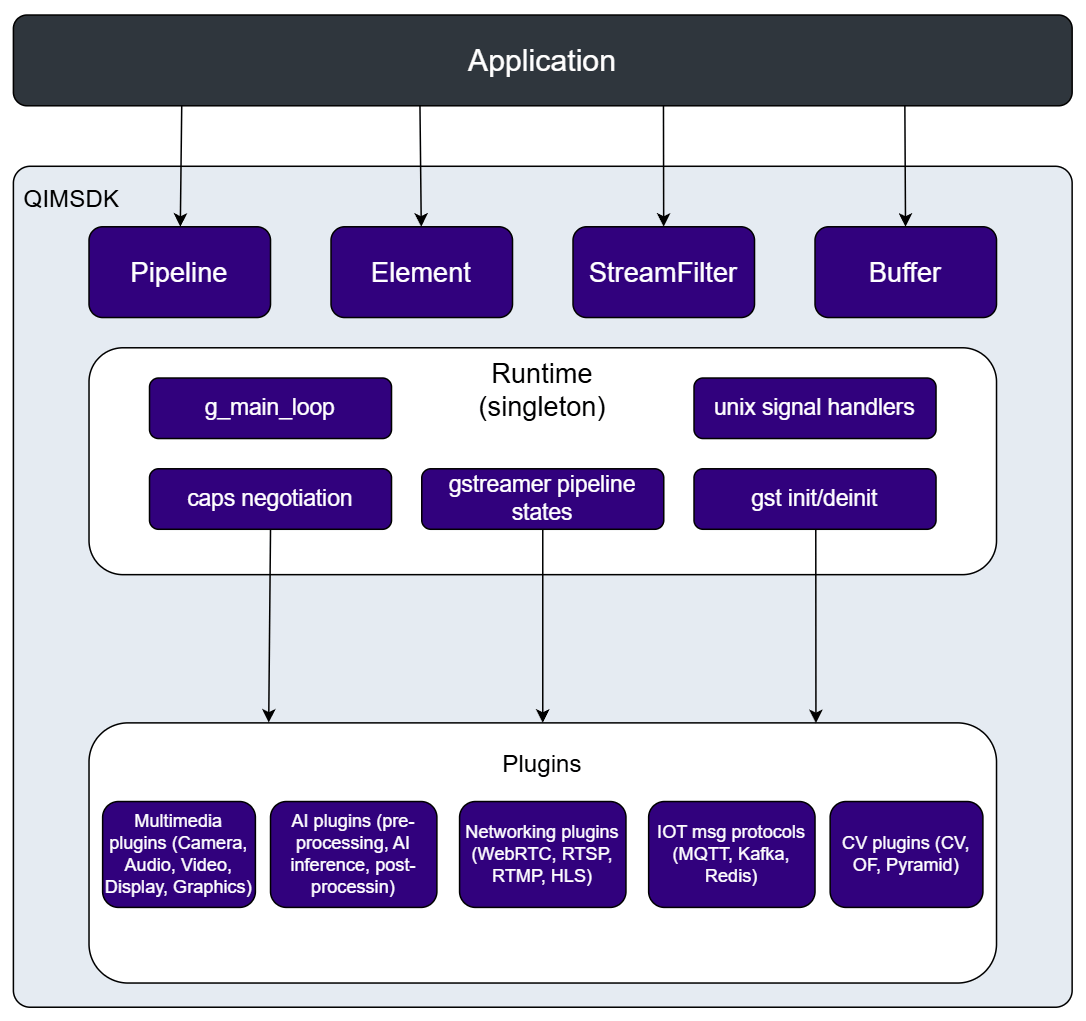
Key Capabilities
- No GStreamer expertise required — the SDK manages all underlying GStreamer mechanics internally, with no compile-time dependency on GStreamer headers.
- Less code, no GStreamer boilerplate — a fluent, high-level API bundles away the pipeline construction, element linking, and state management that GStreamer’s native API would otherwise require, so a functional camera-to-display pipeline can be written in just a few lines of Python.
- Custom pre/post-processing — plug in your own pre- and post-processing logic around the built-in ML bins without writing a custom GStreamer element.
- AI inference support — built-in ML bins for TFLite, QNN, SNPE, and ONNX models.
- Broad multimedia support — video capture, signal processing, ML inference, overlay rendering, and display output.
API Reference
| API | Description | API Code Reference |
|---|---|---|
| Pipeline | Builds, links, and manages the full lifecycle of a GStreamer pipeline. Supports both programmatic (Python fluent API) and declarative (YAML) pipeline definition. Key methods: add(), link(), add_stream_filter(), execute(), prepare(), start(), stop(), get(). | |
| Element | Generic wrapper around a GStreamer element. Supports fluent property setting at create time or at runtime to update a live pipeline. | |
| Buffer | Unified buffer abstraction over native GStreamer memory. Provides read/write access, timestamp metadata, and zero-copy transfer paths. Key methods: data(), size(), resize(), pts(), dts(), duration(). | |
| AppSrc | App-facing source. Feeds buffers from application code into the pipeline using lambda callbacks or a push API. | |
| AppSink | App-facing sink. Delivers pipeline output buffers to application code with zero-copy. | |
| CamSrc | Built-in ISP camera source. Exposes an API for runtime image capture and snapshots. | |
| MLPreProcess | Attaches a custom Python callback for pre-processing input frames before ML inference. | |
| MLPostProcess | Attaches a custom Python callback for post-processing raw inference tensor output. | |
| MLVideoTFLiteBin / MLVideoQNNBin / MLVideoSNPEBin / MLVideoONNXBin | All-in-one preprocess + inference + postprocess bins. Supports TFLite, QNN, SNPE, and ONNX models. | |
| VideoFilter / AudioFilter / ImageFilter / H264Filter / TensorFilter / TextFilter | Fluent caps builders for add_stream_filter(). Describes stream characteristics for caps negotiation between pipeline stages. |
Build your application
Ensure you have QIM SDK installed. See QIM SDK Installation Guide
USB Camera Source
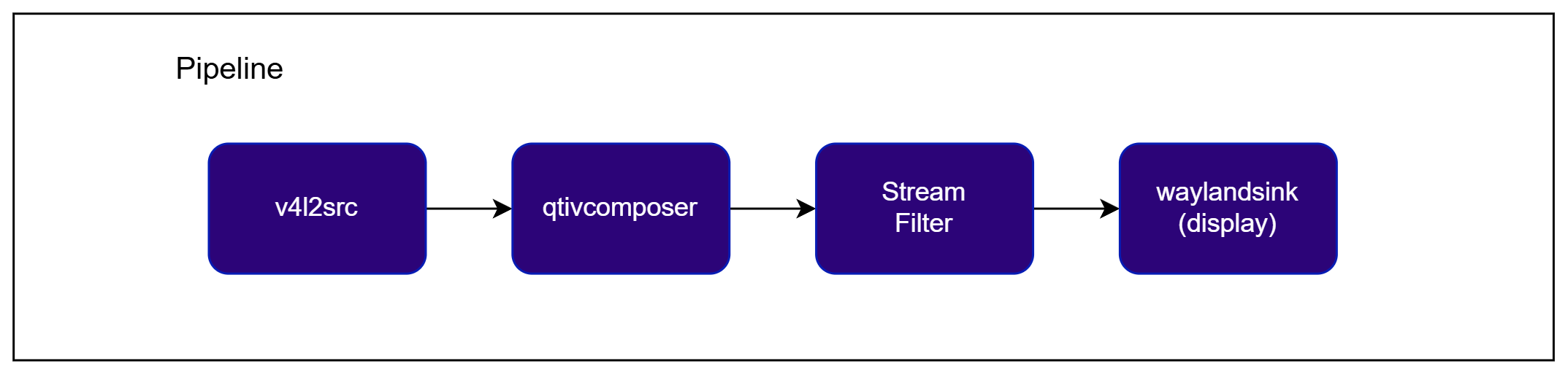
USB (UVC) cameras are handled by thev4l2src node. Each USB camera comes with its own format and frame constraints. Because of this, we always place qtivtransform right after the USB camera to ensure that the rest of the pipeline receives a hardware-friendly NV12 (Semi-planar YUV420) video format. qtivtransform automatically operates in passthrough mode if the USB camera already supports NV12, so you don’t need to worry about any performance overhead.
- Explicit coding style
- Implicit coding style
- YAML config style
Check application source code on GitHub:
qimsdk_ref_usb_cameraPre-built application on device: /usr/bin/qimsdk_ref_usb_camera.py1
Connect a USB camera
Connect a USB (UVC) camera to the target device and verify it is exposed as
/dev/video2 (update the pipeline’s device property if your camera is exposed on a different node).2
Run the application
3
Expected Output
The live camera feed is rotated and rendered fullscreen on the display in NV12 format at 1080p/30fps.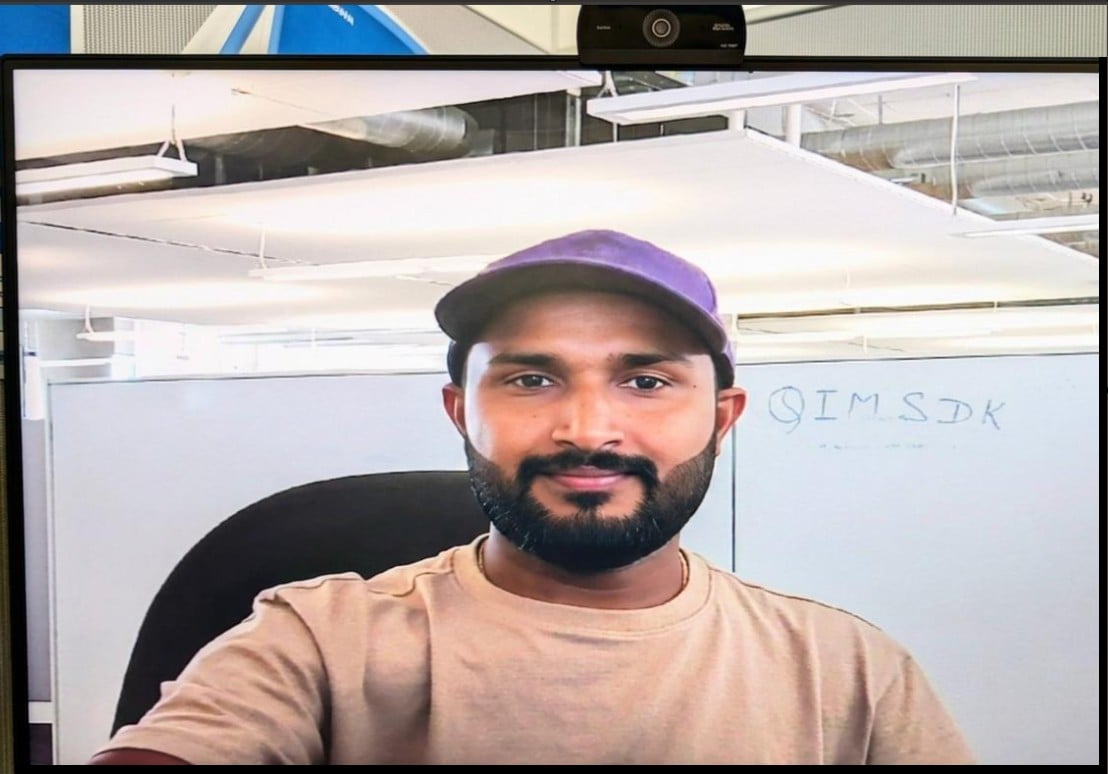
4
Customize application
- Source code:
qimsdk_ref_usb_camera
Object Detection
This pipeline captures from a built-in camera, runs an object detection model through an ML inference bin, renders bounding box overlays on the output frames, and displays the result. The ML bin handles preprocessing, inference, and postprocessing internally. The stream filter pins the input video format expected by the model. The overlay element draws detection results on each frame before display.
- Explicit coding style
Check application source code on GitHub:
qimsdk_ref_camera_yolov8Pre-built application on device: /usr/bin/qimsdk_ref_camera_yolov8.py1
Download Required Files
If the downloaded model file is a
.zip archive, extract it on your host machine before copying: unzip filename.zipSome AI Hub models require running the AI Hub export/optimize step for your target runtime before the downloaded file is usable — download alone isn’t always sufficient.2
Copy the assets to the device
The model and labels must be present on the device before running. Copy them to the paths the application expects:
3
Connect an IMX camera
This application uses the built-in ISP camera. On platforms without an onboard ISP camera (e.g. IQ9), attach an external IMX camera (e.g. from RB3 Gen2) before running the application — see ISP Camera (Config #2 / qticamsrc) for the procedure to switch from
libcamera to qticamsrc.4
Run the application
5
Expected Output
The live camera feed is rendered fullscreen on the display with YOLOv8 bounding boxes and class labels overlaid on each detected object in real time.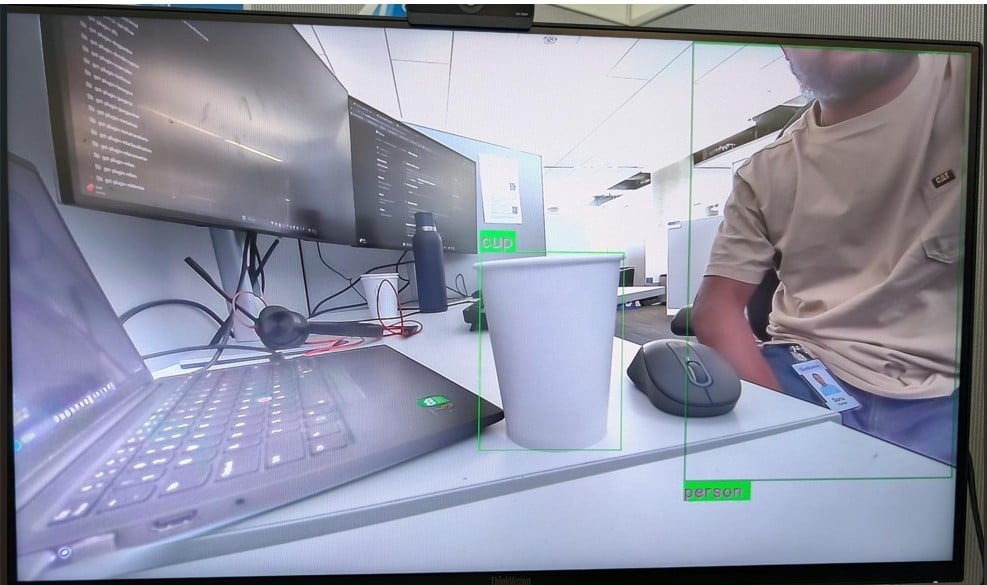
6
Customize application
- Source code:
qimsdk_ref_camera_yolov8
Custom Post-Processing
The QIM SDK implements AI model post-processing through dedicated modules that take tensors as input and produce predictions. All underlying complexity — batching, daisy-chaining, image mask support, and ML metadata handling — is encapsulated within the post-processing plugin. This makesMLPostProcess the ideal integration point for application-specific logic, since the application does not need to handle any of that complexity directly. A specialized post-processing module manages the bindings between the pipeline and the application.
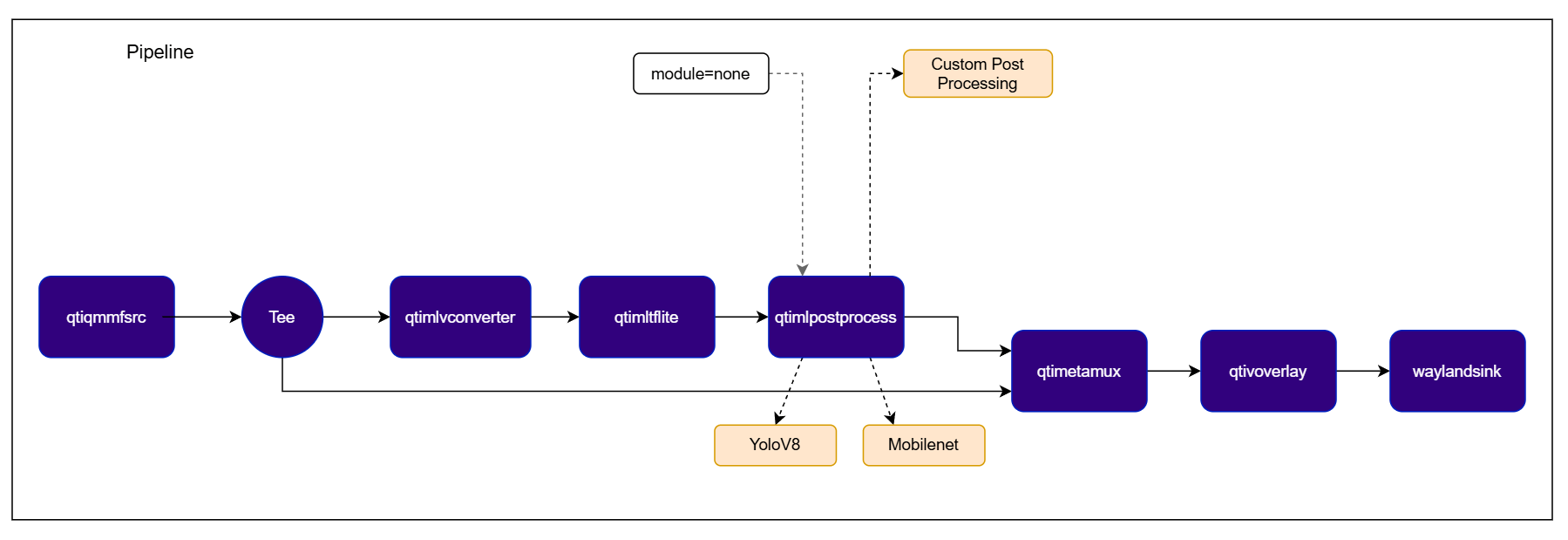
- Explicit coding style
Check application source code on GitHub:
qimsdk_ref_external_postprocess_mlbin_yolov8.pyPre-built application on device: /usr/bin/qimsdk_ref_external_postprocess_mlbin_yolov8.py1
Download Required Files
If the downloaded model file is a
.zip archive, extract it on your host machine before copying: unzip filename.zipSome AI Hub models require running the AI Hub export/optimize step for your target runtime before the downloaded file is usable — download alone isn’t always sufficient.2
Copy the assets to the device
The input video, model, and labels must be present on the device before running. Copy them to the paths the application expects:
3
Run the application
4
Expected Output
The video plays back with YOLOv8 bounding boxes and class labels decoded by the custom postprocessing callback, overlaid and rendered fullscreen on the display.
5
Customize application
- Source code:
qimsdk_ref_external_postprocess_mlbin_yolov8.py
Benefits of QIM SDK Python App Builder
- Significantly reduced source code
- Improved readability
- Internal GStreamer state transition handling
- Hidden End-of-Stream handling
- Automatic error and state event handling
- Automatic resource cleanup
- Simplified AppSink/AppSrc interaction using lambda functions
- SDK-managed buffer mapping and queries
- Simplified buffer access anywhere in the pipeline using wrapped GST probes
- YAML-based pipeline description