

qtimlqnn is only available in
For more information on QLI images refer to Qualcomm Linux release
qcom-multimedia-proprietary-image For more information on QLI images refer to Qualcomm Linux release
Overview
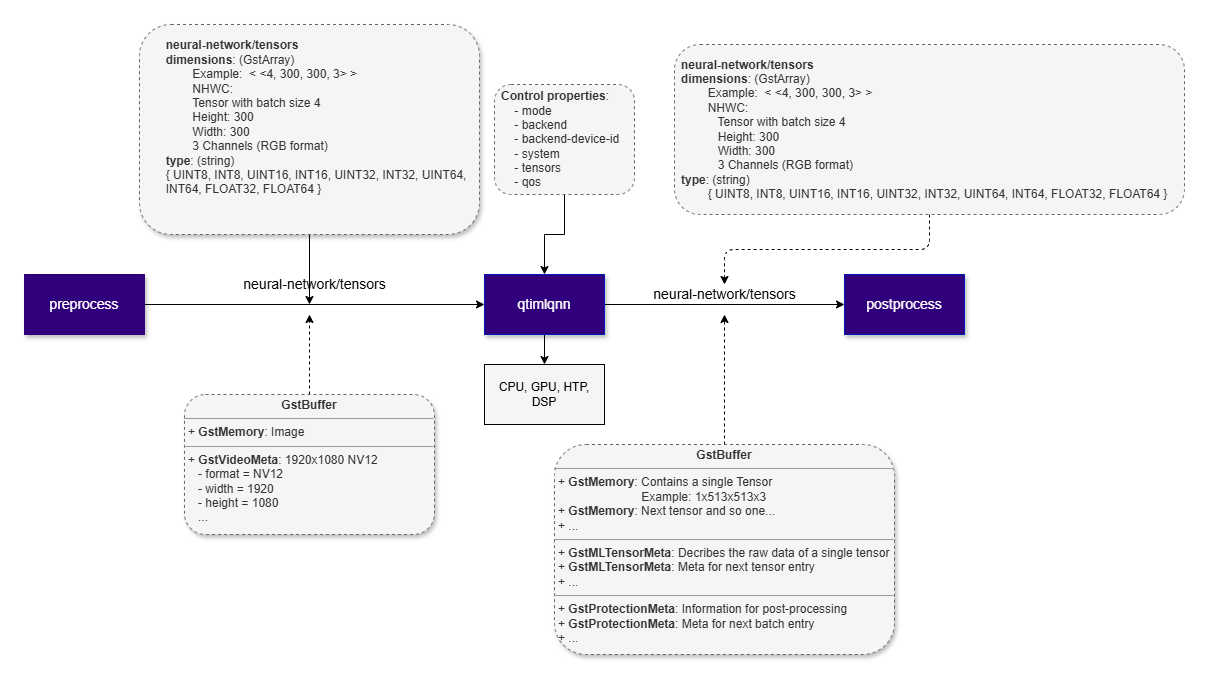
qtimlqnn is a GStreamer inference element that executes neural network models using the Qualcomm AI Engine Direct (QNN) runtime. The element operates entirely in tensor mode: it accepts input tensors on its sink pad and produces output tensors on its source pad according to the model’s declared input and output specifications. qtimlqnn is designed to run models prepared for the QNN runtime, typically in the form of a QNN context binary. To use this element, the model must first be exported to a QNN-compatible format using the Qualcomm AI Runtime (QAIRT) SDK. For additional details, refer to the QAIRT documentation. The element is limited to model execution. It does not perform preprocessing, tensor reshaping, batching, layout conversion, or model-specific post-processing. These functions are expected to be handled by adjacent elements in the pipeline. qtimlqnn supports multiple QNN execution backends, including CPU, GPU, and NPU targets. This allows the same pipeline structure to be deployed across different hardware configurations and tuned for different performance, latency, and power requirements. The element is intended for real-time and embedded AI pipelines, where inference is one stage in a larger modular processing flow.Key Responsibilities
qtimlqnn is responsible for:- Loading and executing a QNN model artifact, such as a model library (
.so) or cached binary (.bin) - Accepting preformatted input tensors from upstream elements
- Producing output tensors that match the model output signature
- Negotiating tensor data types and dimensions with adjacent pipeline elements
- Propagating tensor metadata required by downstream elements
- Managing DMA-backed buffers through
GstMLBufferPoolto reduce unnecessary memory copies
Example Pipeline
1
Download Required Files
2
Copy files to device
3
Connect to device
4
Set environment variables
Run below command on your device
5
Run the pipeline
Hierarchy
GObjectGstObject
GstElement
GstBaseTransform
qtimlqnn
Pad Templates
sink
src
Element Properties
Input and Output Behavior
Input Tensors
qtimlqnn exposes a single sink pad, but it supports both single-input and multi-input models. For multi-input models, all required tensors are delivered through the same sink pad as a tensor set. Input tensors must be fully prepared before they reach qtimlqnn. Expected tensor layout, shape, data type, and batch size are determined by:- The QNN model input signature
- Caps negotiation with upstream elements
qtimlvconverter— for scaling, color conversion, normalization, and quantization (if required)
Output Tensors
qtimlqnn exposes a single source pad and produces output tensors that follow the model’s declared output signature. Models with multiple output tensors are fully supported, and all outputs are emitted together on the source pad. Supported output behavior includes:- Single-tensor and multi-tensor outputs
- Arbitrary tensor shapes and ranks, including batch and depth dimensions
- Both quantized and floating-point tensor types
- Selective emission of output tensors using the
tensorsproperty
Supported Data Types
qtimlqnn supports the tensor data types provided by the QNN runtime and the selected execution backend, subject to caps negotiation with adjacent elements. Supported data types include:INT8UINT8INT16UINT16INT32UINT32FLOAT16FLOAT32
Backends
A QNN backend defines the hardware target used to run a model. Backends allow qtimlqnn to offload inference from the default CPU interpreter to an optimized hardware accelerator. The backend is selected through thebackend property and controls how the QNN runtime dispatches model operations during inference.
NPU — libQnnHtp.so
Runs the model on the AI accelerator (NPU).- Backend: Qualcomm AI Accelerator / NPU
- Use case: Preferred backend where available. Best performance and power efficiency for quantized models.
- Additional configuration: set
backend=libQnnHtp.so; optionally setbackend-device-idfor multi-device platforms
GPU — libQnnGpu.so
Runs supported operations through the QNN GPU backend.- Backend: GPU
- Use case: Floating-point models and workloads that benefit from GPU parallelism.
- Additional configuration: set
backend=/usr/lib/libQnnGpu.so
CPU — libQnnCpu.so
Runs the model on the default QNN CPU backend.- Backend: CPU
- Use case: Reference execution, debugging, bring-up, or systems without hardware acceleration.
- Additional configuration: none required
Runtime Memory Behavior and GAP Handling
QNN Memory Model
qtimlqnn operates within the memory model of the QNN runtime. The element uses DMA buffers viaGstMLBufferPool to minimize memory copies and maintain zero-copy transport where possible.
QNN uses runtime-managed memory to allocate:
- Input tensors
- Intermediate activation tensors
- Output tensors
GAP Buffer Handling
qtimlqnn is GAP-aware and correctly handles input buffers marked withGST_BUFFER_FLAG_GAP.
When a GAP buffer is received, the element skips inference and forwards the buffer downstream. This preserves timing and synchronization while explicitly indicating that no valid inference input is available for that timestamp.
GAP buffers commonly appear in conditional AI pipelines, such as cascaded workflows where later inference stages run only when earlier stages produce valid regions of interest.
Usage
Single-Stage AI Inference on Live Camera Stream (HTP)
This example demonstrates real-time inference on a live camera stream using a single instance of qtimlqnn with the HTP backend. Inference results are attached to eachGstBuffer as MLMeta, allowing downstream elements to access synchronized metadata directly from the frame. An overlay stage then uses this metadata to render annotations such as bounding boxes, labels, or key-points before display or further processing.

1
Download Required Files
2
Copy files to device
3
Connect to device
4
Set environment variables
Run below command on your device
5
Run the pipeline
Run the pipeline
Single-Stage AI Inference on Live Camera Stream (GPU)
This example demonstrates the same single-stage inference workflow using the GPU backend instead of HTP. This is suitable for floating-point models or workloads that benefit from GPU parallelism.1
Download Required Files
2
Copy files to device
3
Connect to device
4
Set environment variables
Run below command on your device
5
Run the pipeline
Run the pipeline