
This section covers Python-based AI sample applications that demonstrate vision and multi-model inference on Qualcomm platforms.

Prerequisites

Some of the steps in the pre-requisties will be removed from future releases once the necessary fixes are mainlined.
1

Set up Wi-Fi

Connect to the Wireless Access Point (Wi-Fi Router):
nmcli dev wifi connect <WiFi-SSID> password <WiFi-password>
Check the connection and device status:
nmcli -p device
Login to the target deviceLocate the IP address of the device according to the type of network connection, using the UART console on the Linux host:For Ethernet:
ip address show eth2
For Wi-Fi:
ip address show wlp1s0
Use the IP address from the Linux host to establish an SSH connection to the device:
ssh root@<ip-address>
Example:
ssh root@192.168.0.222
Connect to the SSH shell using the following password:
oelinux123
2

Download Models and Artifacts

On the target device, obtain the download_artifacts.sh script, set executable permissions, and run it to download the model, media, and label files:
cd /tmp/
curl -L -O https://raw.githubusercontent.com/qualcomm/sample-apps-for-qualcomm-linux/refs/heads/main/qualcomm-linux/scripts/download_artifacts.sh
chmod +x download_artifacts.sh
./download_artifacts.sh
3

Enable qticamsrc

In the terminal of the target device, run the following command to enable the qticamsrc on Config #2:
echo -n "camx" > /var/data
efivar -n 882f8c2b-9646-435f-8de5-f208ff80c1bd-VendorDtbOverlays -w -f /var/data
efivar -n 882f8c2b-9646-435f-8de5-f208ff80c1bd-VendorDtbOverlays -p
sync
reboot
4

Enable Audio and GPU Delegate

In the terminal of the target device, run the following command to enable audio:
systemctl stop pipewire wireplumber pipewire.socket pipewire-manager.socket
chmod 777 /dev/dma_heap/system
adsprpcd audiopd &
systemctl start pipewire wireplumber
wpctl status
To set the default devices for sink and source, get the device numbers from wpctl status and run the following command:
wpctl set-default <device ID>
In the terminal of the target device, run the following command to enable the GPU delegate and backend:
mount -o rw,remount /
export OCL_ICD_FILENAMES=/usr/lib/libOpenCL_adreno.so.1

AI Applications

Object detection and display

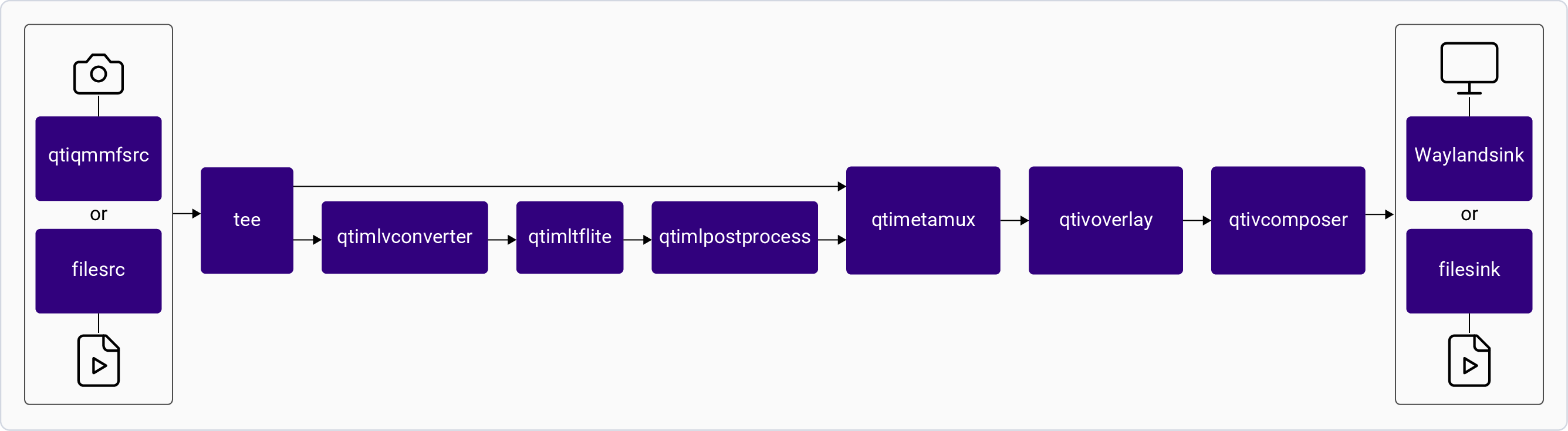
The gst-ai-object-detection.py script receives an RTSP stream as a source, decodes it, uses YOLOv8 LiteRT model to identify the object in a scene from the camera stream and overlay the bounding boxes over the detected objects. The results are shown on the display. For information about the plugins used in this pipeline, see Pipeline flow.
This application isn’t supported in the Config #1 of the QLI 2.0 GA release.
Application: gst-ai-object-detection.py Pipeline Diagram

Sample Model and Label Files

RuntimeModel fileLabel file
LiteRTyolov8_det_quantized.tflite, yolox_quantized.tfliteyolov8.json, yolox.json
Qualcomm Neural Processing SDKyolonas.dlcyolonas.json

Run the application on the target device

1

Download artifacts

Ensure that you complete the Prerequisites. This downloads all required artifacts to the target device.
2

Run the application

Run any of the following use cases:
  • Display with the primary and secondary cameras respectively:
gst-ai-object-detection.py -c 0 -f 2 -m /etc/models/yolox_quantized.tflite -l /etc/labels/yolox.json -ml "yolov8"
gst-ai-object-detection.py -c 1 -f 2 -m /etc/models/yolox_quantized.tflite -l /etc/labels/yolox.json -ml "yolov8"
  • Display with input from a video file:
gst-ai-object-detection.py -s /etc/media/video.mp4 -f 2 -m /etc/models/yolox_quantized.tflite -l /etc/labels/yolox.json -ml "yolov8"
  • YOLO-NAS with Qualcomm Neural Processing SDK runtime:
gst-ai-object-detection.py -f 1 -m /etc/models/yolonas.dlc -l /etc/labels/yolonas.json -ml "yolo-nas" --tensors="885,877"
  • YOLOv8 with LiteRT:
gst-ai-object-detection.py -f 2 -m /etc/models/yolov8_det_quantized.tflite -l /etc/labels/yolov8.json -ml "yolov8"
Both yolox_quantized.tflite and yolov8_det_quantized.tflite model files use the Yolov8 module.
To display all available options:
gst-ai-object-detection.py -h
To stop the use case, press CTRL + C.

Expected Output

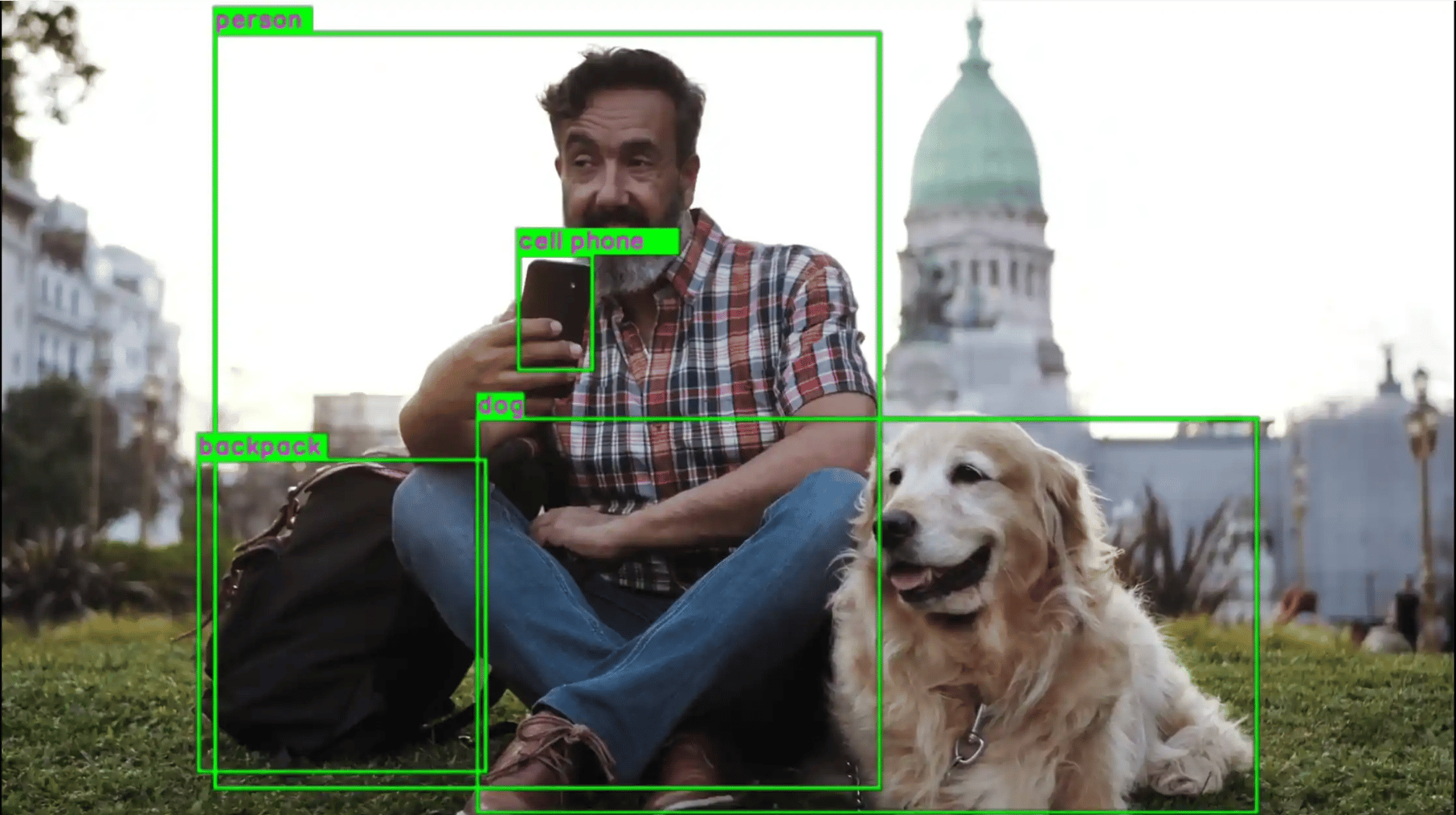
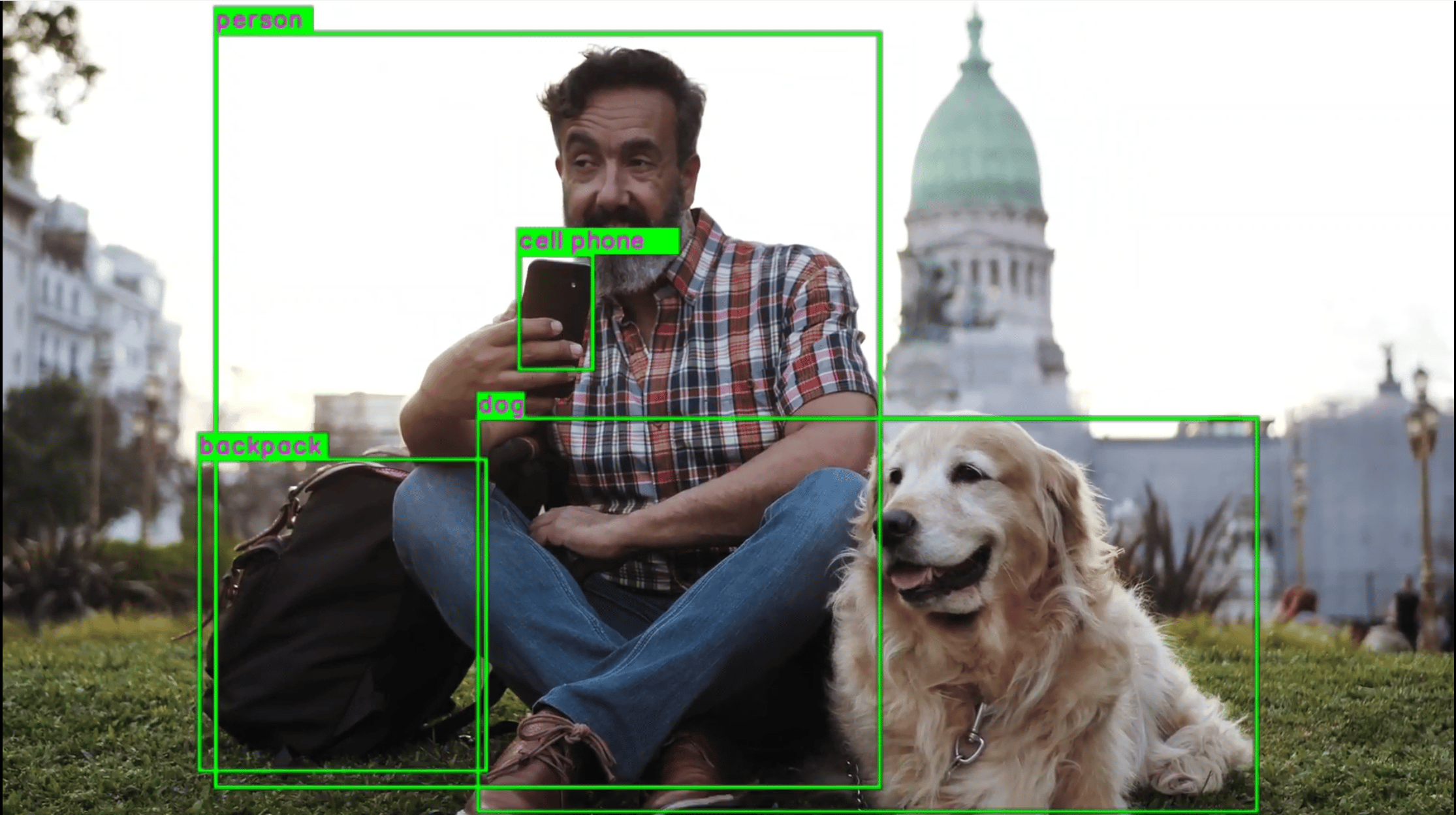
Detected objects with bounding boxes and labels are overlaid on the video and displayed on the local display.Output Diagram
Pipeline Flow

The following table lists the plugins used in the object detection pipeline:
ProcessDescription
qticamsrc1. Collects the video stream (source) and creates two copies of the source:

• One stream is sent to the qtimetamux plugin to retain the video stream.

• The other stream is sent to an ML inferencing pipeline.
filesrcReads the video data.
qtimlvconverter1. Receives the video stream on its sinkpad.

2. Performs preprocessing: color conversion, scaling, normalization.

3. Converts the video stream to a tensor stream on its source pad.
qtimltfliteLoads the object detection model, runs inference, and produces a tensor stream with detection results.
qtimlpostprocessConverts inference tensors into bounding boxes and labels. Loads the YOLOv8 submodule and sends results to qtimetamux.
qtimetamuxSynchronizes video and bounding box metadata streams. Attaches bounding boxes as GstVideoRegionOfInterest metadata.
qtivoverlayOverlays bounding boxes on the video frame using CL.
waylandsinkRenders the video stream on a local display via Weston.
filesinkWrites the video to a file.

Decode and object detection using RTSP stream

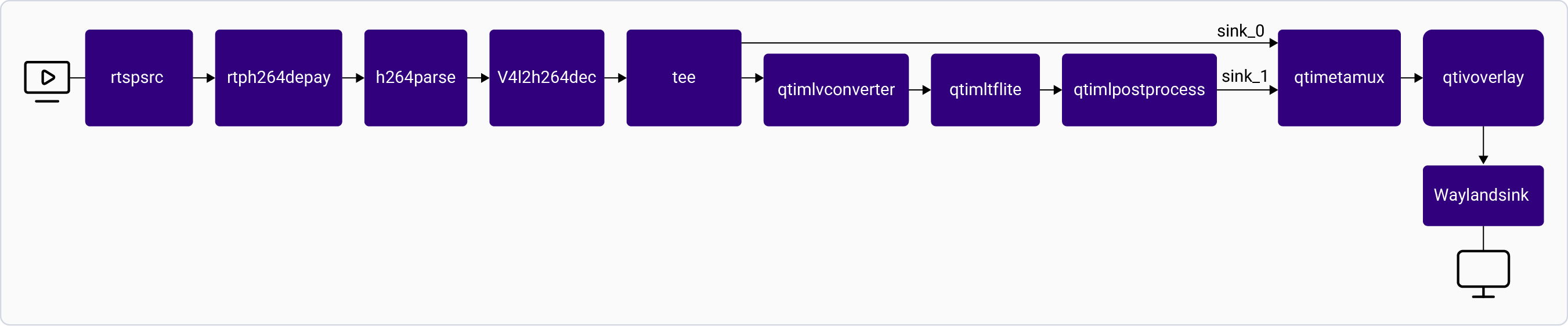
The gst-rtspsrc-detection-display.py script receives an RTSP stream as a source, decodes it, uses YOLOv8 LiteRT model to identify the object in a scene from the camera stream and overlay the bounding boxes over the detected objects. The results are shown on the display. For information about the plugins used in this pipeline, see Pipeline flow.
This application isn’t supported in the Config #1 of the QLI 2.0 GA release.
Application: gst-rtspsrc-detection-display.py Pipeline Diagram

Sample Model and Label Files

RuntimeModel fileLabel file
LiteRTyolox_quantized.tfliteyolox.json

Run the application on the target device

1

Download artifacts

Ensure that you complete the Prerequisites. This downloads all required artifacts to the target device.
2

Run the application

Run the object detection script on the target device:Console 1 — start the RTSP server:
gst-launch-1.0 -e qticamsrc camera=0 ! v4l2h264enc capture-io-mode=4 output-io-mode=5 ! h264parse config-interval=1 ! qtirtspbin
Console 2 — run the detection script:
gst-rtspsrc-detection-display.py
To display all available options:
gst-rtspsrc-detection-display.py -h
To stop the use case, press CTRL + C.

Expected Output
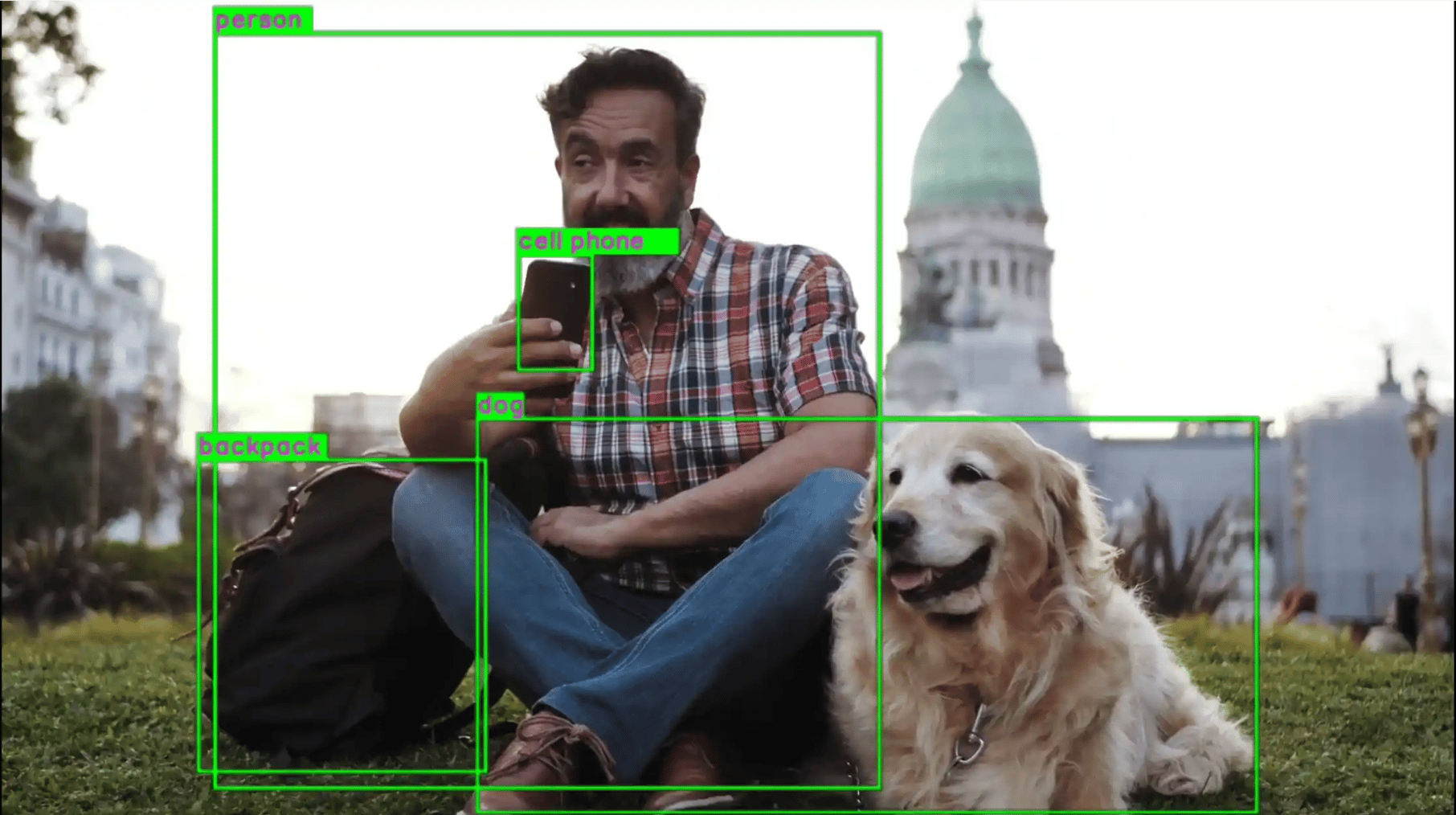
Output Diagram

Pipeline Flow

ProcessDescription
rtspsrcReceives the RTSP stream from rtsp:///live.
rtph264depayExtracts the video data from the RTSP stream.
h264parseParses the H.264 video.
v4l2h264decDecodes the video.
qtimlvconverterPreprocesses frames (color conversion, scaling, normalization) and converts to tensor stream.
qtimltfliteRuns object detection inference.
qtimlpostprocessConverts inference tensors into bounding boxes and labels.
qtimetamuxSynchronizes video and metadata streams.
qtivoverlayOverlays bounding boxes on the video frame.
waylandsinkRenders the video stream on a local display.

Object detection and classification

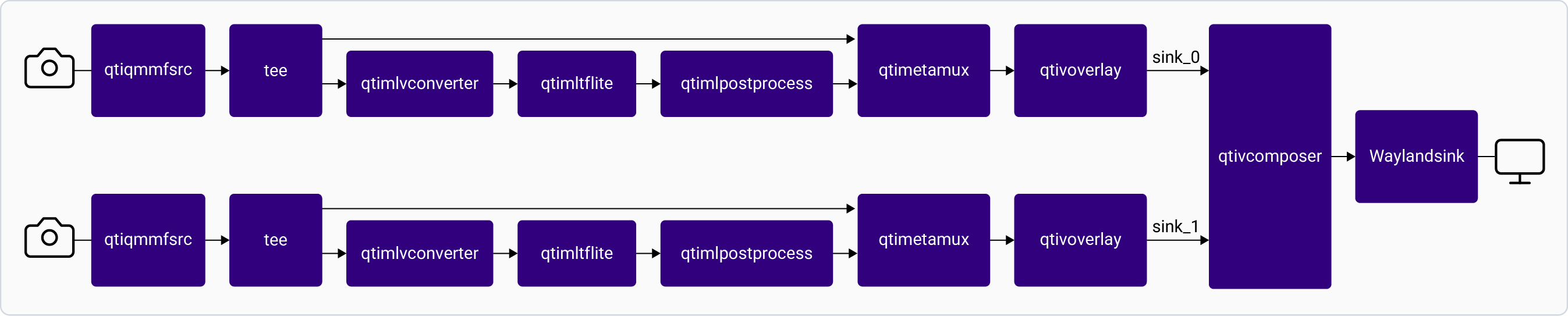
The gst-camera-two-stream-detection-and-classification-side-by-side.py application uses a YOLOX LiteRT model to detect and inception_v3 to classify objects in the scene displayed by the AI overlay composer. For information about the plugins used in this pipeline, see Pipeline flow.
This application isn’t supported in the Config #1 of the QLI 2.0 GA release.
Application: gst-camera-two-stream-detection-and-classification-side-by-side.py Pipeline Diagram

Sample Model and Label Files

RuntimeModel fileLabel file
LiteRTdetection: yolox_quantized.tflite
classification: inception_v3_quantized.tflite
detection: yolox.json
classification: classification.json

Run the application on the target device

1

Download artifacts

Ensure that you complete the Prerequisites. This downloads all required artifacts to the target device.
2

Run the application

gst-camera-two-stream-detection-and-classification-side-by-side.py
To display all available options:
gst-camera-two-stream-detection-and-classification-side-by-side.py -h
To stop the use case, press CTRL + C.

Expected Output

Detection and classification display are shown side-by-side.

Pipeline Flow

ProcessDescription
qticamsrcCollects two video streams — one for detection, one for classification — each split via tee.
qtimlvconverterPreprocesses frames for each branch (color conversion, scaling, normalization).
qtimltfliteRuns detection (YOLOX) and classification (InceptionV3) inference sequentially.
qtimlpostprocess (detection)Converts detection tensors to bounding boxes and labels.
qtimlpostprocess (classification)Converts classification tensors to label overlay frames.
qtimetamuxSynchronizes video and metadata for the detection branch.
qtivoverlayOverlays bounding boxes on the detection stream.
qtivcomposerComposes the detection and classification streams side by side.
waylandsinkRenders the composed output on a local display.

Known Issues

Output labels are blurred.

Object detection, classification, and segmentation

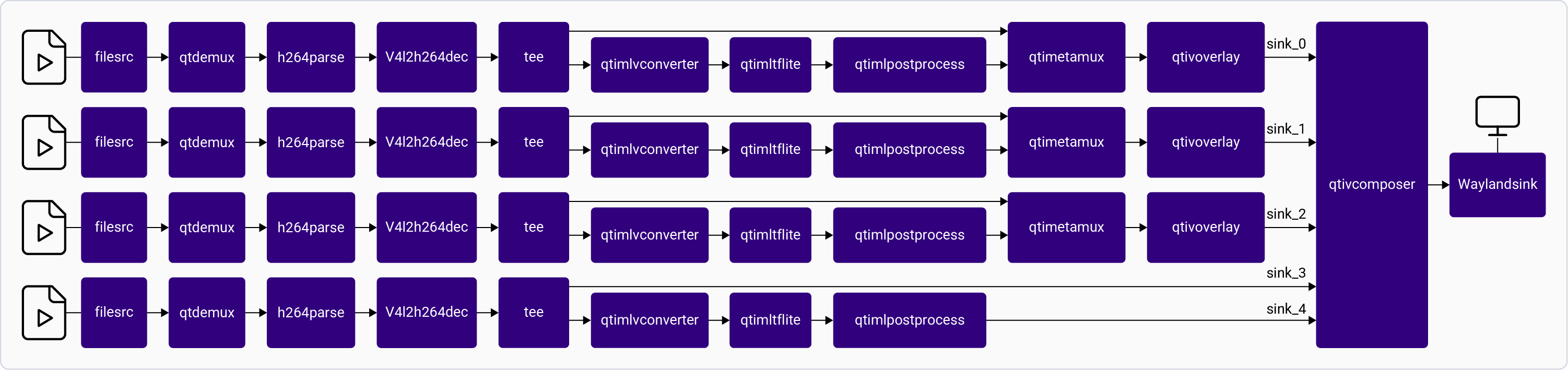
The gst-filesrc-2detection-classification-segmentation-side-by-side.py script identifies objects, classifies scenes, and produces semantic segmentation from a video file. The output is displayed side by side. For information about the plugins used in this pipeline, see Pipeline flow.
This application isn’t supported in the Config #1 of the QLI 2.0 GA release.
Application: gst-filesrc-2detection-classification-segmentation-side-by-side.py Pipeline Diagram

Sample Model and Label Files

RuntimeModel fileLabel file
LiteRTdetection: yolox_quantized.tflite
classification: inception_v3_quantized.tflite
segmentation: deeplabv3_plus_mobilenet_quantized.tflite
detection: yolox.json
classification: classification.json
segmentation: deeplabv3_resnet50.json

Run the application on the target device

1

Download artifacts

Ensure that you complete the Prerequisites. This downloads all required artifacts to the target device.
2

Run the application

gst-filesrc-2detection-classification-segmentation-side-by-side.py
The default input video for classification, segmentation, and detection is at /etc/media/video.mp4.
To display all available options:
gst-filesrc-2detection-classification-segmentation-side-by-side.py -h
To stop the use case, press CTRL + C.

Expected Output

The four streams are previewed side by side on a local display.

Pipeline Flow

ProcessDescription
filesrcReads the video data from a file.
qtdemuxDemultiplexes the video data.
h264parseParses H.264 video.
v4l2h264decDecodes the H.264 video.
qtimlvconverterPreprocesses frames for each inference branch.
qtimltfliteRuns detection, classification, and segmentation inference.
qtimlpostprocess (detection)Produces bounding boxes and labels.
qtimlpostprocess (classification)Produces classification label frames.
qtimlpostprocess (segmentation)Produces segmentation mask frames via deeplab-argmax.
qtimetamuxSynchronizes video and metadata for the detection branch.
qtivoverlayOverlays bounding boxes on the detection stream.
qtivcomposerComposes all four streams side by side.
waylandsinkRenders the composed output on a local display.

Camera encode, object detection, and display

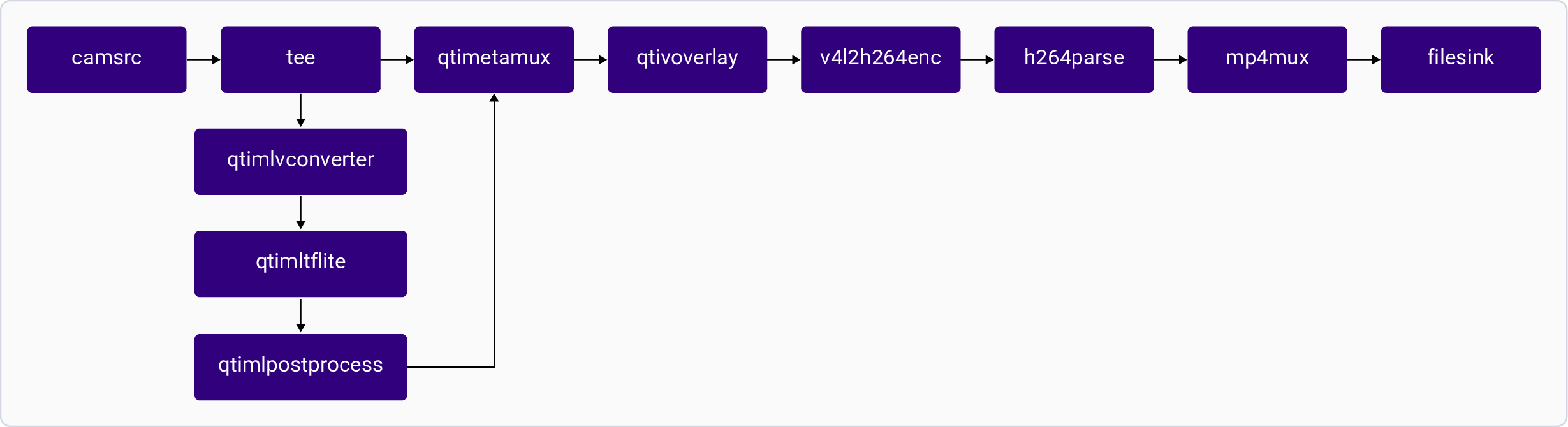
The gst-camera-two-stream-encode-file-detection-display.py application encodes the camera stream to a file while simultaneously running YOLOX object detection and displaying results. For information about the plugins used in this pipeline, see Pipeline flow.
This application isn’t supported in the Config #1 of the QLI 2.0 GA release.
Application: gst-camera-two-stream-encode-file-detection-display.py Pipeline Diagram

Sample Model and Label Files

RuntimeModel fileLabel file
LiteRTyolox_quantized.tfliteyolox.json

Run the application on the target device

1

Download artifacts

Ensure that you complete the Prerequisites. This downloads all required artifacts to the target device.
2

Run the application

gst-camera-two-stream-encode-file-detection-display.py
To display all available options:
gst-camera-two-stream-encode-file-detection-display.py -h
To stop the use case, press CTRL + C.

Expected Output

The output is saved at /etc/media/test.mp4.

Pipeline Flow

ProcessDescription
qticamsrcCollects two streams — one for detection, one for encoding.
v4l2h264encEncodes H.264 video.
h264parseParses H.264 video.
mp4muxMultiplexes video into MP4.
qtimlvconverterPreprocesses frames for detection inference.
qtimltfliteRuns YOLOX object detection inference.
qtimlpostprocessProduces bounding boxes and labels.
qtimetamuxSynchronizes video and metadata.
qtivoverlayOverlays bounding boxes on the video frame.
filesinkSaves the encoded video to a file.
waylandsinkRenders the detection output on a local display.

Parallel inference using Python

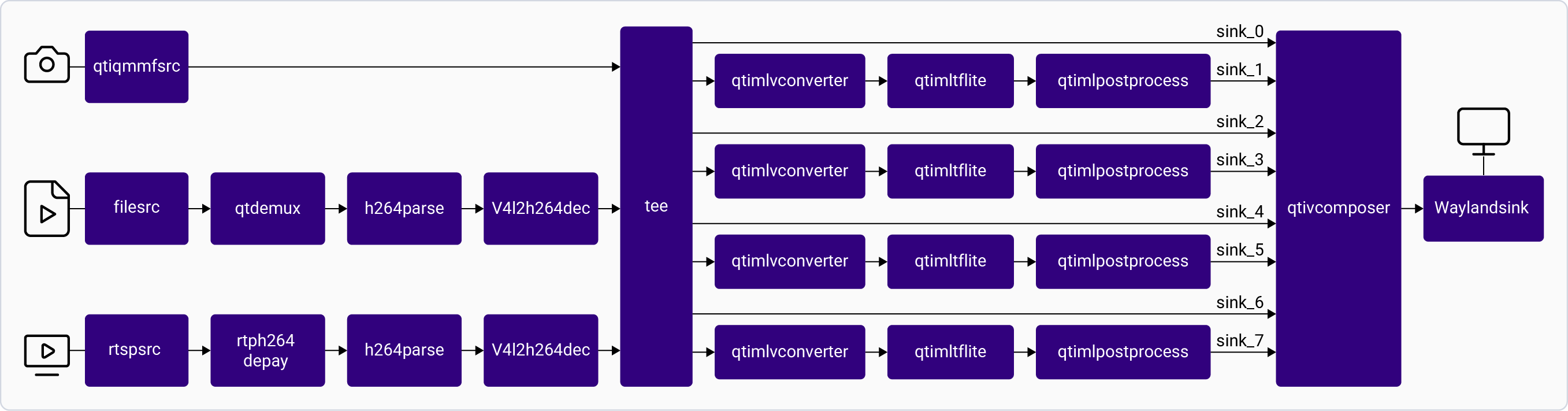
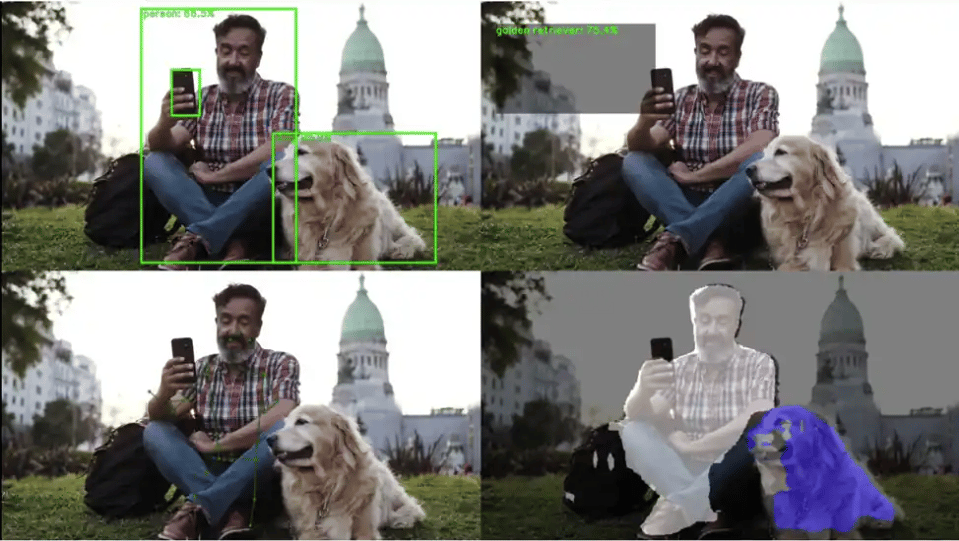
The gst-parallel-inference.py application receives a video input from a camera, file, or RTSP stream and runs four-channel parallel AI inference (classification, object detection, pose detection, and segmentation). For information about the plugins used in this pipeline, see Pipeline flow.
This application isn’t supported in the Config #1 of the QLI 2.0 GA release.
Application: gst-parallel-inference.py Pipeline Diagram

Sample Model and Label Files

RuntimeModel fileLabel file
LiteRTdetection: yolox_quantized.tflite
classification: inception_v3_quantized.tflite
segmentation: deeplabv3_plus_mobilenet_quantized.tflite
pose: hrnet_pose_quantized.tflite
detection: yolox.json
classification: classification.json
segmentation: deeplabv3_resnet50.json
pose: hrnet_pose.json, hrnet_settings.json

Run the application on the target device

1

Download artifacts

Ensure that you complete the Prerequisites. This downloads all required artifacts to the target device.
2

Run the application

  • Input from the camera:
gst-parallel-inference.py --camera
  • Input from a file:
gst-parallel-inference.py --file "/etc/media/video.mp4"
  • Input from an RTSP stream:
gst-parallel-inference.py --rtsp "rtsp://<ip>:<port>/<stream>"
To display all available options:
gst-parallel-inference.py -h
To stop the use case, press CTRL + C.

Expected Output

The four inference results are displayed side by side on the screen.Expected Output
Pipeline Flow

ProcessDescription
qticamsrc / filesrc / rtspsrcCaptures stream from camera, file, or RTSP.
v4l2h264decDecodes H.264 video.
qtimlvconverterPreprocesses frames for each of the four inference branches.
qtimltfliteRuns detection, classification, segmentation, and pose inference in parallel.
qtimlpostprocess (detection)Produces bounding boxes and labels.
qtimlpostprocess (classification)Produces classification label frames.
qtimlpostprocess (segmentation)Produces segmentation mask frames.
qtimlpostprocess (pose)Produces pose key point frames via HRNet module.
qtimetamuxSynchronizes video and metadata for the detection branch.
qtivoverlayOverlays bounding boxes on the detection stream.
qtivcomposerComposes all four output streams side by side.
waylandsinkRenders the composed output on a local display.

Daisy chain detection and pose detection using Python

The gst-ai-daisychain-detection-pose.py application performs cascaded object detection and pose detection with input from a camera, file, or RTSP stream. For information about the plugins used in this pipeline, see Pipeline flow.
This application isn’t supported in the Config #1 of the QLI 2.0 GA release.
Application: gst-ai-daisychain-detection-pose.py Pipeline Diagram

Sample Model and Label Files

RuntimeModel fileLabel file
LiteRTdetection: yolox_quantized.tflite
pose: hrnet_pose_quantized.tflite
detection: yolox.json
pose: hrnet_pose.json, hrnet_settings.json

Run the application on the target device

1

Download artifacts

Ensure that you complete the Prerequisites. This downloads all required artifacts to the target device.
2

Run the application

  • Input from the camera:
gst-daisychain-detection-pose.py --camera
  • Input from a file:
gst-daisychain-detection-pose.py --file /etc/media/video.mp4
  • Input from an RTSP stream:
gst-daisychain-detection-pose.py --rtsp "rtsp://<ip>:<port>/<stream>"
To display all available options:
gst-daisychain-detection-pose.py -h
To stop the use case, press CTRL + C.

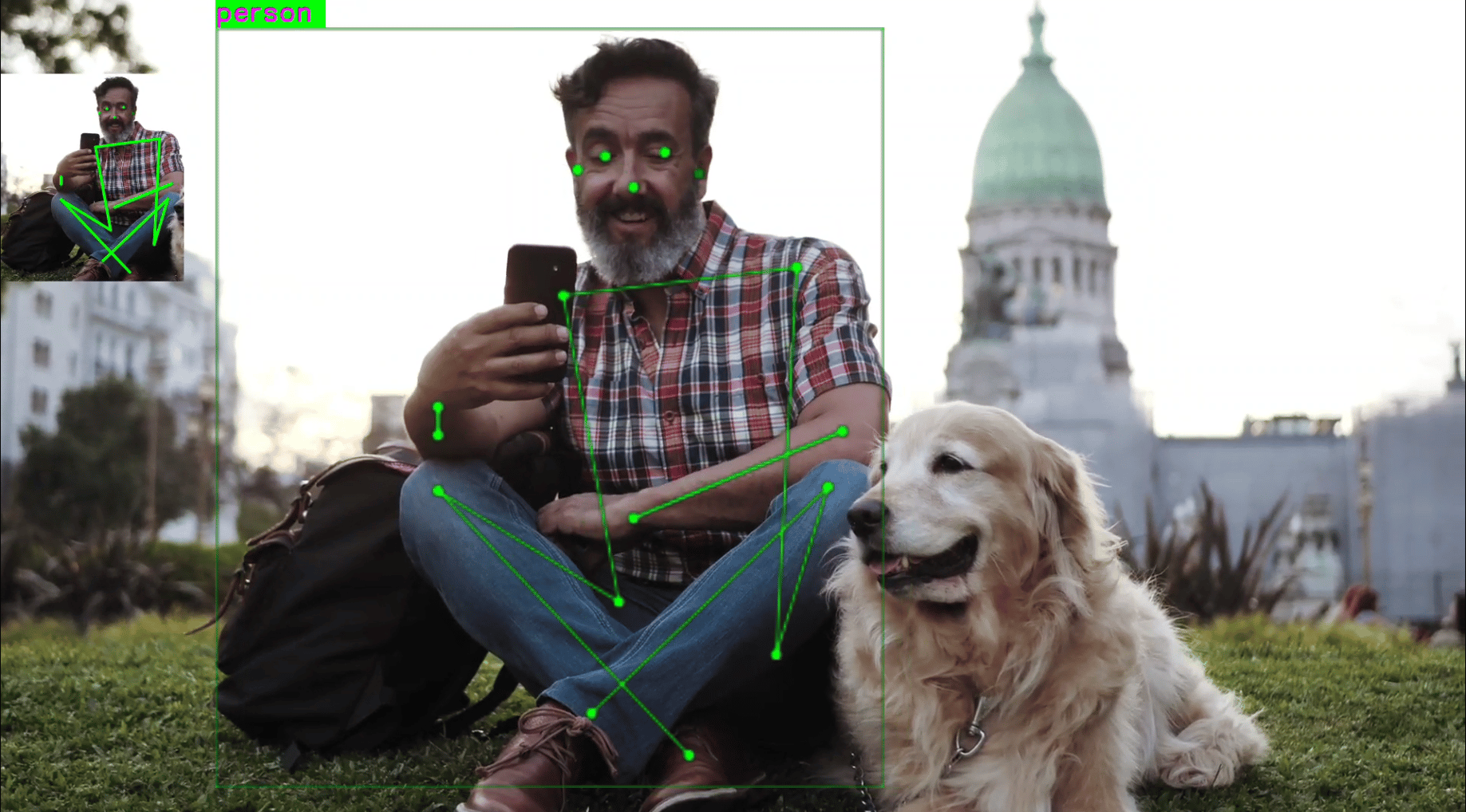
Expected Output

Expected Output

Pipeline Flow

ProcessDescription
qticamsrc / filesrc / rtspsrcCaptures stream from camera, file, or RTSP.
v4l2h264decDecodes H.264 video.
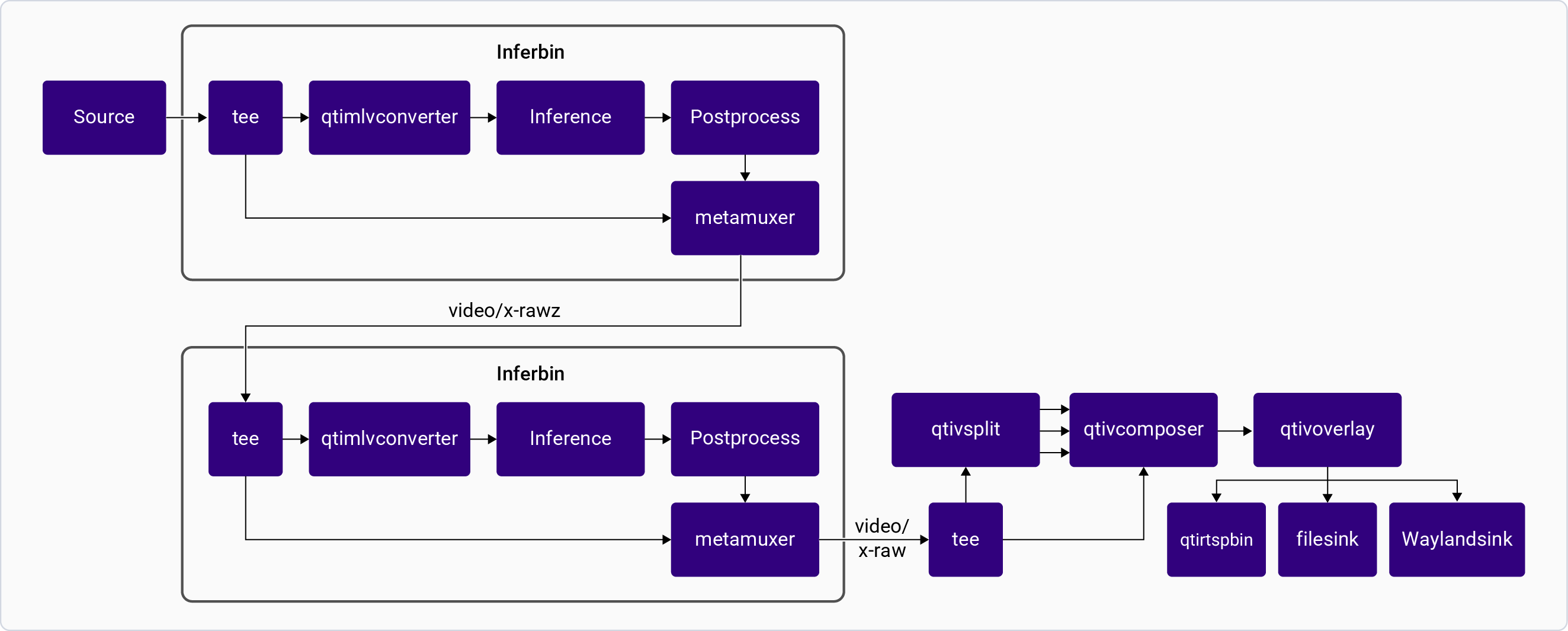
qtivsplitCrops full frame into smaller frames based on detected bounding boxes (maximum 4).
qtimlvconverterPreprocesses frames for detection (stage 1) and pose estimation (stage 2).
qtimltfliteRuns detection and pose inference sequentially.
qtimlpostprocess (detection)Produces bounding boxes. Loads YOLOv8 submodule.
qtimlpostprocess (pose)Produces pose key point frames. Loads HRNet module.
qtimetamuxSynchronizes video and metadata.
qtivcomposerComposes the final output stream.
waylandsinkRenders the output on a local display.

Troubleshooting

If any model isn’t available after downloading the script file, you can download the model manually from IoT — Qualcomm AI Hub and push it to the target device:
scp <model filename> root@<ip addr of the target device>:/etc/models
For example:
scp mobilenet_v2_quantized.tflite root@<ip addr of the target device>:/etc/models
Remount the file system with read/write permissions:For Qualcomm Linux:
mount -o remount,rw /
If you cannot locate the qticamsrc plugin, ensure that the camera server is running and clear the GStreamer cache using the following commands:
ps -ef | grep cam-server 
rm ~/.cache/gstreamer-1.0/registry.aarch64.bin 
To enable basic GStreamer logging, run the following before launching the application:
export GST_DEBUG=2 
To increase verbosity for specific plugins, use a comma-separated list with log levels (1–7):
export GST_DEBUG=3,qticamsrc:5,qtimlvconverter:5,qtimltflite:5 
To redirect logs to a file for offline analysis:
export GST_DEBUG=3 
export GST_DEBUG_FILE=/tmp/gst_classification_debug.log