

- Config #1
- Config #2
Config 1: Supported Camera Slots by Platform
- QCS6490
- IQ-9075-EVK
- IQ-8275-EVK
- IQ615
- IQx7181
Connect the IMX577 MIPI camera sensor to the CAM3 slot of the RB3 device.
Prerequisites
See the Prerequisites section in the Python AI page for device setup, Wi-Fi, artifact download, and enabling qticamsrc and libcamera.Camera Applications
Camera Encoding
The gst-camera-encode.py application allows you to record and encode a single camera stream. For information about the plugins used in this pipeline, see Pipeline flow.
gst-camera-encode.py
Try me
Try me
1
Complete prerequisites
Ensure that you complete the Prerequisites.
2
Run the application
3
Pull output from device
Expected output
The output is saved in a file at/etc/media/recording.mp4.Pipeline flow
Camera Streaming Using OpenCV
The gst-camera-opencv-resize.py application uses OpenCV APIs to capture a camera frame from a live camera stream and apply color conversion or resize. The output is displayed on the screen. For information about the plugins used in this pipeline, see Pipeline flow.
gst-camera-opencv-resize.py
Try me
Try me
1
Complete prerequisites
Ensure that you complete the Prerequisites.
2
Run the application
Expected output
The stream is displayed on the screen.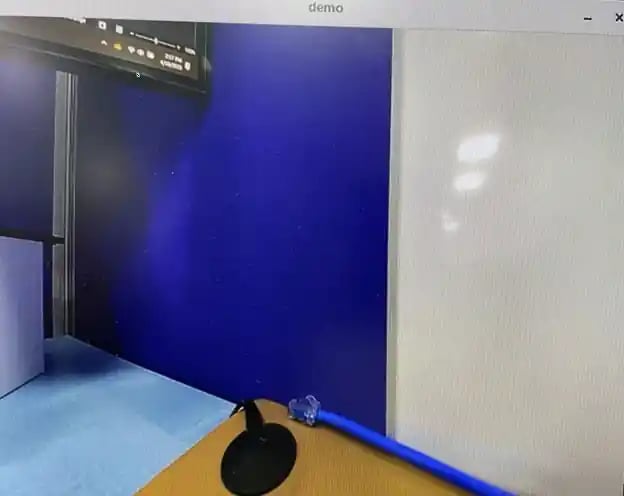
Troubleshoot GTK backend failure in root mode
When running a GTK-based application as root, GTK may fail to initialize the backend. Export the active display session before running:Pipeline flow
Multi-Camera Streaming Using Python
The gst-multi-camera-stream-example.py application streams from two camera sensors simultaneously, composing the feeds side by side or encoding to files. For information about the plugins used in this pipeline, see Pipeline flow.
gst-multi-camera-stream-example.py
This application isn’t supported in the Config #1 of the QLI 2.0 RC3 release.
Try me
Try me
1
Complete prerequisites
Ensure that you complete the Prerequisites.
2
Run the application
- Preview on display:
- Encode to file:
Expected output
For the video composition pipeline, the output is displayed as a preview.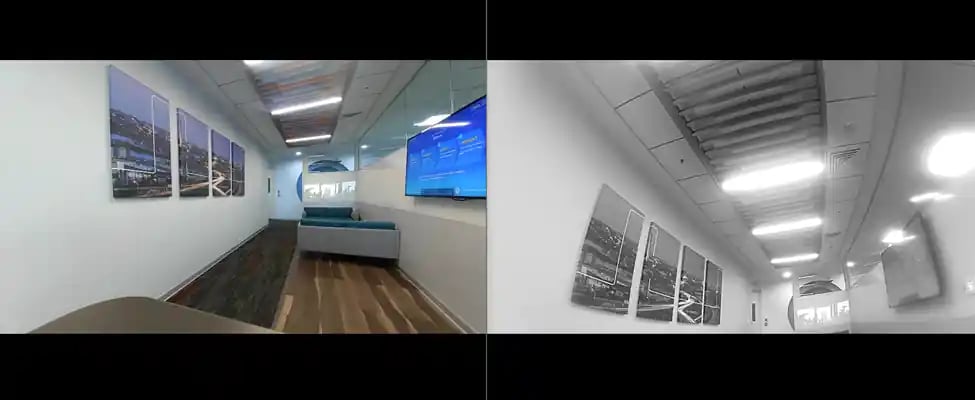
Pipeline flow
Decode JPEG Images Using Python
The gst-jpg-image-decode.py application decodes JPEG images and displays them on a screen. For information about the plugins used in this pipeline, see Pipeline flow.
gst-jpg-image-decode.py
Try me
Try me
1
Complete prerequisites
Ensure that you complete the Prerequisites.
2
Run the application
Expected output
The decoded images are displayed on the screen.
Pipeline flow
Transform and Encode a Camera Stream
The gst-camera-rotate-downscale-file.py application rotates, downscales, and encodes a camera stream, saving the result to a file. For information about the plugins used in this pipeline, see Pipeline flow.
gst-camera-rotate-downscale-file.py
Try me
Try me
1
Complete prerequisites
Ensure that you complete the Prerequisites.
2
Run the application
Expected output
The output is saved to a file at/etc/media/test.mp4.Pipeline flow
Dynamic Camera Overlay Using Python
The gst-camera-overlay.py application demonstrates how to render dynamic text overlays on a live camera preview stream. The application injects overlay data into video buffers as ROI metadata and usesqtivoverlay to render text on the display. It supports runtime updates to overlay text, position, and color, and automatically selects the available camera.
For information about the plugins used in this pipeline, see Pipeline flow.

gst-camera-overlay.py
Try me
Try me
1
Complete prerequisites
Ensure that you complete the Prerequisites.
2
Run the application
Expected output
Displays a live camera preview through waylandsink.Pipeline flow
Video and Audio Applications
Concurrent Video Playback (Video Wall) Using Python
The gst-concurrent-videoplay-composition.py application supports concurrent video playback for MP4 AVC (H.264) videos and performs composition on a video wall display. For information about the plugins used in this pipeline, see Pipeline flow.
gst-concurrent-videoplay-composition.py
Try me
Try me
1
Complete prerequisites
Ensure that you complete the Prerequisites.
2
Run the application
-c with 2, 4, 8, or 16.To display all available options:Expected output
The individual composed streams are tiled together to display as a unified stream.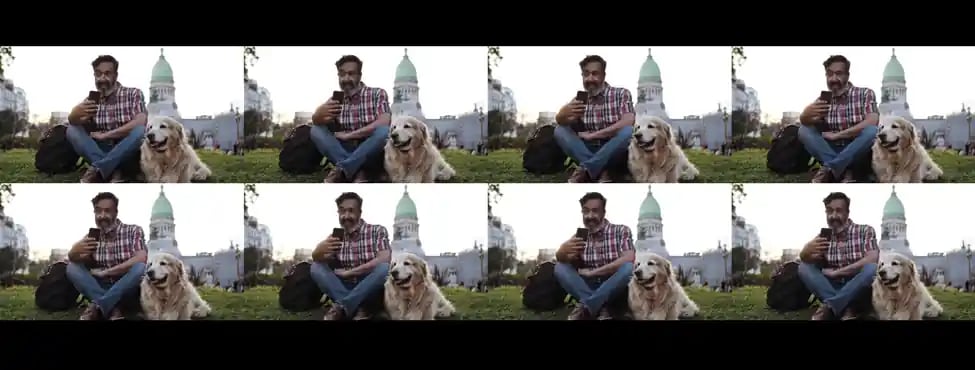
Pipeline flow
Video Transformation Using OpenCV
The gst-opencv-transform.py application captures and transforms a video frame then displays the video on the screen using the OpenCVVideoCapture() function.
For information about the plugins used in this pipeline, see Pipeline flow.

gst-opencv-transform.py
Try me
Try me
1
Complete prerequisites
Ensure that you complete the Prerequisites.
2
Run the application
Expected output
The stream is displayed on the screen.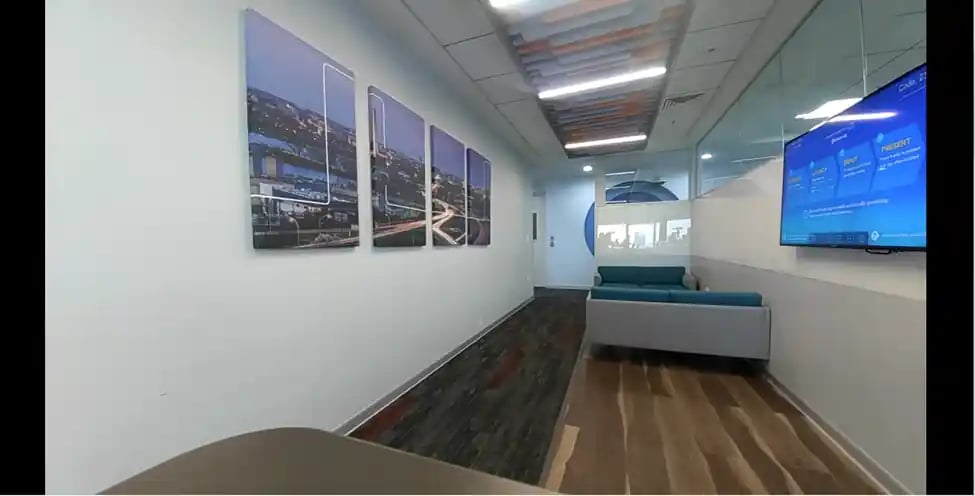
Pipeline flow
Troubleshooting
Model not available after running the download script?
Model not available after running the download script?
Download the model manually from IoT — Qualcomm AI Hub and push it to the device:
Running sample applications from the UART shell
Running sample applications from the UART shell
Remount the file system with read/write permissions:For Qualcomm Linux:For Ubuntu Server:
Cannot locate the qticamsrc plugin?
Cannot locate the qticamsrc plugin?
GStreamer logging and debugging
GStreamer logging and debugging