

QIMSDK · Qualcomm
Safety & Security

Real-time pipeline that detects when a person steps into a predefined restricted zone using IM SDK foot detection — with color-coded visual alerts, bounding box status indicators, and RTSP/WebRTC output.

QIMSDK Team·Jun 14, 2026·← All posts

Introduction

Monitoring access to restricted areas is a common requirement in industrial sites, warehouses, and other controlled environments. While these zones are often clearly marked, enforcing compliance in real time remains difficult. Manual supervision and post-event video review do not scale well and cannot provide the immediate response required in safety-critical scenarios. The QIM SDK enables a shift from reactive monitoring to real-time, automated situational awareness. By using hardware-accelerated GStreamer plugins, the SDK offloads compute-intensive tasks — including video decoding, frame preparation, multi-stage AI inference, and encoding — to dedicated hardware blocks. Frame preparation includes resizing, color conversion (YUV to RGB), and pixel normalization for neural network input. At the core of this use case is a streamlined pipeline that combines machine learning with spatial reasoning. A foot detection model identifies the location of a person’s feet in each frame, providing a reliable indicator of physical position within the scene. These detections are then evaluated against a predefined restricted zone to determine, in real time, whether a boundary has been crossed. The SDK also provides hardware-accelerated visualization through overlay rendering. Detection results and zone boundaries are composited directly onto video frames, with dynamic visual cues: green bounding boxes indicate the foot is outside the restricted zone, red indicates a violation. Beyond visualization, the SDK supports AI metadata streaming, synchronizing detection and zone-evaluation results with the video stream and transmitting them in parallel for alerting, logging, or dashboard integration. The complete application source code is available here.

Use Case Overview

1

Video Input

A camera monitors the restricted area and its surroundings. The pipeline accepts input from RTSP, ISP, USB, or file-based sources.
2

Foot Detection

Each frame is submitted to a foot detection model that identifies the location of each person’s feet within the scene.
3

Zone Evaluation

qtirestrictedzonedbg evaluates each detected foot position against the predefined restricted zone polygon to determine whether a boundary has been crossed.
4

Metadata Generation

Detection results are attached to the video stream as structured per-frame metadata for downstream consumption.
5

Visualization

qtivoverlay renders bounding boxes and the restricted zone polygon onto video frames. Bounding boxes are green (outside zone) or red (violation).
6

Metadata Synchronization

qtimetamux synchronizes all inference and zone-evaluation results with the original video frames, maintaining per-frame consistency.
7

Output

The annotated stream is delivered via RTSP or WebRTC. Structured detection data is transmitted in parallel as JSON metadata for alerting, logging, and external integrations.

Pipeline diagram
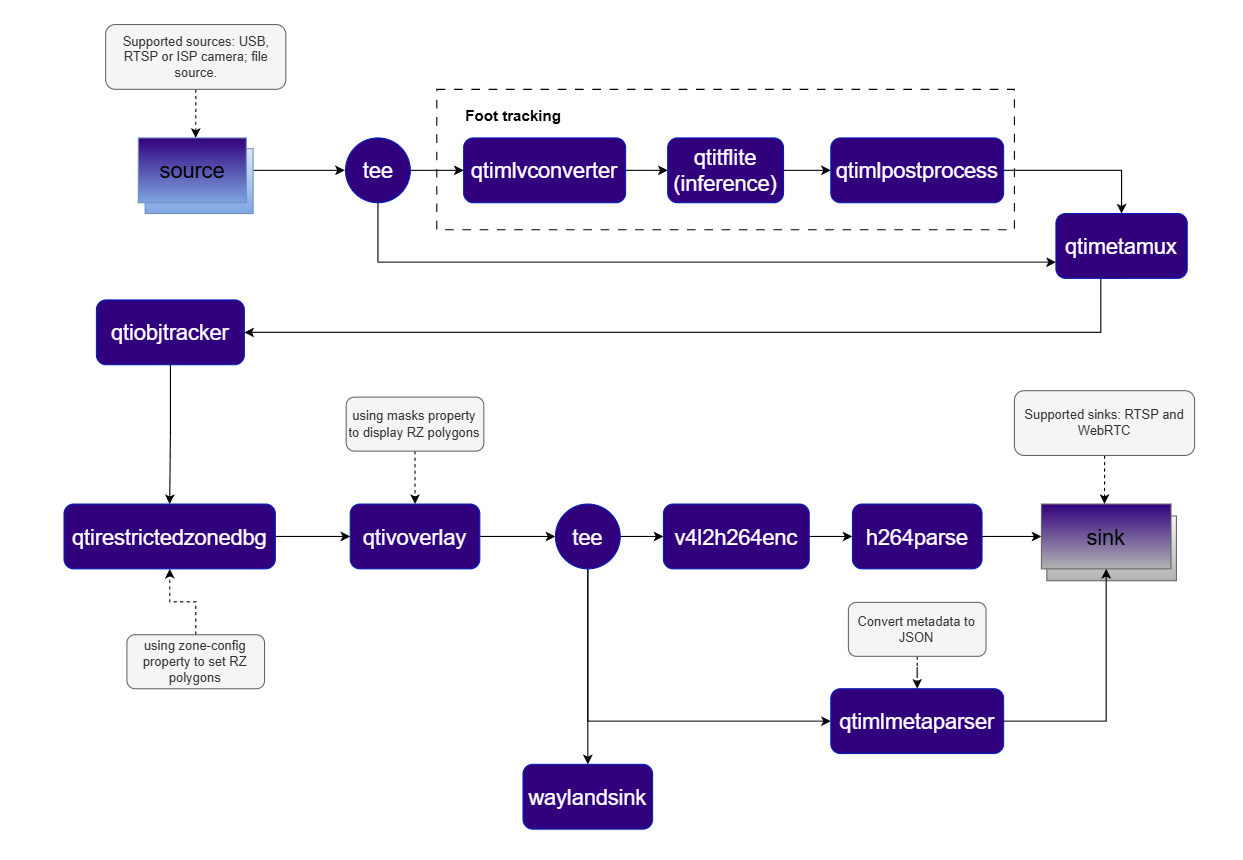
Restricted Zone Pipeline

Elements used in pipeline

ElementDescription
sourceAccepts video input from an RTSP camera, ISP camera, USB camera, or local file source.
teeSplits the stream into parallel branches for simultaneous display and AI inference.
qtimlvconverterPrepares frames for inference — performs resizing, YUV-to-RGB conversion, and normalization to match model input requirements.
qtimltfliteExecutes the TFLite foot detection model on each frame using the Qualcomm HTP via the QNN external delegate.
qtimlpostprocessConverts raw model tensors into structured bounding boxes and labels via a dynamically loaded module.
qtimetamuxSynchronizes inference results with the original video stream as per-frame structured metadata.
qtiobjtrackerTracks detected feet across consecutive frames and assigns a consistent ID to each object.
qtirestrictedzonedbgDefines the restricted zone polygon and evaluates detections against it. Updates bounding box color to red upon violation.
qtivoverlayRenders bounding boxes, labels, and the restricted zone polygon directly onto video frames.
qtimlmetaparserSerializes per-frame metadata into JSON format for integration with external systems.
v4l2h264enc / h264parseEncodes the processed video stream into H.264 format.
waylandsinkDisplays the video locally on the device.
sinkStreams the encoded video and metadata over RTSP or WebRTC via rtspbin or webrtcbin.

How it works

1

Stage 1 — Foot Detection

The full video frame is preprocessed by qtimlvconverter to align with model input requirements. Preprocessed tensors are passed to qtimltflite, which runs the foot detection model and produces raw output tensors.
2

Post-Processing

qtimlpostprocess converts the tensors into bounding box detections. qtimetamux attaches these detections to the original video frame as metadata.
3

Stage 2 — Zone Evaluation

qtirestrictedzonedbg evaluates each detected foot position against the configured restricted zone polygon. If a foot lies inside the polygon, the pipeline flags it as a violation in real time.
4

Tracking

qtiobjtracker maintains object identity across frames, assigning a consistent tracking ID to each detected foot for reliable zone evaluation over time.
5

Visualization and Output

qtivoverlay renders bounding boxes and the restricted zone on the video stream. Visual cues update dynamically based on zone evaluation. The processed stream can be displayed locally, saved to file, or streamed via RTSP or WebRTC. qtimlmetaparser serializes metadata into JSON for external system integration.

Run application on device

Setup Requirements

Hardware
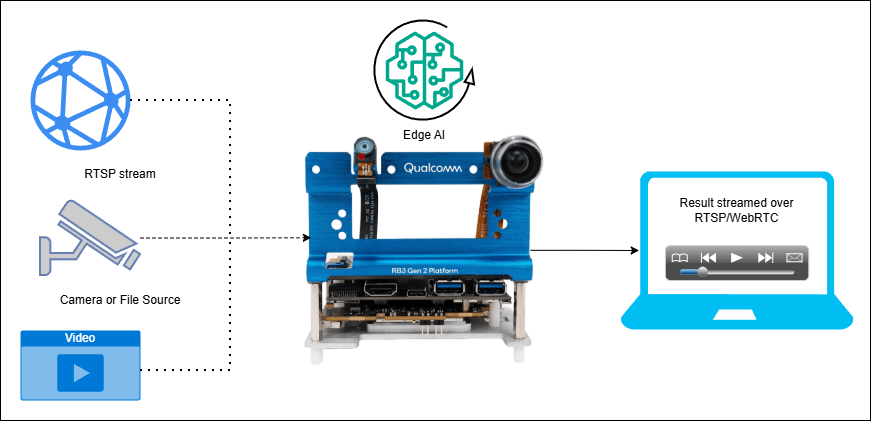
Hardware Setup
ComponentDescription
Edge DeviceRB3 Gen 2, IQ8, or IQ9 — Primary processing unit for AI inference and video composition.
Camera SourceIP/RTSP camera, ISP (on-device) camera, or USB camera. A local file source may be substituted if no physical camera is available.
HDMI Display MonitorConnected to the edge device for rendering and visualizing pipeline output.
PoE SwitchPowers IP/RTSP cameras and provides network connectivity over a single Ethernet cable per camera. (Required for IP/RTSP camera setups only.)
Local NetworkEnsures the edge device, RTSP camera, and host machine are reachable on the same network. (Required when using RTSP camera input or streaming results via RTSP or WebRTC.)

Software

Flash your Qualcomm Edge device by following the device setup and flashing instructions here. Once your device is ready, follow the instructions below to set up the Restricted Zone pipeline.
AI Model and config files
FileDownloadSave as
Foot detection modelQualcomm AI Hub — Foot Track Netfoot_track_net_quantized.tflite
Detection labelsfoot_track_net.jsonfoot_track_net.json
Detection settingsfoot_track_net_settings.jsonfoot_track_net_settings.json
Sample videoInput videorz_sample.mp4
Copy files to device
# Replace $HOME to the appropriate device path before running the commands.
# For QLI:    /root
# For Ubuntu: /home/ubuntu
# Modify this based on your platform and ensure files are copied to the correct location on the device.

ssh <user>@<device-ip> "mkdir -p $HOME/{models,labels,media,media/output}"
scp foot_track_net_quantized.tflite   <user>@<device-ip>:$HOME/models/
scp foot_track_net.json               <user>@<device-ip>:$HOME/labels/
scp foot_track_net_settings.json      <user>@<device-ip>:$HOME/labels/
scp rz_sample.mp4                         <user>@<device-ip>:$HOME/media/
Connect to device
ssh <user>@<device-ip>
Run the Restricted Zone Application
Note: A display must be connected to the device. If no display is available, use the --no-display flag.
gst-restricted-zone \
  --input-type=file \
  --input-config=$HOME/media/rz_sample.mp4 \
  --output-type=rtsp \
  --output-config=8900
gst-restricted-zone \
  --input-type=file \
  --input-config=$HOME/media/rz_sample.mp4 \
  --output-type=webrtc \
  --output-config=wss://webrtc.nirbheek.in:8443 \
  --webrtc-id=1010
gst-restricted-zone \
  --input-type=file \
  --input-config=$HOME/media/rz_sample.mp4
Note: This example uses an offline video file as input. To use an IP/RTSP camera or USB camera instead, update the --input-type argument accordingly — refer to the Command-Line Options section below.
It produces two key output results: an AI-annotated video stream and a JSON metadata stream. To visualize these results, refer to the Host-Side Visualization section below.

Visualize the Results - Host-Side Visualization (Windows + WSL)

This section describes how to run the visualization client on a Windows host machine using WSL (Windows Subsystem for Linux). The client renders the live video stream alongside a real-time AI metadata panel. 📥 The visualization client script can be downloaded here: rtsp_webrtc_client.zip It displays:
  • Left panel — Live video stream with AI overlays (bounding boxes and restricted zone polygon).
  • Right panel — Real-time AI metadata (JSON): object detections, tracking IDs, bounding boxes, and confidence scores.
Step 1 — Install WSL and Ubuntu If WSL is not already installed, run the following from a Windows terminal:
wsl --install Ubuntu-24.04
Once installed, update the system:
sudo apt update && sudo apt upgrade -y
Step 2 — Install System Dependencies
sudo apt install -y \
  python3 python3-pip python3-gi python3-gi-cairo \
  gir1.2-gstreamer-1.0 \
  gir1.2-gst-plugins-base-1.0 \
  gir1.2-gst-plugins-bad-1.0 \
  gstreamer1.0-tools \
  gstreamer1.0-plugins-base \
  gstreamer1.0-plugins-good \
  gstreamer1.0-plugins-bad \
  gstreamer1.0-plugins-ugly \
  gstreamer1.0-libav \
  python3-websocket \
  libnice10 \
  libnice-dev \
  gstreamer1.0-nice
Step 3 — Run the Visualization Client Script
python3 rtsp_webrtc_client.py rtsp://<DEVICE_IP>:8900/live
python3 rtsp_webrtc_client.py --source webrtc --signalling-server wss://webrtc.nirbheek.in:8443 --peer-id 1010
Step 4 — Expected Output
PanelContent
LeftReal-time decoded video stream with foot detection bounding boxes and restricted zone polygon
RightLive AI metadata — tracking IDs, bounding boxes, foot coordinates, and confidence scores
After following the steps, the video and metadata streams should be up and running. When a person steps into the restricted zone, the corresponding bounding box changes from green to red. The pipeline generates structured JSON metadata in the following format:
{
  "object_detection": [
    {
      "tracking_id": 7,
      "label": "person",
      "confidence": 71.63,
      "color": 16711935,
      "rectangle": {
        "x": 0.16, "y": 0.05,
        "width": 0.16, "height": 0.16
      },
      "landmarks": {
        "left_ankle":  { "x": 0.21, "y": 0.10 },
        "right_ankle": { "x": 0.20, "y": 0.07 }
      }
    }
  ],
  "parameters": { "timestamp": "49058322222" }
}

Command-Line Options

Selects the video input source for the pipeline.
ValueDescription
usbUSB camera. Requires --input-config=/dev/video0.
ispBuilt-in ISP (on-device) camera. Optionally specify a camera ID via --input-config=0.
rtspExternal IP/RTSP camera or stream. Requires --input-config=rtsp://....
fileLocal H.264-encoded video file. Requires --input-config=/path/to/video.mp4.
Specifies the input source configuration corresponding to the selected --input-type.
Input TypeValue
USB/dev/videoX
ISP<camera ID>
RTSPrtsp://<ip-or-url>
File/path/to/rz_sample.mp4
Defines how the processed output video stream is delivered.
ValueDescription
noneNo video output (headless mode).
fileSave encoded output to a file. Requires --output-config.
rtspStream over RTSP. Requires --output-config=<port>. Access at rtsp://<device-ip>:<port>/live.
webrtcStream over WebRTC. Requires --output-config=ws://....
Specifies the output destination configuration.
Output TypeValue
File/path/to/output.mp4
RTSP<port>
WebRTCws://<signalling-server>:<port>
Root directory for AI model, label, and configuration files.
Asset TypeResolved Path
Model files (*.tflite)<base-path>/models/<model_file>
Label/settings files (*.json)<base-path>/labels/<labels_file>
--model-base-path=/root        # QLI
--model-base-path=/home/ubuntu # Ubuntu
Disables local on-screen rendering. Recommended for headless deployments, remote streaming (RTSP/WebRTC), or performance optimization.
Sets the raw input video resolution and frame rate. Applicable only to ISP and USB inputs.
--width=1920 --height=1080 --framerate=30
Specifies the local WebRTC signaling client ID.
--webrtc-id=1010

Update Restricted Zone Area

The restricted zone can be customized by setting the zone-config property of qtirestrictedzonedbg. The configuration supports one or more zones defined as ordered polygon vertex lists.
g_object_set(G_OBJECT(qtirestrictedzonedbg),
  "zone-config",
  "Zones,Zone1=<<640,420>,<687,408>,<843,476>,<848,528>,<937,583>,<641,729>>;",
  NULL);
Multiple zones can be defined in a single string:
"Zones,Zone1=<<...>>;Zone2=<<...>>;"
Each zone is an ordered list of (x, y) pixel coordinates. Points can be specified in clockwise or counterclockwise order. A polygon can contain any number of vertices. If a detected foot falls inside the polygon, a violation is triggered. After updating the restricted zone coordinates, rebuild the application — see Build the Application below.

Implementation Deep-Dive

The application separates user-configurable settings from runtime state.
typedef struct GstAppConfig {
  gchar *input_type, *input_config;
  gchar *output_type, *output_config;
  gchar *model_base_path;
  gboolean no_display;
  gint width, height, framerate, webrtc_id;
} GstAppConfig;

typedef struct GstAppContext {
  GstAppConfig config;
  GstElement  *pipeline;
  GMainLoop   *mloop;
  GstElement  *webrtc;
  gboolean     is_shutting_down;
} GstAppContext;
The pipeline is assembled from three logical sections: input branch, output branch, and application-specific user branch.
static gboolean gst_app_create_pipe (GstAppContext *appctx) {
  GstElement *input_tail = NULL, *output_head = NULL, *meta_head = NULL;

  appctx->pipeline = gst_pipeline_new ("gst-ip-camera");

  if (!gst_app_create_input_pipe  (appctx, &input_tail))  return FALSE;
  if (!gst_app_create_output_pipe (appctx, &output_head, &meta_head)) return FALSE;
  if (!gst_app_create_user_pipe   (appctx, input_tail, output_head, meta_head)) return FALSE;
  return TRUE;
}
The pipeline uses the QNN external delegate, QPD post-processing, JSON metadata serialization, and overlay masks.
gst_element_set_enum_property (qtimlpostprocess, "module", "qpd");

delegate_options = gst_structure_from_string (
    "QNNExternalDelegate,backend_type=htp;", NULL);
g_object_set (G_OBJECT (qtimltflite),
    "external-delegate-path", "libQnnTFLiteDelegate.so",
    "external-delegate-options", delegate_options,
    "model", model_path, NULL);
gst_element_set_enum_property (qtimltflite, "delegate", "external");

g_object_set (G_OBJECT (qtirestrictedzonedbg),
    "zone-config",
    "Zones,Zone1=<<640,420>,<687,408>,<843,476>,<848,528>,<937,583>,<641,729>>;",
    NULL);

g_object_set (G_OBJECT (qtivoverlay), "masks", overlay_rz, NULL);
The metadata-enriched stream is routed through tracking, zone evaluation, and overlay before reaching the output branch.
gst_element_link_many (input_tail, tee[0], queue[0], qtimetamux, NULL);

gst_element_link_many (tee[0], queue[1], qtimlvconverter, queue[2],
    qtimltflite, queue[3], qtimlpostprocess, postprocess_caps,
    queue[4], qtimetamux, NULL);

gst_element_link_many (qtimetamux, queue[5], qtiobjtracker,
    qtirestrictedzonedbg, qtivoverlay, tee[1], NULL);

if (output_head != NULL)
    gst_element_link_many (tee[1], queue[6], output_head, NULL);
if (meta_head != NULL)
    gst_element_link_many (tee[1], queue[7], qtimlmetaparser, meta_head, NULL);
WebRTC signaling uses explicit SDP offer/answer and ICE candidate exchange via WebSocket with libsoup.
g_signal_emit_by_name (webrtcbin, "create-data-channel", name, NULL, &ch);

GstPromise *promise = gst_promise_new_with_change_func (on_offer_created, appctx, NULL);
g_signal_emit_by_name (webrtcbin, "create-offer", NULL, promise);

g_signal_connect (appctx->webrtc, "on-ice-candidate",
    G_CALLBACK (on_webrtc_ice_candidate), appctx);
CallbackResponsibility
on_offer_createdConstructs and sends the SDP offer
on_ice_candidateTransmits ICE candidates to the signaling server
on_ws_messageHandles incoming WebSocket signaling messages

Build the Application

Conclusion

The Restricted Zone Alarm demonstrates how the IM SDK converts live video into actionable spatial intelligence. By combining AI-based foot detection with in-pipeline zone evaluation, it detects boundary violations in real time with low integration overhead. The pipeline is designed for interoperability — results can be rendered on-screen, streamed over the network, or exported as structured metadata for downstream systems. This modular architecture makes the solution easy to extend for visualization, alerting, and external processing, making it a practical foundation for location-aware video analytics.