
QIMSDK · Qualcomm
Multi-Stream AI

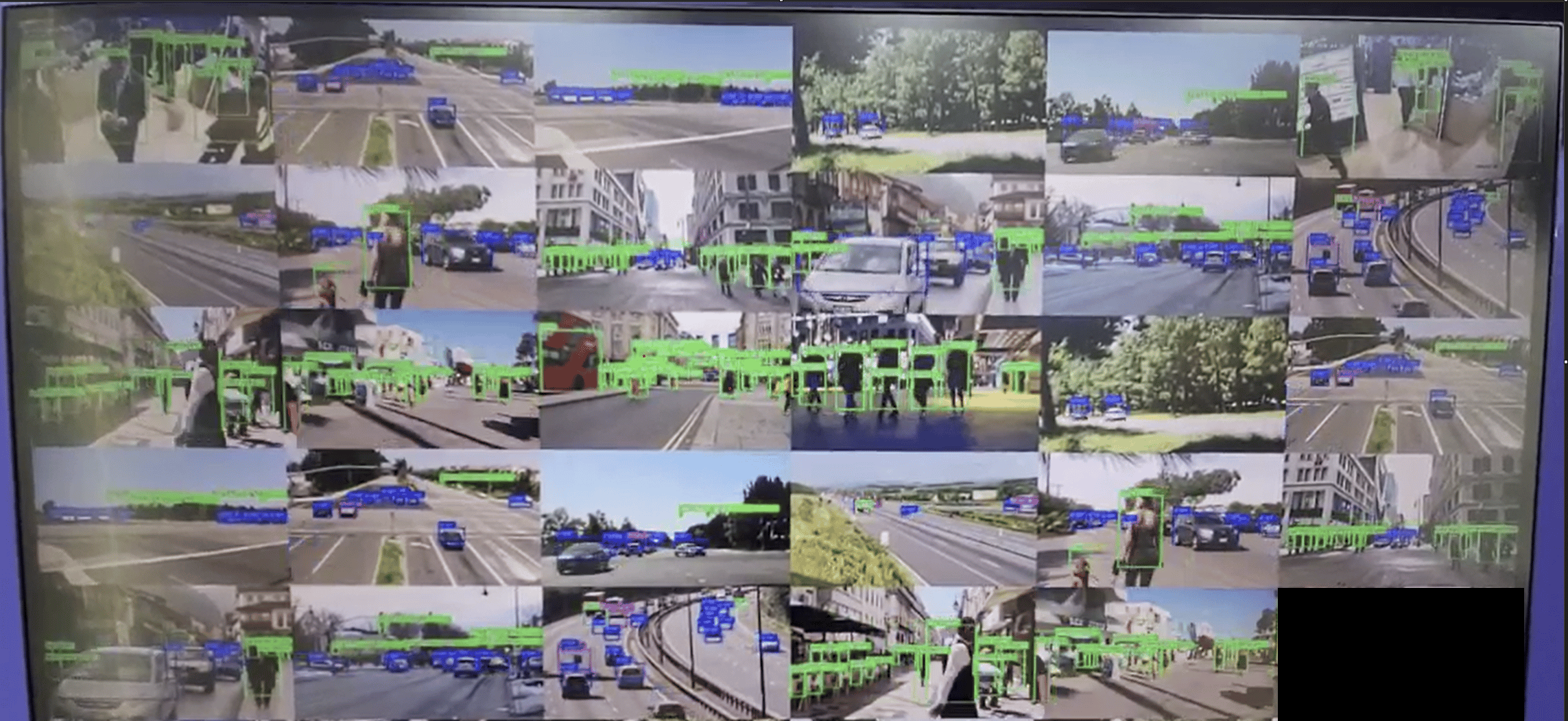
Process up to 31 concurrent IP camera streams in parallel with YOLOv8 object detection, compositing all streams into a unified video wall output and streaming over RTSP or WebRTC.

QIMSDK Team·Jun 14, 2026·← All posts

Introduction

Modern security systems rarely depend on a single camera. In real deployments, operators need to monitor dozens of streams simultaneously across warehouses, campuses, retail spaces, and large environments. As camera counts grow, manual monitoring becomes impractical, and traditional CPU-only processing struggles to keep up — increasing latency, power usage, and system load. The IM SDK addresses this directly. It enables scalable, real-time multi-stream video analytics at the edge using hardware-accelerated GStreamer plugins that shift demanding work — decoding, frame preparation, AI inference, and encoding — entirely onto dedicated hardware blocks. Frame preparation includes resizing frames to match model input, converting YUV to RGB, and normalizing pixel values for neural network input. The pipeline processes each stream independently, running object detection on every input source while preserving a consistent visual experience. To improve efficiency, inference runs at a reduced frame rate without affecting the continuity of the displayed output. Detection results are rendered as RGBA overlay masks and composited with the corresponding video feeds, allowing object visualization without modifying source frames directly. Integration with Qualcomm AI Hub gives developers access to optimized, ready-to-use models such as YOLO-based detectors for multi-stream analytics. The complete application source code is available here.

Use Case Overview

1

Video Input

Each RTSP camera provides an H.264/H.265-encoded stream decoded into raw YUV frames for inference and visualization.
2

Frame Rate Optimization

videorate controls the inference processing rate to improve performance while preserving temporal accuracy in the displayed output.
3

Object Detection

Each decoded frame is analyzed independently by an object detection model running on the Qualcomm NPU.
4

Detection Output

The model produces an RGBA overlay mask containing bounding boxes and class labels over a transparent background.
5

Composition

qtivcomposer composites all stream masks onto their corresponding video frames and tiles them into a configurable M×N grid (up to 8×4).
6

Metadata Synchronization

qtimetamux attaches detection results as structured per-frame metadata synchronized with the video stream.
7

Output

The final composited stream is displayed locally on an HDMI monitor or streamed over RTSP/WebRTC with structured metadata transmitted in parallel.

Pipeline diagram
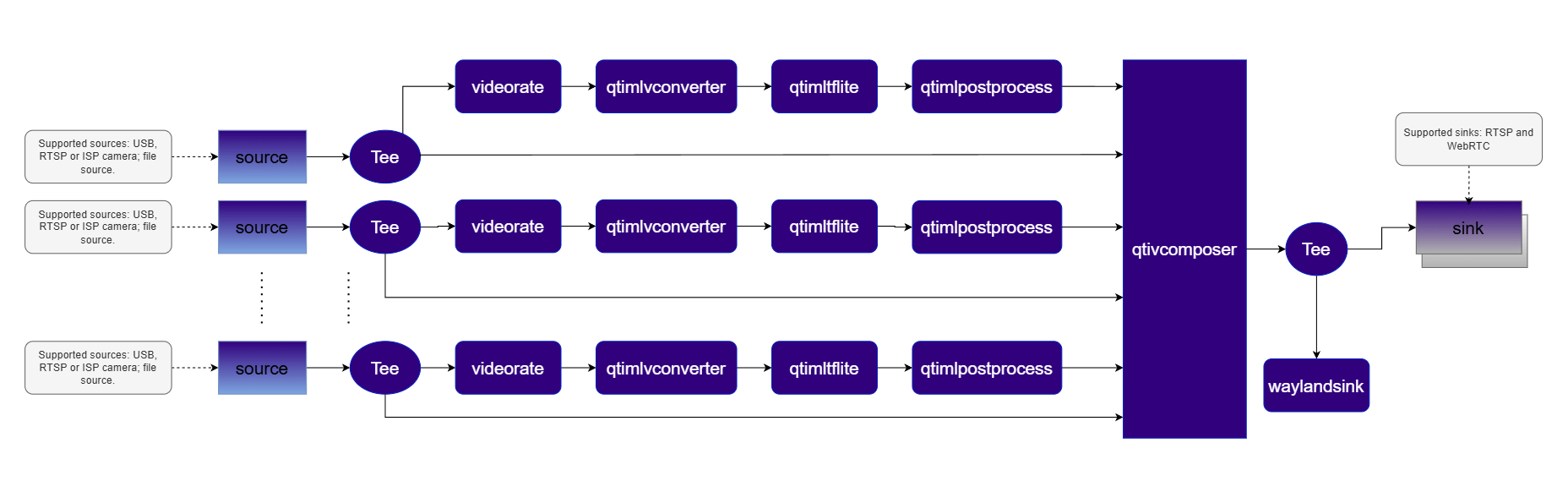
Security Video Wall Pipeline

Elements used in pipeline

ElementDescription
sourceAccepts input from an RTSP camera, USB camera, or local file source.
teeSplits each decoded stream into parallel branches for simultaneous display and AI inference.
videorateAdjusts the video frame rate — reduces rate by half to lower compute load while maintaining display continuity.
qtimlvconverterPrepares frames for inference — resizes, converts YUV to RGB, and normalizes input to match model requirements.
qtimltfliteRuns the TFLite object detection model on each frame using the Qualcomm NPU via the QNN external delegate.
qtimlpostprocessConverts raw output tensors into structured bounding boxes and labels via a dynamically loaded module.
qtimetamuxSynchronizes inference results with the original video stream as per-frame structured metadata.
qtivcomposerComposites video from all streams into a single 8×4 grid output and overlays RGBA masks onto corresponding YUV frames.
v4l2h264enc / h264parseEncodes the composited stream into H.264 format for transmission.
waylandsinkDisplays the composited video locally on the device.
sinkStreams the encoded video and metadata over RTSP or WebRTC via rtspbin or webrtcbin.

How it works

1

Stream Ingestion

Each rtspsrc element receives an RTSP stream. The RTP/H.264 payload is depayloaded, parsed, and decoded into raw NV12 frames by the hardware decoder.
2

Parallel Processing

A tee splits each decoded stream into two branches: one forwards frames directly to the compositor, the other runs AI inference at a reduced frame rate.
3

ML Inference

The inference branch runs through qtimlvconverterqtimltfliteqtimlpostprocess producing an RGBA overlay mask.
4

Composition

qtivcomposer tiles all annotated streams into an 8×4 grid. If detection runs at a lower rate than the input, the most recent mask is reused to maintain a stable overlay.
5

Output Delivery

The composited frame is delivered to a Wayland display, saved to file, or streamed over RTSP/WebRTC.

Run application on device

Setup Requirements

Hardware
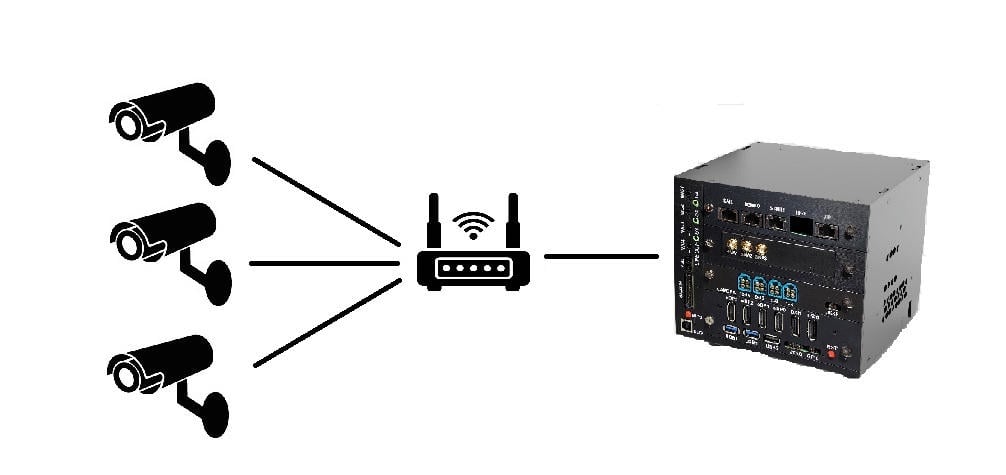
Hardware Setup
ComponentDescription
Edge DeviceIQ9 — Primary processing unit for AI inference and video composition.
Camera SourceIP/RTSP cameras. A local file source may be substituted if no physical camera is available.
HDMI Display MonitorConnected to the edge device for rendering and visualizing pipeline output.
PoE SwitchPowers IP/RTSP cameras and provides network connectivity over a single Ethernet cable per camera. (Required for IP/RTSP setups only.)
Local NetworkEnsures the edge device, cameras, and host machine are reachable on the same network. (Required for RTSP input or RTSP/WebRTC output.)

Software

Flash your Qualcomm Edge device by following the device setup and flashing instructions here. Once your device is ready, follow the instructions below to set up the Security Video Wall pipeline.
AI Model and config files
FileDownloadSave as
YOLOv8 W8A8 modelQualcomm AI Hub — YOLOv8 Detectionyolov8_det_quantized.tflite
Detection labelsyolov8.jsonyolov8.json
Sample videoInput videovideo.mp4
Copy files to device
# Replace $HOME to the appropriate device path before running the commands.
# For QLI:    /root
# For Ubuntu: /home/ubuntu
# Modify this based on your platform and ensure files are copied to the correct location on the device.

ssh <user>@<device-ip> "mkdir -p $HOME/{models,labels,media,media/output}"
scp yolov8_det_quantized.tflite   <user>@<device-ip>:$HOME/models/
scp yolov8.json                   <user>@<device-ip>:$HOME/labels/
scp video.mp4                     <user>@<device-ip>:$HOME/media/
Connect to device
ssh <user>@<device-ip>
Run the Security Video Wall
Note: A display must be connected to the device. If no display is available, use the --no-display flag.
ulimit -n 16192 && \
gst-video-wall \
  --input-count=31 \
  $(for i in $(seq 1 31); do echo "--input-type=file --input-config=$HOME/media/video.mp4"; done) \
  --output-type=rtsp \
  --output-config=8900
ulimit -n 16192 && \
gst-video-wall \
  --input-count=31 \
  $(for i in $(seq 1 31); do echo "--input-type=file --input-config=$HOME/media/video.mp4"; done) \
  --output-type=webrtc \
  --output-config=wss://webrtc.nirbheek.in:8443 \
  --webrtc-id=1010
ulimit -n 16192 && \
gst-video-wall \
  --input-count=4 \
  $(for i in $(seq 1 4); do echo "--input-type=file --input-config=$HOME/media/video.mp4"; done)
Note: This example uses an offline video file as input. To use IP/RTSP cameras, update --input-type=rtsp and --input-config=rtsp://... accordingly.
It produces an AI-annotated video stream. To visualize the results, refer to the Host-Side Visualization section below.

Visualize the Results - Host-Side Visualization (Windows + WSL)

This section describes how to run the visualization client on a Windows host machine using WSL (Windows Subsystem for Linux). The client renders the live composited video stream alongside a real-time AI metadata panel. 📥 The visualization client script can be downloaded here: rtsp_webrtc_client.zip It displays:
  • Left panel — Live composited video stream with AI overlays from all camera inputs.
  • Right panel — Real-time AI metadata (JSON): object detections, bounding boxes, and confidence scores per stream.
Step 1 — Install WSL and Ubuntu If WSL is not already installed, run the following from a Windows terminal:
wsl --install Ubuntu-24.04
Once installed, update the system:
sudo apt update && sudo apt upgrade -y
Step 2 — Install System Dependencies
sudo apt install -y \
  python3 python3-pip python3-gi python3-gi-cairo \
  gir1.2-gstreamer-1.0 \
  gir1.2-gst-plugins-base-1.0 \
  gir1.2-gst-plugins-bad-1.0 \
  gstreamer1.0-tools \
  gstreamer1.0-plugins-base \
  gstreamer1.0-plugins-good \
  gstreamer1.0-plugins-bad \
  gstreamer1.0-plugins-ugly \
  gstreamer1.0-libav \
  python3-websocket \
  libnice10 \
  libnice-dev \
  gstreamer1.0-nice
Step 3 — Run the Visualization Client Script
python3 rtsp_webrtc_client.py rtsp://<DEVICE_IP>:8900/live
python3 rtsp_webrtc_client.py --source webrtc --signalling-server wss://webrtc.nirbheek.in:8443 --peer-id 1010
Step 4 — Expected Output
PanelContent
LeftReal-time composited video — all streams tiled in a grid with bounding boxes and labels
RightLive AI metadata — per-stream object detections, bounding boxes, and confidence scores
Expected Output Beyond the default setup, the application offers flexible input and output configurations that can be tailored via command-line options, as described below:

Command-Line Options

Specifies the total number of input video streams. Must match the number of --input-type and --input-config entries. Valid range: 1 to 31.
--input-count=4
Selects the video input source for each stream.
ValueDescription
rtspExternal IP/RTSP camera. Requires --input-config=rtsp://....
fileLocal H.264-encoded video file. Requires --input-config=/path/to/video.mp4.
Specifies the input source configuration for the selected --input-type.
Input TypeValue
RTSPrtsp://<ip-or-url>
File/path/to/video.mp4
Defines how the processed output is delivered.
ValueDescription
noneNo video output (headless mode).
fileSave encoded output to a file. Requires --output-config.
rtspStream over RTSP. Requires --output-config=<port>. Access at rtsp://<device-ip>:<port>/live.
webrtcStream over WebRTC. Requires --output-config=ws://....
Specifies the output destination configuration.
Output TypeValue
File/path/to/output.mp4
RTSP<port>
WebRTCws://<signalling-server>:<port>
Root directory for AI model, label, and configuration files.
Asset TypeResolved Path
Model files (*.tflite)<base-path>/models/<model_file>
Label/settings files (*.json)<base-path>/labels/<labels_file>
--model-base-path=/root        # QLI
--model-base-path=/home/ubuntu # Ubuntu
Disables local on-screen rendering. Recommended for headless deployments, remote streaming (RTSP/WebRTC), or performance optimization.
Specifies the video frame rate for the input stream.
--num-npus=N
Specifies the local WebRTC signaling client ID.
--webrtc-id=1010

Implementation Deep-Dive

The application separates user configuration from runtime state.
typedef struct GstAppConfig {
  gint    input_count;
  gchar **input_types;
  gchar **input_configs;
  gchar  *output_type;
  gchar  *output_config;
  gchar  *model_base_path;
  gboolean no_display;
  gint    width, height, framerate, webrtc_id;
} GstAppConfig;

typedef struct GstAppContext {
  GstAppConfig config;
  GstElement  *pipeline;
  GMainLoop   *mloop;
  GstAppPadLinkData qtdemux_links[GST_APP_MAX_INPUTS];
  GstAppPadLinkData rtspsrc_links[GST_APP_MAX_INPUTS];
  GstElement  *webrtc;
  gboolean     is_shutting_down;
} GstAppContext;
The pipeline is assembled from three logical sections: input branch, output branch, and application-specific user branch.
static gboolean gst_app_create_pipe (GstAppContext *appctx) {
  GstElement *input_tails[GST_APP_MAX_INPUTS] = { NULL };
  GstElement *output_head = NULL;

  appctx->pipeline = gst_pipeline_new ("gst-video-wall");

  if (!gst_app_create_input_pipe  (appctx, input_tails))          return FALSE;
  if (!gst_app_create_output_pipe (appctx, &output_head))          return FALSE;
  if (!gst_app_create_user_pipe   (appctx, input_tails, output_head)) return FALSE;
  return TRUE;
}
Constants define the maximum input count and compositor layout.
#define GST_APP_MAX_INPUTS          31
#define GST_APP_COMPOSER_COLUMNS     8
#define GST_APP_COMPOSER_ROWS        4
#define GST_APP_COMPOSER_CELL_WIDTH  240
#define GST_APP_COMPOSER_CELL_HEIGHT 135
#define MODEL_PATH  "yolov8_det_quantized.tflite"
#define LABELS_PATH "yolov8.json"
Each input stream contributes one direct video layer and one RGBA overlay layer to the same grid position in the compositor.
WebRTC signaling uses explicit SDP offer/answer and ICE candidate exchange via WebSocket with libsoup.
g_signal_emit_by_name (webrtcbin, "create-data-channel", name, NULL, &ch);

GstPromise *promise = gst_promise_new_with_change_func (on_offer_created, appctx, NULL);
g_signal_emit_by_name (webrtcbin, "create-offer", NULL, promise);

g_signal_connect (appctx->webrtc, "on-ice-candidate",
    G_CALLBACK (on_webrtc_ice_candidate), appctx);
CallbackResponsibility
on_offer_createdConstructs and sends the SDP offer
on_ice_candidateTransmits ICE candidates to the signaling server
on_ws_messageHandles incoming WebSocket signaling messages

Build the Application

Conclusion

The IM SDK modular architecture gives developers flexibility and control when building real-time multi-stream video analytics pipelines. By separating inference from post-processing, the post-processing stage can be customized without changing the model execution path. This keeps AI results and video frames decoupled while enabling efficient visualization — post-processing generates an RGBA overlay mask composited onto the original frame without duplicating video data, delivering lower latency, reduced memory overhead, and better scalability for real-time AI video applications.