

What is the C++ App Builder Skill?
The QIM SDK C++ App Builder is an AI coding skill that generates C++ applications using theQIM SDK C++ API. You describe the pipeline behavior and configuration in natural language, and the agent produces a ready-to-build main.cc and CMakeLists.txt built on the QIM SDK C++ API — along with a README.md that documents the information about the generated application.
Flow
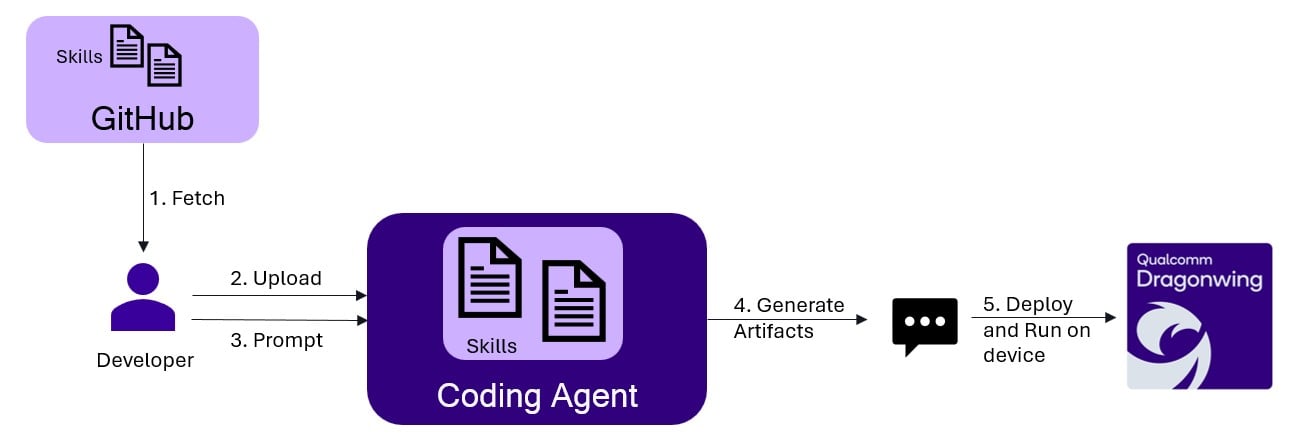
qimsdk-cpp-<name>/ containing:
main.cc— a complete, buildable C++ application using the QIM SDK C++ API, including pipeline construction, element wiring, stream filters, and ML inference configurationCMakeLists.txt— the build script that compilesmain.ccand links againstqimsdk-app-builderREADME.md— a detailed document covering:- Purpose and pipeline behavior summary
- Configuration placeholders (input, model, labels, output paths)
- A step-by-step pipeline flow (text summary + Mermaid diagram)
- Steps to compile and run the app on device
A YAML config file— only when you request declarative YAML pipeline mode
Prerequisites
For generating code
Qualcomm dev kits are not needed for code generation.
This skill is designed to work well even with low-reasoning / smaller models.Eg: A Sonnet 4.5 model is sufficient.
For deploying and running apps
The target devices where QIM SDK is supported (see QIM SDK Installation Guide)How to Use
Step 1: Get the skill
Choose one installation method:- Install Skill
- Install Plugin
Clone the skill repository and copy the QIM SDK C++ App Builder and qimsdk-deploy skills into your coding agent’s skills directory:The skills directory is agent-specific. Check your coding agent’s documentation for its skills location.Restart or reload your coding agent after installation. Verify that
qimsdk-cpp-app-builder and qimsdk-deploy are available with /skills.Step 2: Generate the application
Describe your pipeline to the agent. It will automatically activate the skill and generate a completemain.cc, CMakeLists.txt, and README.md.
Sample Prompt
Prompt format — describe pipeline behavior and configuration:Generated README.md
The README documents the generated app in full:
- Purpose — a plain-English summary of what the pipeline does
- Files — lists
main.cc,CMakeLists.txt, andREADME.mdwith descriptions - Assumptions — codec format, quantization requirements, camera defaults, output directory pre-conditions
- Configuration — all user-supplied paths (input, model, labels, output) with instructions on where to change them
- Placeholders to Fill — any values you still need to supply, or a note that none remain when the request was fully specified
- Pipeline Flow — a
Text Summarywalkthrough of every element plus aMermaid Diagramof the full pipeline - Steps to compile — how to build the app against the QIM SDK with CMake
- Steps to Run — exact commands to run on device, including any setup (e.g.
mkdir -pfor output directories)
README.md
README.md
QIM SDK C++ App — Single-Stream YOLOX Object Detection (MP4 → MP4)
Purpose
Decode an MP4 file with the Qualcomm hardware decoder, run YOLOX object detection on full frames using the TFLite external delegate on the HTP/NPU, merge the detection metadata with the video stream, overlay bounding boxes and class labels, then hardware-encode the annotated video to an output MP4 file. Headless (no display branch).Files
main.cc— the qimsdk C++ pipeline appCMakeLists.txt— build target (qimsdk-cpp-yolox-obj-detect-encode)README.md— this file
Assumptions
- Input is H.264-in-MP4, decoded with
v4l2h264dec(capture-io-mode=4,output-io-mode=4— file source decoded through the hardware decoder). - YOLOX (
yolox_w8a8.tflite) uses theyolov8postprocess module with theyolov8.jsonlabels, per the model catalog. - Confidence threshold is applied as inline postprocess settings
{"confidence": 51.0}. - No display: the annotated stream is normalized back to NV12
(
render_vf), encoded (v4l2h264enc,capture/output-io-mode=4/4, the correct pairing for a transform/decoder-produced NV12 buffer), parsed, muxed (mp4mux), and written to the output MP4 (filesink). pipeline.eos(true)is set somp4muxfinalizes the container on EOS.HOMEis resolved once in C++ (std::getenv("HOME")with an unset/empty check) and prepended to every file path, because C++ string literals do not expand$HOME.
Configuration (fixed constants in main.cc)
Placeholders to Fill
None. All paths, model, labels, confidence, and delegate options are concrete.${QIMSDK_BINDIR} is expected to be defined by the parent SDK build.Pipeline Flow
Text Summary
filesrc reads the MP4 and qtdemux extracts the H.264 elementary stream,
which h264parse prepares and v4l2h264dec hardware-decodes. A queue
(q_dec) decouples the decoder thread, then a VideoFilter (vf) constrains
the stream to NV12. A tee (split) branches:- Passthrough / video branch →
qtimetamux(metamux). - AI branch →
queue(q_ai) →qtimlvconverter(pre, preprocess to model tensor) →qtimltflite(infer, YOLOX, external delegate, HTP/NPU) →qtimlpostprocess(post,module=yolov8, labels,{"confidence": 51.0}) →TextFilter(mlf) →qtimetamux(metamux).
qtimetamux merges the detection metadata back onto the video frames,
qtivoverlay draws the bounding boxes and class labels, a VideoFilter
(render_vf) normalizes the overlaid frames to NV12 for the encoder, and the
stream is hardware-encoded by v4l2h264enc, parsed by h264parse
(h264parser), muxed by mp4mux, and written by filesink to the output MP4.Mermaid Diagram
Steps to Compile
Yocto: https://imsdkdocs.qualcomm.com/advanced/yocto-build#steps-to-build-custom-applicationSteps to Run
First ensure all referenced files — the input MP4, theyolox_w8a8.tflite
model, and the yolov8.json labels — are already present on the device at the
paths configured in main.cc.$HOME/Downloads/qimsdk_samples/media/ai_demo_sample.mp4 on the device, and the
output directory ($HOME/Downloads/qimsdk_samples/media/) must be writable so
the app can create obj_detect_out.mp4. The app runs to end-of-file, finalizes
the MP4, and exits.Generated main.cc
- The generated application constructs a tee-split pipeline: decoded frames are split into a passthrough branch and an AI branch.
- The AI branch runs
qtimlvconverter(preprocess) →qtimltflite(YOLOX inference via HTP/NPU) →qtimlpostprocess→TextFilter, then merges back intoqtimetamuxwith the passthrough video. qtivoverlaydraws bounding boxes, and the result is hardware-encoded and written to an MP4 file viafilesink.- Pipeline construction and
.execute()live insidecreate_and_execute_pipeline();main()sets up logging, wraps the call in a try/catch, and returns a non-zero exit code on error. - All paths are
$HOME-relative and resolved once via a checkedstd::getenv("HOME")helper — C++ string literals do not expand shell variables.
main.cc
main.cc
Generated CMakeLists.txt
- Defines a single executable target (
qimsdk-cpp-yolox-obj-detect-encode) built frommain.cc. - Links against
qimsdk-app-builder— no direct GStreamer package dependency. - Installs the binary to
${QIMSDK_BINDIR}(defined by the parent SDK build) with standard executable permissions.
CMakeLists.txt
CMakeLists.txt
Step 3: Running the applications
1
Download Required Files
If the downloaded model file is a
.zip archive, extract it on your host machine before copying: unzip filename.zip2
Copy the assets to the device
The input video, model, and labels must be present on the device before running — regardless of how you build and run the app. Copy them to the paths
main.cc expects:3
Build and run the application
The C++ app must be compiled before it can run. With the assets in place, you have two options to build and run the agent-generated app:Option A — Use the QIM SDK Deploy skill (Recommended):The
qimsdk-deploy skill builds the app on your host against the Yocto SDK, then pushes the compiled binary to the device and runs it over SSH. It handles only the app build and binary transfer — the assets from the previous step must already be on the device.Option B — Follow the generated README:Follow the steps in the README.md to compile the app, then push the binary to the device and run it:- Compile the app by following the steps at Yocto Build.
-
Push the compiled binary to the device and run it:
~/Downloads/qimsdk_samples/media/obj_detect_out.mp4.