> ## Documentation Index
> Fetch the complete documentation index at: https://imsdkdocs.qualcomm.com/llms.txt
> Use this file to discover all available pages before exploring further.
# Multimedia
> Ready-to-run Python multimedia applications demonstrating QIM SDK camera, video, and streaming capabilities
This section covers Python-based multimedia sample applications that demonstrate camera streaming, video playback, and transformation on Qualcomm platforms.
***
Prerequisites
See the [Prerequisites](/sample-application/python-ai-sample-applications#prerequisites) section in the Python AI page for device setup, Wi-Fi, artifact download, and enabling qticamsrc and libcamera.
***
## Multimedia Applications
### Camera encoding
The [**gst-camera-encode.py**](https://github.com/qualcomm/gst-plugins-imsdk/blob/main/gst-python-examples/gst-camera-encode.py) application allows you to record and encode a single camera stream.
For information about the plugins used in this pipeline, see [Pipeline flow](#camera-encoding-py-pipeline).
 **Application:** [`gst-camera-encode.py`](https://github.com/qualcomm/gst-plugins-imsdk/blob/main/gst-python-examples/gst-camera-encode.py)
Ensure that you complete the [Prerequisites](#prerequisites).
```bash theme={null}
gst-camera-encode.py
```
To display all available options:
```bash theme={null}
gst-camera-encode.py -h
```
```bash theme={null}
scp root@:/etc/media/recording.mp4 .
```
### Expected output
The output is saved in a file at `/etc/media/recording.mp4`.
**Application:** [`gst-camera-encode.py`](https://github.com/qualcomm/gst-plugins-imsdk/blob/main/gst-python-examples/gst-camera-encode.py)
Ensure that you complete the [Prerequisites](#prerequisites).
```bash theme={null}
gst-camera-encode.py
```
To display all available options:
```bash theme={null}
gst-camera-encode.py -h
```
```bash theme={null}
scp root@:/etc/media/recording.mp4 .
```
### Expected output
The output is saved in a file at `/etc/media/recording.mp4`.
Pipeline flow
| Plugin | Description |
| ------------- | ----------------------------------------------------------------------------------- |
| `qticamsrc` | Captures the camera live stream. Capsfilter enforces constraints on raw video data. |
| `v4l2h264enc` | Encodes the video using H.264 format. |
| `h264parse` | Parses the encoded video. |
| `mp4mux` | Multiplexes the video into an MP4 container. |
| `filesink` | Writes the video to a file. |
***
### Camera Streaming using OpenCV
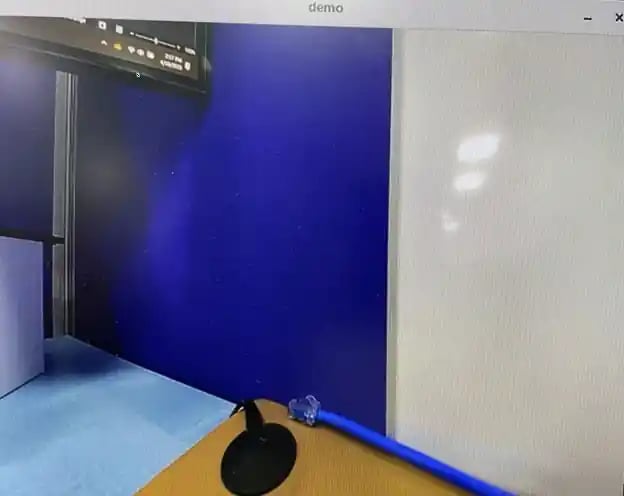
The [**gst-camera-opencv-resize.py**](https://github.com/qualcomm/gst-plugins-imsdk/blob/main/gst-python-examples/gst-camera-opencv-resize.py) application uses OpenCV APIs to capture a camera frame from a live camera stream and apply color conversion or resize. The output is displayed on the screen.
For information about the plugins used in this pipeline, see [Pipeline flow](#camera-resize-py-pipeline).
 **Application:** [`gst-camera-opencv-resize.py`](https://github.com/qualcomm/gst-plugins-imsdk/blob/main/gst-python-examples/gst-camera-opencv-resize.py)
Ensure that you complete the [Prerequisites](#prerequisites).
```bash theme={null}
gst-camera-opencv-resize.py --inwidth 1280 --inheight 720 --outwidth 640 --outheight 480
```
To display all available options:
```bash theme={null}
gst-camera-opencv-resize.py -h
```
### Expected output
The stream is displayed on the screen.
**Application:** [`gst-camera-opencv-resize.py`](https://github.com/qualcomm/gst-plugins-imsdk/blob/main/gst-python-examples/gst-camera-opencv-resize.py)
Ensure that you complete the [Prerequisites](#prerequisites).
```bash theme={null}
gst-camera-opencv-resize.py --inwidth 1280 --inheight 720 --outwidth 640 --outheight 480
```
To display all available options:
```bash theme={null}
gst-camera-opencv-resize.py -h
```
### Expected output
The stream is displayed on the screen.
 ### Troubleshoot GTK backend failure in root mode
When running a GTK-based application as root, GTK may fail to initialize the backend. Export the active display session before running:
```bash theme={null}
```
### Troubleshoot GTK backend failure in root mode
When running a GTK-based application as root, GTK may fail to initialize the backend. Export the active display session before running:
```bash theme={null}
```
Pipeline flow
| Plugin | Description |
| --------------- | ----------------------------------------------------------- |
| `qticamsrc` | Captures the video stream and feeds it into the capsfilter. |
| `capsfilter` | Enforces constraints on the raw video data. |
| `queue` | Buffers video data. |
| `qtivtransform` | Transforms the video data. |
| `waylandsink` | Displays the video stream on the Wayland display. |
***
### Concurrent video playback (video wall) using Python
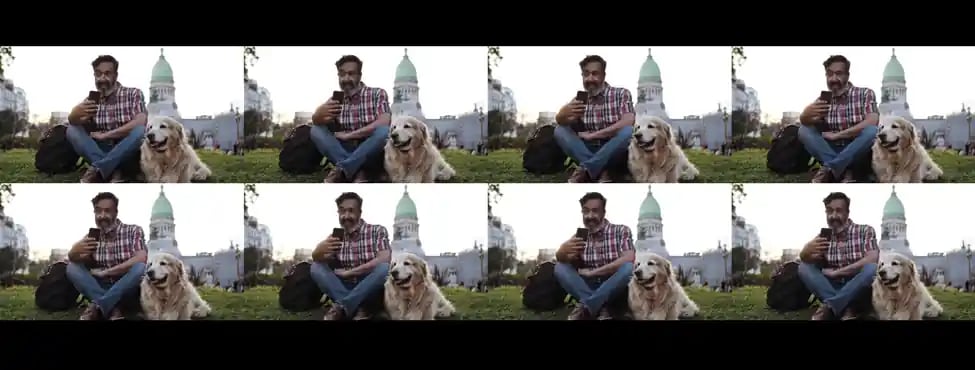
The [**gst-concurrent-videoplay-composition.py**](https://github.com/qualcomm/gst-plugins-imsdk/blob/main/gst-python-examples/gst-concurrent-videoplay-composition.py) application supports concurrent video playback for MP4 AVC (H.264) videos and performs composition on a video wall display.
For information about the plugins used in this pipeline, see [Pipeline flow](#concurrent-playback-py-pipeline).
 **Application:** [`gst-concurrent-videoplay-composition.py`](https://github.com/qualcomm/gst-plugins-imsdk/blob/main/gst-python-examples/gst-concurrent-videoplay-composition.py)
Ensure that you complete the [Prerequisites](#prerequisites).
```bash theme={null}
gst-concurrent-videoplay-composition.py --infile /etc/media/video_avc.mp4
```
To change the number of sessions, update `-c` with `2`, `4`, `8`, or `16`.
To display all available options:
```bash theme={null}
gst-concurrent-videoplay-composition.py -h
```
### Expected output
The individual composed streams are tiled together to display as a unified stream.
**Application:** [`gst-concurrent-videoplay-composition.py`](https://github.com/qualcomm/gst-plugins-imsdk/blob/main/gst-python-examples/gst-concurrent-videoplay-composition.py)
Ensure that you complete the [Prerequisites](#prerequisites).
```bash theme={null}
gst-concurrent-videoplay-composition.py --infile /etc/media/video_avc.mp4
```
To change the number of sessions, update `-c` with `2`, `4`, `8`, or `16`.
To display all available options:
```bash theme={null}
gst-concurrent-videoplay-composition.py -h
```
### Expected output
The individual composed streams are tiled together to display as a unified stream.
Pipeline flow
| Plugin | Description |
| -------------- | ------------------------------------------------- |
| `filesrc` | Reads the video data. |
| `qtdemux` | Demultiplexes the video data. |
| `h264parse` | Parses H.264 video streams. |
| `v4l2h264dec` | Decodes H.264 video streams. |
| `qtivcomposer` | Composes decoded streams and sends to display. |
| `waylandsink` | Displays the video stream on the Wayland display. |
***
### Video transformation using OpenCV
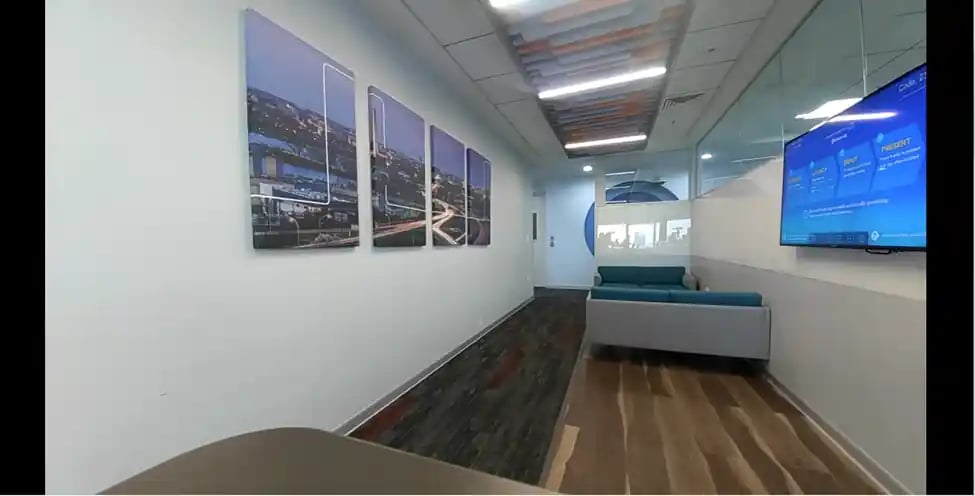
The [**gst-opencv-transform.py**](https://github.com/qualcomm/gst-plugins-imsdk/blob/main/gst-python-examples/gst-opencv-transform.py) application captures and transforms a video frame then displays the video on the screen using the OpenCV `VideoCapture()` function.
For information about the plugins used in this pipeline, see [Pipeline flow](#camera-transform-py-pipeline).
 **Application:** [`gst-opencv-transform.py`](https://github.com/qualcomm/gst-plugins-imsdk/blob/main/gst-python-examples/gst-opencv-transform.py)
Ensure that you complete the [Prerequisites](#prerequisites).
```bash theme={null}
gst-opencv-transform.py --infile /etc/media/video_avc.mp4
```
To display all available options:
```bash theme={null}
gst-opencv-transform.py -h
```
### Expected output
The stream is displayed on the screen.
**Application:** [`gst-opencv-transform.py`](https://github.com/qualcomm/gst-plugins-imsdk/blob/main/gst-python-examples/gst-opencv-transform.py)
Ensure that you complete the [Prerequisites](#prerequisites).
```bash theme={null}
gst-opencv-transform.py --infile /etc/media/video_avc.mp4
```
To display all available options:
```bash theme={null}
gst-opencv-transform.py -h
```
### Expected output
The stream is displayed on the screen.
 | Plugin | Description |
| --------------- | ------------------------------------------------- |
| `filesrc` | Reads the video data. |
| `qtdemux` | Demultiplexes the video data. |
| `h264parse` | Parses H.264 video streams. |
| `v4l2h264dec` | Decodes H.264 video streams. |
| `qtivtransform` | Transforms the video data. |
| `videoconvert` | Converts video frames from one format to another. |
| `capsfilter` | Enforces constraints on the video data. |
| `waylandsink` | Displays the video stream on the Wayland display. |
***
### Multi-camera streaming using Python
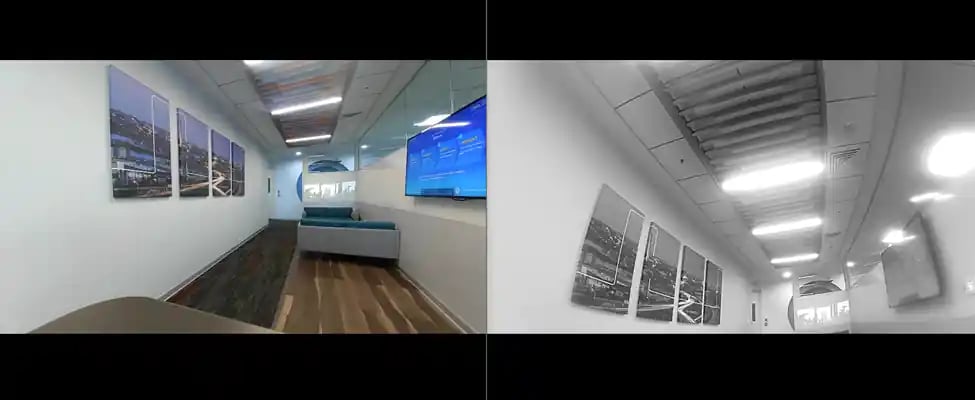
The [**gst-multi-camera-stream-example.py**](https://github.com/qualcomm/gst-plugins-imsdk/blob/main/gst-python-examples/gst-multi-camera-stream-example.py) application streams from two camera sensors simultaneously, composing the feeds side by side or encoding to files.
For information about the plugins used in this pipeline, see [Pipeline flow](#multi-camera-streaming-py-pipeline).
| Plugin | Description |
| --------------- | ------------------------------------------------- |
| `filesrc` | Reads the video data. |
| `qtdemux` | Demultiplexes the video data. |
| `h264parse` | Parses H.264 video streams. |
| `v4l2h264dec` | Decodes H.264 video streams. |
| `qtivtransform` | Transforms the video data. |
| `videoconvert` | Converts video frames from one format to another. |
| `capsfilter` | Enforces constraints on the video data. |
| `waylandsink` | Displays the video stream on the Wayland display. |
***
### Multi-camera streaming using Python
The [**gst-multi-camera-stream-example.py**](https://github.com/qualcomm/gst-plugins-imsdk/blob/main/gst-python-examples/gst-multi-camera-stream-example.py) application streams from two camera sensors simultaneously, composing the feeds side by side or encoding to files.
For information about the plugins used in this pipeline, see [Pipeline flow](#multi-camera-streaming-py-pipeline).
 **Application:** [`gst-multi-camera-stream-example.py`](https://github.com/qualcomm/gst-plugins-imsdk/blob/main/gst-python-examples/gst-multi-camera-stream-example.py)
This application isn't supported in the Config #1 of the QLI 2.0 RC3 release.
Ensure that you complete the [Prerequisites](#prerequisites).
* Preview on display:
```bash theme={null}
gst-multi-camera-stream-example.py -D 1 --width=1920 --height=1080
```
* Encode to file:
```bash theme={null}
gst-multi-camera-stream-example.py -D 0 --width=1920 --height=1080 --framerate=30/1
```
To display all available options:
```bash theme={null}
gst-multi-camera-stream-example.py --help
```
### Expected output
For the video composition pipeline, the output is displayed as a preview.
**Application:** [`gst-multi-camera-stream-example.py`](https://github.com/qualcomm/gst-plugins-imsdk/blob/main/gst-python-examples/gst-multi-camera-stream-example.py)
This application isn't supported in the Config #1 of the QLI 2.0 RC3 release.
Ensure that you complete the [Prerequisites](#prerequisites).
* Preview on display:
```bash theme={null}
gst-multi-camera-stream-example.py -D 1 --width=1920 --height=1080
```
* Encode to file:
```bash theme={null}
gst-multi-camera-stream-example.py -D 0 --width=1920 --height=1080 --framerate=30/1
```
To display all available options:
```bash theme={null}
gst-multi-camera-stream-example.py --help
```
### Expected output
For the video composition pipeline, the output is displayed as a preview.
Pipeline flow
| Pipeline | Description |
| ------------------ | -------------------------------------------------------------------------------------------- |
| Preview on display | `qticamsrc` (cam0 + cam1) → capsfilter → `qtivcomposer` → `waylandsink` |
| Encoder dump | `qticamsrc` (cam0 + cam1) → capsfilter → `v4l2h264enc` → `h264parse` → `mp4mux` → `filesink` |
***
### Decode JPEG images using Python
The [**gst-jpg-image-decode.py**](https://github.com/qualcomm/gst-plugins-imsdk/blob/main/gst-python-examples/gst-jpg-image-decode.py) application decodes JPEG images and displays them on a screen.
For information about the plugins used in this pipeline, see [Pipeline flow](#jpeg-decode-py-pipeline).
 **Application:** [`gst-jpg-image-decode.py`](https://github.com/qualcomm/gst-plugins-imsdk/blob/main/gst-python-examples/gst-jpg-image-decode.py)
Ensure that you complete the [Prerequisites](#prerequisites).
```bash theme={null}
gst-jpg-image-decode.py -i /etc/media/imagefiles_%d.jpg
```
To display all available options:
```bash theme={null}
gst-jpg-image-decode.py -h
```
### Expected output
The decoded images are displayed on the screen.
**Application:** [`gst-jpg-image-decode.py`](https://github.com/qualcomm/gst-plugins-imsdk/blob/main/gst-python-examples/gst-jpg-image-decode.py)
Ensure that you complete the [Prerequisites](#prerequisites).
```bash theme={null}
gst-jpg-image-decode.py -i /etc/media/imagefiles_%d.jpg
```
To display all available options:
```bash theme={null}
gst-jpg-image-decode.py -h
```
### Expected output
The decoded images are displayed on the screen.

Pipeline flow
| Plugin | Description |
| -------------- | ------------------------------------------------- |
| `multifilesrc` | Reads video data from sequentially named files. |
| `capsfilter` | Enforces constraints on the video data. |
| `jpegdec` | Decodes the JPEG video stream. |
| `videoconvert` | Converts video frames from one format to another. |
| `waylandsink` | Displays the video stream on the Wayland display. |
***
### Transform and encode a camera stream
The [**gst-camera-rotate-downscale-file.py**](https://github.com/qualcomm/gst-plugins-imsdk/blob/main/gst-python-examples/gst-camera-rotate-downscale-file.py) application rotates, downscales, and encodes a camera stream, saving the result to a file.
For information about the plugins used in this pipeline, see [Pipeline flow](#transform-encode-py-pipeline).
 **Application:** [`gst-camera-rotate-downscale-file.py`](https://github.com/qualcomm/gst-plugins-imsdk/blob/main/gst-python-examples/gst-camera-rotate-downscale-file.py)
Ensure that you complete the [Prerequisites](#prerequisites).
```bash theme={null}
gst-camera-rotate-downscale-file.py
```
To display all available options:
```bash theme={null}
gst-camera-rotate-downscale-file.py -h
```
### Expected output
The output is saved to a file at `/etc/media/test.mp4`.
| Plugin | Description |
| --------------- | --------------------------------------------- |
| `qticamsrc` | Captures the video stream. |
| `qtivtransform` | Rotates and downscales the video stream. |
| `v4l2h264enc` | Encodes H.264 video. |
| `h264parse` | Parses the encoded H.264 video stream. |
| `mp4mux` | Multiplexes the stream into an MP4 container. |
| `filesink` | Writes the video data to a file. |
***
## Troubleshooting
Download the model manually from [IoT — Qualcomm AI Hub](https://aihub.qualcomm.com) and push it to the device:
```bash theme={null}
scp root@:/etc/models
```
Remount the file system with read/write permissions:
For Qualcomm Linux:
```bash theme={null}
mount -o remount,rw /usr
```
For Ubuntu Server:
```bash theme={null}
mount -o remount,rw /
```
```bash theme={null}
ps -ef | grep cam-server
rm ~/.cache/gstreamer-1.0/registry.aarch64.bin
```
```bash theme={null}
export GST_DEBUG=2
export GST_DEBUG=3,qticamsrc:5,qtimlvconverter:5,qtimltflite:5
export GST_DEBUG_FILE=/tmp/gst_debug.log
```
**Application:** [`gst-camera-rotate-downscale-file.py`](https://github.com/qualcomm/gst-plugins-imsdk/blob/main/gst-python-examples/gst-camera-rotate-downscale-file.py)
Ensure that you complete the [Prerequisites](#prerequisites).
```bash theme={null}
gst-camera-rotate-downscale-file.py
```
To display all available options:
```bash theme={null}
gst-camera-rotate-downscale-file.py -h
```
### Expected output
The output is saved to a file at `/etc/media/test.mp4`.
| Plugin | Description |
| --------------- | --------------------------------------------- |
| `qticamsrc` | Captures the video stream. |
| `qtivtransform` | Rotates and downscales the video stream. |
| `v4l2h264enc` | Encodes H.264 video. |
| `h264parse` | Parses the encoded H.264 video stream. |
| `mp4mux` | Multiplexes the stream into an MP4 container. |
| `filesink` | Writes the video data to a file. |
***
## Troubleshooting
Download the model manually from [IoT — Qualcomm AI Hub](https://aihub.qualcomm.com) and push it to the device:
```bash theme={null}
scp root@:/etc/models
```
Remount the file system with read/write permissions:
For Qualcomm Linux:
```bash theme={null}
mount -o remount,rw /usr
```
For Ubuntu Server:
```bash theme={null}
mount -o remount,rw /
```
```bash theme={null}
ps -ef | grep cam-server
rm ~/.cache/gstreamer-1.0/registry.aarch64.bin
```
```bash theme={null}
export GST_DEBUG=2
export GST_DEBUG=3,qticamsrc:5,qtimlvconverter:5,qtimltflite:5
export GST_DEBUG_FILE=/tmp/gst_debug.log
```