> ## Documentation Index
> Fetch the complete documentation index at: https://imsdkdocs.qualcomm.com/llms.txt
> Use this file to discover all available pages before exploring further.
# AI
> Ready-to-run C++ applications demonstrating QIM SDK AI inference capabilities
This section covers QIM SDK AI sample applications that demonstrate vision, audio, and multi-model inference on Qualcomm platforms using LiteRT models accelerated on Qualcomm AI hardware.
The following tables list all available GStreamer C/C++ AI applications and their platform support. Select the appropriate configuration tab for your setup.
| Application | Source code | Description | Input sources | QCS6490 | IQ-8275 | IQ-9075 | IQ-615 |
| -------------------------------------- | ------------------------------------------------------------------------------------------------------------------------------------------------------------------ | --------------------------------------------------------- | ----------------------- | :-----: | :-----: | :-----: | :----: |
| Image classification | [`gst-ai-classification`](https://github.com/qualcomm/gst-plugins-imsdk/tree/main/gst-sample-apps/gst-ai-classification) | Classification on streams from a file source or RTSP. | Camera, file, RTSP, USB | ✓ | ✓ | ✓ | ✓ |
| Object detection | [`gst-ai-object-detection`](https://github.com/qualcomm/gst-plugins-imsdk/tree/main/gst-sample-apps/gst-ai-object-detection) | Object detection on streams from a file source or RTSP. | Camera, file, RTSP, USB | ✓ | ✓ | ✓ | × |
| Pose detection | [`gst-ai-pose-detection`](https://github.com/qualcomm/gst-plugins-imsdk/tree/main/gst-sample-apps/gst-ai-pose-detection) | Pose detection on streams from a file source or RTSP. | File, RTSP, USB | ✓ | ✓ | ✓ | ✓ |
| Image segmentation | [`gst-ai-segmentation`](https://github.com/qualcomm/gst-plugins-imsdk/tree/main/gst-sample-apps/gst-ai-segmentation) | Image segmentation on streams from a file source or RTSP. | File, RTSP | ✓ | ✓ | ✓ | × |
| Daisy chain detection + classification | [`gst-ai-daisychain-detection-classification`](https://github.com/qualcomm/gst-plugins-imsdk/tree/main/gst-sample-apps/gst-ai-daisychain-detection-classification) | Cascaded object detection and classification. | File, RTSP, USB | ✓ | ✓ | ✓ | × |
| Daisy chain detection + pose | [`gst-ai-daisychain-detection-pose`](https://github.com/qualcomm/gst-plugins-imsdk/tree/main/gst-sample-apps/gst-ai-daisychain-detection-pose) | Cascaded object detection and pose detection. | File, RTSP, USB | ✓ | ✓ | ✓ | × |
| Monodepth | [`gst-ai-monodepth`](https://github.com/qualcomm/gst-plugins-imsdk/tree/main/gst-sample-apps/gst-ai-monodepth) | Monocular depth estimation from file or RTSP. | File, RTSP | ✓ | ✓ | ✓ | × |
| Face detection | [`gst-ai-face-detection`](https://github.com/qualcomm/gst-plugins-imsdk/tree/main/gst-sample-apps/gst-ai-face-detection) | Face detection from file or RTSP. | File, RTSP | ✓ | ✓ | ✓ | ✓ |
| Audio classification | [`gst-ai-audio-classification`](https://github.com/qualcomm/gst-plugins-imsdk/tree/main/gst-sample-apps/gst-ai-audio-classification) | Audio event classification from microphone or file. | Audio, file | ✓ | ✓ | ✓ | ✓ |
| Metadata parsing | [`gst-ai-metadata-parser-example`](https://github.com/qualcomm/gst-plugins-imsdk/tree/main/gst-sample-apps/gst-ai-metadata-parser-example) | Parse ML metadata and count people from file or RTSP. | File, RTSP | ✓ | ✓ | ✓ | × |
| AI USB camera | [`gst-ai-usb-camera-app`](https://github.com/qualcomm/gst-plugins-imsdk/tree/main/gst-sample-apps/gst-ai-usb-camera-app) | USB camera streaming with optional object detection. | USB | ✓ | ✓ | ✓ | × |
| AI event encoder | [`gst-ai-event-encoder`](https://github.com/qualcomm/gst-plugins-imsdk/tree/main/gst-sample-apps/gst-ai-event-encoder) | Encode video only when a person is detected. | File, RTSP | ✓ | ✓ | ✓ | × |
| Application | Source code | Description | Input sources | QCS6490 | IQ-8275 | IQ-9075 | IQ-615 |
| ---------------------------------------------- | ----------------------------------------------------------------------------------------------------------------------------------------------------------------------- | -------------------------------------------------------------------------- | ----------------------- | :-----: | :-----: | :-----: | :----: |
| Image classification | [`gst-ai-classification`](https://github.com/qualcomm/gst-plugins-imsdk/tree/main/gst-sample-apps/gst-ai-classification) | Classification on streams from a camera, file, or RTSP. | Camera, file, RTSP, USB | ✓ | ✓ | ✓ | ✓ |
| Object detection | [`gst-ai-object-detection`](https://github.com/qualcomm/gst-plugins-imsdk/tree/main/gst-sample-apps/gst-ai-object-detection) | Object detection on streams from a camera, file, or RTSP. | Camera, file, RTSP, USB | ✓ | ✓ | ✓ | × |
| Pose detection | [`gst-ai-pose-detection`](https://github.com/qualcomm/gst-plugins-imsdk/tree/main/gst-sample-apps/gst-ai-pose-detection) | Pose detection on streams from camera, file, or RTSP. | Camera, file, RTSP, USB | ✓ | ✓ | ✓ | ✓ |
| Image segmentation | [`gst-ai-segmentation`](https://github.com/qualcomm/gst-plugins-imsdk/tree/main/gst-sample-apps/gst-ai-segmentation) | Image segmentation on streams from camera, file, or RTSP. | Camera, file, RTSP | ✓ | ✓ | ✓ | × |
| Parallel inferencing | [`gst-ai-parallel-inference`](https://github.com/qualcomm/gst-plugins-imsdk/tree/main/gst-sample-apps/gst-ai-parallel-inference) | Run multiple AI models simultaneously on one stream. | Camera, file, RTSP | ✓ | ✓ | ✓ | × |
| Multi input/output object detection | [`gst-ai-multi-input-output-object-detection`](https://github.com/qualcomm/gst-plugins-imsdk/tree/main/gst-sample-apps/gst-ai-multi-input-output-object-detection) | Object detection across multiple I/O stream combinations. | Camera, file, RTSP | ✓ | ✓ | ✓ | × |
| Daisy chain detection + classification | [`gst-ai-daisychain-detection-classification`](https://github.com/qualcomm/gst-plugins-imsdk/tree/main/gst-sample-apps/gst-ai-daisychain-detection-classification) | Cascaded object detection and classification. | Camera, file, RTSP, USB | ✓ | ✓ | ✓ | × |
| Daisy chain detection + pose | [`gst-ai-daisychain-detection-pose`](https://github.com/qualcomm/gst-plugins-imsdk/tree/main/gst-sample-apps/gst-ai-daisychain-detection-pose) | Cascaded object detection and pose detection. | Camera, file, RTSP, USB | ✓ | ✓ | ✓ | × |
| Monodepth | [`gst-ai-monodepth`](https://github.com/qualcomm/gst-plugins-imsdk/tree/main/gst-sample-apps/gst-ai-monodepth) | Monocular depth estimation from camera, file, or RTSP. | Camera, file, RTSP | ✓ | ✓ | ✓ | × |
| Video super-resolution | [`gst-ai-superresolution`](https://github.com/qualcomm/gst-plugins-imsdk/tree/main/gst-sample-apps/gst-ai-superresolution) | Upscale low-resolution video to high resolution. | File | ✓ | ✓ | ✓ | × |
| Multistream inference | [`gst-ai-multistream-inference`](https://github.com/qualcomm/gst-plugins-imsdk/tree/main/gst-sample-apps/gst-ai-multistream-inference) | AI inference across multiple simultaneous streams. | Camera, file, RTSP | ✓ | ✓ | ✓ | × |
| Multistream batch inference | [`gst-ai-multistream-batch-inference`](https://github.com/qualcomm/gst-plugins-imsdk/tree/main/gst-sample-apps/gst-ai-multistream-batch-inference) | Batched AI inference on up to 24 file streams. | File | ✓ | ✓ | ✓ | × |
| Face detection | [`gst-ai-face-detection`](https://github.com/qualcomm/gst-plugins-imsdk/tree/main/gst-sample-apps/gst-ai-face-detection) | Face detection from camera, file, or RTSP. | Camera, file, RTSP | ✓ | ✓ | ✓ | ✓ |
| Face recognition | [`gst-ai-face-recognition`](https://github.com/qualcomm/gst-plugins-imsdk/tree/main/gst-sample-apps/gst-ai-face-recognition) | Face recognition from camera or RTSP. | Camera, RTSP | ✓ | ✓ | ✓ | × |
| Audio classification | [`gst-ai-audio-classification`](https://github.com/qualcomm/gst-plugins-imsdk/tree/main/gst-sample-apps/gst-ai-audio-classification) | Audio event classification from microphone or file. | Audio, file | ✓ | ✓ | ✓ | ✓ |
| Metadata parsing | [`gst-ai-metadata-parser-example`](https://github.com/qualcomm/gst-plugins-imsdk/tree/main/gst-sample-apps/gst-ai-metadata-parser-example) | Parse ML metadata and count people. | Camera, file, RTSP | ✓ | ✓ | ✓ | × |
| AI USB camera | [`gst-ai-usb-camera-app`](https://github.com/qualcomm/gst-plugins-imsdk/tree/main/gst-sample-apps/gst-ai-usb-camera-app) | USB camera streaming with optional object detection. | USB | ✓ | ✓ | ✓ | × |
| Image segmentation using Python with container | [`snpe_segmentation_app.py`](https://git.codelinaro.org/clo/le/sdk-tools/-/blob/imsdk-tools.lnx.1.0/qairt-container/src/python/snpe/test_snpe/snpe_segmentation_app.py) | Segmentation using python bindings from a Docker. | Image | ✓ | ✓ | ✓ | × |
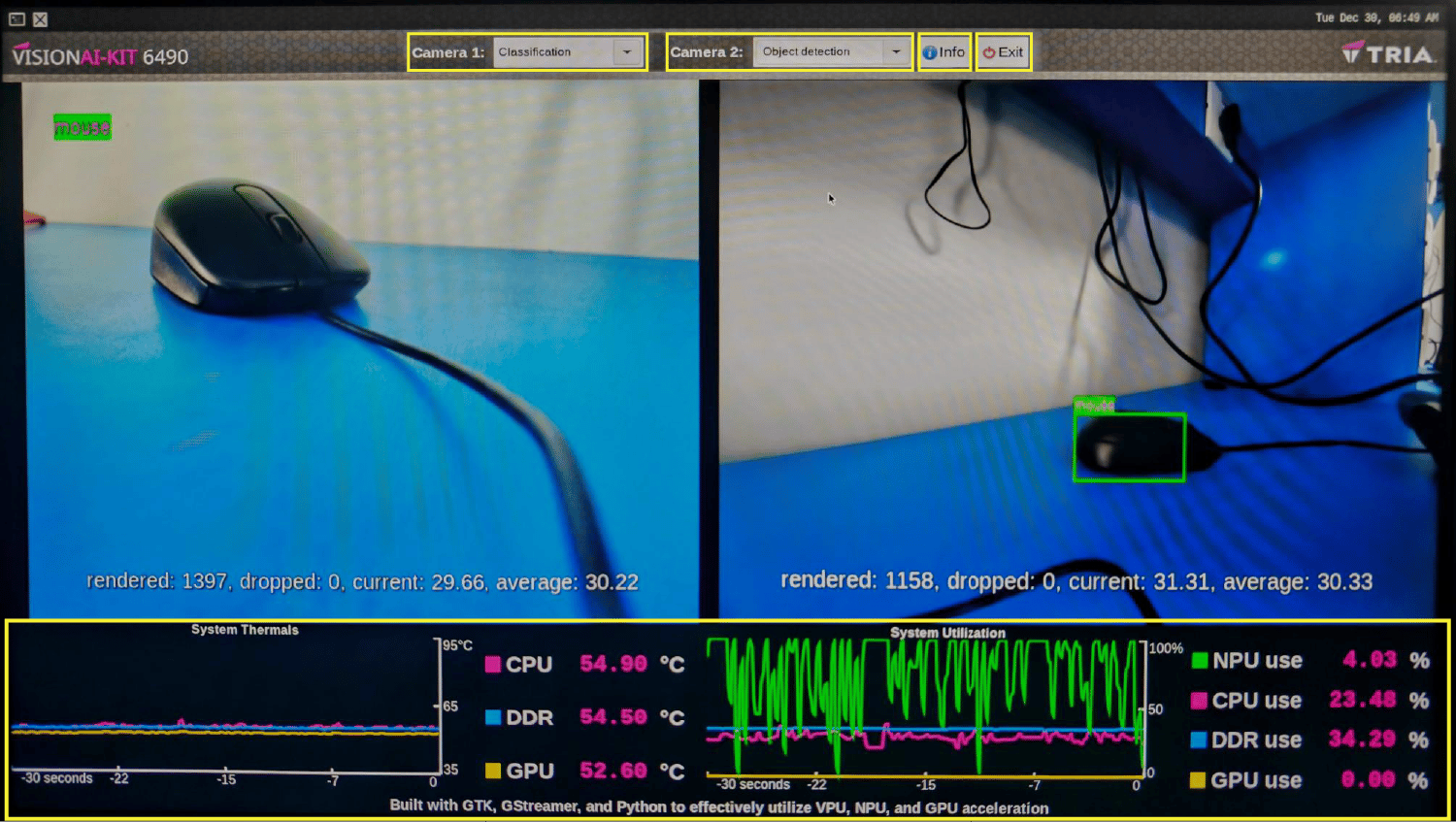
| Hardware benchmarking Application | [`QCS6490-Vision-AI-Demo`](https://github.com/Avnet/QCS6490-Vision-AI-Demo/tree/QLI_2.0) | A GUI application to monitor hardware utilization with sample applications | Camera and USB | ✓ | ✓ | ✓ | × |
| AI event encoder | [`gst-ai-event-encoder`](https://github.com/qualcomm/gst-plugins-imsdk/tree/main/gst-sample-apps/gst-ai-event-encoder) | Encode video only when a person is detected. | Camera, file, RTSP | ✓ | ✓ | ✓ | × |
***
Prerequisites
Some of the steps in the pre-requisties will be removed from future releases
once the necessary fixes are mainlined.
Connect to the Wireless Access Point (Wi-Fi Router):
```bash theme={null}
nmcli dev wifi connect password
```
Check the connection and device status:
```bash theme={null}
nmcli -p device
```
**Login to the target device**
Locate the IP address of the device according to the type of network connection,
using the UART console on the Linux host:
For Ethernet:
```bash theme={null}
ip address show eth2
```
For Wi-Fi:
```bash theme={null}
ip address show wlp1s0
```
Use the IP address from the Linux host to establish an SSH connection to the device:
```bash theme={null}
ssh root@
```
Example:
```bash theme={null}
ssh root@192.168.0.222
```
Connect to the SSH shell using the following password:
```bash theme={null}
oelinux123
```
On the target device, obtain the `download_artifacts.sh` script, set executable
permissions, and run it to download the model, media, and label files:
```bash theme={null}
cd /tmp/
curl -L -O https://raw.githubusercontent.com/qualcomm/sample-apps-for-qualcomm-linux/refs/heads/main/qualcomm-linux/scripts/download_artifacts.sh
chmod +x download_artifacts.sh
./download_artifacts.sh
```
In the terminal of the target device, run the following command to enable the
`qticamsrc` on Config #2:
```bash theme={null}
echo -n "camx" > /var/data
efivar -n 882f8c2b-9646-435f-8de5-f208ff80c1bd-VendorDtbOverlays -w -f /var/data
efivar -n 882f8c2b-9646-435f-8de5-f208ff80c1bd-VendorDtbOverlays -p
sync
reboot
```
In the terminal of the target device, run the following command to enable audio:
```bash theme={null}
systemctl stop pipewire wireplumber pipewire.socket pipewire-manager.socket
chmod 777 /dev/dma_heap/system
adsprpcd audiopd &
systemctl start pipewire wireplumber
wpctl status
```
To set the default devices for sink and source, get the device numbers from
`wpctl status` and run the following command:
```bash theme={null}
wpctl set-default
```
In the terminal of the target device, run the following command to enable the
GPU delegate and backend:
```bash theme={null}
mount -o rw,remount /
```
```bash theme={null}
export OCL_ICD_FILENAMES=/usr/lib/libOpenCL_adreno.so.1
```
## AI Vision Applications
### Object Detection
The [**gst-ai-object-detection**](https://github.com/qualcomm/gst-plugins-imsdk/blob/main/gst-sample-apps/gst-ai-object-detection/main.c) application allows you to detect objects within images and videos. The use cases show the execution of [**YOLOv5**](https://github.com/ultralytics/yolov5), [**YOLOv8**](https://github.com/ultralytics/ultralytics) and [**YOLOX**](https://github.com/Megvii-BaseDetection/YOLOX/blob/main/README.md) on Qualcomm AI HW accelerator.
The following figure shows the pipeline, which receives the input from a live camera feed, file, USB source, or an RTSP stream, preprocesses it, runs inferences on AI hardware. The results are either displayed on the screen, saved as an encoded MP4 file, or streamed over the RTSP server. For information about the plugins used in the pipeline flow, see [**Pipeline flow**](#object-detection-pipeline-flow)
**Application:** [`gst-ai-object-detection`](https://github.com/qualcomm/gst-plugins-imsdk/blob/main/gst-sample-apps/gst-ai-object-detection/main.c)
When the software image includes the **qticamsrc** plugin, the camera framework uses it by default. If absent, the framework switches to **libcamera** instead. Since Config #1 lacks support for **qticamsrc**, the system defaults to **libcamera**.
#### Input and Output Capabilities
| Config | File src | RTSP | USB camera | MIPI camera | IMX577 camera | File output | Display | RTSP output |
| --------- | -------- | ---- | ---------- | ----------- | ------------- | ----------- | ------- | ----------- |
| Config #1 | Yes | Yes | Yes | No | Yes | Yes | Yes | Yes |
| Config #2 | Yes | Yes | Yes | Yes | Yes | Yes | Yes | Yes |
#### Sample Model and Label Files
| Runtime | Model file | Label file |
| ------------------------------ | -------------------------------------------------------- | -------------- |
| Qualcomm Neural Processing SDK | `yolonas.dlc` | `yolonas.json` |
| LiteRT | `yolov8_det_quantized.tflite` / `yolox_quantized.tflite` | `yolox.json` |
| Qualcomm AI Engine Direct | `yolov8_det_quantized.bin` | `yolov8.json` |
#### Run the application on the target device
Ensure that you complete the [`Prerequisites`](#prerequisites). This downloads all required artifacts to the target device.
```bash theme={null}
gst-ai-object-detection --config-file=/etc/configs/config_detection.json
```
The sample application uses the `/etc/configs/config_detection.json` file to read the input parameters.
To display all available options:
```bash theme={null}
gst-ai-object-detection -h
```
To stop the use case, press **CTRL + C**.
#### Configurations
The gst-ai-object-detection application uses the `/etc/configs/config_detection.json` file. Update its properties to match your model, input stream, and output. See [**Config JSON Field Description**](#object-detection-config-json-description) for all fields.
```json theme={null}
{
"file-path": "",
"ml-framework": "",
"yolo-model-type": ""
"model": "",
"labels": "",
"threshold": ,
"runtime": "",
"output-type": "waylandsink or filesink or rtspsink"
"snpe-tensors": ""
}
```
For USB camera input, set the `video-format`, `resolution`, and `framerate` parameters in the config file
to match the camera capabilities, see [Configure USB camera](https://dragonwingdocs.qualcomm.com/System/Interfaces/usb#configure-usb-camera).
The `snpe-tensors` field applies only to the SNPE runtime. To retrieve the output tensor names for a DLC model, open the model in [**Netron**](https://netron.app/).
When using DLC models from the AI Hub, the `snpe-tensors` field is optional.
Camera source, LiteRT model, DSP runtime
```json theme={null}
{
"camera": 0,
"ml-framework": "tflite",
"yolo-model-type": "yolox",
"model": "/etc/models/yolox_quantized.tflite",
"labels": "/etc/labels/yolox.json",
"threshold": 40,
"runtime": "dsp",
"output-type": "waylandsink",
"snpe-tensors": ""
}
```
Camera source, LiteRT model, CPU runtime
```json theme={null}
{
"ml-framework": "tflite",
"yolo-model-type": "yolox",
"model": "/etc/models/yolox_quantized.tflite",
"labels": "/etc/labels/yolox.json",
"threshold": 40,
"runtime": "cpu",
"output-type": "waylandsink",
"snpe-tensors": ""
}
```
Config #1 supports only LiteRT models and the CPU runtime.
#### Expected Output
Detected objects with bounding boxes and labels are overlaid on the video and displayed on the local display.
Pipeline Flow
The following table lists the plugins used in the object detection pipeline:
| Plugin | Description |
| :------------------------------------------------------------------------------------------------------------------------------------------- | :------------------------------------------------------------------------------------------------------------------------------------------------------------------------------------------------------------------------------------------------------------------------------------------------------------------------------------------------------ |
| [`qticamsrc`](../plugin-reference/qticamsrc) | • Captures the live stream from camera. • Uses `tee` to split the stream for inferencing. |
| `filesrc` | • Captures the video stream using `filesrc`, followed by `qtdemux`, which demultiplexes the stream. • Uses `tee` to split the stream for inferencing. |
| `rtspsrc` | • Captures the RTSP stream using `rtspsrc`, followed by `rtph264depay` for video extraction. • Uses `tee` to split the stream for inferencing. |
| `v4l2src` | • Captures the live stream from USB camera. • Uses `tee` to split the stream for inferencing. |
| `h264parse` | Parses the H.264 video bitstream. |
| [`v4l2h264dec`](/plugin-reference/v4l2h264dec) | Hardware-decodes H.264 video to raw frames. |
| [`qtimlvconverter`](/plugin-reference/qtimlvconverter) | 1. Receives the video stream on its sink pad. 2. Performs the following preprocessing on the stream data: • Color conversion • Scaling (up or down) • Normalization 3. Converts the preprocessed video stream to a tensor stream. The tensor stream is used for inferencing in the later stages of the pipeline. |
| [`qtimlsnpe`](/plugin-reference/qtimlsnpe) [`qtimltflite`](/plugin-reference/qtimltflite) [`qtimlqnn`](/plugin-reference/qtimlqnn) | 1. After the inference runtime receives the tensor stream on its sink pad, it runs inference using the provided model. 2. Produces a tensor stream with the inference results on its source pad. |
| [`qtimlpostprocess`](/plugin-reference/qtimlpostprocess) | Handles inference results from any object detection model. 1. Applies a threshold to the chosen number of results. 2. Loads the YOLO (YOLOv5, YOLOv8, or YOLO-NAS) module. 3. Produces video frames with only bounding boxes that can be overlaid on objects. 4. Sends these processed frames to the sink pad of `qtivcomposer`. |
| [`qtivcomposer`](/plugin-reference/qtivcomposer) | 1. Composes frames with contents from its sink pads. 2. Pushes the GStreamer buffers containing these composed frames to its source pad. |
| [`waylandsink`](/plugin-reference/waylandsink) | 1. Submits the video stream received on its sink pad to Weston. 2. Weston renders the video stream on a local display. |
| `filesink` | Receives the video stream on sink pad and saves it as an H.264-encoded MP4 file. |
| `qtirtspbin` | 1. Serves as a network sink. 2. Transmits UDP packets to the network. |
Config JSON Field Description
| Field | Values / Description | |
| :--------------------------------------- | :-------------------------------------------------------------------------------------------------------------------------------------------------------------------------------------------------------------- | - |
| `ml-framework` | Supported ML frameworks: • `snpe` (Qualcomm Neural Processing SDK) • `tflite` (LiteRT) • `qnn` (Qualcomm AI Engine Direct) | |
| `yolo-model-type` | Supported YOLO architectures: • `yolov8` • `yolonas` • `yolov5` • `yolox` | |
| `runtime` | Hardware runtimes: • `cpu` • `gpu` • `dsp` | |
| `Input source` | Supported input sources: • `camera` (0=primary, 1=secondary) • `file-path` • `rtsp-ip-port` • `usb-camera` (set `enable-usb-camera` to `TRUE`) | |
| `output-ip-address` | Output RTSP server IP address | |
| `port` | Output RTSP server port | |
| `output-type` | Supported output sinks: • `waylandsink` (display) • `filesink` (MP4 file) • `rtspsink` (RTSP stream) | |
| `snpe-tensors` | `["output-tensor-name", "output-tensor-name"]` | |
| `USB camera video-format and resolution` | 1. Use one of the following `video-format` options: • `nv12` • `yuy2` • `mjpeg` 2. Use the following resolution fields: • `width` • `height` • `framerate` | |
| `output-file` | Output filename. The default output file is `output_object_detection.mp4`. | |
### Image Classification
The [**gst-ai-classification**](https://github.com/qualcomm/gst-plugins-imsdk/blob/main/gst-sample-apps/gst-ai-classification/main.c) application is designed to identify the subject in an image. The use cases are implemented using the Qualcomm Neural Processing SDK, LiteRT, or Qualcomm AI Engine Direct models.
The pipeline receives a video stream from a camera, file source, USB source, or RTSP, preprocesses it, and runs the inference on AI hardware. The results are either displayed on the screen, saved as an encoded MP4 file, or streamed over the RTSP server. For information about the plugins used in the pipeline flow, see [**Pipeline flow**](#classification-pipeline-flow)
**Application:** [`gst-ai-classification`](https://github.com/qualcomm/gst-plugins-imsdk/blob/main/gst-sample-apps/gst-ai-classification/main.c)
When the software image includes the **qticamsrc** plugin, the camera framework uses it by default. If absent, the framework switches to **libcamera** instead. Since Config #1 lacks support for **qticamsrc**, the system defaults to **libcamera**.
#### Input and Output Capabilities
| Config | File src | RTSP | USB camera | MIPI camera | IMX577 camera | File output | Display | RTSP output |
| --------- | -------- | ---- | ---------- | ----------- | ------------- | ----------- | ------- | ----------- |
| Config #1 | Yes | Yes | Yes | No | Yes | Yes | Yes | Yes |
| Config #2 | Yes | Yes | Yes | Yes | Yes | Yes | Yes | Yes |
#### Sample Model and Label Files
| Runtime | Model file | Label file |
| ------------------------------ | ------------------------------- | --------------------- |
| Qualcomm Neural Processing SDK | `inceptionv3.dlc` | `classification.json` |
| LiteRT | `inception_v3_quantized.tflite` | `classification.json` |
| Qualcomm AI Engine Direct | `inception_v3_quantized.bin` | `classification.json` |
#### Run the application on the target device
Ensure that you complete the [`Prerequisites`](#prerequisites). This downloads all required artifacts to the target device.
```bash theme={null}
gst-ai-classification --config-file=/etc/configs/config_classification.json
```
The sample application uses the `/etc/configs/config_classification.json` file to read the input parameters.
To display all available options:
```bash theme={null}
gst-ai-classification -h
```
To stop the use case, press **CTRL + C**.
#### Configurations
The gst-ai-classification application uses the `/etc/configs/config_classification.json` file. Update its properties to match your model, input stream, and output. See [**Config JSON Field Description**](#classification-config-json-description) for all fields.
```json theme={null}
{
"file-path": "",
"ml-framework": "",
"model": "",
"labels": "",
"threshold": ,
"runtime": "",
"output-type": "waylandsink or filesink or rtspsink"
}
```
For USB camera input, set the `video-format`, `resolution`, and `framerate` parameters in the config file
to match the camera capabilities, see [Configure USB camera](https://dragonwingdocs.qualcomm.com/System/Interfaces/usb#configure-usb-camera).
Camera source, LiteRT model, DSP runtime
```json theme={null}
{
"camera": 0,
"ml-framework": "tflite",
"model": "/etc/models/inception_v3_quantized.tflite",
"labels": "/etc/labels/classification.json",
"threshold": 40,
"runtime": "dsp",
"output-type": "waylandsink"
}
```
Camera source, LiteRT model, CPU runtime
```json theme={null}
{
"ml-framework": "tflite",
"model": "/etc/models/inception_v3_quantized.tflite",
"labels": "/etc/labels/classification.json",
"threshold": 40,
"runtime": "cpu",
"output-type": "waylandsink"
}
```
Config #1 supports only LiteRT models and the CPU runtime.
#### Expected Output
The classified object label and confidence score are overlaid on the video and displayed on the local display
Pipeline Flow
The following table lists the plugins used in the classification pipeline:
| Plugin | Description |
| :------------------------------------------------------------------------------------------------------------------------------------------------- | :------------------------------------------------------------------------------------------------------------------------------------------------------------------------------------------------------------------------------------------------------------------------------------------------------------------------------------------------------------------------ |
| [`qticamsrc`](../plugin-reference/qticamsrc) | • Captures the live stream from camera. • Uses `tee` to split the stream for inferencing. |
| `filesrc` | • Captures the video stream using `filesrc`, followed by `qtdemux`, which demultiplexes the stream. • Uses `tee` to split the stream for inferencing. |
| `rtspsrc` | • Captures the RTSP stream using `rtspsrc`, followed by `rtph264depay` for video extraction. • Uses `tee` to split the stream for inferencing. |
| `v4l2src` | • Captures the live stream from USB camera. • Uses `tee` to split the stream for inferencing. |
| `h264parse` | Parses the H.264 video bitstream. |
| [`v4l2h264dec`](../plugin-reference/v4l2h264dec) | Hardware-decodes H.264 video to raw frames. |
| [`qtimlvconverter`](../plugin-reference/qtimlvconverter) | 1. Receives the video stream on its sink pad. 2. Performs the following preprocessing on the stream data: • Color conversion • Scaling (up or down) • Normalization 3. Converts the preprocessed video stream to a tensor stream on its source pad. The tensor stream is used for inferencing in the later stages of the pipeline. |
| [`qtimlsnpe`](../plugin-reference/qtimlsnpe) [`qtimltflite`](../plugin-reference/qtimltflite) [`qtimlqnn`](../plugin-reference/qtimlqnn) | 1. After the inference runtime receives the tensor stream on its sink pad, it runs inference using the provided model. 2. Produces a tensor stream with the inference results on its source pad. |
| [`qtimlpostprocess`](../plugin-reference/qtimlpostprocess) | Handles inference results from any classification model. 1. Applies a threshold to the chosen number of results. 2. Loads the MobileNet-softmax postprocessing module. 3. Produces results as video frames with classification labels. 4. Sends these processed frames to the sink pad of `qtivcomposer`. |
| [`qtivcomposer`](../plugin-reference/qtivcomposer) | 1. Composes frames with contents from its sink pads. 2. Pushes the GStreamer buffers containing these composed frames to its source pad. |
| [`waylandsink`](../plugin-reference/waylandsink) | 1. Submits the video stream received on its sink pad to Weston. 2. Weston renders the video stream on a local display. |
| `filesink` | Receives the video stream on sink pad and saves it as an H.264-encoded MP4 file. |
| [`qtirtspbin`](../plugin-reference/qtirtspbin) | 1. Serves as a network sink. 2. Transmits UDP packets to the network. |
Config JSON Field Description
| Field | Values / Description |
| :--------------------------------------- | :-------------------------------------------------------------------------------------------------------------------------------------------------------------------------------------------------------------- |
| `ml-framework` | Supported ML frameworks: • `snpe` (Qualcomm Neural Processing SDK) • `tflite` (LiteRT) • `qnn` (Qualcomm AI Engine Direct) |
| `runtime` | Hardware runtimes: • `cpu` • `gpu` • `dsp` |
| `Input source` | Supported input sources: • `camera` (0=primary, 1=secondary) • `file-path` • `rtsp-ip-port` • `usb-camera` (set `enable-usb-camera` to `TRUE`) |
| `output-ip-address` | Output RTSP server IP address. |
| `port` | Output RTSP server port. |
| `output-type` | Supported output sinks: • `waylandsink`(display) • `filesink` (MP4 file) • `rtspsink` (RTSP stream) |
| `USB camera video-format and resolution` | 1. Use one of the following `video-format` options: • `nv12` • `yuy2` • `mjpeg` 2. Use the following resolution fields: • `width` • `height` • `framerate` |
| `output-file` | Output filename. The default output file is `output_classification.mp4`. |
### Face Detection
The [**gst-ai-face-detection**](https://github.com/qualcomm/gst-plugins-imsdk/blob/main/gst-sample-apps/gst-ai-face-detection/main.c) application collects the live video input from a camera, file, or an RTSP stream and uses the Qualcomm AI Engine direct and LiteRT face detection models to produce a preview with the overlaid AI model output on the HDMI display.
The following figure shows the pipeline, which receives the input, preprocesses it, runs inferences on AI hardware, and displays the results on the screen. For information about the plugins used in the pipeline flow, see [**Pipeline flow**](#face-detection-pipeline-flow).
**Application:** [`gst-ai-face-detection`](https://github.com/qualcomm/gst-plugins-imsdk/blob/main/gst-sample-apps/gst-ai-face-detection/main.c)
#### Input and Output Capabilities
| Config | File src | RTSP | USB camera | MIPI camera | File output | Display | RTSP output |
| --------- | -------- | ---- | ---------- | ----------- | ----------- | ------- | ----------- |
| Config #1 | Yes | Yes | No | No | No | Yes | No |
| Config #2 | Yes | Yes | No | Yes | No | Yes | No |
#### Sample Model and Label Files
| Runtime | Model file | Label file |
| ------------------------- | -------------------------------- | --------------------- |
| LiteRT | `face_det_lite_quantized.tflite` | `face_detection.json` |
| Qualcomm AI Engine Direct | `face_det_lite_quantized.bin` | `face_detection.json` |
#### Run the application on the target device
Ensure that you complete the [`Prerequisites`](#prerequisites). This
downloads all required artifacts to the target device.
```bash theme={null}
gst-ai-face-detection --config-file=/etc/configs/config_face_detection.json
```
The sample application uses the `/etc/configs/config_face_detection.json` file to read the input parameters.
To display all available options:
```bash theme={null}
gst-ai-face-detection -h
```
To stop the use case, press **CTRL + C**.
#### Configurations
The gst-ai-face-detection application uses the `/etc/configs/config_face_detection.json` file. Update its properties to match your model, input stream, and output. See [**Config JSON Field Description**](#face-detection-config-json-description) for all fields.
```json theme={null}
{
"file-path": "",
"ml-framework": "",
"model": ",
"runtime": """
}
```
File source, LiteRT model, DSP runtime
```json theme={null}
{
"file-path": "/etc/media/video.mp4",
"ml-framework": "tflite",
"model":"/etc/models/face_det_lite_quantized.tflite",
"labels": "/etc/labels/face_detection.json",
"threshold": 51,
"runtime": "dsp"
}
```
File source, LiteRT model, CPU runtime
```json theme={null}
{
"file-path": "/etc/media/video.mp4",
"ml-framework": "tflite",
"model":"/etc/models/face_det_lite_quantized.tflite",
"labels": "/etc/labels/face_detection.json",
"threshold": 51,
"runtime": "cpu"
}
```
Config #1 supports only LiteRT models and the CPU runtime.
Pipeline Flow
The following table lists the plugins used in the face detection pipeline:
| Plugin | Description |
| :------------------------------------------------------------------------------------------- | :------------------------------------------------------------------------------------------------------------------------------------------------------------------------------------------------------------------------------------------------------------------------------------------------------------------------------------------------------ |
| [`qticamsrc`](../plugin-reference/qticamsrc) | • Captures the live stream from camera. • Uses `tee` to split the stream for inferencing. |
| `rtspsrc` | • Captures the RTSP stream using `rtspsrc`, followed by `rtph264depay` for video extraction. • Uses `tee` to split the stream for inferencing. |
| `h264parse` | • Parses the H.264 video bitstream. |
| [`v4l2h264dec`](/plugin-reference/v4l2h264dec) | • Hardware-decodes H.264 video to raw frames. |
| [`qtimlvconverter`](/plugin-reference/qtimlvconverter) | 1. Receives the video stream on its sink pad. 2. Performs the following preprocessing on the stream data: • Color conversion • Scaling (up or down) • Normalization 3. Converts the preprocessed video stream to a tensor stream. The tensor stream is used for inferencing in the later stages of the pipeline. |
| [`qtimltflite`](/plugin-reference/qtimltflite) [`qtimlqnn`](/plugin-reference/qtimlqnn) | 1. After the inference runtime receives the tensor stream on its sink pad, it runs inference using the provided model. 2. Produces a tensor stream with the inference results on its source pad. |
| [`qtimlpostprocess`](/plugin-reference/qtimlpostprocess) | 1. Handles inference results from any face detection model. 2. Applies a threshold to the chosen number of results. |
| [`qtimetamux`](/plugin-reference/qtimetamux) | 1. Receives string-based postprocessing output text with video frame and multiplexes it. |
| [`qtivoverlay`](/plugin-reference/qtivoverlay) | 1. Receives the multiplexed stream. 2. Overlays the bounding boxes on the stream. |
| [`waylandsink`](/plugin-reference/waylandsink) | 1. Submits the video stream received on its sink pad to Weston. 2. Weston renders the video stream on a local display. |
Config JSON Field Description
| Field | Values / Description |
| :------------- | :----------------------------------------------------------------------------------------------- |
| `ml-framework` | Supported ML frameworks: • `tflite` (LiteRT) • `qnn` (Qualcomm AI Engine Direct) |
| `runtime` | Supported hardware runtimes: • `cpu` • `gpu` • `dsp` |
| `Input source` | Supported input sources: • `file-path` • `rtsp-ip-port` • `camera` |
***
### Semantic Segmentation
The [**gst-ai-segmentation**](https://github.com/qualcomm/gst-plugins-imsdk/blob/main/gst-sample-apps/gst-ai-segmentation/main.c) application allows you to divide an image into different and meaningful parts or segments and assign a label to each homogeneous segment based on the similarity of the attributes. The application uses Qualcomm Neural Processing SDK runtime, Qualcomm AI Engine direct runtime, and LiteRT for image segmentation.
The following figure shows the pipeline, which receives the input from a live camera feed, file, or an RTSP stream, preprocesses the video data, runs inferences using AI hardware, and displays the segmented data on the screen. For information about the plugins used in the pipeline flow, see [**Pipeline flow**](#segmentation-pipeline-flow).
**Application:** [`gst-ai-segmentation`](https://github.com/qualcomm/gst-plugins-imsdk/blob/main/gst-sample-apps/gst-ai-segmentation/main.c)
#### Input and Output Capabilities
| Config | File src | RTSP | USB camera | MIPI camera | File output | Display | RTSP output |
| --------- | -------- | ---- | ---------- | ----------- | ----------- | ------- | ----------- |
| Config #1 | Yes | Yes | No | No | No | Yes | No |
| Config #2 | Yes | Yes | No | Yes | No | Yes | No |
#### Sample Model and Label Files
| Runtime | Model file | Label file |
| ------------------------------ | ------------------------------------------- | ------------------------- |
| Qualcomm Neural Processing SDK | `deeplabv3_plus_mobilenet.dlc` | `deeplabv3_resnet50.json` |
| LiteRT | `deeplabv3_plus_mobilenet_quantized.tflite` | `deeplabv3_resnet50.json` |
| Qualcomm AI Engine Direct | `deeplabv3_plus_mobilenet_quantized.bin` | `deeplabv3_resnet50.json` |
#### Run the application on the target device
Ensure that you complete the [`Prerequisites`](#prerequisites). This
downloads all required artifacts to the target device.
```bash theme={null}
gst-ai-segmentation --config-file=/etc/configs/config_segmentation.json
```
The sample application uses the `/etc/configs/config_segmentation.json` file to read the input parameters.
To display all available options:
```bash theme={null}
gst-ai-segmentation -h
```
To stop the use case, press **CTRL + C**.
#### Configurations
The gst-ai-segmentation application uses the `/etc/configs/config_segmentation.json` file. Update its properties to match your model, input stream, and output. See [**Config JSON Field Description**](#segmentation-config-json-description) for all fields.
```json theme={null}
{
"file-path": "",
"ml-framework": "",
"model": "",
"labels": "",
"runtime": ""
}
```
File source, LiteRT model, DSP runtime
```json theme={null}
{
"file-path": "/etc/media/video.mp4",
"ml-framework": "tflite",
"model": "/etc/models/deeplabv3_plus_mobilenet_quantized.tflite",
"labels": "/etc/labels/deeplabv3_resnet50.json",
"runtime": "dsp"
}
```
File source, LiteRT model, CPU runtime
```json theme={null}
{
"file-path": "/etc/media/video.mp4",
"ml-framework": "tflite",
"model": "/etc/models/deeplabv3_plus_mobilenet_quantized.tflite",
"labels": "/etc/labels/deeplabv3_resnet50.json",
"runtime": "cpu"
}
```
Config #1 supports only LiteRT models and the CPU runtime.
#### Expected Output
The segmented data is displayed on the local display.
Pipeline Flow
The following table lists the plugins used in the segmentation pipeline:
| Plugin | Description |
| :------------------------------------------------------------------------------------------------------------------------------------------- | :---------------------------------------------------------------------------------------------------------------------------------------------------------------------------------------------------------------------------------------------------------------------------------------------------------------------------------------------------------------------------------------------------------------------------------------------------------- |
| [`qticamsrc`](../plugin-reference/qticamsrc) | • Captures the live stream from camera. • Uses `tee` to split the stream for concurrent display and ML inference. |
| `filesrc` | • Captures the video stream using `filesrc`, followed by `qtdemux`, which demultiplexes the stream. • Uses `tee` to split the stream for processing. |
| `rtspsrc` | • Captures the RTSP stream using `rtspsrc`, followed by `rtph264depay` for video extraction. • Uses `tee` to split the stream for processing. |
| `h264parse` | • Parses the H.264 video bitstream to ensure downstream elements can handle the payload. |
| [`v4l2h264dec`](/plugin-reference/v4l2h264dec) | • Hardware-accelerated decoder that converts H.264 video into raw frames. |
| [`qtimlvconverter`](/plugin-reference/qtimlvconverter) | 1. Receives the video stream on its sink pad. 2. Performs the following preprocessing on the stream data. This preprocessing is done when the model expects floating-point values as input: • Color conversion • Scaling (up or down) • Normalization 3. Converts the preprocessed video stream to a tensor stream on its source pad. The tensor stream is used for inferencing in the later stages of the pipeline. |
| [`qtimlsnpe`](/plugin-reference/qtimlsnpe) [`qtimltflite`](/plugin-reference/qtimltflite) [`qtimlqnn`](/plugin-reference/qtimlqnn) | 1. After the inference runtime receives the tensor stream on its sink pad, it runs inference using the provided model. 2. Produces a tensor stream with the inference results on its source pad. |
| [`qtimlpostprocess`](/plugin-reference/qtimlpostprocess) | 1. Converts the inference tensors received on its sink pad into video formats that multimedia plugins use for further processing. |
| [`qtivcomposer`](/plugin-reference/qtivcomposer) | 1. Composes frames with contents from its sink pads. 2. Pushes the GStreamer buffers containing these composed frames to its source pad. |
| [`waylandsink`](/plugin-reference/waylandsink) | 1. Submits the video stream received on its sink pad to Weston. 2. Weston renders the video stream on a local display. |
Config JSON Field Description
| Field | Values / Description |
| :------------- | :------------------------------------------------------------------------------------------------------------------------------------------------- |
| `ml-framework` | Supported ML frameworks: • `snpe` (Qualcomm Neural Processing SDK) • `tflite` (LiteRT) • `qnn` (Qualcomm AI Engine Direct) |
| `runtime` | Supported hardware runtimes: • `cpu` • `gpu` • `dsp` |
| `Input source` | Supported input sources: • `file-path` • `rtsp-ip-port` • `camera` |
### Pose Detection
The [**gst-ai-pose-detection**](https://github.com/qualcomm/gst-plugins-imsdk/blob/main/gst-sample-apps/gst-ai-pose-detection/main.c) application allows you to detect the body pose of the subject in an image or video. The use case processes input streams from a camera, file, or an RTSP source and uses LiteRT and Qualcomm AI Engine direct models for pose detection. The results are either displayed on the screen, saved as an encoded MP4 file, or streamed over the RTSP server.
The following figure shows the pipeline, which receives the input from a live camera feed, file, USB source, or an RTSP stream, preprocesses it, conducts inference on AI hardware, and generates the output.
This process allows for real-time pose detection and visualization of human poses. For information about the plugins used in the pipeline flow, see [**Pipeline flow**](#pose-pipeline-flow).
**Application:** [`gst-ai-pose-detection`](https://github.com/qualcomm/gst-plugins-imsdk/blob/main/gst-sample-apps/gst-ai-pose-detection/main.c)
#### Input and Output Capabilities
| Config | File src | RTSP | USB camera | MIPI camera | File output | Display | RTSP output |
| --------- | -------- | ---- | ---------- | ----------- | ----------- | ------- | ----------- |
| Config #1 | Yes | Yes | Yes | No | Yes | Yes | Yes |
| Config #2 | Yes | Yes | Yes | Yes | Yes | Yes | Yes |
#### Sample Model and Label Files
| Runtime | Model file | Label files |
| ------- | ----------------------------- | ---------------------------------------- |
| LiteRT | `hrnet_pose_quantized.tflite` | `hrnet_pose.json`, `hrnet_settings.json` |
#### Run the application on the target device
Ensure that you complete the [`Prerequisites`](#prerequisites). This downloads all required artifacts to the target device.
```bash theme={null}
gst-ai-pose-detection --config-file=/etc/configs/config_pose.json
```
The sample application uses the `/etc/configs/config_pose.json` file to read the input parameters.
To display all available options:
```bash theme={null}
gst-ai-pose-detection -h
```
To stop the use case, press **CTRL + C**.
#### Configurations
The gst-ai-pose-detection application uses the `/etc/configs/config_pose.json` file. Update its properties to match your model, input stream, and output. See [**Config JSON Field Description**](#pose-config-json-description) for all fields.
```json theme={null}
{
"file-path": "",
"ml-framework": "",
"model": "",
"labels": "",
"pose-settings-path": "",
"output-type": "waylandsink or filesink or rtspsink",
"runtime": ""
}
```
For USB camera input, set the `video-format`, `resolution`, and `framerate`
parameters in the config file to match the camera capabilities, see [Configure USB camera](https://dragonwingdocs.qualcomm.com/System/Interfaces/usb#configure-usb-camera).
To change the threshold, you must configure the confidence value in the
`hrnet_settings.json` file.
File source, LiteRT model, DSP runtime
```json theme={null}
{
"file-path": "/etc/media/video.mp4",
"ml-framework": "tflite",
"model": "/etc/models/hrnet_pose_quantized.tflite",
"labels": "/etc/labels/hrnet_pose.json",
"pose-settings-path":"/etc/labels/hrnet_settings.json",
"runtime": "dsp",
"output-type": "waylandsink"
}
```
File source, LiteRT model, CPU runtime
```json theme={null}
{
"file-path": "/etc/media/video.mp4",
"ml-framework": "tflite",
"model": "/etc/models/hrnet_pose_quantized.tflite",
"labels": "/etc/labels/hrnet_pose.json",
"pose-settings-path":"/etc/labels/hrnet_settings.json",
"runtime": "cpu",
"output-type": "waylandsink"
}
```
Config #1 supports only LiteRT models and the CPU runtime.
#### Expected Output
The displayed output shows the detected pose of the objects.
Pipeline Flow
The following table lists the plugins used in the pose detection pipeline:
| Plugin | Description |
| :------------------------------------------------------------------------------------------- | :------------------------------------------------------------------------------------------------------------------------------------------------------------------------------------------------------------------------------------------------------------------------------------------------------------------------------------------------------------------------------------------------------------------------------------------------------------ |
| [`qticamsrc`](../plugin-reference/qticamsrc) | • Captures the live stream from camera. • Uses `tee` to split the stream for concurrent display and ML inference. |
| `filesrc` | • Captures the video stream using `filesrc`, followed by `qtdemux` for demultiplexing. • Uses `tee` to split the stream for processing. |
| `rtspsrc` | • Captures the RTSP stream using `rtspsrc`, followed by `rtph264depay` for video extraction. • Uses `tee` to split the stream for processing. |
| `v4l2src` | • Captures the live stream from USB camera. • Uses `tee` to split the stream for processing. |
| `h264parse` | • Parses the H.264 video bitstream to ensure downstream elements can handle the payload. |
| [`v4l2h264dec`](/plugin-reference/v4l2h264dec) | • Hardware-accelerated decoder that converts H.264 video into raw frames. |
| [`qtimlvconverter`](/plugin-reference/qtimlvconverter) | 1. Receives the video stream on its sink pad. 2. Performs the following preprocessing on the stream data: • Color conversion • Scaling (up or down) • Normalization 3. Converts the preprocessed video stream to a tensor stream. The tensor stream is used for inferencing in the later stages of the pipeline. |
| [`qtimltflite`](/plugin-reference/qtimltflite) [`qtimlqnn`](/plugin-reference/qtimlqnn) | 1. Uses the HRNet model for pose detection. 2. The application runs on the external delegate to execute the model using the Hexagon Tensor Processor. 3. After the inference runtime receives the tensor stream on its sink pad, it does the following: • Runs the inference. • Produces a tensor stream containing the inference results on its source pad. • Manages the inference results from the pose detection model. |
| [`qtimlpostprocess`](/plugin-reference/qtimlpostprocess) | 1. Applies a threshold to the chosen number of results. 2. Loads corresponding modules for various pose detection models. 3. In this specific use case, `qtimlpostprocess` does the following: • Loads the HRNet module. • Produces results in the form of video frames with drawn poses. • Sends the results to the sink pad of `qtivcomposer` for further processing or display. |
| [`qtivcomposer`](/plugin-reference/qtivcomposer) | 1. Composes frames with contents from its sink pads. 2. Pushes the GStreamer buffers containing these composed frames to its source pad. |
| [`waylandsink`](/plugin-reference/waylandsink) | 1. Submits the video stream received on its sink pad to Weston. 2. Weston renders the video stream on a local display. |
| `filesink` | 1. Receives the video stream on its sink pad and saves it as an H.264-encoded MP4 file. |
| [`qtirtspbin`](/plugin-reference/qtirtspbin) | 1. Serves as a network sink. 2. Transmits UDP packets to the network. |
Config JSON Field Description
| Field | Values / Description |
| :--------------------------------------- | :-------------------------------------------------------------------------------------------------------------------------------------------------------------------------------------------------------------- |
| `ml-framework` | Supported ML frameworks: • `tflite` (LiteRT) • `qnn` (Qualcomm AI Engine Direct) |
| `runtime` | Hardware runtimes: • `cpu` • `gpu` • `dsp` |
| `Input source` | Supported input sources: • `camera` (0=primary, 1=secondary) • `file-path` • `rtsp-ip-port` • `usb-camera` (set `enable-usb-camera` to `TRUE`) |
| `output-ip-address` | Output RTSP server IP address. |
| `port` | Output RTSP server port. |
| `output-type` | Supported output sinks: • `waylandsink` (display) • `filesink` (MP4 file) • `rtspsink` (RTSP stream) |
| `USB camera video-format and resolution` | 1. Use one of the following `video-format` options: • `nv12` • `yuy2` • `mjpeg` 2. Use the following resolution fields: • `width` • `height` • `framerate` |
| `enable-usb-camera` | Set to `TRUE` or `FALSE`. |
| `output-file` | Output filename. Default: `output_pose` |
For better accuracy and detection results, use the
**gst-ai-daisychain-detection-pose** application.
### Mono Depth
The [**gst-ai-monodepth**](https://github.com/qualcomm/gst-plugins-imsdk/blob/main/gst-sample-apps/gst-ai-monodepth/main.c) application allows you to infer depth of a source feed from a live camera stream, file, or an RTSP stream.
The following figure shows the pipeline, which captures feed from the source, preprocesses it, and runs inferences using the AI hardware. For information about the plugins used in the pipeline, see [**Pipeline flow**](#monodepth-pipeline-flow).
**Application:** [`gst-ai-monodepth`](https://github.com/qualcomm/gst-plugins-imsdk/blob/main/gst-sample-apps/gst-ai-monodepth/main.c)
#### Input and Output Capabilities
| Config | File src | RTSP | USB camera | MIPI camera | File output | Display | RTSP output |
| --------- | -------- | ---- | ---------- | ----------- | ----------- | ------- | ----------- |
| Config #1 | Yes | Yes | No | No | No | Yes | No |
| Config #2 | Yes | Yes | No | Yes | No | Yes | No |
#### Sample Model and Label Files
| Runtime | Model file | Label file |
| ------------------------------ | ------------------------ | ---------------- |
| Qualcomm Neural Processing SDK | `midasv2.dlc` | `monodepth.json` |
| LiteRT | `midas_quantized.tflite` | `monodepth.json` |
| Qualcomm AI Engine Direct | `midas_quantized.bin` | `monodepth.json` |
#### Run the application on the target device
Ensure that you complete the [`Prerequisites`](#prerequisites). This downloads all required artifacts to the target device.
```bash theme={null}
gst-ai-monodepth --config-file=/etc/configs/config_monodepth.json
```
The sample application uses the `/etc/configs/config_monodepth.json` file to read the input parameters.
To display all available options:
```bash theme={null}
gst-ai-monodepth -h
```
To stop the use case, press **CTRL + C**.
#### Configurations
The gst-ai-monodepth application uses the `/etc/configs/config_monodepth.json` file. Update its properties to match your model, input stream, and output. See [**Config JSON Field Description**](#monodepth-config-json-description) for all fields.
```json theme={null}
{
"file-path": "",
"ml-framework": "",
"model": "",
"labels": "",
"runtime": ""
}
```
File source, LiteRT model, DSP runtime
```json theme={null}
{
"file-path": "/etc/media/video.mp4",
"ml-framework": "tflite",
"model": "/etc/models/midas_quantized.tflite",
"labels": "/etc/labels/monodepth.json",
"runtime": "dsp"
}
```
File source, LiteRT model, CPU runtime
```json theme={null}
{
"file-path": "/etc/media/video.mp4",
"ml-framework": "tflite",
"model": "/etc/models/midas_quantized.tflite",
"labels": "/etc/labels/monodepth.json",
"runtime": "cpu"
}
```
Config #1 supports only LiteRT models and the CPU runtime.
#### Expected Output
The overlaid model output stream is shown side by side with the live feed.
Pipeline Flow
The following table lists the plugins used in the monodepth pipeline:
| Plugin | Description |
| :------------------------------------------------------------------------------------------------------------------------------------------- | :---------------------------------------------------------------------------------------------------------------------------------------------------------------------------------------------------------------------------------------------------------------------------------------------------------------------------------------------------------------------------------------------------------------------------------------------------------- |
| [`qticamsrc`](../plugin-reference/qticamsrc) | • Captures the live stream from camera. • Uses `tee` to split the stream for concurrent display and ML inference. |
| `filesrc` | • Captures the video stream using `filesrc`, followed by `qtdemux` for demultiplexing. • Uses `tee` to split the stream for processing. |
| `rtspsrc` | • Captures the RTSP stream using `rtspsrc`, followed by `rtph264depay` for video extraction. • Uses `tee` to split the stream for processing. |
| `h264parse` | • Parses the H.264 video bitstream to ensure downstream elements can handle the payload. |
| [`v4l2h264dec`](/plugin-reference/v4l2h264dec) | • Hardware-accelerated decoder that converts H.264 video into raw frames. |
| [`qtimlvconverter`](/plugin-reference/qtimlvconverter) | 1. Receives the video stream on its sink pad. 2. Performs the following preprocessing on the stream data. This preprocessing is done when the model expects floating-point values as input: • Color conversion • Scaling (up or down) • Normalization 3. Converts the preprocessed video stream to a tensor stream on its source pad. The tensor stream is used for inferencing in the later stages of the pipeline. |
| [`qtimlsnpe`](/plugin-reference/qtimlsnpe) [`qtimltflite`](/plugin-reference/qtimltflite) [`qtimlqnn`](/plugin-reference/qtimlqnn) | Uses the **Midasv2** model for monodepth calculation. 1. The inference runtime receives the tensor stream on its sink pad. 2. The runtime executes the inference. 3. Produces a tensor stream with the inference results on its source pad. |
| [`qtimlpostprocess`](/plugin-reference/qtimlpostprocess) | 1. Converts the inference tensors received on its sink pad into video formats that multimedia plugins use for further processing. |
| [`qtivtransform`](/plugin-reference/qtivtransform) | 1. Converts the buffers on its source pad to formats compatible with composition on `waylandsink`. |
| [`waylandsink`](/plugin-reference/waylandsink) | 1. Submits the video stream received on its sink pad to Weston. 2. Weston renders the video stream on a local display. |
Config JSON Field Description
| Field | Values / Description |
| :------------- | :------------------------------------------------------------------------------------------------------------------------------------------------- |
| `ml-framework` | Supported ML frameworks: • `snpe` (Qualcomm Neural Processing SDK) • `tflite` (LiteRT) • `qnn` (Qualcomm AI Engine Direct) |
| `runtime` | Supported hardware runtimes: • `cpu` • `gpu` • `dsp` |
| `Input source` | Supported input sources: • `file-path` • `rtsp-ip-port` • `camera` (0=primary, 1=secondary) |
### Super Resolution
The [**gst-ai-superresolution**](https://github.com/qualcomm/gst-plugins-imsdk/blob/main/gst-sample-apps/gst-ai-superresolution/main.c) application allows you to generate high resolution video frames from low-resolution input.
The following figures shows the pipeline, which receives a video stream from a file source as input, processes it through the super resolution module using LiteRT, and displays the output.
This application isn't supported in `Config #1` for the `QLI 2.0 GA` release
because CPU runtime is not supported.
For information about the plugins used in the pipeline, see [**Pipeline flow**](#superresolution-pipeline-flow).
**Application:** [`gst-ai-superresolution`](https://github.com/qualcomm/gst-plugins-imsdk/blob/main/gst-sample-apps/gst-ai-superresolution/main.c)
#### Input and Output Capabilities
| Config | File src | RTSP | USB camera | MIPI camera | File output | Display | RTSP output |
| --------- | -------- | ---- | ---------- | ----------- | ----------- | ------- | ----------- |
| Config #2 | Yes | No | No | No | Yes | Yes | No |
#### Sample Model Files
| Runtime | Model file |
| ------- | ---------------------------------- |
| LiteRT | `quicksrnetsmall_quantized.tflite` |
#### Run the application on the target device
Ensure that you complete the [`Prerequisites`](#prerequisites). This
downloads all required artifacts to the target device.
```bash theme={null}
gst-ai-superresolution --config-file=/etc/configs/config-superresolution.json
```
The sample application uses the `/etc/configs/config-superresolution.json` file to read the input parameters.
To display all available options:
```bash theme={null}
gst-ai-superresolution -h
```
To stop the use case, press **CTRL + C**.
#### Configurations
The gst-ai-superresolution application uses the `/etc/configs/config-superresolution.json` file. Update its properties to match your model, input stream, and output. See [**Config JSON Field Description**](#superresolution-config-json-description) for all fields.
```json theme={null}
{
"input-file-path": "",
"model": "",
"output-file-path": ""
}
```
The video super‑resolution application requires an input video resolution of
128 × 128.
File source, LiteRT model, DSP runtime
```json theme={null}
{
"input-file-path": "/etc/media/video.mp4",
"model": "/etc/models/quicksrnetsmall_quantized.tflite"
}
```
#### Expected Output
The output is displayed on an HDMI monitor.
Pipeline Flow
The following table lists the plugins used in the superresolution pipeline:
| Plugin | Description |
| :--------------------------------------------------------- | :---------------------------------------------------------------------------------------------------------------------------------------------------------------------------------------------------------------------------------------------------------------------------------------------------------------------------------------------------------------------------------------------------------------------------------------------------------- |
| `filesrc` | • Captures the video stream using `filesrc`, followed by `qtdemux` for demultiplexing. • Uses `tee` to split the stream for processing. |
| [`h264parse`](../plugin-reference/h264parse) | • Parses the H.264 video bitstream to ensure downstream elements can handle the payload. |
| [`v4l2h264dec`](../plugin-reference/v4l2h264dec) | • Hardware-accelerated decoder that converts H.264 video into raw frames. |
| [`qtimlvconverter`](../plugin-reference/qtimlvconverter) | 1. Receives the video stream on its sink pad. 2. Performs the following preprocessing on the stream data. This preprocessing is done when the model expects floating-point values as input: • Color conversion • Scaling (up or down) • Normalization 3. Converts the preprocessed video stream to a tensor stream on its source pad. The tensor stream is used for inferencing in the later stages of the pipeline. |
| [`qtimltflite`](../plugin-reference/qtimltflite) | • Runs on LiteRT and uses the `quicksrnetsmall_quantized` model for super resolution. 1. The inference runtime receives the tensor stream on its sink pad. 2. The runtime executes the inference. 3. Produces a tensor stream with the inference results on its source pad. |
| [`qtimlpostprocess`](../plugin-reference/qtimlpostprocess) | • Handles inference results from any super resolution model. 1. Loads the SRNet module. 2. Produces results as high-resolution video frames. 3. Sends the processed frames to the sink pad of `qtivcomposer`. |
| [`qtivcomposer`](../plugin-reference/qtivcomposer) | 1. Composes frames with contents from its sink pads. 2. Pushes the GStreamer buffers containing these composed frames to its source pad. |
| [`waylandsink`](../plugin-reference/waylandsink) | 1. Submits the video stream received on its sink pad to Weston. 2. Weston renders the video stream on a local display. |
Config JSON Field Description
| Field | Values / Description |
| :-------------- | :-------------------------------------------------------------------------------------------------------------------------------------------------------------------------------------------------------------- |
| `Input source` | • `input-file-path`: The directory path of the input video. |
| `model` | • `model`: The path to the super resolution model. |
| `Output source` | Configuration for the output destination: • `output-file-path`: The directory path of the output video. If the `output-file-path` is not provided, the display output is automatically enabled. |
***
### AI Event Encoder
The [**gst-ai-event-encoder**](https://github.com/qualcomm/gst-plugins-imsdk/blob/main/gst-sample-apps/gst-ai-event-encoder/main.c) application receives the live video stream input from camera, file, or RTSP source. When a human enters the video frame the application preprocesses the video, runs inferences on the AI hardware, and encodes the video. The encoding stops 5 seconds after the human moves away from the frame and restarts when anyone enters the frame.
The following figures show the event detection and recording pipelines for event encoder application. For information about the plugins used in the pipeline flow, see [**Pipeline flow**](#event-encoder-pipeline-flow).
**Application:** [`gst-ai-event-encoder`](https://github.com/qualcomm/gst-plugins-imsdk/blob/main/gst-sample-apps/gst-ai-event-encoder/main.c)
#### Input and Output Capabilities
| Config | File src | RTSP | USB camera | MIPI camera | File output | Display | RTSP output |
| --------- | -------- | ---- | ---------- | ----------- | ----------- | ------- | ----------- |
| Config #1 | Yes | Yes | No | No | No | Yes | No |
| Config #2 | Yes | Yes | No | Yes | No | Yes | No |
#### Sample Model and Label Files
| Runtime | Model file | Label file |
| ------- | ------------------------ | ------------ |
| LiteRT | `yolox_quantized.tflite` | `yolox.json` |
#### Run the application on the target device
Ensure that you complete the [`Prerequisites`](#prerequisites). This downloads all required artifacts to the target device.
```bash theme={null}
gst-ai-event-encoder --config-file=/etc/configs/config-event-encoder.json
```
The sample application uses the `/etc/configs/config-event-encoder.json` file to read the input parameters.
To display all available options:
```bash theme={null}
gst-ai-event-encoder -h
```
To stop the use case, press **CTRL + C**.
#### Configurations
The gst-ai-event-encoder application uses the `/etc/configs/config-event-encoder.json` file. Update its properties to match your model, input stream, and output. See [**Config JSON Field Description**](#event-encoder-config-json-description) for all fields.
```json theme={null}
{
"file-path": "",
"model": "",
"labels": "",
"threshold": ,
"runtime": ""
}
```
File source, LiteRT model, DSP runtime
```json theme={null}
{
"file-path": "/etc/media/video.mp4",
"model": "/etc/models/yolox_quantized.tflite",
"labels": "/etc/labels/yolox.json",
"threshold": 40,
"runtime": "dsp"
}
```
File source, LiteRT model, CPU runtime
```json theme={null}
{
"file-path": "/etc/media/video.mp4",
"model": "/etc/models/yolox_quantized.tflite",
"labels": "/etc/labels/yolox.json",
"threshold": 40,
"runtime": "cpu"
}
```
Config #1 supports only LiteRT models and the CPU runtime.
#### Expected Output
The output is saved as an MP4 file within `/etc/media` folder as `output-1.mp4`, `output-2.mp4`, and so on.
Pipeline Flow
The following table lists the plugins used in the event encoder pipeline:
| Plugin | Description |
| :--------------------------------------------------------- | :------------------------------------------------------------------------------------------------------------------------------------------------------------------------------------------------------------------------------------------------------------------------------------------------------------------------------------------------------------------------------------------------------------------------------------------------------------------------------------------------------------------------------------------------------------------------------------------------- |
| [`qticamsrc`](../plugin-reference/qticamsrc) | • Captures the live stream from camera. • Uses `tee` to split the stream for concurrent display and ML inference. |
| `filesrc` | • Captures the video stream using `filesrc`, followed by `qtdemux` for demultiplexing. • Uses `tee` to split the stream for processing. |
| `rtspsrc` | • Captures the RTSP stream using `rtspsrc`, followed by `rtph264depay` for video extraction. • Uses `tee` to split the stream for processing. |
| `h264parse` | • Parses the H.264 video bitstream to ensure downstream elements can handle the payload. |
| [`v4l2h264dec`](../plugin-reference/v4l2h264dec) | • Hardware-accelerated decoder that converts H.264 video into raw frames. |
| [`qtimlvconverter`](../plugin-reference/qtimlvconverter) | 1. Receives the video stream on its sink pad. 2. Performs the following preprocessing on the stream data: • Color conversion • Scaling (up or down) • Normalization 3. Converts the preprocessed video stream to a tensor stream. The tensor stream is used for inferencing in the later stages of the pipeline. |
| [`qtimltflite`](../plugin-reference/qtimltflite) | 1. After the inference runtime receives the tensor stream on its sink pad, it executes the inference. 2. Produces a tensor stream with the inference results on its source pad. |
| [`qtimlpostprocess`](../plugin-reference/qtimlpostprocess) | **Instance 1 (Detection Overlay)**: • Applies a threshold to the chosen number of results. • Loads the YOLOv8 module. • Produces video frames with only bounding boxes for object overlay. • Sends processed frames to the sink pad of `qtivcomposer`.
**Instance 2 (Metadata Generation)**: • Produces output in text format (bounding box coordinates and labels). • Connects to an `appsink` plugin where metadata is read, parsed, and logged. • Uses bounding box information to count the number of humans in each frame. |
| [`qtivcomposer`](../plugin-reference/qtivcomposer) | 1. Composes frames with contents from its sink pads. 2. Pushes the GStreamer buffers containing these composed frames to its source pad. |
| [`waylandsink`](../plugin-reference/waylandsink) | 1. Submits the video stream received on its sink pad to Weston. 2. Weston renders the video stream on a local display. |
Config JSON Field Description
| Field | Values / Description |
| :------------- | :------------------------------------------------------------------------------------------------------------------ |
| `runtime` | Supported hardware runtimes: • `cpu` • `gpu` • `dsp` |
| `Input source` | Supported input sources: • `file-path` • `rtsp-ip-port` • `camera` (0=primary, 1=secondary) |
### Metadata Parser
The [**gst-ai-metadata-parser-example**](https://github.com/qualcomm/gst-plugins-imsdk/blob/main/gst-sample-apps/gst-ai-metadata-parser-example/main.c) application receives the live video stream input from camera, file, or RTSP source, and passes the stream to the YOLO models for object detection and preview. The overlaid AI model output, including labels and bounding boxes, is displayed on an HDMI display. The extracted metadata is logged to the console and used to count the number of humans in the frame.
The following figure shows the pipeline for metadata parsing. For information about the plugins used in the pipeline flow, see [**Pipeline flow**](#metadata-parser-pipeline-flow).
**Application:** [`gst-ai-metadata-parser-example`](https://github.com/qualcomm/gst-plugins-imsdk/blob/main/gst-sample-apps/gst-ai-metadata-parser-example/main.c)
#### Input and Output Capabilities
| Config | File src | RTSP | USB camera | MIPI camera | File output | Display | RTSP output |
| --------- | -------- | ---- | ---------- | ----------- | ----------- | ------- | ----------- |
| Config #1 | Yes | Yes | No | No | No | Yes | No |
| Config #2 | Yes | Yes | No | Yes | No | Yes | No |
#### Sample Model and Label Files
| Runtime | Model file | Label file |
| ------- | ------------------------ | ------------ |
| LiteRT | `yolox_quantized.tflite` | `yolox.json` |
#### Run the application on the target device
Ensure that you complete the [`Prerequisites`](#prerequisites). This downloads all required artifacts to the target device.
```bash theme={null}
gst-ai-metadata-parser-example --config-file=/etc/configs/config-metadata-parser.json
```
To view the bounding box information along with the human count, run the following command before running the application:
```bash theme={null}
export GST_DEBUG=4
```
The sample application uses the `/etc/configs/config-metadata-parser-example.json` file to read the input parameters.
To display all available options:
```bash theme={null}
gst-ai-metadata-parser-example -h
```
To stop the use case, press **CTRL + C**.
#### Configurations
The gst-ai-metadata-parser-example application uses the `/etc/configs/config-metadata-parser-example.json` file. Update its properties to match your model, input stream, and output. See [**Config JSON Field Description**](#metadata-parser-config-json-description) for all fields.
```json theme={null}
{
"file-path": "",
"model": "",
"labels": "",
"threshold": ,
"runtime": ""
}
```
File source, LiteRT model, DSP runtime
```json theme={null}
{
"file-path": "/etc/media/video.mp4",
"model": "/etc/models/yolox_quantized.tflite",
"labels": "/etc/labels/yolox.json",
"threshold": 40,
"runtime": "dsp"
}
```
File source, LiteRT model, CPU runtime
```json theme={null}
{
"file-path": "/etc/media/video.mp4",
"model": "/etc/models/yolox_quantized.tflite",
"labels": "/etc/labels/yolox.json",
"threshold": 40,
"runtime": "cpu"
}
```
Config #1 supports only LiteRT models and the CPU runtime.
#### Expected Output
Pipeline Flow
The following table lists the plugins used in the metadata parser pipeline:
| Plugin | Description |
| :--------------------------------------------------------- | :-------------------------------------------------------------------------------------------------------------------------------------------------------------------------------------------------------------------------------------------------------------------------------------------------------------------------------------------------------------------------------------------------------------------------------------------------------------------------------------------------------------------------------------------------------------------------------------------------------------------------------------------- |
| [`qticamsrc`](../plugin-reference/qticamsrc) | • Captures the live stream from camera. • Uses `tee` to split the stream into two for inferencing and composing. |
| `filesrc` | • Captures the video stream using `filesrc`, followed by `qtdemux` for demultiplexing. • Uses `tee` to split the stream into two for inferencing and composing. |
| `rtspsrc` | • Captures the RTSP stream using `rtspsrc`, followed by `rtph264depay` for video extraction. • Uses `tee` to split the stream into two for inferencing and composing. |
| `h264parse` | • Parses the H.264 video. |
| [`v4l2h264dec`](../plugin-reference/v4l2h264dec) | • Decodes the video. |
| [`qtimlvconverter`](../plugin-reference/qtimlvconverter) | 1. Receives the video stream on its sink pad. 2. Performs the following preprocessing on the stream data: • Color conversion • Scaling (up or down) • Normalization 3. Converts the preprocessed video stream to a tensor stream on its source pad. The tensor stream is used for inferencing in the later stages of the pipeline. |
| [`qtimltflite`](../plugin-reference/qtimltflite) | • After the inference runtime receives the tensor stream on its sink pad, it runs the inference. • Produces a tensor stream with the inference results on its source pad. |
| [`qtimlpostprocess`](../plugin-reference/qtimlpostprocess) | **Instance 1 (Object Detection)**: • Applies a threshold to the chosen number of results. • Loads the YOLOv8 module. • Produces video frames with only bounding boxes that can be overlaid on objects. • Sends these processed frames to the sink pad of `qtivcomposer`.
**Instance 2 (Human Counting)**: • Produces the output in a text format (bounding box coordinates and labels). • This output is connected to `appsink` plugin where the metadata is read, parsed, and logged. • The bounding box information is used to count the number of humans in each frame. |
| [`qtivcomposer`](../plugin-reference/qtivcomposer) | 1. Composes frames with contents from its sink pads. 2. Pushes the GStreamer buffers containing these composed frames to its source pad. |
| [`waylandsink`](../plugin-reference/waylandsink) | 1. `waylandsink` submits the video stream received on its sink pad to Weston. 2. Weston renders the video stream on a local display. |
Config JSON Field Description
| Field | Values/Description |
| -------------- | ------------------------------------------------------------------------------------------------------------------------------------------------------------------------------------------------------------------------------------------------ |
| `runtime` | Use one of the following runtimes: `cpu` `gpu` `dsp` |
| `Input source` | Use one of the following input sources: `camera` – Primary (`0`) or secondary (`1`). `file-path` – The directory path to the video file. `rtsp-ip-port` – The address of the RTSP stream: **`rtsp://:/`** |
### AI USB Camera
The [**gst-ai-usb-camera-app**](https://github.com/qualcomm/gst-plugins-imsdk/blob/main/gst-sample-apps/gst-ai-usb-camera-app/main.c) streams video from a USB webcam connected to the `Qualcomm EVK`. This webcam should be accessible as a `/dev/videoX` device. Additionally, you can perform object detection and preview the results.
You can choose to preview the output on Wayland, or encode to a video file, or live stream through the RTSP.
Alternatively, you can set `enable-object-detection` as `True` to perform object detection.
The following figures show a pipeline, which processes the input from the USB camera to generate various outputs.
For information about the plugins used in this pipeline, see [**Pipeline flow**](#usb-camera-app-pipeline-flow).
**Application:** [`gst-ai-usb-camera-app`](https://github.com/qualcomm/gst-plugins-imsdk/blob/main/gst-sample-apps/gst-ai-usb-camera-app/main.c)
#### Input and Output Capabilities
| Config | File src | RTSP | USB camera | MIPI camera | File output | Display | RTSP output |
| --------- | -------- | ---- | ---------- | ----------- | ----------- | ------- | ----------- |
| Config #1 | No | No | Yes | No | Yes | Yes | Yes |
| Config #2 | No | No | Yes | No | Yes | Yes | Yes |
#### Sample Model and Label Files
| Runtime | Model Files | Label Files |
| -------------------------------- | ---------------------------------------------------------------------------------------------------------------------- | ---------------------------------------------------------------------------- |
| `Qualcomm Neural Processing SDK` | `yolonas.dlc` `yolov5.dlc` `yolov8.dlc` | `yolonas.json` `yolov5.json` `yolov8.json` |
| `LiteRT` | `yolov8_det_quantized.tflite` `yolonas_quantized.tflite` `yolov5.tflite` `yolox_quantized.tflite` | `yolov8.json` `yolonas.json` `yolov5.json` `yolox.json` |
| `Qualcomm AI Engine direct` | `yolov8_det_quantized.bin` | `yolov8.json` |
#### Run the application on the target device
Ensure that you complete the [`Prerequisites`](#prerequisites). This downloads all required artifacts to the target device.
```bash theme={null}
gst-ai-usb-camera-app --config-file=/etc/configs/config-usb-camera-app.json
```
The sample application uses the `/etc/configs/config-usb-camera-app.json` file to read the input parameters.
To display all available options:
```bash theme={null}
gst-ai-usb-camera-app -h
```
To stop the use case, press **CTRL + C**.
#### Configurations
The gst-ai-usb-camera-app application uses the `/etc/configs/config-usb-camera-app.json` file. Update its properties to match your model, input stream, and output. See [**Config JSON Field Description**](#usb-camera-app-config-json-description) for all fields.
```json theme={null}
{
"width": "",
"height": "",
"framerate": "",
"video-format": "",
"output": "
***
### Face Recognition
The [**gst-ai-face-recognition**](https://github.com/qualcomm/gst-plugins-imsdk/blob/main/gst-sample-apps/gst-ai-face-recognition/main.c) application collects the live video input from a camera or an RTSP stream and shares this input for face detection, facial landmarking, and face recognition. It uses the `face_det_quantized` models for face detection, `facemap_3dmm_quantized` model for facial landmarking, and `face_attrib_net_quantized` model for face recognition labels.
The result is a preview of the overlaid AI model on the HDMI display.
This application isn't supported in `Config #1` for the `QLI 2.0 GA` release
because CPU runtime is not supported.
The following figure shows the pipeline, which receives the input, preprocesses it, runs inferences on AI hardware, and displays the results on the screen.
**Application:** [`gst-ai-face-recognition`](https://github.com/qualcomm/gst-plugins-imsdk/blob/main/gst-sample-apps/gst-ai-face-recognition/main.c)
For information about the plugins used in the pipeline flow, see [**Pipeline flow**](#face-recognition-pipeline-flow).
#### Input and Output Capabilities
| Config | File src | RTSP | USB camera | MIPI camera | File output | Display | RTSP output |
| --------- | -------- | ---- | ---------- | ----------- | ----------- | ------- | ----------- |
| Config #2 | No | Yes | No | Yes | No | Yes | No |
#### Sample Model and Label Files
| Runtime | Model files | Label files |
| ---------------------------------- | --------------------------------------------------------------------------------------------------------------------------------------------------------------------------------------------------- | -------------------------------------------------------------------------------------------------------------- |
| Qualcomm AI Engine Direct & LiteRT | `face_det_lite_quantized.tflite`, `facemap_3dmm_quantized.tflite`, `face_attrib_net_quantized.tflite`, `face_det_lite_quantized.bin`, `facemap_3dmm_quantized.bin`, `face_attrib_net_quantized.bin` | `face_detection.json`, `face_recognition_settings.json`, `face_recognition.json`, `facemap_3dmm_settings.json` |
#### Register a face for facial recognition
Before running the gst-ai-face-recognition application, you can register a face for secure verification and authentication:
Ensure that you complete the [**Prerequisites**](#prerequisites).
To register a face, use the following gst-pipeline on the target device shell:
```bash theme={null}
gst-pipeline-app -e \
qtimlvconverter name=stage_01_preproc mode=image-batch-non-cumulative \
qtimltflite name=stage_01_inference model=/etc/models/face_det_lite_quantized.tflite delegate=external external-delegate-path=libQnnTFLiteDelegate.so \
external-delegate-options="QNNExternalDelegate,backend_type=htp;" \
qtimlpostprocess name=stage_01_postproc settings="{\"confidence\": 40.0}" results=4 module=qfd labels=/etc/labels/face_detection.json \
qtimlvconverter name=stage_03_preproc mode=roi-batch-cumulative \
qtimltflite name=stage_03_inference model=/etc/models/face_attrib_net_quantized.tflite delegate=external external-delegate-path=libQnnTFLiteDelegate.so \
external-delegate-options="QNNExternalDelegate,backend_type=htp;" \
qticamsrc video_0::type=video name=camsrc ! video/x-raw,format=NV12,width=1920,height=1080 ! queue ! waylandsink fullscreen=true sync=false \
camsrc.image_1 ! video/x-raw,width=1920,height=1080 ! qtivtransform ! video/x-raw,format=NV12 ! tee name=t_split_1 \
t_split_1. ! queue ! metamux_1. \
t_split_1. ! queue ! stage_01_preproc. stage_01_preproc. ! queue ! stage_01_inference. stage_01_inference. ! queue ! \
stage_01_postproc. stage_01_postproc. ! text/x-raw ! queue ! metamux_1. \
qtimetamux name=metamux_1 ! queue ! tee name=t_split_3 \
t_split_3. ! queue ! stage_03_preproc. stage_03_preproc. ! queue ! stage_03_inference. stage_03_inference. ! queue ! \
multifilesink location=/etc/data/tensor_%d.bin sync=true async=false enable-last-sample=false
```
To prepare for capturing a facial image, do the following:
Select the following options from the list. Choose the number corresponding to the option:
* `PLAYING`: Move the pipeline to the Playing state.
* `Plugin Mode` ➔ `camsrc` ➔ `capture-image`: Capture the image using a camera source.
Using the live preview on the display, face the camera and ensure that the camera is pointed straight and there is only one person in the frame.
In the terminal, enter 1 for the following values:
* `GstImageCaptureMode` for `arg0`.
* `guint` for `arg1`.
To capture all the sides of your face, select `capture-image` do the following for each side:
Left and right: Turn your head left by 40° while keeping the landmarks visible, then repeat steps 3 and 4. Turn your head right (by 40°) and repeat.
Up and down: Raise your head by 30° while keeping the landmarks visible, then repeat steps 3 and 4. Lower your head (by 30°) and repeat.
To stop the pipeline, use `(b)Back` and `(q)Quit`.
After running the pipeline, five individual tensor bins are created (`tensor_0.bin` to `tensor_4.bin`) with facial properties recorded for each side of the face.
On the target device, go to `/etc/data/`, find the tensor bins. To pull the bins from the target device to the Linux host computer, run the following commands:
```bash theme={null}
scp root@:/etc/data/tensor_0.bin .
```
```bash theme={null}
scp root@:/etc/data/tensor_1.bin .
```
```bash theme={null}
scp root@:/etc/data/tensor_2.bin .
```
```bash theme={null}
scp root@:/etc/data/tensor_3.bin .
```
```bash theme={null}
scp root@:/etc/data/tensor_4.bin .
```
To merge the tensor bins with all the facial properties into a cohesive image, download and run the `facedb.py` script in the same directory as the tensor bins on the Linux host computer.
Download the `facedb.py` script:
```bash theme={null}
curl -L -O https://raw.githubusercontent.com/quic/sample-apps-for-qualcomm-linux/refs/heads/main/qualcomm-linux/scripts/facedb.py
```
Run the script. Note that `` is case and style sensitive. Ensure that you use the same name consistently.
```bash theme={null}
python3 ./facedb.py "" 512 32 tensor_0.bin tensor_1.bin tensor_2.bin tensor_3.bin tensor_4.bin
```
A `face.bin` binary is created.
Push the `face.bin` binary to `/etc/data` directory and rename it to `face0.bin`.
```bash theme={null}
scp face.bin root@:/etc/data/face0.bin
```
To generate the `face_recognition.json` file and register the new person into the database, use the following reference label file for two-person registered face:
```json theme={null}
[
{"id": 0, "color": "0x00FF00FF", "label": ""},
{"id": 1, "color": "0xFFFF00FF", "label": ""}
]
```
Update the ID field according to the number in the list. If more faces are registered, add the structure in a new line within `face_recognition.json`.
To generate the `face_recognition_settings.json` file use the following reference label file:
```json theme={null}
{
"confidence": 51.0,
"databases":[
{"id": 0, "database": "/etc/data/face0.bin"},
{"id": 1, "database": "/etc/data/face1.bin"}
]
}
```
To push the updated `face_recognition.json` and `face_recognition_settings.json` files to the `/etc/labels` directory on the target device.
```bash theme={null}
scp face_recognition.json root@:/etc/labels
```
```bash theme={null}
scp face_recognition_settings.json root@:/etc/labels
```
#### Run the application on the target device
The following commands provide the default model and label paths. If you have a different folder structure, replace the default paths in the command-line parameters. See Sample model and label files.
Ensure that you complete the [`Prerequisites`](#prerequisites). This downloads all required artifacts to the target device.
```bash theme={null}
gst-ai-face-recognition --config-file=/etc/configs/config-face-recognition.json
```
The sample application uses the `/etc/configs/config-face-recognition` file to read the input parameters.
To display all available options:
```bash theme={null}
gst-ai-face-recognition -h
```
To stop the use case, press **CTRL + C**.
#### Configurations
The gst-ai-face-recognition application uses the `/etc/configs/config-face-recognition.json` file. Update its properties to match your model, input stream, and output. See [**Config JSON Field Description**](#face-detection-config-json-description) for all fields.
```json theme={null}
{
"ml-framework": "",
"face-detection-model": "",
"face-landmark-model":"",
“face-recognition-model”:””,
"face-detection-labels":””,
"face-recognition-labels":””,
"face-recognition-settings": "",
"facemap-3dmm-settings": ""
}
```
Camera source, LiteRT, and DSP runtime
```json theme={null}
{
"ml-framework":"tflite",
"face-detection-model":"/etc/models/face_det_lite_quantized.tflite",
"face-landmark-model":"/etc/models/facemap_3dmm_quantized.tflite",
"face-recognition-model":"/etc/models/face_attrib_net_quantized.tflite",
"face-detection-labels": "/etc/labels/face_detection.json",
"face-recognition-labels": "/etc/labels/face_recognition.json",
"face-recognition-settings": "/etc/labels/face_recognition_settings.json",
"facemap-3dmm-settings": "/etc/labels/facemap_3dmm_settings.json"
}
```
#### Expected output
Pipeline Flow
The following table lists the plugins used in the daisychain detection and classification pipeline:
| Plugin | Description |
| :--------------------------------------------------------------------------- | :------------------------------------------------------------------------------------------------------------------------------------------------------------------------------------------------------------------------------------------------------------------------------------------------------------------------------------------------------ |
| [`qticamsrc`](../plugin-reference/qticamsrc) | • Captures the live stream from camera. • Uses `tee` to split the stream for inferencing. |
| `filesrc` | • Captures the video stream using `filesrc`, followed by `qtdemux` for demultiplexing. • Uses `tee` to split the stream for inferencing. |
| `rtspsrc` | • Captures the RTSP stream using `rtspsrc`, followed by `rtph264depay` for video extraction. • Uses `tee` to split the stream for inferencing. |
| `h264parse` | • Parses the H.264 video bitstream. |
| [`v4l2h264dec`](../plugin-reference/v4l2h264dec) | • Hardware-decodes H.264 video to raw frames. |
| [`qtimlvconverter`](../plugin-reference/qtimlvconverter) | 1. Receives the video stream on its sink pad. 2. Performs the following preprocessing on the stream data: • Color conversion • Scaling (up or down) • Normalization 3. Converts the preprocessed video stream to a tensor stream. The tensor stream is used for inferencing in the later stages of the pipeline. |
| [`qtimltflite`](../plugin-reference/qtimltflite) | 1. After the inference runtime receives the tensor stream on its sink pad, it runs the inference. 2. Produces a tensor stream with the inference results on its source pad. |
| [`qtimlpostprocess`](../plugin-reference/qtimlpostprocess) (Pose-estimation) | • Uses the `lite-3dmm` module to perform facial pose recognition. |
| [`qtimlpostprocess`](../plugin-reference/qtimlpostprocess) (Classification) | • Uses the `qfr` module to receive the stream from `qtimetamux` and classifies the face. |
| [`qtimetamux`](../plugin-reference/qtimetamux) | 1. Receives the output of the face detection models from `qtimlpostprocess` and multiplexes it. 2. Receives the output of facial pose from `qtimlpostprocess` and multiplexes it. |
| `tee` | • Splits the stream for inferencing. |
| [`qtivoverlay`](../plugin-reference/qtivoverlay) | 1. Receives the multiplexed stream. 2. Overlays the bounding boxes on the stream. |
| [`waylandsink`](../plugin-reference/waylandsink) | 1. Submits the video stream received on its sink pad to Weston. 2. Weston renders the video stream on a local display. |
Config JSON Field Description
| Field | Values / Description |
| ------------------------- | ---------------------------------------------------------------------------------------------- |
| ml-framework | Use one of the following models: - tflite – LiteRT - qnn – Qualcomm AI Engine direct |
| Models and labels | See Sample model and label files |
| face-detection-model | The path to the face detection model |
| face-landmark-model | The path to the face landmark model |
| face-recognition-model | The path to the face recognition model |
| face-detection-labels | The path to the face detection labels |
| face-recognition-labels | The path to the face recognition labels |
| face-recognition-settings | The path of face recognition setting labels |
| facemap-3dmm-settings | The path of facemap-3dmm setting labels |
### Image segmentation using Python with container
The application allows you to perform image segmentation using the Qualcomm Neural Processing SDK with Python bindings, all from within a Docker container.
#### Setup the Target Device
The device requires an internet connection. If SSH and Wi-Fi are already configured, skip this step.
Refer to [`Prerequisites`](#prerequisites) to enable Wi-Fi and SSH on the device.
On your **host machine**, clone the QIM SDK Docker repository:
```shell theme={null}
git clone https://git.codelinaro.org/clo/le/sdk-tools.git -b imsdk-tools.lnx.1.0
```
```shell theme={null}
cd sdk-tools/qairt-container
```
Build the Docker Image by running the following command:
```shell theme={null}
docker build --build-arg QAIRT_ARG_SDK_VERSION= --target qairt_deploy_arm64 -t qairt_arm64 .
```
Replace `` with `2.47.0.260601`
For more information about building the image, refer to [`Build QAIRT Container`](https://git.codelinaro.org/clo/le/sdk-tools/-/blob/imsdk-tools.lnx.1.0/qairt-container/README.md#how-to-build)
Save the image as tar file:
```shell theme={null}
docker save -o qairt_arm64.tar qairt_arm64
```
Push the Docker image on the target device:
```shell theme={null}
scp qairt_arm64.tar root@:/opt/
```
Load the Image:
```shell theme={null}
docker load < /opt/qairt_arm64.tar
```
Create directories for storing artifacts, configuration files, models, and media on the target device:
```shell theme={null}
mkdir -p /etc/cdi /etc/docker/env /etc/models /etc/labels /etc/media /root/media /root/models /root/labels /root/configs
```
Transfer the CDI and environment files from your host machine to the target device:
```shell theme={null}
scp -r cdi/_qli_2x_qairt.json root@:/etc/cdi/qairt.json
```
```shell theme={null}
scp -r env/_qli_2x_qairt.env root@:/etc/docker/env/qairt.env
```
Replace `` with the appropriate identifier for your target device (check the repository for available options) and `` with your device's IP address.
For instance, if the target device is Qualcomm Dragonwing™ RB3 Gen 2, then replace `` with qcs6490.
Launch the QAIRT container on the target device:
```shell theme={null}
docker run -it -d --net host --env-file /etc/docker/env/qairt.env --device qualcomm.com/device=qairt -h qairt --name qairt qairt_arm64
```
#### Download the necessary model artifacts
Save the input image as `input_image.jpg` at `` on the host device. Transfer the input image from the host device to the target device.
```shell theme={null}
scp /input_image.jpg root@:/opt
```
Copy the input image to the `qairt` image:
```shell theme={null}
docker cp /opt/input_image.jpg qairt:/mnt/work
```
Download the `deeplab_resnet50.dlc` model on the target device.
```shell theme={null}
curl -L https://github.com/qualcomm/sample-apps-for-qualcomm-linux/releases/download/GA1.7-rel/deeplabv3_resnet50.dlc -o /opt/deeplabv3_resnet50.dlc
```
Copy the model to the `qairt` image:
```shell theme={null}
docker cp /opt/deeplabv3_resnet50.dlc qairt:/mnt/work
```
#### Run the application on the target device
Run the Qualcomm Neural Processing SDK model using Python bindings:
```bash theme={null}
docker exec qairt python3 /mnt/work/src/python/snpe/test_snpe/snpe_segmentation_app.py -d /mnt/work/deeplabv3_resnet50.dlc -i /mnt/work/input_image.jpg -r dsp -o /mnt/work/output -b USERBUFFER_FLOAT -p /usr/lib/libSNPE.so
```
* The output image is saved in the container at `/mnt/work`.
* The output from the DLC model (RAW file) is saved at `/mnt/work/output/`.
```bash theme={null}
docker cp qairt:/mnt/work/output.jpg /opt/output.jpg
```
To pull the image from the target device to host, run the command on your Linux host computer:
```bash theme={null}
scp root@:/opt/output.jpg .
```
#### Expected Result
***
## AI Audio Applications
### Audio Classification
The [**gst-ai-audio-classification**](https://github.com/qualcomm/gst-plugins-imsdk/blob/main/gst-sample-apps/gst-ai-audio-classification/main.c) application shows audio classification using input from either a file source or a microphone. It displays both the classification results and a video preview.
The following figure shows the pipeline, which gets the input from a file or a microphone, preprocesses it, and runs inferences on AI hardware. The results are displayed on the screen.
For information about the plugins used in the pipeline flow, see [**Pipeline flow**](#audio-classification-pipeline-flow).
**Application:** [`gst-ai-audio-classification`](https://github.com/qualcomm/gst-plugins-imsdk/blob/main/gst-sample-apps/gst-ai-audio-classification/main.c)
#### Sample Model and Label Files
| Runtime | Model file | Label file |
| ------- | --------------- | ------------- |
| LiteRT | `yamnet.tflite` | `yamnet.json` |
#### Run the application on the target device
Ensure that you complete the [`Prerequisites`](#prerequisites). This downloads all required artifacts to the target device.
```bash theme={null}
gst-ai-audio-classification --config-file=/etc/configs/config-audio-classification.json
```
The sample application uses the `/etc/configs/config-audio-classification.json` file to read the input parameters.
To display all available options:
```bash theme={null}
gst-ai-audio-classification -h
```
To stop the use case, press **CTRL + C**.
#### Configurations
The gst-ai-audio-classification application uses the `/etc/configs/config-audio-classification.json` file. Update its properties to match your model, input stream, and output. See [**Config JSON Field Description**](#audio-classification-config-json-description) for all fields.
```json theme={null}
{
"file-path": "",
"model": "",
"labels": "",
"threshold": ,
"runtime": "",
"codec": ""
}
```
File source, LiteRT model, CPU runtime
```json theme={null}
{
"file-path": "/etc/media/video-mp3.mp4",
"model": "/etc/models/yamnet.tflite",
"labels": "/etc/labels/yamnet.json",
"runtime": "cpu",
"threshold": 20,
"codec": "mp3"
}
```
File source, LiteRT model, CPU runtime
```json theme={null}
{
"file-path": "/etc/media/video-mp3.mp4",
"model": "/etc/models/yamnet.tflite",
"labels": "/etc/labels/yamnet.json",
"runtime": "cpu",
"threshold": 20,
"codec": "mp3"
}
```
Config #1 supports only LiteRT models and the CPU runtime.
#### Expected Output
The output video and classified audio are played on the screen.
Pipeline Flow
The following table lists the plugins used in the audio classification pipeline:
| Plugin | Description |
| :--------------------------------------------------------- | :------------------------------------------------------------------------------------------------------------------------------------------------------------------------------------------------------------- |
| `filesrc` | • Captures the video stream using `filesrc`, followed by `qtdemux` for demultiplexing. • Uses `tee` to split the stream for processing. |
| `h264parse` | • Parses the H.264 video. |
| [`v4l2h264dec`](../plugin-reference/v4l2h264dec) | • Decodes the video bitstream into raw frames. |
| `mpegaudioparse` / `flacparse` | • Parses the audio bitstream (MP3 or FLAC) to ensure downstream elements can handle the payload. |
| `mpg123audiodec` / `flacdec` | • Decodes the compressed audio (MP3 or FLAC) into raw audio buffers. |
| `audioconvert` | • Converts raw audio buffers between various possible formats to ensure compatibility. |
| `audioresample` | • Resamples the audio buffers to different sample rates as required by the model. |
| [`pulsesrc`](../plugin-reference/pulsesrc) | • Reads the live audio stream from the microphone. |
| `audiobuffersplit` | • Splits the incoming audio buffers into equal-sized chunks for consistent processing. |
| [`qtimlaconverter`](../plugin-reference/qtimlaconverter) | 1. Receives the audio stream on its sink pad. 2. Performs preprocessing on the audio stream data. 3. Converts the stream to a tensor stream for inferencing in the later stages of the pipeline. |
| [`qtimltflite`](../plugin-reference/qtimltflite) | 1. Receives the tensor stream on its sink pad. 2. Performs inferencing using the **YAMNet** model. 3. Produces a tensor stream with the results on its source pad. |
| [`qtimlpostprocess`](../plugin-reference/qtimlpostprocess) | • Uses the `yamnet` module to handle audio classification inference results: • Applies a threshold to the chosen number of results. • Creates a text overlay for the identified audio classes. |
| [`qtivcomposer`](../plugin-reference/qtivcomposer) | • Combines the text overlay for classification results and the video preview into a single composed frame. |
| [`waylandsink`](../plugin-reference/waylandsink) | 1. Submits the video stream received on its sink pad to Weston. 2. Weston renders the video stream on a local display. |
Config JSON Field Description
| Field | Values / Description |
| :-------------------- | :-------------------------------------------------------------------------------------------------------------------------- |
| `runtime` | Use one of the following runtimes: • `cpu` • `gpu` |
| `Input source` | Use one of the following input sources: • `file-path`: The directory path to the video file. • `Microphone` |
| `threshold=` | Use any integer between 1 and 100. |
| `codec` | The audio codec of input video: • `MP3` (default) • `FLAC` |
## AI Multi-Model Applications
### Daisychain Detection + Classification
The [**gst-ai-daisychain-detection-classification**](https://github.com/qualcomm/gst-plugins-imsdk/blob/main/gst-sample-apps/gst-ai-daisychain-detection-classification/main.c) application allows you to perform cascaded object detection and classification with a camera, file source, or RTSP stream. The use case involves detecting objects and classifying the detected objects.
The following figures show the pipeline workflow, which captures the video stream from the source, preprocesses it, and runs inferences using AI hardware. The results are either displayed on the screen, saved as an encoded MP4 file, or streamed over the RTSP server. For information about the plugins used in this pipeline, see [**Pipeline flow**](#daisychain-classification-pipeline-flow).
**Application:** [`gst-ai-daisychain-detection-classification`](https://github.com/qualcomm/gst-plugins-imsdk/blob/main/gst-sample-apps/gst-ai-daisychain-detection-classification/main.c)
#### Input and Output Capabilities
| Config | File src | RTSP | USB camera | MIPI camera | File output | Display | RTSP output |
| --------- | -------- | ---- | ---------- | ----------- | ----------- | ------- | ----------- |
| Config #1 | Yes | Yes | Yes | No | Yes | Yes | Yes |
| Config #2 | Yes | Yes | Yes | Yes | Yes | Yes | Yes |
#### Sample Model and Label Files
| Runtime | Model files | Label files |
| ------- | ----------------------------------------------------------------------------------------- | ----------------------------------- |
| LiteRT | detection: `yolox_quantized.tflite`, classification: `inception_v3_quantized.tflite` | `yolox.json`, `classification.json` |
#### Run the application on the target device
Ensure that you complete the [`Prerequisites`](#prerequisites). This downloads all required artifacts to the target device.
```bash theme={null}
gst-ai-daisychain-detection-classification --config-file=/etc/configs/config_daisychain_detection_classification.json
```
The sample application uses the `/etc/configs/config_daisychain_detection_classification.json` file to read the input parameters.
To display all available options:
```bash theme={null}
gst-ai-daisychain-detection-classification -h
```
To stop the use case, press **CTRL + C**.
#### Configurations
The gst-ai-daisychain-detection-classification application uses the `/etc/configs/config_daisychain_detection_classification.json` file. Update its properties to match your model, input stream, and output. See [**Config JSON Field Description**](#daisychain-classification-config-json-description) for all fields.
```json theme={null}
{
"input-file": "",
"detection-model": "",
"detection-labels": "",
"classification-model": "",
"classification-labels": "",
"detection-runtime": "",
"classification-runtime": ""
}
```
For USB camera input, set the `video-format`, `resolution`, and `framerate` parameters in the config file
to match the camera capabilities, see [Configure USB camera](https://dragonwingdocs.qualcomm.com/System/Interfaces/usb#configure-usb-camera).
File source, LiteRT model, DSP runtime
```json theme={null}
{
"input-file": "/etc/media/video.mp4",
"detection-model": "/etc/models/yolox_quantized.tflite",
"detection-labels": "/etc/labels/yolox.json",
"classification-model": "/etc/models/inception_v3_quantized.tflite",
"classification-labels": "/etc/labels/classification.json",
"detection-runtime": "dsp",
"classification-runtime": "dsp"
}
```
File source, LiteRT model, CPU runtime
```json theme={null}
{
"input-file": "/etc/media/video.mp4",
"detection-model": "/etc/models/yolox_quantized.tflite",
"detection-labels": "/etc/labels/yolox.json",
"classification-model": "/etc/models/inception_v3_quantized.tflite",
"classification-labels": "/etc/labels/classification.json",
"detection-runtime": "cpu",
"classification-runtime": "cpu"
}
```
Config #1 supports only LiteRT models and the CPU runtime.
#### Expected Output
The cropped video frame is overlaid on the frame and displayed on a local device.
The classification models trained on the Imagenet dataset don't contain the person class.
Pipeline Flow
The following table lists the plugins used in the daisychain detection and classification pipeline:
| Plugin | Description |
| :-------------------------------------------------------------------------- | :------------------------------------------------------------------------------------------------------------------------------------------------------------------------------------------------------------------------------------------------------------------------------------------------------------------------------------------------------ |
| [`qticamsrc`](../plugin-reference/qticamsrc) | • Captures the live stream from camera. • Uses `tee` to split the stream for inferencing. |
| `filesrc` | • Captures the video stream using `filesrc`, followed by `qtdemux` for demultiplexing. • Uses `tee` to split the stream for inferencing. |
| `rtspsrc` | • Captures the RTSP stream using `rtspsrc`, followed by `rtph264depay` for video extraction. • Uses `tee` to split the stream for inferencing. |
| `v4l2src` | • Captures the live stream from USB camera. • Uses `tee` to split the stream for inferencing. |
| `h264parse` | • Parses the H.264 video bitstream. |
| [`v4l2h264dec`](../plugin-reference/v4l2h264dec) | • Hardware-decodes H.264 video to raw frames. |
| [`qtimetamux`](../plugin-reference/qtimetamux) | • Multiplexes the stream. |
| [`qtivsplit`](../plugin-reference/qtivsplit) | • Crops the full frame into smaller frames based on the detected bounding boxes (maximum 4). |
| [`qtimlvconverter`](../plugin-reference/qtimlvconverter) | 1. Receives the video stream on its sink pad. 2. Performs the following preprocessing on the stream data: • Color conversion • Scaling (up or down) • Normalization 3. Converts the preprocessed video stream to a tensor stream. The tensor stream is used for inferencing in the later stages of the pipeline. |
| [`qtimltflite`](../plugin-reference/qtimltflite) | 1. After the inference runtime receives the tensor stream on its sink pad, it runs the inference. 2. Produces a tensor stream with the inference results on its source pad. |
| [`qtimlpostprocess`](../plugin-reference/qtimlpostprocess) (Detection) | • Handles inference results from any object detection model: • Applies a threshold to the chosen number of results. • Loads the YOLOv8 module. • Produces video frames with only bounding boxes that can be overlaid on objects. • Produces video frames with only bounding boxes that can be cropped. |
| [`qtimlpostprocess`](../plugin-reference/qtimlpostprocess) (Classification) | • Processes results on the cropped frame: • Applies the threshold to the chosen number of results on the cropped frame. • Loads the MobileNet-softmax module. • Produces results as video frames with classification labels. • Sends them to the sink pad of `qtivcomposer`. |
| [`qtivcomposer`](../plugin-reference/qtivcomposer) | 1. Composes frames with contents from its sink pads. 2. Pushes the GStreamer buffers containing these composed frames to its source pad. |
| `filesink` | • Receives the video stream on its sink pad and saves it as an H.264-encoded MP4 file. |
| `qtirtspbin` | 1. Serves as a network sink. 2. Transmits UDP packets to the network. |
| [`waylandsink`](../plugin-reference/waylandsink) | 1. Submits the video stream received on its sink pad to Weston. 2. Weston renders the video stream on a local display. |
Config JSON Field Description
| Field | Values / Description |
| :--------------------------------------- | :--------------------------------------------------------------------------------------------------------------------------------------------------------------------------------------------------------------------------------------------------------------------------------------------------------------------------------------------- |
| `Input source` | Supported input sources: • `input-file`: The directory path to the video file. • `rtsp-ip-port`: The address of the RTSP stream in `rtsp://:/` format. |
| `Models and labels` | Supported model and label paths: • `detection-model`: The path to the detection model file. • `detection-labels`: The path to the detection label file. • `classification-model`: The path to the classification model file. • `classification-labels`: The path to the classification label file. |
| `output-type` | Use one of the following output sinks: • [`waylandsink`](../plugin-reference/waylandsink): To display output via the Weston compositor. • `filesink`: To store output in a local file. • `rtspsink`: To stream output to a network server. |
| `USB camera video-format and resolution` | 1. Use one of the following `video-format` options: • `nv12` • `yuy2` • `mjpeg` 2. Use the following resolution parameters: • `width`: Input USB camera source resolution width. • `height`: Input USB camera source resolution height. • `framerate`: Input USB camera source framerate. |
| `output-file` | • Output filename. The default output file is `output_detection.mp4`. |
| `output-ip-address and port` | Network configuration for RTSP output: • `output-ip-address`: Output server IP address. • `port`: Output server port. |
### Daisychain Detection + Pose
The [**gst-ai-daisychain-detection-pose**](https://github.com/qualcomm/gst-plugins-imsdk/blob/main/gst-sample-apps/gst-ai-daisychain-detection-pose/main.c) application allows you to perform cascaded object detection and pose detection with a camera, file source, or an RTSP stream. The use cases involve detecting objects and estimating the body poses of the subject in an image or a video.
The following figure show the application workflow, which receives the source, postprocesses it, and runs inferences on AI hardware. The results are either displayed on the screen, saved as an encoded MP4 file, or streamed over the RTSP server.
For information about the plugins used in the pipeline flow, see [**Pipeline flow**](#daisychain-pose-pipeline-flow).
**Application:** [`gst-ai-daisychain-detection-pose`](https://github.com/qualcomm/gst-plugins-imsdk/blob/main/gst-sample-apps/gst-ai-daisychain-detection-pose/main.c)
#### Input and Output Capabilities
| Config | File src | RTSP | USB camera | MIPI camera | File output | Display | RTSP output |
| --------- | -------- | ---- | ---------- | ----------- | ----------- | ------- | ----------- |
| Config #1 | Yes | Yes | Yes | No | Yes | Yes | Yes |
| Config #2 | Yes | Yes | Yes | Yes | Yes | Yes | Yes |
#### Sample Model and Label Files
| Runtime | Model files | Label files |
| ------- | ----------------------------------------------------------------------------- | ----------------------------------------------------------------------------- |
| LiteRT | detection: `yolox_quantized.tflite`, pose: `hrnet_pose_quantized.tflite` | detection: `yolox.json`, pose: `hrnet_pose.json`, pose: `hrnet_settings.json` |
#### Run the application on the target device
Ensure that you complete the [`Prerequisites`](#prerequisites). This downloads all required artifacts to the target device.
```bash theme={null}
gst-ai-daisychain-detection-pose --config-file=/etc/configs/config-daisychain-detection-pose.json
```
The sample application uses the `/etc/configs/config-daisychain-detection-pose.json` file to read the input parameters.
To display all available options:
```bash theme={null}
gst-ai-daisychain-detection-pose -h
```
To stop the use case, press **CTRL + C**.
#### Configurations
The gst-ai-daisychain-detection-pose application uses the `/etc/configs/config-daisychain-detection-pose.json` file. Update its properties to match your model, input stream, and output. See [**Config JSON Field Description**](#daisychain-detection-config-json-description) for all fields.
```json theme={null}
{
"input-file": "",
"rtsp-ip-port": "",
"detection-model": "",
"detection-labels": "",
"detection-runtime": "",
"pose-runtime": "",
"output-file": ""
}
```
For `QCS6490`, if `file-path` and `rtsp-ip-port` are not present in the configuration file, then the camera input is selected.
For USB camera input, set the `video-format`, `resolution`, and `framerate` parameters in the config file
to match the camera capabilities, see [Configure USB camera](https://dragonwingdocs.qualcomm.com/System/Interfaces/usb#configure-usb-camera).
File source, LiteRT model, DSP runtime
```json theme={null}
{
"input-file": "/etc/media/video.mp4",
"pose-runtime":"dsp",
"detection-runtime":"dsp",
"detection-model": "/etc/models/yolox_quantized.tflite",
"detection-labels": "/etc/labels/yolox.json",
"pose-model": "/etc/models/hrnet_pose_quantized.tflite",
"pose-labels": "/etc/labels/hrnet_pose.json",
"pose-settings-path":"/etc/labels/hrnet_settings.json"
}
```
File source, LiteRT model, CPU runtime
```json theme={null}
{
"input-file": "/etc/media/video.mp4",
"pose-runtime":"cpu",
"detection-runtime":"cpu",
"detection-model": "/etc/models/yolox_quantized.tflite",
"detection-labels": "/etc/labels/yolox.json",
"pose-model": "/etc/models/hrnet_pose_quantized.tflite",
"pose-labels": "/etc/labels/hrnet_pose.json",
"pose-settings-path":"/etc/labels/hrnet_settings.json"
}
```
Config #1 supports only LiteRT models and the CPU runtime.
#### Expected Output
The cropped video frame is overlaid on the frame and displayed on a local device.
Pipeline Flow
The following table lists the plugins used in the daisychain detection and pose pipeline:
| Plugin | Description |
| :--------------------------------------------------------------------- | :-------------------------------------------------------------------------------------------------------------------------------------------------------------------------------------------------------------------------------------------------------------------------------------------------------------------------------------------------------------------------------------------------------- |
| [`qticamsrc`](../plugin-reference/qticamsrc) | • Captures the live stream from camera. • Uses `tee` to split the stream for inferencing. |
| `filesrc` | • Captures the video stream using `filesrc`, followed by `qtdemux` for demultiplexing. • Uses `tee` to split the stream for inferencing. |
| `rtspsrc` | • Captures the RTSP stream using `rtspsrc`, followed by `rtph264depay` for video extraction. • Uses `tee` to split the stream for inferencing. |
| `v4l2src` | • Captures the live stream from USB camera. • Uses `tee` to split the stream for inferencing. |
| `h264parse` | • Parses the H.264 video bitstream. |
| [`v4l2h264dec`](../plugin-reference/v4l2h264dec) | • Hardware-decodes H.264 video to raw frames. |
| [`qtimetamux`](../plugin-reference/qtimetamux) | • Multiplexes the stream. |
| [`qtivsplit`](../plugin-reference/qtivsplit) | • Crops the full frame into smaller frames based on the detected bounding boxes (maximum 4). |
| [`qtimlvconverter`](../plugin-reference/qtimlvconverter) | 1. Receives the video stream on its sink pad. 2. Performs the following preprocessing on the stream data: • Color conversion • Scaling (up or down) • Normalization 3. Converts the preprocessed video stream to a tensor stream. The tensor stream is used for inferencing in the later stages of the pipeline. |
| [`qtimltflite`](../plugin-reference/qtimltflite) | 1. After the inference runtime receives the tensor stream on its sink pad, it runs the inference. 2. Produces a tensor stream with the inference results on its source pad. |
| [`qtimlpostprocess`](../plugin-reference/qtimlpostprocess) (Detection) | • Handles inference results from any object detection model: • Applies a threshold to the chosen number of results. • Loads the YOLOv8 module. • Produces video frames with only bounding boxes that can be overlaid on objects. • Produces video frames with only bounding boxes that can be cropped. |
| [`qtimlpostprocess`](../plugin-reference/qtimlpostprocess) (Pose) | • Applies a threshold to the chosen number of results. • Loads corresponding modules for various pose detection models. In this specific use case, `qtimlpostprocess` does the following: 1. Loads the HRNet module. 2. Produces results in the form of video frames with drawn poses. 3. Sends the results to the sink pad of `qtivcomposer` for further processing or display. |
| [`qtivcomposer`](../plugin-reference/qtivcomposer) | 1. Composes frames with contents from its sink pads. 2. Pushes the GStreamer buffers containing these composed frames to its source pad. |
| `filesink` | • Receives the video stream on sink pad and saves it as an H.264-encoded MP4 file. |
| `qtirtspbin` | 1. Serves as a network sink. 2. Transmits UDP packets to the network. |
| [`waylandsink`](../plugin-reference/waylandsink) | 1. Submits the video stream received on its sink pad to Weston. 2. Weston renders the video stream on a local display. |
Config JSON Field Description
| Field | Values / Description |
| :--------------------------------------------- | :----------------------------------------------------------------------------------------------------------------------------------------------------------------------------------------------------------------------------------------------------------------------------------------------------------------------------------------- |
| `Input source` | Use one of the following input sources: • `input-file`: The directory path to the video file. • `rtsp-ip-port`: The address of the RTSP stream in `rtsp://:/` format. • `enable-usb-camera`: Set to `TRUE` or `FALSE` to enable/disable USB camera input. |
| `Models and labels` | Supported model and label paths: • `detection-model`: The path to the detection model file. • `detection-labels`: The path to the detection label file. • `pose-model`: The path to the pose model file. • `pose-labels`: The path to the pose label file. |
| `Output source` | • `output-file`: The directory path to save the output file. **Note**: The display is not enabled if this field is left empty. |
| `USB camera video-format and resolution` | 1. Use one of the following `video-format` options: • `nv12` • `yuy2` • `mjpeg` 2. Use the following resolution fields: • `width`: Input USB camera source resolution width. • `height`: Input USB camera source resolution height. • `framerate`: Input USB camera source framerate. |
| `detection-runtime and classification-runtime` | Hardware runtime configuration: • Takes `CPU`, `GPU`, or `DSP` as input. • Executes the respective use case model in the specified runtime for optimized inference. |
### Multistream Inference
The [**gst-ai-multistream-inference**](https://github.com/qualcomm/gst-plugins-imsdk/blob/main/gst-sample-apps/gst-ai-multistream-inference/main.c) application shows AI inference (object detection and classification) on up to 32 input streams coming from camera, file, or RTSP stream.
The following figure shows the pipeline, which receives several input streams, preprocesses them, runs AI inferences, combines the streams, and merges them all into a single video output.
The maximum number of input streams supported on each SoC as verified on 1080P and 720P are follows:
* QCS6490–8
* Dragonwing IQ-8275–16
* Dragonwing IQ-9075–32
This application isn't supported in `Config #1` for the `QLI 2.0 GA`
release because CPU runtime is not supported.
The output is displayed on an HDMI display, saved as an H.264 encoded MP4
file, or converted into an RTSP stream.
For information about the plugins used in this pipeline, see [**Pipeline flow**](#multistream-inference-pipeline-flow).
**Application:** [`gst-ai-multistream-inference`](https://github.com/qualcomm/gst-plugins-imsdk/blob/main/gst-sample-apps/gst-ai-multistream-inference/main.c)
#### Input and Output Capabilities
| Config | File src | RTSP | USB camera | MIPI camera | File output | Display | RTSP output |
| --------- | -------- | ---- | ---------- | ----------- | ----------- | ------- | ----------- |
| Config #2 | Yes | Yes | No | Yes | Yes | Yes | Yes |
#### Sample Model and Label Files
| Runtime | Model file | Label file |
| ------- | ---------------------------------------------------------------------------------------- | ------------------------------------------------------------------ |
| LiteRT | detection: `yolox_quantized.tflite` classification: `inception_v3_quantized.tflite` | detection: `yolox.json` classification: `classification.json` |
#### Run the application on the target device
Ensure that you complete the [`Prerequisites`](#prerequisites). This downloads all required artifacts to the target device.
```bash theme={null}
gst-ai-multistream-inference --config-file=/etc/configs/config-multistream-inference.json
```
The sample application uses the `/etc/configs/config-multistream-inference.json` file to read the input parameters.
To display all available options:
```bash theme={null}
gst-ai-multistream-inference -h
```
To stop the use case, press **CTRL + C**.
#### Configurations
The gst-ai-multistream-inference application uses the `/etc/configs/config-multistream-inference.json` file. Update its properties to match your model, input stream, and output. See [**Config JSON Field Description**](#multistream-inference-config-json-description) for all fields.
```json theme={null}
{
"input-file-path": ["", ""],
"input-rtsp-path": ["", ""],
"input-type": "",
"model": "",
"labels": "",
"output-display": "<0 or 1>",
"output-file-path": "
***
### Multi-Stream Batch Inference
The [**gst-ai-multistream-batch-inference**](https://github.com/qualcomm/gst-plugins-imsdk/blob/main/gst-sample-apps/gst-ai-multistream-batch-inference/main.c) application shows batched AI inference (object detection and segmentation) on up to 24 input streams from video files.
The following figure shows the pipeline, which receives several input streams, preprocesses them, runs AI inferences, combines the streams with inference, and merges them into a single video output.
The maximum number of input streams supported on each SoC are follows:
QCS6490–8
Dragonwing IQ-8275–4
Dragonwing IQ-9075–4
The output is displayed either on an HDMI display or saved as an H.264 encoded MP4 file.
For information about the plugins used in this pipeline, see [**Pipeline flow**](#multistream-batch-inference-pipeline-flow).
This application isn't supported in `Config #1` for the `QLI 2.0 GA` release
because CPU runtime is not supported.
**Application:** [`gst-ai-multistream-batch-inference`](https://github.com/qualcomm/gst-plugins-imsdk/blob/main/gst-sample-apps/gst-ai-multistream-batch-inference/main.c)
#### Input and Output Capabilities
| Config | File src | RTSP | USB camera | MIPI camera | File output | Display | RTSP output |
| --------- | -------- | ---- | ---------- | ----------- | ----------- | ------- | ----------- |
| Config #2 | Yes | No | No | No | Yes | Yes | Yes |
#### Sample Model and Label Files
| Runtime | Model file | Label file |
| ------------------------------ | ------------------------------------------------------------------------------------------------------- | -------------------------------------------------------------------- |
| LiteRT | segmentation: `deeplabv3_plus_mobilenet_quantized.tflite` detection: `yolov8_det_quantized.tflite` | segmentation:`deeplabv3_resnet50.json` detection: `yolov8.json` |
| Qualcomm AI Engine direct | segmentation: `deeplabv3_plus_mobilenet_quantized.bin` detection: `yolov8_det_quantized.bin` | segmentation:`deeplabv3_resnet50.json` detection: `yolov8.json` |
| Qualcomm Neural Processing SDK | segmentation: `deeplabv3_plus_mobilenet_quantized.dlc` detection: `yolov8_det_quantized.dlc` | segmentation:`deeplabv3_resnet50.json` detection: `yolov8.json` |
#### Run the application on the target device
Ensure that you complete the [`Prerequisites`](#prerequisites). This downloads all required artifacts to the target device.
```bash theme={null}
gst-ai-multistream-batch-inference --config-file=/etc/configs/config-multistream-batch-inference.json
```
The sample application uses the `/etc/configs/config-multistream-batch-inference.json` file to read the input parameters.
To display all available options:
```bash theme={null}
gst-ai-multistream-batch-inference -h
```
To stop the use case, press **CTRL + C**.
#### Configurations
The gst-ai-multistream-batch-inference application uses the `/etc/configs/config-multistream-batch-inference.json` file. Update its properties to match your model, input stream, and output. See [**Config JSON Field Description**](#multistream-batch-inference-config-json-description) for all fields.
```json theme={null}
{
"output-type": "wayland or filesink",
"out-file":"",
"pipeline-info":[
{
"id": "",
"Input type": "",
"input-file-path": [
{
""
}
],
"mlframework": "",
"model-path": "",
"labels": "",
"post processing plugin": "qtimlpostprocess"
}
]
}
```
For 16 and 24 streams, add the required elements in the `pipeline-info` parameter. The `id` parameter takes the values from 0 to 5 for each added batch.
File source, LiteRT model, DSP runtime
```json theme={null}
{
"output-type":"wayland",
"pipeline-info":[
{
"id":0,
"input-type":"file",
"input-file-path":[
{
"stream-0":"/etc/media/video.mp4",
"stream-1":"/etc/media/video.mp4",
"stream-2":"/etc/media/video.mp4",
"stream-3":"/etc/media/video.mp4"
}
],
"mlframework":"tflite",
"model-path":"/etc/models/yolov8_det_quantized.tflite",
"labels-path":"/etc/labels/yolov8.json",
"post-process-plugin": "qtimlpostprocess"
}
]
}
```
#### Expected Output
Pipeline Flow
The following table lists the plugins used in the metadata parser pipeline:
| Plugin | Description |
| ---------------------------------------------------------- | --------------------------------------------------------------------------------------------------------------------------------------------------------------------------------------------------------------------------------------------------------------------------------------------------------------------------------------------- |
| `filesrc` | 1. Captures the video stream using `filesrc`. 2. `qtdemux` demultiplexes the stream. 3. Uses `tee` to split the stream for inferencing. |
| `h264parse` | Parses the H.264 video. |
| [`v4l2h264dec`](../plugin-reference/v4l2h264dec) | Decodes the video. |
| [`qtibatch`](../plugin-reference/qtibatch) | 1. Reads input from the streams on its sink pad. 2. Batches the streams for preprocessing. |
| [`qtimlvconverter`](../plugin-reference/qtimlvconverter) | 1. Receives the video stream on its sink pad. 2. Performs the following preprocessing on the stream data when the model expects floating-point values as input: • Color conversion • Scaling (up or down) • Normalization 3. The tensor stream is used for inferencing in the later stages of the pipeline. |
| [`qtimltflite`](../plugin-reference/qtimltflite) | 1. After the inference runtime receives the tensor stream on its sink pad, it runs the inference. 2. Produces a tensor stream with the inference results on its source pad. |
| [`qtimldemux`](../plugin-reference/qtimldemux) | 1. Demultiplexes the batched output. 2. Splits the output corresponding to the input streams. |
| [`qtimlpostprocess`](../plugin-reference/qtimlpostprocess) | Converts the inference tensors received on the sink pad into video formats that the multimedia plugins can use for further processing. |
| [`qtivcomposer`](../plugin-reference/qtivcomposer) | 1. Composes frames with contents from its sink pads. 2. Pushes the GStreamer buffers containing these composed frames to its source pad. |
| [`waylandsink`](../plugin-reference/waylandsink) | 1. Submits the video stream received on its sink pad to Weston. 2. Weston renders the video stream on a local display. |
| `filesink` | Takes the video stream received on its sink pad and saves it as an H.264-encoded MP4 file. |
Config JSON Field Description
| Field | Values/Description |
| --------------- | ------------------------------------------------------------------------------------------------------------------------------------------------------------------------------------- |
| `output-type` | Use one of the following output types: • `Wayland`: Displays output on Weston. • `filesink`: Encodes the output in a video file. |
| `out-file` | The file path to save the output file. |
| `pipeline-info` | Provides the pipeline information: 1. `Stream id`: Ranges from 0 to 5. 2. `Input-type`: The input source file. 3. `Input-file-path`: The array of the input file path. |
| `mlframework` | Use one of the following frameworks: • `tflite` • `qnn` • `snpe` |
| `model-path` | The path to the model file. |
| `labels-path` | The path to the labels file. |
***
### Multi input/output object detection
The [**gst-ai-multi-input-output-object-detection**](https://github.com/qualcomm/gst-plugins-imsdk/blob/main/gst-sample-apps/gst-ai-multi-input-output-object-detection/main.c) application allows you to perform object detection, object classification, pose detection, and image segmentation on an input stream from different sources such as a camera, a file, or an RTSP network. The use cases implement the LiteRT models for object detection, image segmentation, classification, and pose detection.
The following figure shows the pipeline workflow, which captures video streams for inferencing from different sources such as camera, file, or RTSP. For information about the plugins used in the pipeline, see [**Pipeline flow**](#multi-input-output-object-detection-pipeline-flow).
This application isn't supported in `Config #1` for the `QLI 2.0 GA` release
because CPU runtime is not supported.
**Application:** [`gst-ai-multi-input-output-object-detection`](https://github.com/qualcomm/gst-plugins-imsdk/blob/main/gst-sample-apps/gst-ai-multi-input-output-object-detection/main.c)
#### Input and Output Capabilities
| Config | File src | RTSP | USB camera | MIPI camera | File output | Display | RTSP output |
| --------- | -------- | ---- | ---------- | ----------- | ----------- | ------- | ----------- |
| Config #2 | Yes | Yes | No | Yes | Yes | Yes | Yes |
#### Sample Model and Label Files
| Runtime | Model file | Label file |
| ------- | --------------- | ------------- |
| LiteRT | `yolov5.tflite` | `yolov5.json` |
#### Prerequisites
Update the following commands according to the Python version in your Linux
host computer.
* Create the Python 3.8 virtual environment:
```bash theme={null}
sudo apt-get install python3.8
```
```bash theme={null}
sudo apt-get install python3.8-venv
```
```bash theme={null}
python3.8 -m venv py3.8
```
```bash theme={null}
source py3.8/bin/activate
```
* Generate the `yolov5.tflite` model:
```bash theme={null}
git clone https://github.com/ultralytics/yolov5.git
```
```bash theme={null}
cd yolov5
```
```bash theme={null}
python -m pip install -r requirements.txt tensorflow-cpu
```
```bash theme={null}
python export.py --weights yolov5m.pt --img 320 --include tflite --int8 --data data/coco128.yaml
```
* In the terminal of the host computer, run the following command to push the model to the target device:
```bash theme={null}
scp yolov5m-int8.tflite root@:/etc/models/yolov5.tflite
```
If any model isn't available after downloading the script file, you can download the model from [**IoT– Qualcomm AI Hub**](https://aihub.qualcomm.com/iot/models).
* In the terminal of the host computer, run the following command to push the model files to the target device:
```bash theme={null}
scp root@< address of target device>:/etc/models
```
#### Run the application on the target device
Ensure that you complete the [`Prerequisites`](#prerequisites). This downloads all required artifacts to the target device.
Enter SSH shell and copy the YOLOX label files to YOLOv5:
```bash theme={null}
cp /etc/labels/yolox.json /etc/labels/yolov5.json
```
Run the application:
```bash theme={null}
gst-ai-multi-input-output-object-detection --config-file=/etc/configs/config-multi-input-output-object-detection.json
```
The sample application uses the `/etc/configs/config-multi-input-output-object-detection.json` file to read the input parameters.
To display all available options:
```bash theme={null}
gst-ai-multi-input-output-object-detection -h
```
To stop the use case, press **CTRL + C**.
* Pull the files from the target device, once you are done running the application:
```bash theme={null}
scp root@:/etc/media/out.mp4
```
#### Configurations
The gst-ai-multi-input-output-object-detection application uses the `/etc/configs/config-multi-input-output-object-detection` file. Update its properties to match your model, input stream, and output. See [**Config JSON Field Description**](#multi-input-output-object-detection-config-json-description) for all fields.
```json theme={null}
{
"num-camera": "",
"camera-id": "",
"input-file-path": "",
"input-rtsp-path": "",
"model": "",
"labels": "",
"output-file-path": "",
"output-ip-address": "",
"output-port-number": "",
"output-display": ""
}
```
Ensure that the total number of input streams from the camera, RTSP, and file source doesn't exceed 6.
For QCS6490, if `file-path` and `rtsp-ip-port` are not present in the configuration file, then the camera input is selected.
File source, LiteRT model, DSP runtime
```json theme={null}
{
"input-file-path":
[
"/etc/media/video1.mp4",
"/etc/media/video2.mp4"
],
"model": "/etc/models/yolov5.tflite",
"labels": "/etc/labels/yolov5.json",
"output-display": true,
"output-file-path": "/etc/media/output.mp4",
"output-ip-address": "127.0.0.1",
"output-port-number": "8554"
}
```
#### Expected Output
Based on the use case, the results are either displayed on an HDMI screen, saved as an H.264 encoded MP4 file, or streamed over the RTSP server.
Pipeline Flow
The following table lists the plugins used in the metadata parser pipeline:
| Plugin | Description |
| ---------------------------------------------------------- | --------------------------------------------------------------------------------------------------------------------------------------------------------------------------------------------------------------------------------------------------------------------------------------------------------------------------------------- |
| [`qticamsrc`](../plugin-reference/qticamsrc) | • Captures the live stream from the camera. • Uses `tee` to split the stream for inferencing. |
| `filesrc` | • Captures the video stream using `filesrc`. • Followed by `qtdemux`, which demultiplexes the stream. • Uses `tee` to split the stream for inferencing. |
| `rtspsrc` | • Captures the RTSP stream using `rtspsrc`. • Followed by `rtph264depay` for video extraction. • Uses `tee` to split the stream for inferencing. |
| `h264parse` | Parses the H.264 video. |
| [`v4l2h264dec`](../plugin-reference/v4l2h264dec) | Decodes the video. |
| [`qtimlvconverter`](../plugin-reference/qtimlvconverter) | • Receives the video stream on its sink pad. • Performs the following preprocessing on the stream data when the model expects floating-point values as input: • Color conversion • Scaling (up or down) • Normalization • The tensor stream is used for inferencing in the later stages of the pipeline. |
| [`qtimltflite`](../plugin-reference/qtimltflite) | • Runs on LiteRT and uses the `yolov5.tflite` model for object detection. • After the inference runtime receives the tensor stream on its sink pad, it runs the inference. • Produces a tensor stream with the inference results on its source pad. |
| [`qtimlpostprocess`](../plugin-reference/qtimlpostprocess) | • Converts the inference tensors that it receives on its sink pad into video formats that the multimedia plugins can process later. |
| [`qtivcomposer`](../plugin-reference/qtivcomposer) | • Composes frames with contents from its sink pads. • Pushes the GStreamer buffers containing these composed frames to its source pad. |
| [`waylandsink`](../plugin-reference/waylandsink) | • `waylandsink` submits the video stream received on its sink pad to the Wayland compositor. • Renders the video stream on a local display. |
| `filesink` | Takes the video stream that it receives on its sink pad and saves it as an H.264-encoded MP4 file. |
| `qtirtspbin` | • Serves as a network sink. • Transmits UDP packets to the network. |
Config JSON Field Description
| Field | Values/Description |
| ------------------- | ------------------------------------------------------------------------------------------------------------------------------------------------------------------------------------------------------------------------------------------------------------------------------------------------------------------------------------------------------------------------------- |
| `Input source` | Use one of the following input sources: • `num-camera`: The number of inputs from the camera. Select either `1` or `2`. • `camera-id`: The id of the test camera. Select either `0` or `1`. • `input-file-path`: The directory path to the video file. • `input-rtsp-path`: The address of the RTSP stream: `rtsp://:/` |
| `Models and labels` | • `model`: The path to the model file. • `labels`: The path to the label file. |
| `Output` | Use one of the following outputs: • `output-file-path`: The directory path to save the output file. • `output-ip-address`: The IP address of the device on which the RTSP stream can be played. • `output-port-number`: The port number of the device on which the RTSP stream can be played. • `output-display`: The connected display device for preview. |
***
### Parallel Inferencing
The [**gst-ai-parallel-inference**](https://github.com/qualcomm/gst-plugins-imsdk/blob/main/gst-sample-apps/gst-ai-parallel-inference/main.c) application allows you to perform object detection, object classification, pose detection, and image segmentation on an input stream from different sources such as a camera, a file, or an RTSP network. The use cases implement the LiteRT models for object detection, image segmentation, classification, and pose detection.
The following figure shows the pipeline, which receives input streams from a camera, file, or an RTSP stream, performs the parallel inferencing for the four use cases, and displays the results side by side on the screen.
This application isn't supported in `Config #1` for the `QLI 2.0 GA` release
because CPU runtime is not supported.
For information about the plugins used in this pipeline, see [**Pipeline flow**](#parallel-inference-pipeline-flow).
**Application:** [`gst-ai-parallel-inference`](https://github.com/qualcomm/gst-plugins-imsdk/blob/main/gst-sample-apps/gst-ai-parallel-inference/main.c)
#### Input and Output Capabilities
| Config | File src | RTSP | USB camera | MIPI camera | File output | Display | RTSP output |
| --------- | -------- | ---- | ---------- | ----------- | ----------- | ------- | ----------- |
| Config #2 | Yes | Yes | No | Yes | No | Yes | No |
#### Sample Model and Label Files
| Runtime | Model file | Label file |
| ------- | ------------------------------------------------------------------------------------------------------------------------------------------------------------------------------------------------ | ------------------------------------------------------------------------------------------------------------------------------------------------------------------- |
| LiteRT | detection: `yolox_quantized.tflite` classification: `inception_v3_quantized.tflite` segmentation: `deeplabv3_plus_mobilenet_quantized.tflite` pose: `hrnet_pose_quantized.tflite` | detection: `yolox.json` classification: `classification.json` segmentation: `deeplabv3_resnet50.json` pose: `hrnet_pose.json`, `hrnet_settings.json` |
#### Run the application on the target device
Ensure that you complete the [`Prerequisites`](#prerequisites). This downloads all required artifacts to the target device.
```bash theme={null}
gst-ai-parallel-inference --config-file=/etc/configs/config-parallel-inference.json
```
The sample application uses the `/etc/configs/config-parallel-inference.json` file to read the input parameters.
To display all available options:
```bash theme={null}
gst-ai-parallel-inference -h
```
To stop the use case, press **CTRL + C**.
#### Configurations
The gst-ai-parallel-inference application uses the `/etc/configs/config-parallel-inference.json` file. Update its properties to match your model, input stream, and output. See [**Config JSON Field Description**](#parallel-inference-config-json-description) for all fields.
```json theme={null}
{
"camera": "",
"file-path": "",
"rtsp-ip-port": "",
"detection-model": "",
"detection-labels": "",
"pose-model": "",
"pose-labels": "",
"pose-settings-path": "",
"segmentation-model": "",
"segmentation-labels": "",
"classification-model": "",
"classification-labels": ""
}
```
For QCS6490, if `file-path` and `rtsp-ip-port` are not present in the configuration file, then the camera input is selected.
File source, LiteRT model, DSP runtime
```json theme={null}
{
"file-path": "/etc/media/video.mp4",
"detection-model": "/etc/models/yolox_quantized.tflite",
"detection-labels": "/etc/labels/yolox.json",
"pose-model": "/etc/models/hrnet_pose_quantized.tflite",
"pose-labels": "/etc/labels/hrnet_pose.json",
"pose-settings-path": "/etc/labels/hrnet_settings.json",
"segmentation-model": "/etc/models/deeplabv3_plus_mobilenet_quantized.tflite",
"segmentation-labels": "/etc/labels/deeplabv3_resnet50.json",
"classification-model": "/etc/models/inception_v3_quantized.tflite",
"classification-labels": "/etc/labels/classification.json"
}
```
#### Expected Output
After performing the four parallel inferences, the results are displayed side by side on the screen.
Pipeline Flow
The following table lists the plugins used in the metadata parser pipeline:
| Plugin | Description |
| --------------------------------------------------------------------------- | --------------------------------------------------------------------------------------------------------------------------------------------------------------------------------------------------------------------------------------------------------------------------------------------------------------------------------------------------------------------------------------------------------------------------------------------------------------------------------------------------------------------------------------------------------------------------------- |
| [`qticamsrc`](../plugin-reference/qticamsrc) | • Captures the live stream from the camera. • Uses `tee` to split the stream for inferencing. |
| `filesrc` | • Captures the video stream using `filesrc`. • Followed by `qtdemux`, which demultiplexes the stream. • Uses `tee` to split the stream for inferencing. |
| `rtspsrc` | • Captures the RTSP stream using `rtspsrc`. • Followed by `rtph264depay` for video extraction. • Uses `tee` to split the stream for inferencing. |
| `h264parse` | Parses the H.264 video. |
| [`v4l2h264dec`](../plugin-reference/v4l2h264dec) | Decodes the video. |
| [`qtimlvconverter`](../plugin-reference/qtimlvconverter) | 1. Receives the video stream on its sink pad. 2. Performs the following preprocessing on the stream data when the model expects floating-point values as input: • Color conversion • Scaling (up or down) • Normalization 3. The tensor stream is used for inferencing in the later stages of the pipeline. |
| [`qtimltflite`](../plugin-reference/qtimltflite) | • After the inference runtime receives the tensor stream on its sink pad, it runs the inference. • Produces a tensor stream with the inference results on its source pad. |
| [`qtimlpostprocess`](../plugin-reference/qtimlpostprocess) — detection | a. Receives the inference tensors from the object detection model. b. Converts the inference tensors on its sink pad into formats such as video or text that the multimedia plugins can process later. c. Applies the threshold to the chosen number of results. d. Loads the corresponding modules for detection models. In this use case, `qtimlpostprocess` does the following: • Loads the YOLOv8 submodule. • Produces results as structures of text. • Sends them to the sink pad of `qtimetamux`. |
| [`qtimlpostprocess`](../plugin-reference/qtimlpostprocess) — classification | a. Receives the inference tensors from the classification model. b. Converts the inference tensors on its sink pad into formats such as video or text that the multimedia plugins can process later. c. Applies the threshold to the chosen number of results. d. Loads the corresponding modules for classification models. In this use case, `qtimlpostprocess` does the following: • Loads the submodule of the model. • Produces results as video frames with classification labels. • Sends them to the sink pad of `qtivcomposer`. |
| [`qtimlpostprocess`](../plugin-reference/qtimlpostprocess) — segmentation | a. Receives the inference tensors on its sink pad. b. Converts the inference tensors into video formats that the multimedia plugins can process later. c. Produces the semantic segmentations for the frame. d. Loads the corresponding modules for the segmentation models. In this use case, `qtimlpostprocess` does the following: • Loads the deeplab-argmax submodule. • Produces video frames with segmentation masks. • Sends them to the sink pad of `qtivcomposer`. |
| [`qtimlpostprocess`](../plugin-reference/qtimlpostprocess) — pose | a. Receives the inference tensors on its sink pad. b. Converts the inference tensors into video formats that the multimedia plugins can process later. c. Applies the threshold to the chosen number of results. d. Loads the corresponding modules for various pose estimation models. In this use case, `qtimlpostprocess` does the following: • Loads the HRNet module. • Produces results as video frames with poses drawn. • Sends them to the sink pad of `qtivcomposer`. |
| [`qtivcomposer`](../plugin-reference/qtivcomposer) | 1. Composes frames with contents from its sink pads. 2. Pushes the GStreamer buffers containing these composed frames to its source pad. |
| [`waylandsink`](../plugin-reference/waylandsink) | 1. Submits the video stream received on its sink pad to Weston. 2. Weston renders the video stream on a local display. |
Config JSON Field Description
| Field | Values/Description |
| ------------------- | ----------------------------------------------------------------------------------------------------------------------------------------------------------------------------------------------------------------------------------------------------------------------------------------------------------------------------------------------------------------------------------------------------------------------------------------------------------------------------------------------------- |
| `Input source` | Use one of the following input sources: • `camera`: Primary (`0`) or secondary (`1`). • `file-path`: The directory path to the video file. • `rtsp-ip-port`: The address of the RTSP stream: `rtsp://:/` |
| `Models and labels` | • `detection-model`: The path to the detection model. • `detection-labels`: The path to the detection label. • `pose-model`: The path to the pose model. • `pose-labels`: The path to the pose labels. • `segmentation-model`: The path to the segmentation model. • `segmentation-labels`: The path to the segmentation labels. • `classification-model`: The path to the classification model. • `classification-labels`: The path to the classification labels. |
***
### Hardware benchmarking application
The hardware benchmarking application monitors the device hardware usage for a defined set of sample applications to capture metrics such as CPU/GPU/NPU usage and device thermals. These metrics explain the resource usage and throttling, which help to tune your AI use cases according to the requirements.
The following figure shows the pipeline, which processes the input from a set of USB cameras to generate various outputs.
This application isn't supported in `Config #1` for the `QLI 2.0 GA` release
because CPU runtime is not supported.
For information about the plugins used in this pipeline, see [**Pipeline flow**](#hardware-benchmarking-pipeline-flow).
#### Sample Model and Label Files
| Runtime | Model file | Label file |
| ------- | ---------------------------------------------------------------------------------------------------------------------------------------------------------------------------------------- | --------------------------------------------------------------------------------------------------------------------- |
| LiteRT | • inception\_v3\_quantized.tflite • deeplabv3\_plus\_mobilenet\_quantized.tflite • hrnet\_pose\_quantized.tflite • midas\_quantized.tflite • yolox\_quantized.tflite | • classification.json • deeplabv3\_resnet50.json • hrnet\_pose.json • monodepth.json • yolox.json |
#### Setup the target device
To access the target device from your Linux host computer, set up SSH. For instructions, see [Sign in using SSH](#prerequisites).
If SSH is already set up, you can skip this step.
Use the HDMI port to connect the display to the device. For instructions, see Set up HDMI display.
If you face issues with display, see [Troubleshoot display issues](https://dragonwingdocs.qualcomm.com/Technologies/Display/troubleshoot-display-issues).
Connect two USB cameras and a mouse to the target device.
Install the Qualcomm® Profiler on the Linux host computer. For installation instructions see [**Qualcomm Profiler**](https://dragonwingdocs.qualcomm.com/System/Performance/analyze-performance-with-tools#qualcomm-profiler-cli).
After connecting the device to the PC, run `InstallerLE` from the following locations:
* For Linux:
```bash theme={null}
cd /opt/qcom/Shared/QualcommProfiler/API/target-le
./InstallerLE
```
* For Windows:
```bash theme={null}
cd “C:\Program Files (x86)\Qualcomm\Shared\QualcommProfiler\API\target-le”
.\InstallerLE.exe
```
#### Run the application on the target device
Clone the repository for the demo application and push it to the target device:
```bash theme={null}
git clone https://github.com/Avnet/QCS6490-Vision-AI-Demo.git
```
```bash theme={null}
cd QCS6490-Vision-AI-Demo
```
```bash theme={null}
git checkout QLI_2.0
```
```bash theme={null}
scp -r ../QCS6490-Vision-AI-Demo root@:/opt
```
Sign in to the target device over SSH and run the script to set up the resources for hardware benchmarking application:
```bash theme={null}
cd /opt/QCS6490-Vision-AI-Demo && bash install.sh
```
Start the application:
```bash theme={null}
bash launch_visionai_with_env.sh
```
Select the preferred sample applications from the **Camera 1** and **Camera 2** drop-downs. The system thermal and hardware usage details appear at the bottom of the screen.
You may run different sample applications to check the output and understand the hardware utilization.
* Example 1: Choose the **Camera** option from **Camera 1** and **Camera 2** drop-down lists to observe the preview streams on the screen.
* Example 2: Choose any sample application from **Camera 1** and **Camera 2** drop-down lists to observe the AI inferencing camera streams on the screen.
For more information and features of the application, select the Info icon.
Select the **Exit** icon to close the application.
Pipeline Flow
The following table lists the plugins used in the metadata parser pipeline:
| Plugin | Description |
| ---------------------------------------------------------------------------------------------------------------------------------------------------- | -------------------------------------------------------------------------------------------------------------------------------------------------------------------------------------------------------------------------------------------------------------------------------------------------------------------------------------------------------------------------------------------------------------------------------------------------------------------------------------------------------------------------------------------------------------------------------------------- |
| [`v4l2src`](../plugin-reference/v4l2src) | • Captures the live stream from the USB camera. • Uses `tee` to split the stream for inferencing. |
| [`qtimlvconverter`](../plugin-reference/qtimlvconverter) | 1. Receives the video stream on its sink pad. 2. Performs the following preprocessing on the stream data when the model expects floating-point values as input: • Color conversion • Scaling (up or down) • Normalization 3. The tensor stream is used for inferencing in the later stages of the pipeline. |
| [`qtimltflite`](../plugin-reference/qtimltflite) [`qtimltsnpe`](../plugin-reference/qtimltsnpe) [`qtimlqnn`](../plugin-reference/qtimlqnn) | • After the inference runtime receives the tensor stream on its sink pad, it runs the inference. • Produces a tensor stream with the inference results on its source pad. |
| [`qtimlpostprocess`](../plugin-reference/qtimlpostprocess) — detection | a. Receives the inference tensors from the object detection model. b. Converts the inference tensors on its sink pad into formats such as video or text that the multimedia plugins can process later. c. Applies the threshold to the chosen number of results. d. Loads the corresponding modules for detection models. In this use case, `qtimlpostprocess` does the following: • Loads the YOLO (`YOLOv5`, `YOLOv8`, `YOLOX`, or `YOLO-NAS`) submodule. • Produces results as structures of text. • Sends them to the sink pad of `qtimetamux`. |
| [`qtimlpostprocess`](../plugin-reference/qtimlpostprocess) — classification | a. Receives the inference tensors from the classification model. b. Converts the inference tensors on its sink pad into formats such as video or text that the multimedia plugins can process later. c. Applies the threshold to the chosen number of results. d. Loads the corresponding modules for classification models. In this use case, `qtimlpostprocess` does the following: • Loads the submodule of the model. • Produces results as video frames with classification labels. • Sends them to the sink pad of `qtivcomposer`. |
| [`qtimlpostprocess`](../plugin-reference/qtimlpostprocess) — segmentation | a. Receives the inference tensors on its sink pad. b. Converts the inference tensors into video formats that the multimedia plugins can process later. c. Produces the semantic segmentations for the frame. d. Loads the corresponding modules for the segmentation models. In this use case, `qtimlpostprocess` does the following: • Loads the `deeplab-argmax` submodule. • Produces video frames with segmentation masks. • Sends them to the sink pad of `qtivcomposer`. |
| [`qtimlpostprocess`](../plugin-reference/qtimlpostprocess) — pose | a. Receives the inference tensors on its sink pad. b. Converts the inference tensors into video formats that the multimedia plugins can process later. c. Applies the threshold to the chosen number of results. d. Loads the corresponding modules for various pose estimation models. In this use case, `qtimlpostprocess` does the following: • Loads the `HRNet` module. • Produces results as video frames with poses drawn. • Sends them to the sink pad of `qtivcomposer`. |
***
## Troubleshooting
If any model isn’t available after downloading the script file, you can download the model manually from [IoT — Qualcomm AI Hub](https://aihub.qualcomm.com)
and push it to the target device:
```bash theme={null}
scp root@:/etc/models
```
For example:
```bash theme={null}
scp mobilenet_v2_quantized.tflite root@:/etc/models
```
Remount the file system with read/write permissions:
For Qualcomm Linux:
```bash theme={null}
mount -o remount,rw /
```
If you cannot locate the qticamsrc plugin, ensure that the camera server is
running and clear the GStreamer cache using the following commands:
```bash theme={null}
ps -ef | grep cam-server
```
```bash theme={null}
rm ~/.cache/gstreamer-1.0/registry.aarch64.bin
```
To enable basic GStreamer logging, run the following before launching the
application:
```bash theme={null}
export GST_DEBUG=2
```
To increase verbosity for specific
plugins, use a comma-separated list with log levels (1–7):
```bash theme={null}
export GST_DEBUG=3,qticamsrc:5,qtimlvconverter:5,qtimltflite:5
```
To redirect logs to a file for offline analysis:
```bash theme={null}
export GST_DEBUG=3
export GST_DEBUG_FILE=/tmp/gst_classification_debug.log
```
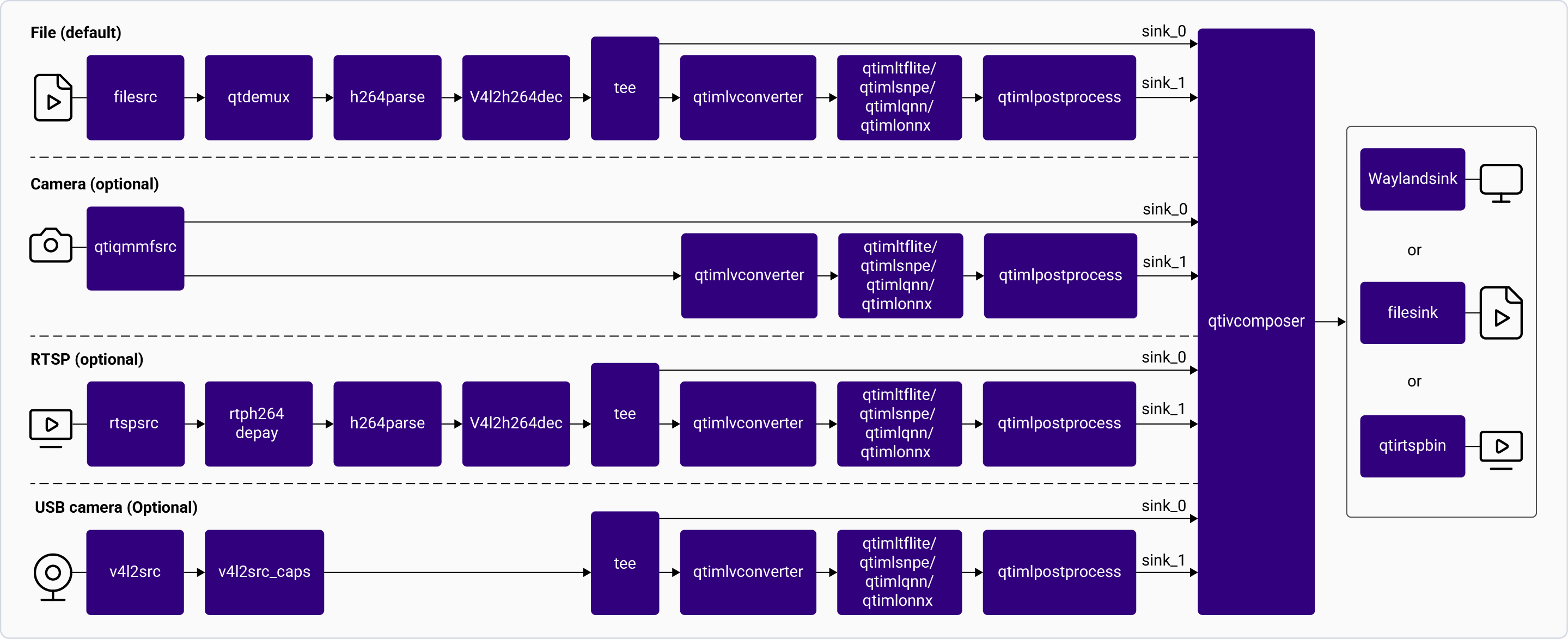 **Application:** [`gst-ai-object-detection`](https://github.com/qualcomm/gst-plugins-imsdk/blob/main/gst-sample-apps/gst-ai-object-detection/main.c)
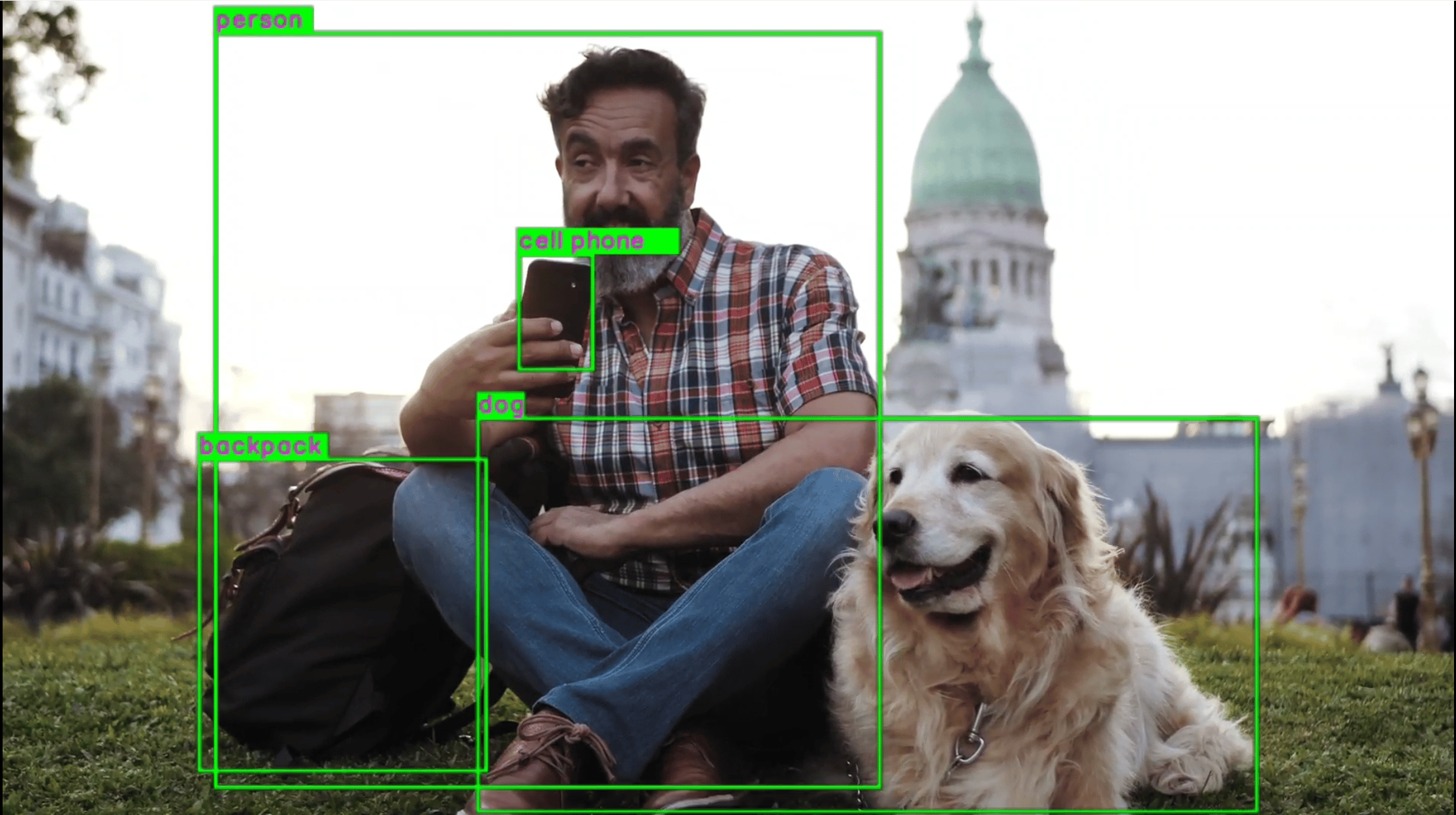
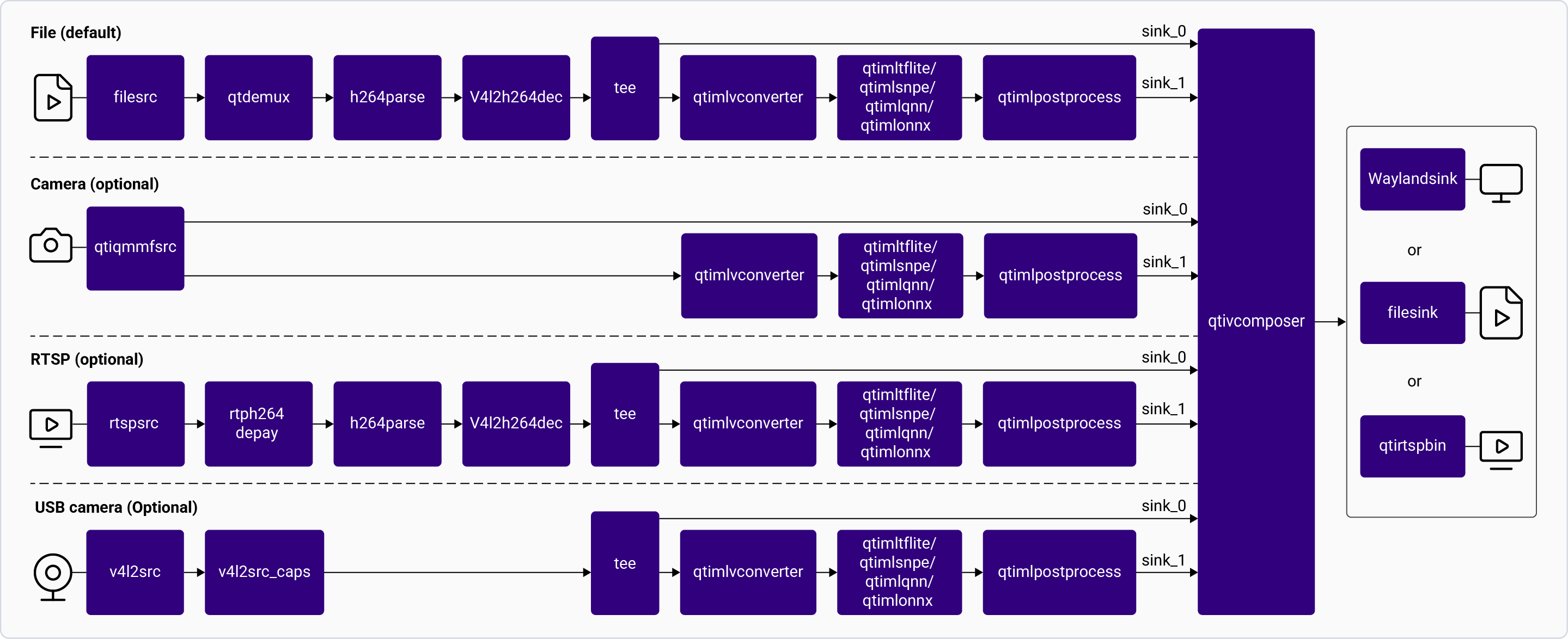 **Application:** [`gst-ai-classification`](https://github.com/qualcomm/gst-plugins-imsdk/blob/main/gst-sample-apps/gst-ai-classification/main.c)

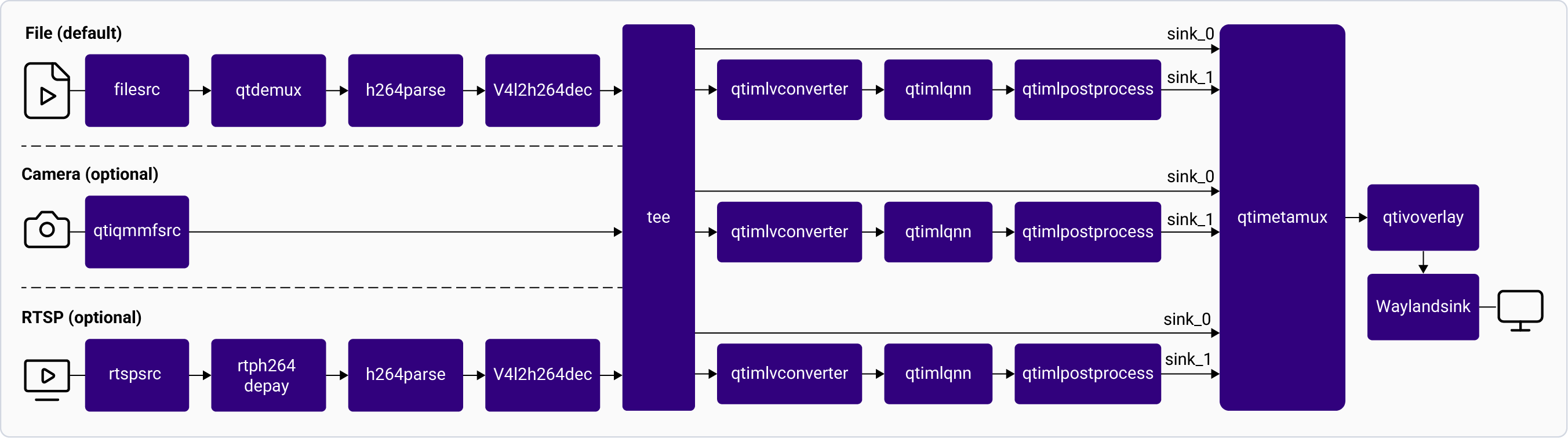 **Application:** [`gst-ai-face-detection`](https://github.com/qualcomm/gst-plugins-imsdk/blob/main/gst-sample-apps/gst-ai-face-detection/main.c)
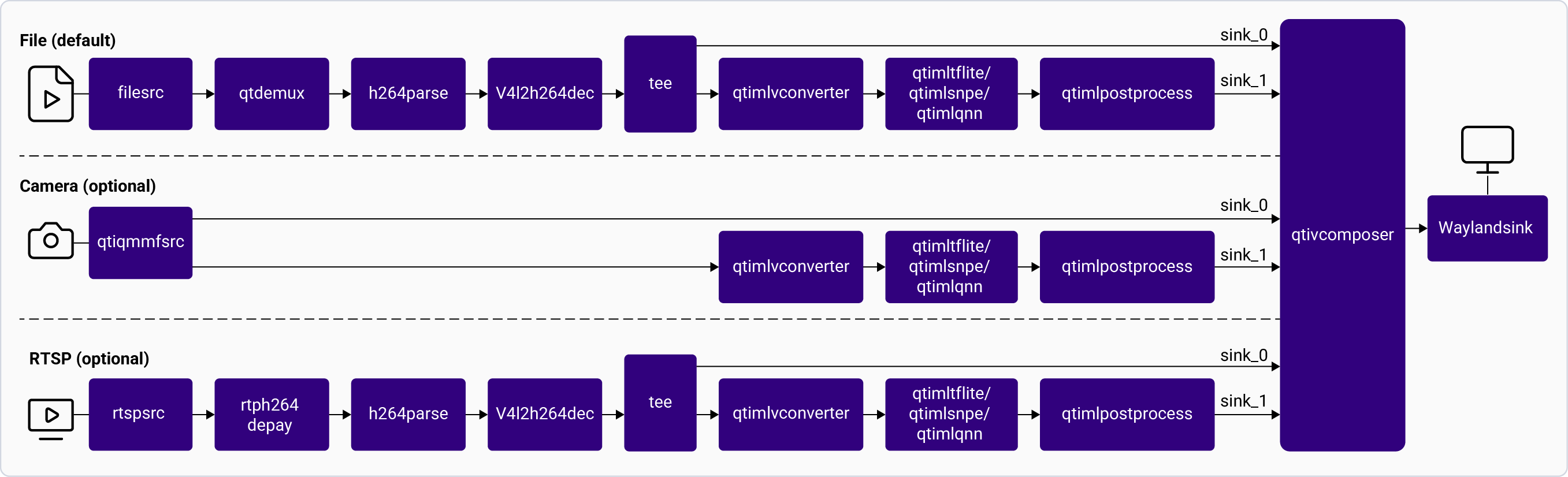 **Application:** [`gst-ai-segmentation`](https://github.com/qualcomm/gst-plugins-imsdk/blob/main/gst-sample-apps/gst-ai-segmentation/main.c)
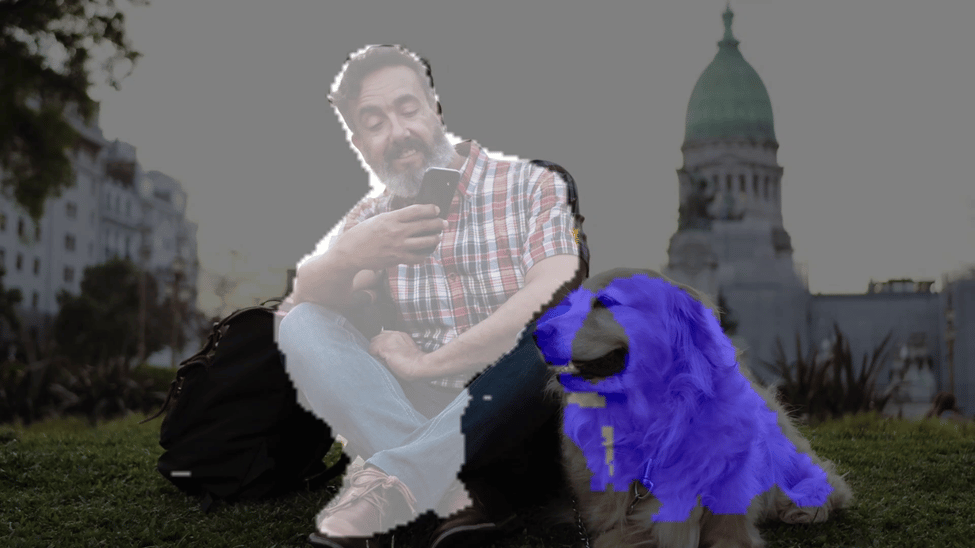
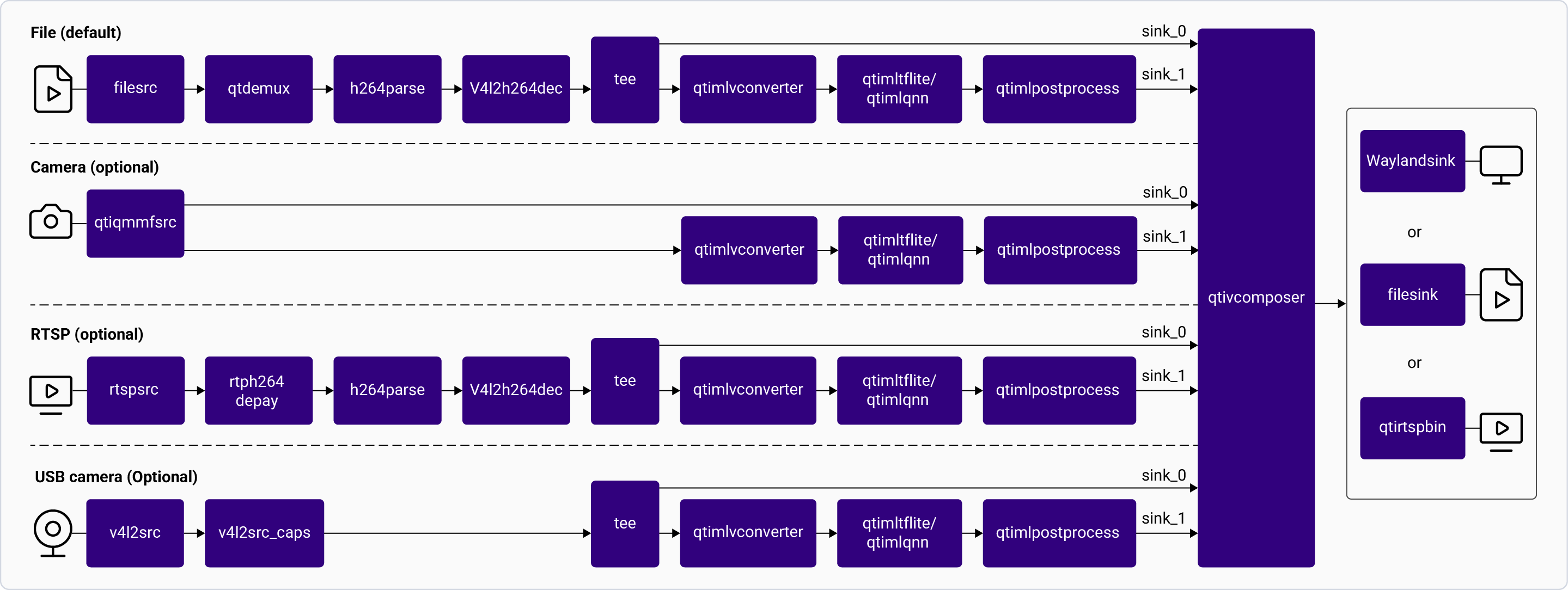 **Application:** [`gst-ai-pose-detection`](https://github.com/qualcomm/gst-plugins-imsdk/blob/main/gst-sample-apps/gst-ai-pose-detection/main.c)
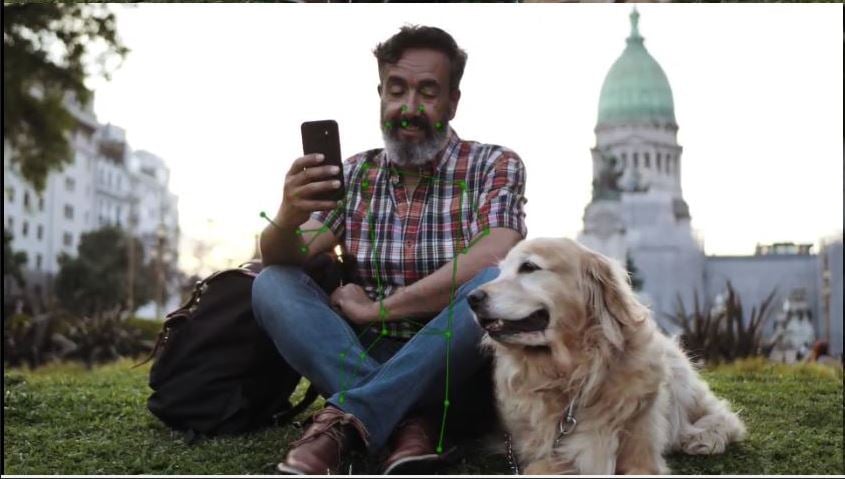
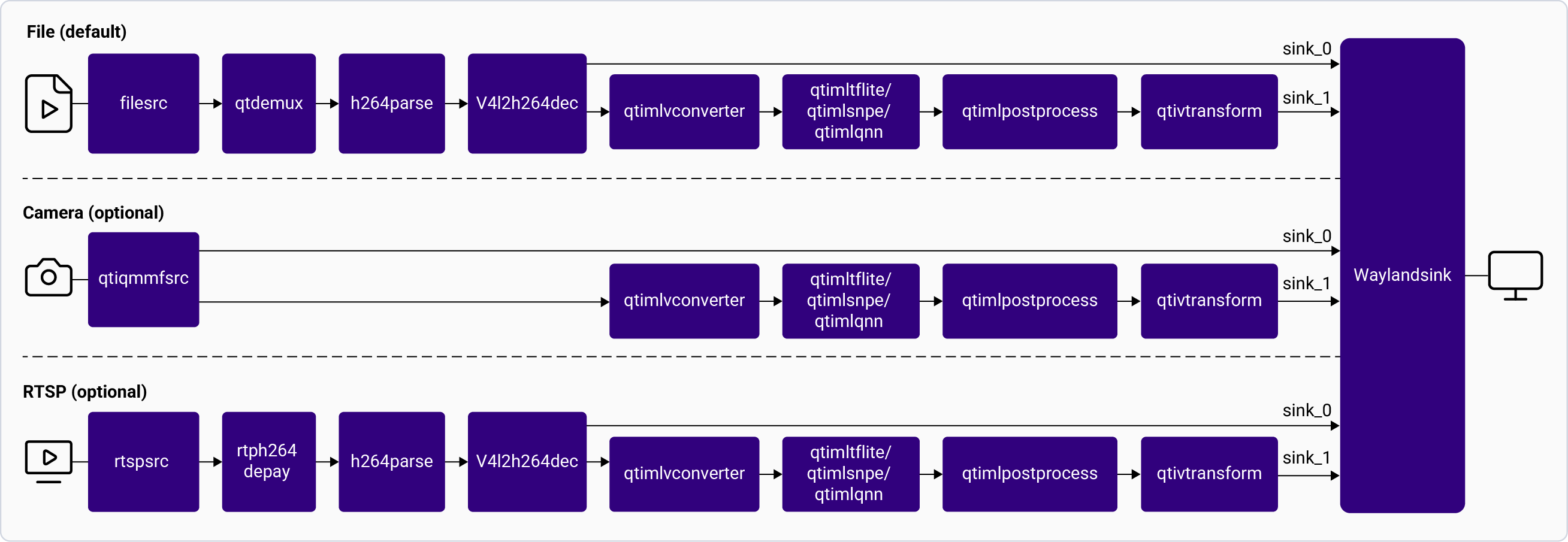 **Application:** [`gst-ai-monodepth`](https://github.com/qualcomm/gst-plugins-imsdk/blob/main/gst-sample-apps/gst-ai-monodepth/main.c)
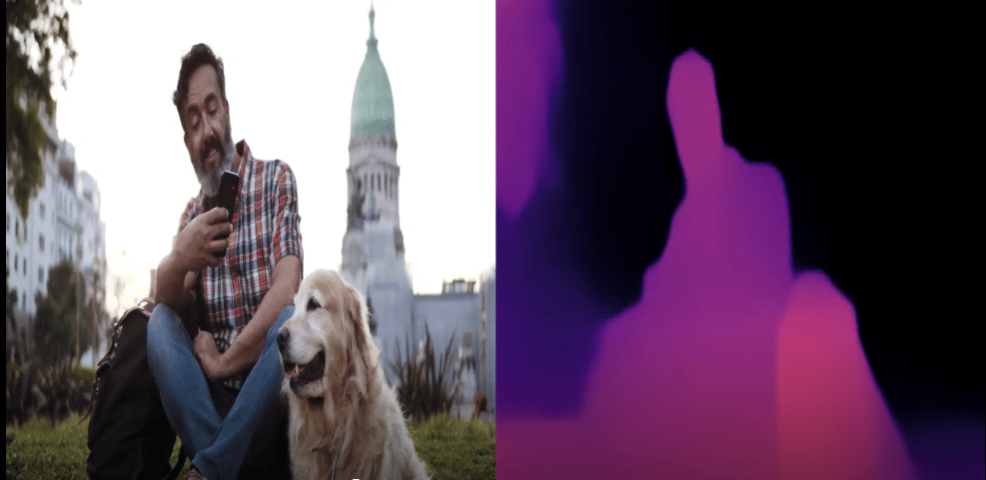

 **Application:** [`gst-ai-superresolution`](https://github.com/qualcomm/gst-plugins-imsdk/blob/main/gst-sample-apps/gst-ai-superresolution/main.c)
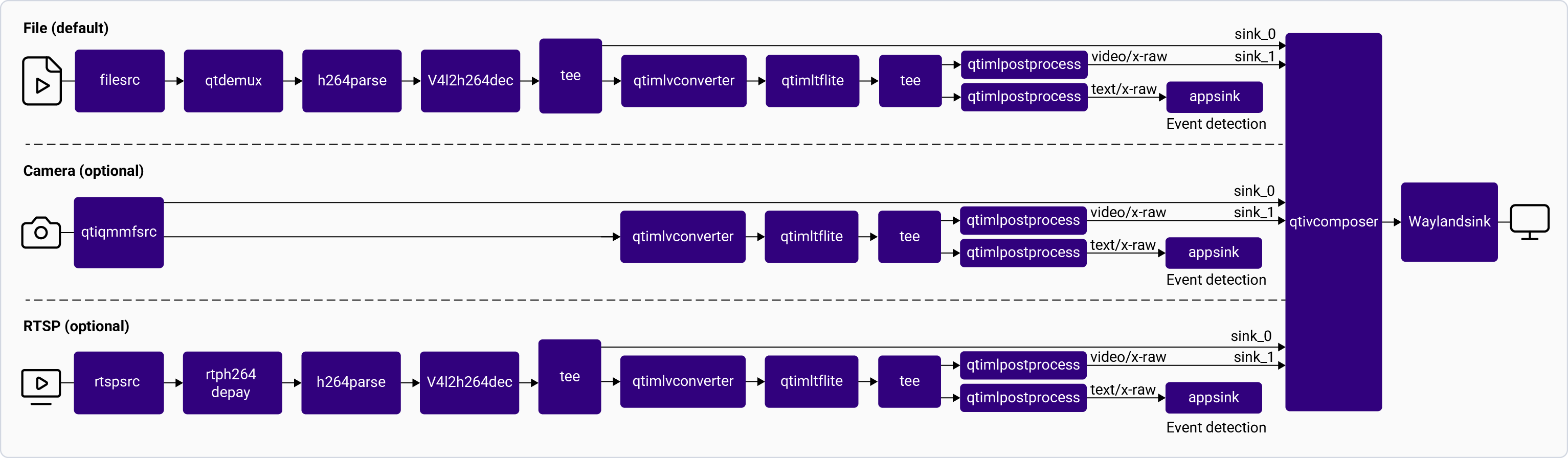
 **Application:** [`gst-ai-event-encoder`](https://github.com/qualcomm/gst-plugins-imsdk/blob/main/gst-sample-apps/gst-ai-event-encoder/main.c)
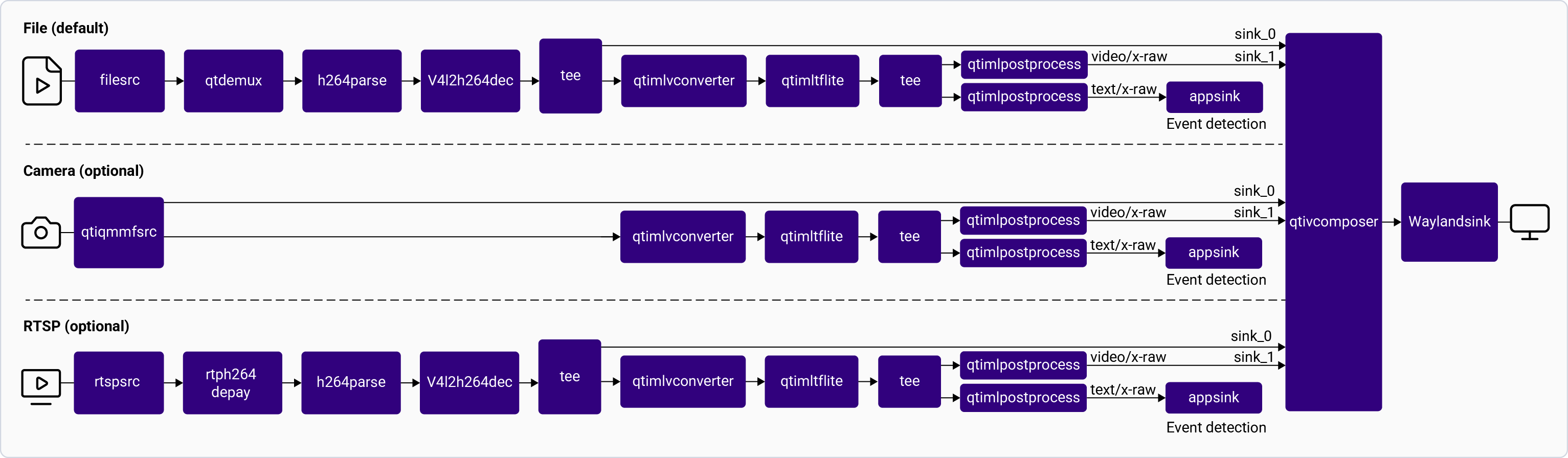 **Application:** [`gst-ai-metadata-parser-example`](https://github.com/qualcomm/gst-plugins-imsdk/blob/main/gst-sample-apps/gst-ai-metadata-parser-example/main.c)
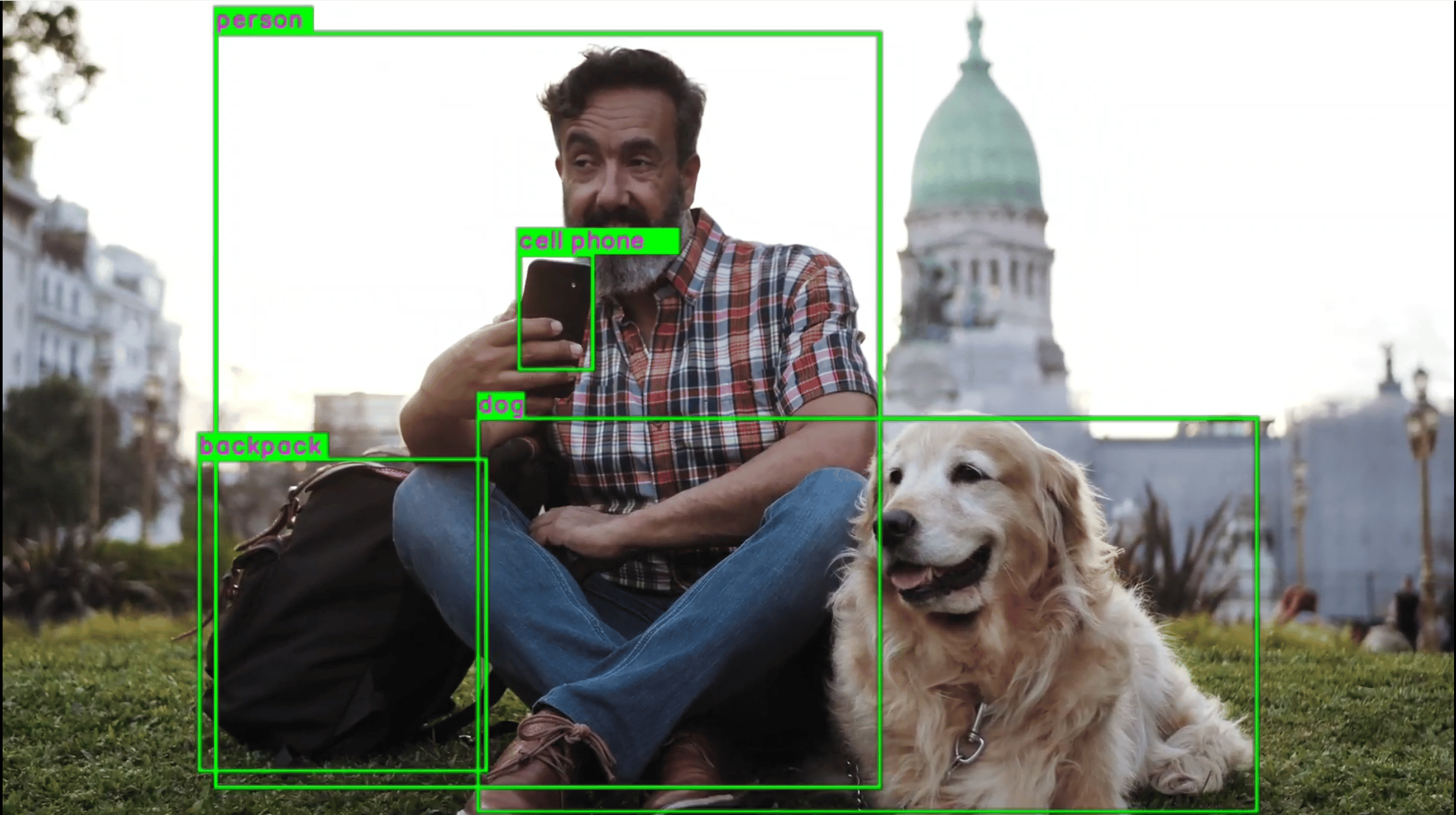
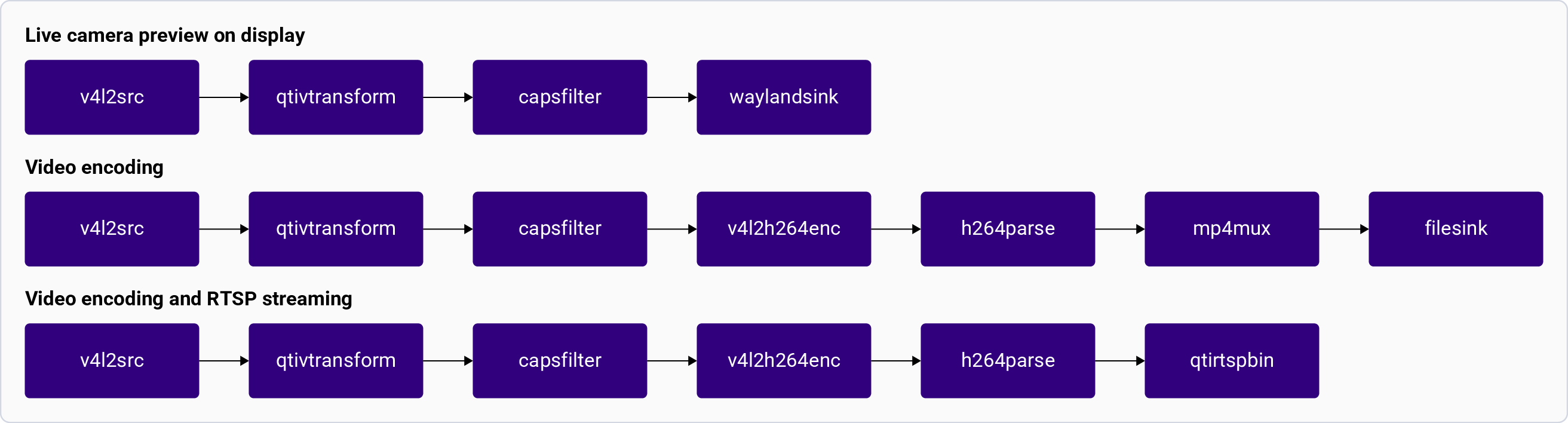
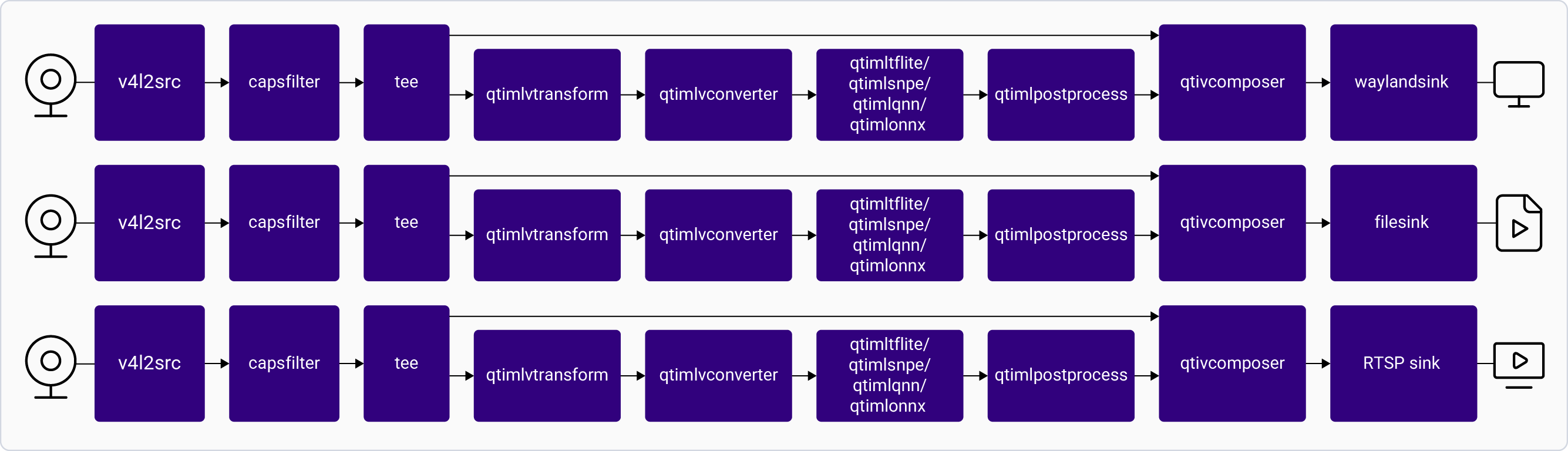 **Application:** [`gst-ai-usb-camera-app`](https://github.com/qualcomm/gst-plugins-imsdk/blob/main/gst-sample-apps/gst-ai-usb-camera-app/main.c)
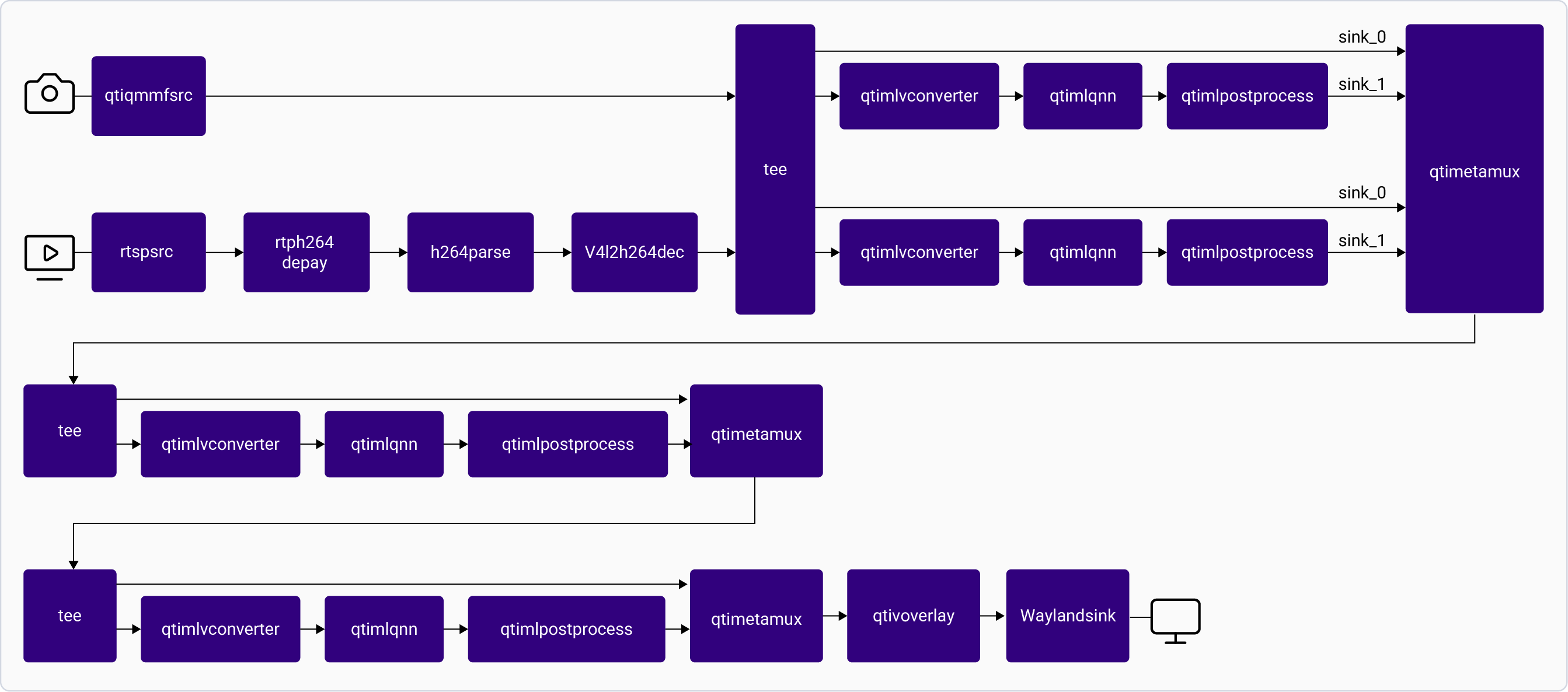 **Application:** [`gst-ai-face-recognition`](https://github.com/qualcomm/gst-plugins-imsdk/blob/main/gst-sample-apps/gst-ai-face-recognition/main.c)
For information about the plugins used in the pipeline flow, see [**Pipeline flow**](#face-recognition-pipeline-flow).
**Application:** [`gst-ai-face-recognition`](https://github.com/qualcomm/gst-plugins-imsdk/blob/main/gst-sample-apps/gst-ai-face-recognition/main.c)
For information about the plugins used in the pipeline flow, see [**Pipeline flow**](#face-recognition-pipeline-flow).
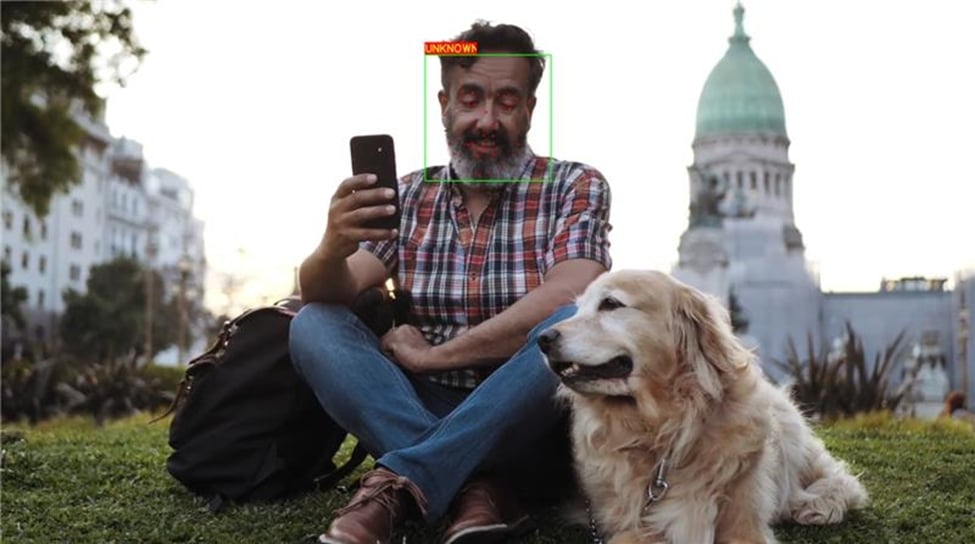
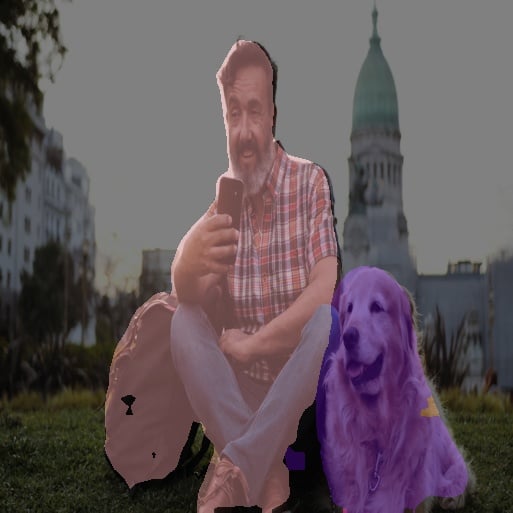
 **Application:** [`gst-ai-audio-classification`](https://github.com/qualcomm/gst-plugins-imsdk/blob/main/gst-sample-apps/gst-ai-audio-classification/main.c)
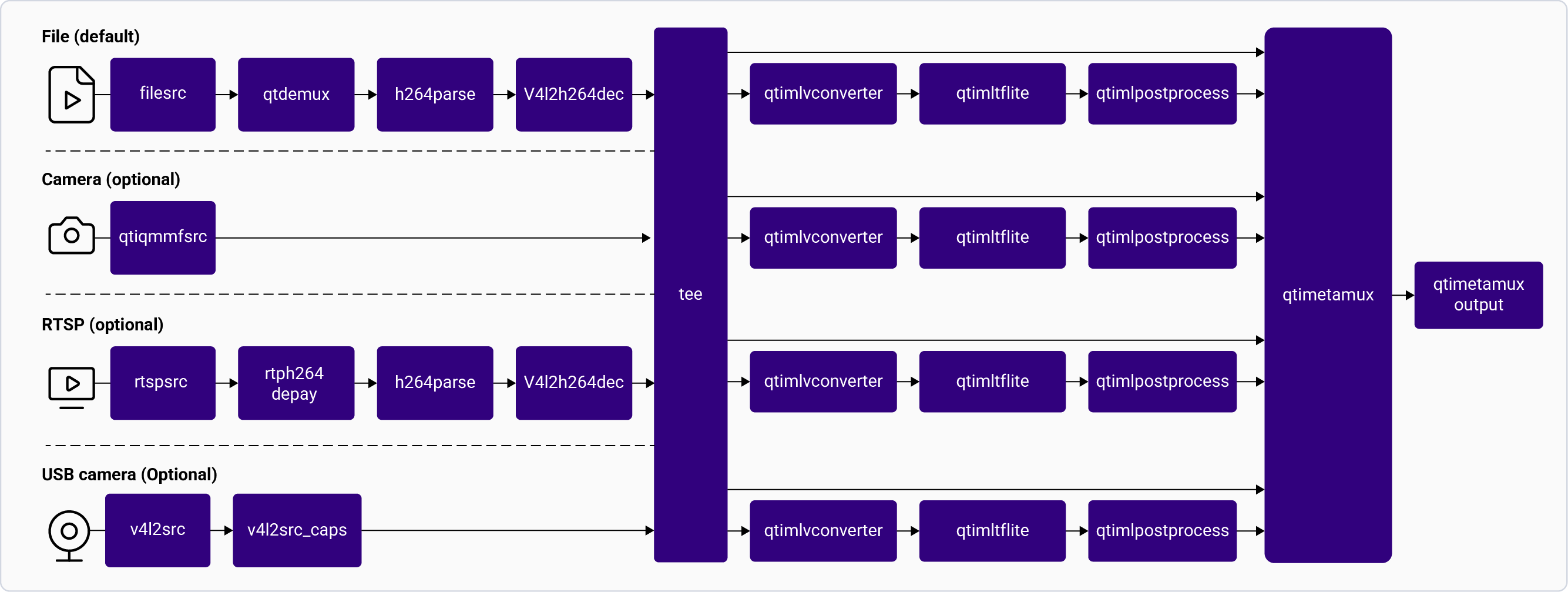
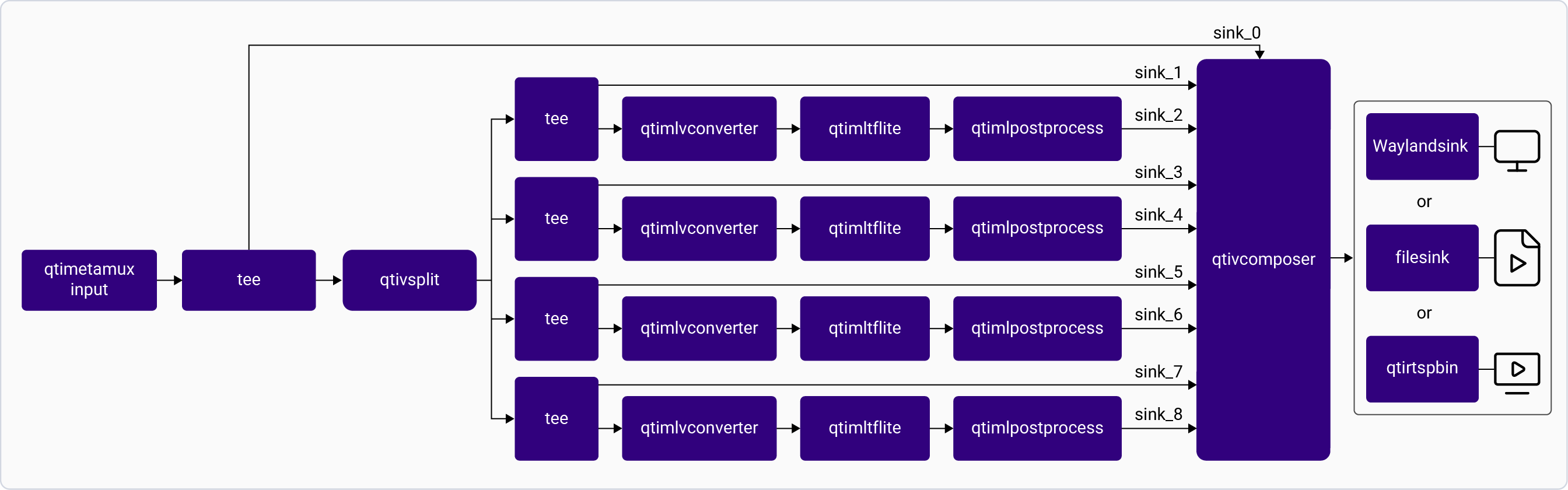 **Application:** [`gst-ai-daisychain-detection-classification`](https://github.com/qualcomm/gst-plugins-imsdk/blob/main/gst-sample-apps/gst-ai-daisychain-detection-classification/main.c)
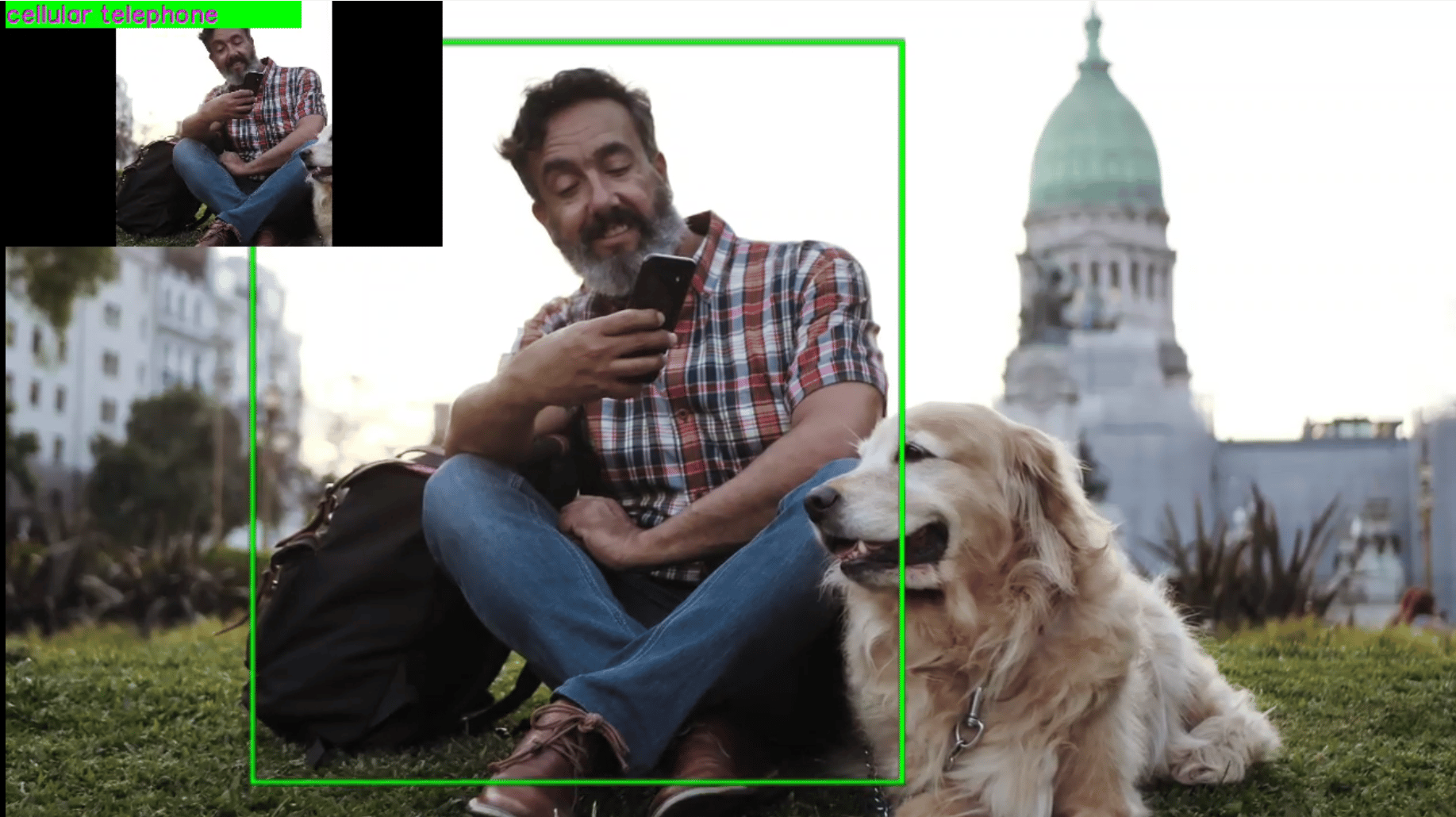
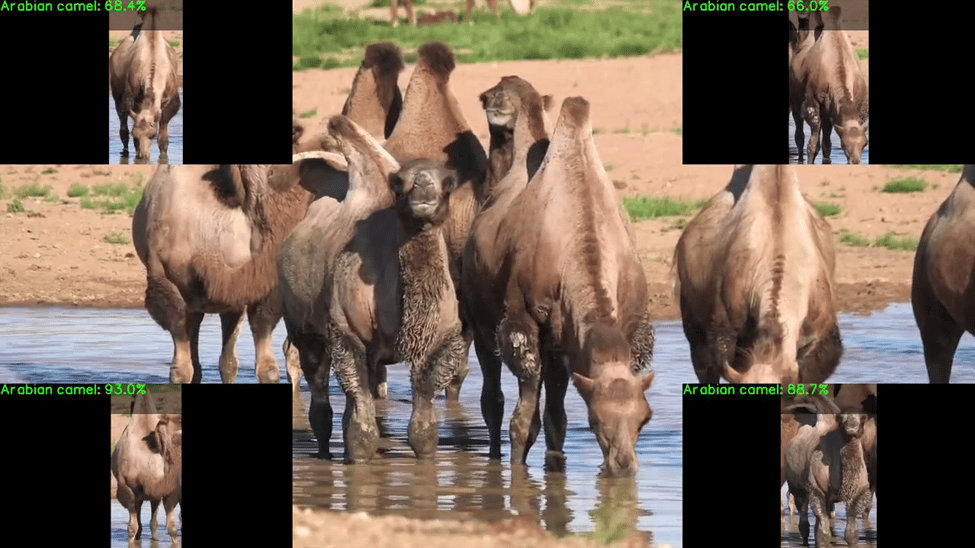
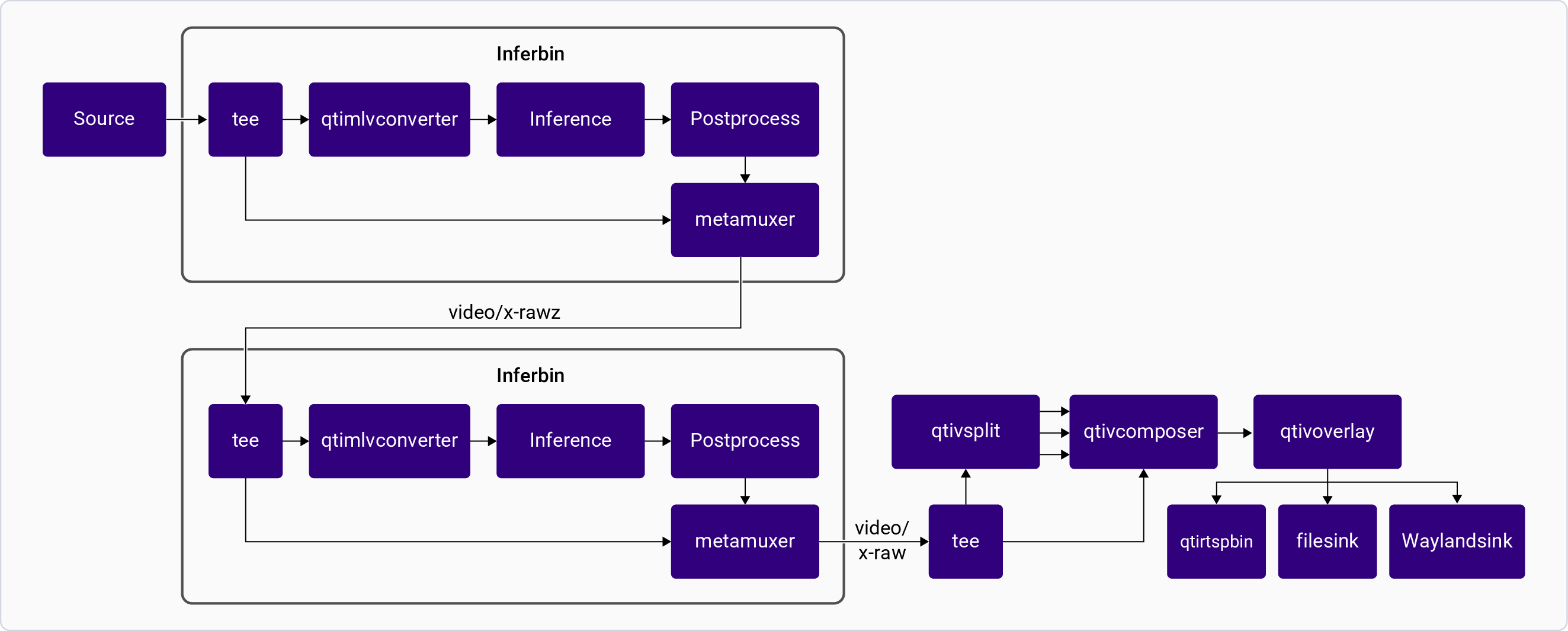 **Application:** [`gst-ai-daisychain-detection-pose`](https://github.com/qualcomm/gst-plugins-imsdk/blob/main/gst-sample-apps/gst-ai-daisychain-detection-pose/main.c)
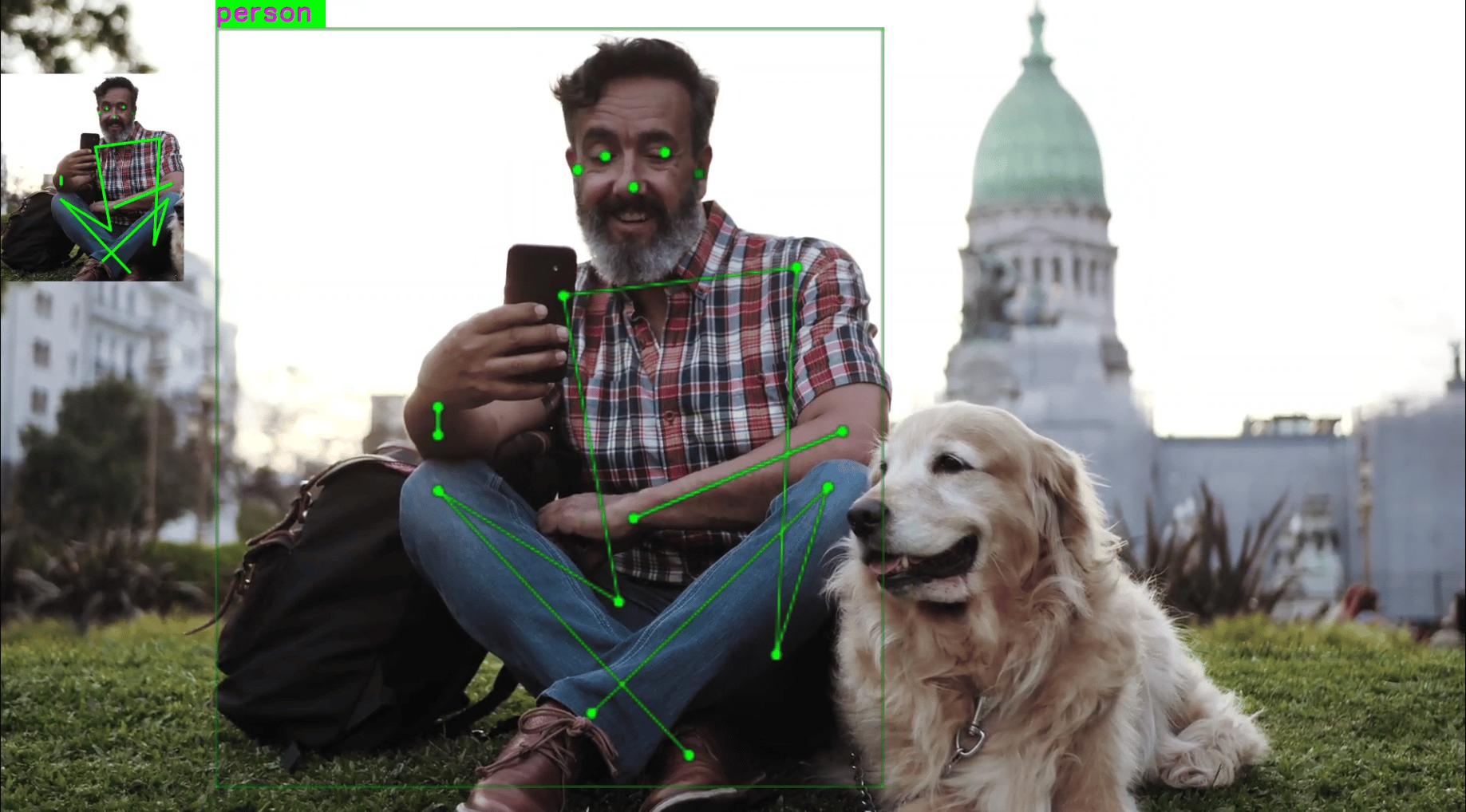
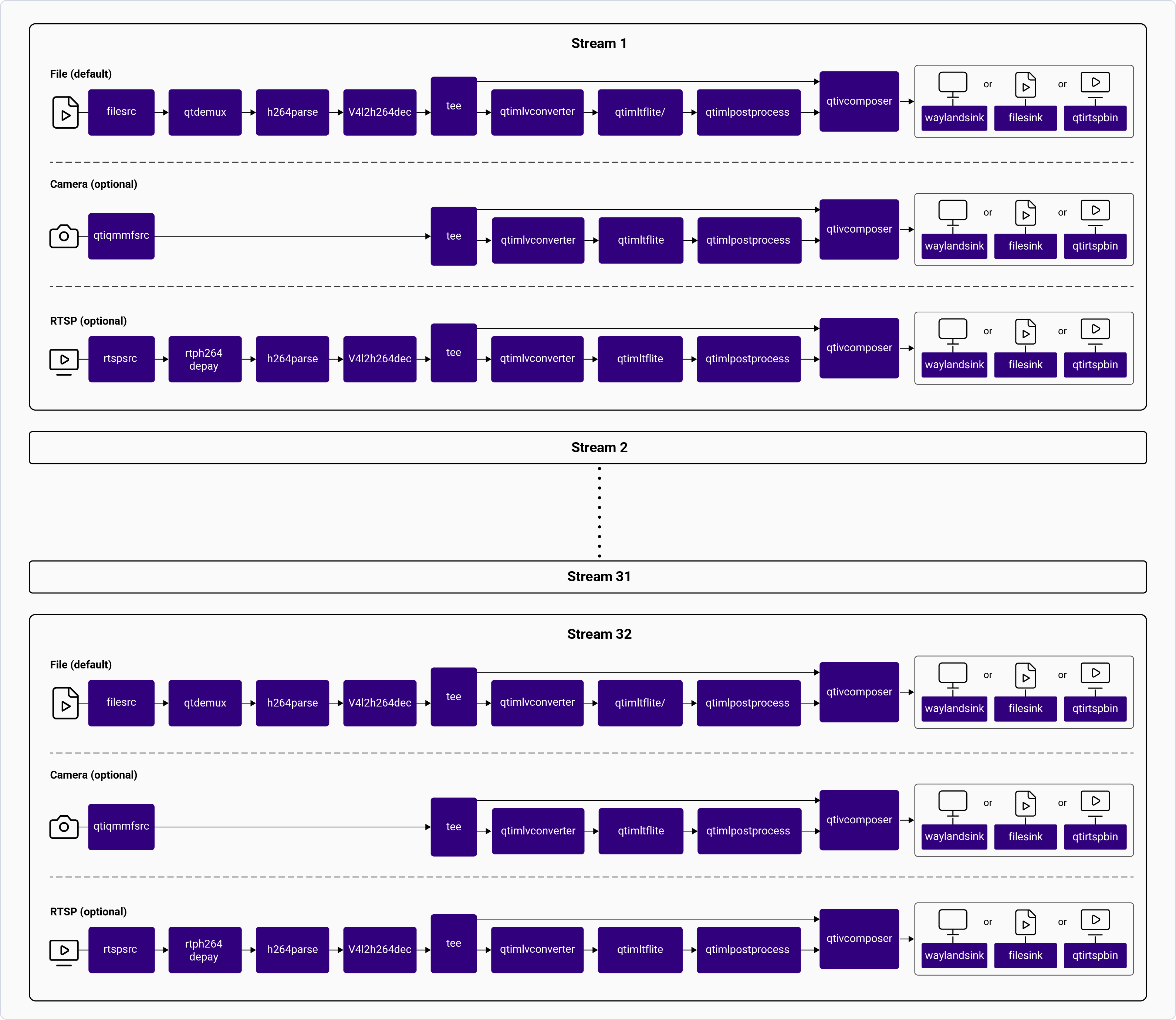 **Application:** [`gst-ai-multistream-inference`](https://github.com/qualcomm/gst-plugins-imsdk/blob/main/gst-sample-apps/gst-ai-multistream-inference/main.c)
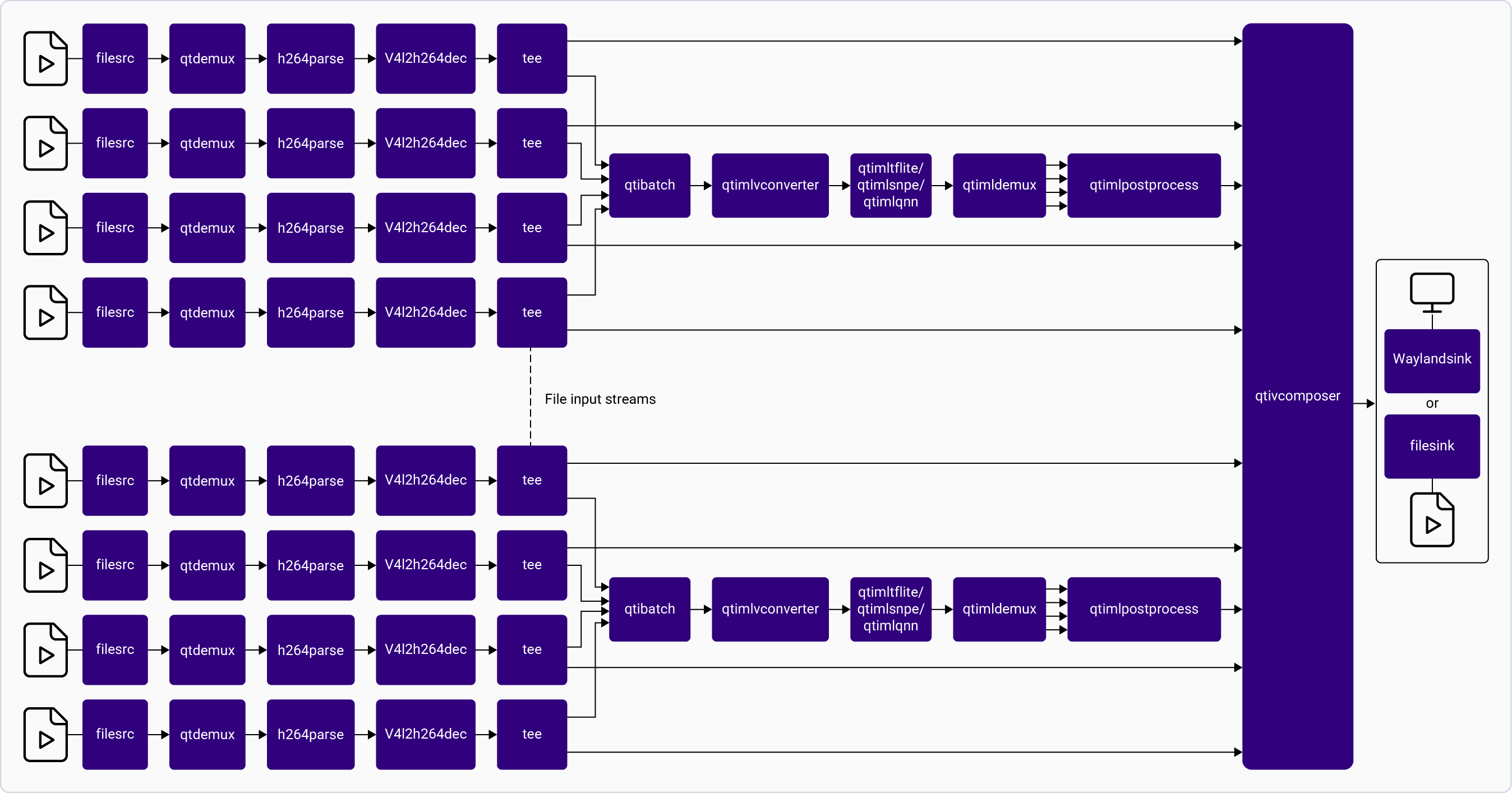 **Application:** [`gst-ai-multistream-batch-inference`](https://github.com/qualcomm/gst-plugins-imsdk/blob/main/gst-sample-apps/gst-ai-multistream-batch-inference/main.c)
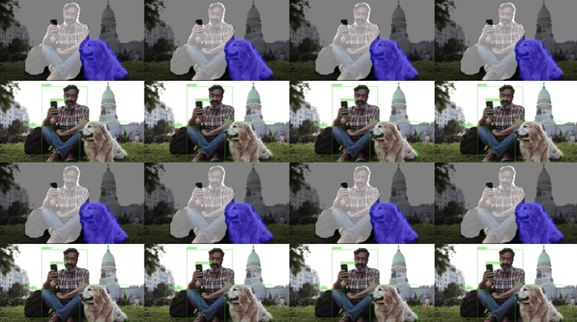
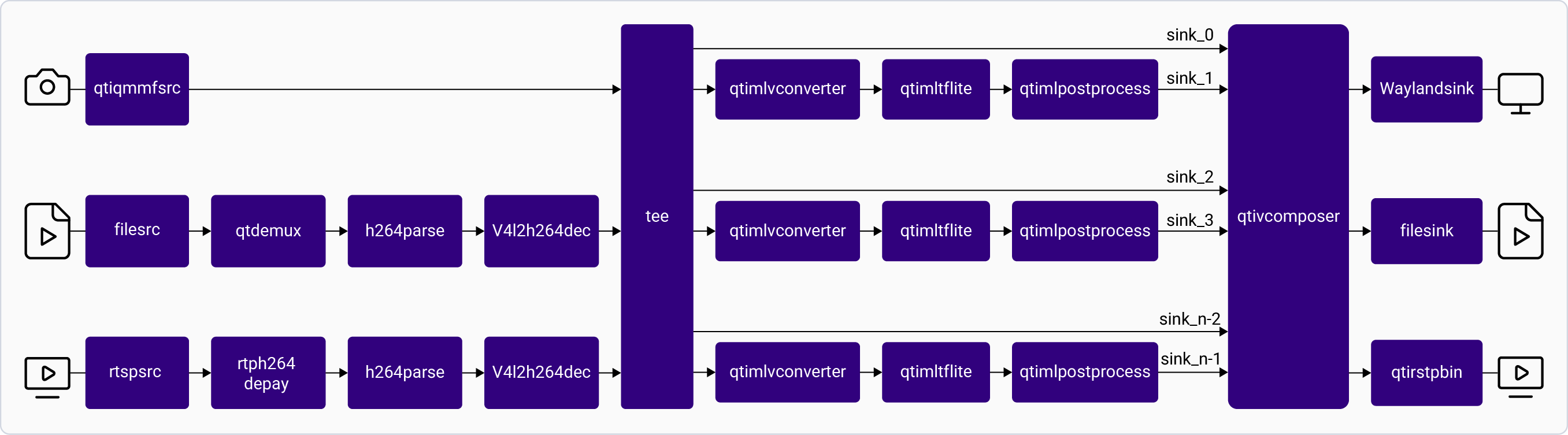 **Application:** [`gst-ai-multi-input-output-object-detection`](https://github.com/qualcomm/gst-plugins-imsdk/blob/main/gst-sample-apps/gst-ai-multi-input-output-object-detection/main.c)
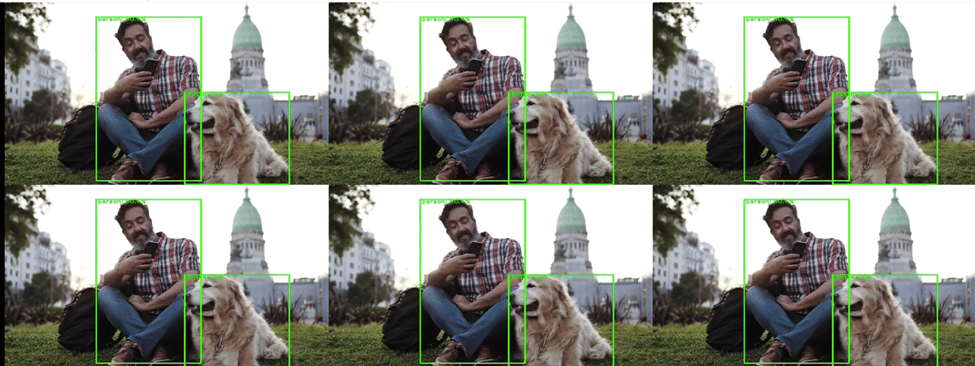
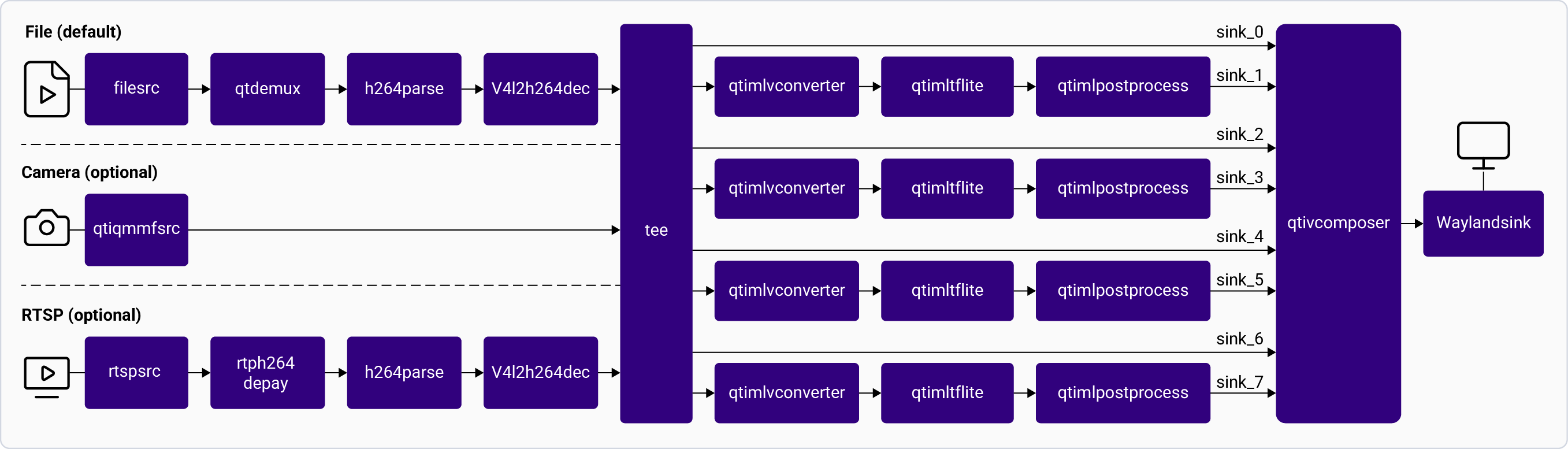 **Application:** [`gst-ai-parallel-inference`](https://github.com/qualcomm/gst-plugins-imsdk/blob/main/gst-sample-apps/gst-ai-parallel-inference/main.c)
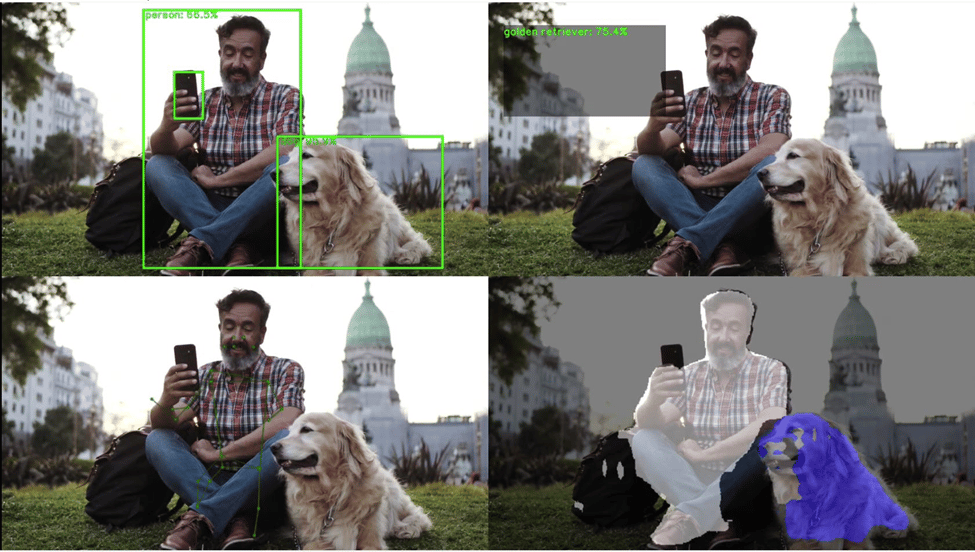
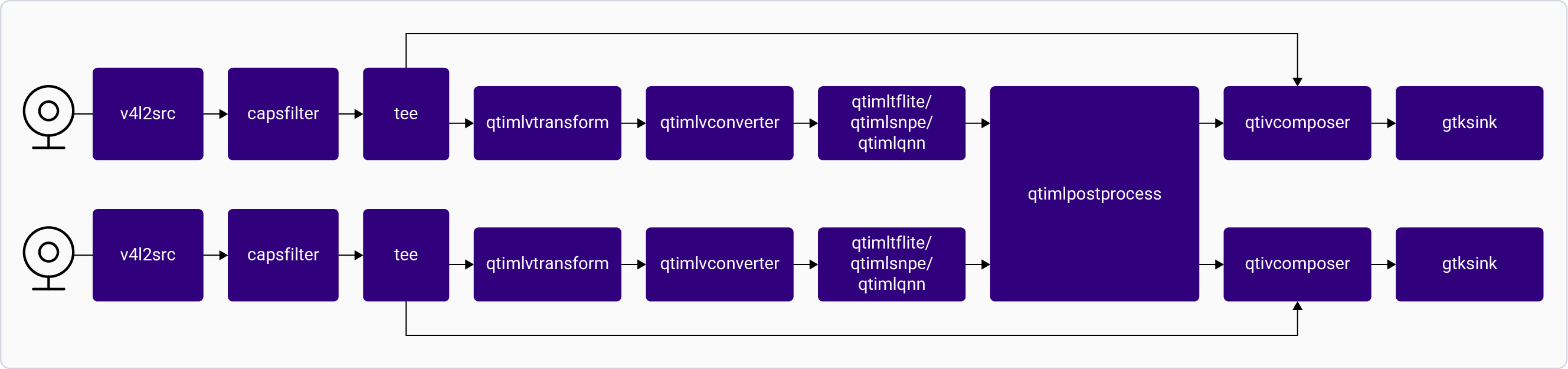 For information about the plugins used in this pipeline, see [**Pipeline flow**](#hardware-benchmarking-pipeline-flow).