> ## Documentation Index
> Fetch the complete documentation index at: https://imsdkdocs.qualcomm.com/llms.txt
> Use this file to discover all available pages before exploring further.
# Quickstart Guide
> Explore object detection pipelines with QIM SDK
## Object detection
 **Given a video frame, identify objects, and draw bounding boxes around them**.
Ensure you have QIMSDK installed. [QIM SDK Installation Guide](installation)
## Prerequisites
Run these commands on your device first:
```bash theme={null}
mkdir -p $HOME/{models,labels,media,media/output}
export MODEL_NAME=yolo_x_w8a8.tflite
export LABELS_NAME=yolov8.json
export SRC_VIDEO_NAME=video.mp4
```
```bash theme={null}
# Download YOLO-X W8A8 model
curl -L -o $HOME/models/$MODEL_NAME \
https://huggingface.co/Qualcomm/Yolo-X/resolve/v0.30.5/Yolo-X_w8a8.tflite
# Download detection labels
curl -L -o $HOME/labels/$LABELS_NAME \
https://raw.githubusercontent.com/quic/sample-apps-for-Qualcomm-linux/refs/heads/main/Qualcomm-linux/artifacts/json_labels/yolox.json
# Download sample video
curl -L -o $HOME/media/$SRC_VIDEO_NAME \
https://raw.githubusercontent.com/quic/sample-apps-for-Qualcomm-linux/refs/heads/main/Qualcomm-linux/artifacts/videos/video.mp4
```
***
## Option 1. Run prebuilt application for object detection on device
Ensure you have followed the [prerequisites](quickstart#prerequisites) before continuing
Overwrite the existing config file:
```bash theme={null}
sudo tee /etc/configs/config_detection.json << EOF
{
"file-path": "$HOME/media/$SRC_VIDEO_NAME",
"ml-framework": "tflite",
"yolo-model-type": "yolox",
"model": "$HOME/models/$MODEL_NAME",
"labels": "$HOME/labels/$LABELS_NAME",
"threshold": 40,
"runtime": "dsp",
"output-type": "waylandsink"
}
EOF
```
```bash theme={null}
gst-ai-object-detection
```
Your display now shows the video feed with bounding boxes and class labels drawn around each detected object. Detection results update in real time with every frame.
**Given a video frame, identify objects, and draw bounding boxes around them**.
Ensure you have QIMSDK installed. [QIM SDK Installation Guide](installation)
## Prerequisites
Run these commands on your device first:
```bash theme={null}
mkdir -p $HOME/{models,labels,media,media/output}
export MODEL_NAME=yolo_x_w8a8.tflite
export LABELS_NAME=yolov8.json
export SRC_VIDEO_NAME=video.mp4
```
```bash theme={null}
# Download YOLO-X W8A8 model
curl -L -o $HOME/models/$MODEL_NAME \
https://huggingface.co/Qualcomm/Yolo-X/resolve/v0.30.5/Yolo-X_w8a8.tflite
# Download detection labels
curl -L -o $HOME/labels/$LABELS_NAME \
https://raw.githubusercontent.com/quic/sample-apps-for-Qualcomm-linux/refs/heads/main/Qualcomm-linux/artifacts/json_labels/yolox.json
# Download sample video
curl -L -o $HOME/media/$SRC_VIDEO_NAME \
https://raw.githubusercontent.com/quic/sample-apps-for-Qualcomm-linux/refs/heads/main/Qualcomm-linux/artifacts/videos/video.mp4
```
***
## Option 1. Run prebuilt application for object detection on device
Ensure you have followed the [prerequisites](quickstart#prerequisites) before continuing
Overwrite the existing config file:
```bash theme={null}
sudo tee /etc/configs/config_detection.json << EOF
{
"file-path": "$HOME/media/$SRC_VIDEO_NAME",
"ml-framework": "tflite",
"yolo-model-type": "yolox",
"model": "$HOME/models/$MODEL_NAME",
"labels": "$HOME/labels/$LABELS_NAME",
"threshold": 40,
"runtime": "dsp",
"output-type": "waylandsink"
}
EOF
```
```bash theme={null}
gst-ai-object-detection
```
Your display now shows the video feed with bounding boxes and class labels drawn around each detected object. Detection results update in real time with every frame.
Press `Ctrl+C` to stop the pipeline gracefully.
This is made possible by many blocks (plugins) working together to form a `pipeline`.
Let's run the same example, but this time, in a way you can see all the plugins at work.
***
## Option 2. Object detection pipeline command
Ensure you have followed the [prerequisites](quickstart#prerequisites) before continuing
```bash theme={null}
gst-launch-1.0 -e --gst-debug=2 \
filesrc location=$HOME/media/$SRC_VIDEO_NAME ! qtdemux ! h264parse ! \
v4l2h264dec capture-io-mode=4 output-io-mode=4 ! video/x-raw,format=NV12 ! queue ! \
tee name=t ! qtimetamux name=obj_mux ! qtivoverlay ! waylandsink fullscreen=true sync=false \
t. ! queue ! qtimlvconverter ! queue ! \
qtimltflite model=$HOME/models/$MODEL_NAME delegate=external external-delegate-path=libQnnTFLiteDelegate.so external-delegate-options="QNNExternalDelegate,backend_type=htp,log_level=(string)1;" ! queue ! \
qtimlpostprocess module=yolov8 labels=$HOME/labels/$LABELS_NAME settings="{\"confidence\": 51.0}" ! text/x-raw ! queue ! obj_mux.
```
Your display shows the video feed with bounding boxes and class labels rendered over each detected object. The pipeline processes frames in real time
Press `Ctrl+C` to stop the pipeline gracefully.
* In case you want to build around this demo, command line might not be the most robust solution
* You could paste it into a shell file...
* But if you want other code to interact with this, you would want a cpp or python file (pipeline application).
***
## Option 3. Build your object detection pipeline application with Python
Ensure you have followed the [prerequisites](quickstart#prerequisites) before continuing
```bash theme={null}
cat > obj_det.py << 'PYEOF'
#!/usr/bin/env python3
import os, signal, gi
gi.require_version("Gst", "1.0")
gi.require_version("GLib", "2.0")
from gi.repository import Gst, GLib
SAMPLES = os.environ.get("QIMSDK_SAMPLES", "/etc")
MODEL = f"{SAMPLES}/models/{os.environ.get('MODEL_NAME', 'yolo_x_w8a8.tflite')}"
LABELS = f"{SAMPLES}/labels/{os.environ.get('LABELS_NAME', 'yolov8.json')}"
VIDEO = f"{SAMPLES}/media/{os.environ.get('SRC_VIDEO_NAME', 'video.mp4')}"
def make(pipeline, factory, **props):
el = Gst.ElementFactory.make(factory)
for k, v in props.items():
el.set_property(k.replace("_", "-"), v)
pipeline.add(el)
return el
def on_demux_pad(demux, pad, next_el):
if "video" in pad.get_current_caps().to_string():
pad.link(next_el.get_static_pad("sink"))
def build_pipeline():
p = Gst.Pipeline.new()
src = make(p, "filesrc", location=VIDEO)
demux = make(p, "qtdemux")
parse = make(p, "h264parse")
decoder = make(p, "v4l2h264dec", capture_io_mode=4, output_io_mode=4)
q0 = make(p, "queue")
tee = make(p, "tee")
q1 = make(p, "queue")
pre_proc = make(p, "qtimlvconverter")
q2 = make(p, "queue")
infer = make(p, "qtimltflite",
model=MODEL, delegate="external",
external_delegate_path="libQnnTFLiteDelegate.so")
infer.set_property("external-delegate-options",
Gst.Structure.new_from_string(
"QNNExternalDelegate,backend_type=htp,log_level=(string)1"))
q3 = make(p, "queue")
post_proc= make(p, "qtimlpostprocess",
module="yolov8", labels=LABELS,
settings='{"confidence": 51.0}')
q4 = make(p, "queue")
mux = make(p, "qtimetamux")
q5 = make(p, "queue")
overlay = make(p, "qtivoverlay")
q6 = make(p, "queue")
sink = make(p, "waylandsink", fullscreen=True, sync=False)
q7 = make(p, "queue")
src.link(demux)
demux.connect("pad-added", on_demux_pad, parse)
parse.link(decoder)
decoder.link_filtered(q0, Gst.Caps.from_string("video/x-raw,format=NV12"))
q0.link(tee)
tee.request_pad_simple("src_%u").link(q1.get_static_pad("sink"))
for a, b in [(q1, pre_proc), (pre_proc, q2), (q2, infer),
(infer, q3), (q3, post_proc)]:
a.link(b)
post_proc.link_filtered(q4, Gst.Caps.from_string("text/x-raw"))
q4.link(mux)
tee.request_pad_simple("src_%u").link(q7.get_static_pad("sink"))
q7.link(mux)
for a, b in [(mux, q5), (q5, overlay), (overlay, q6), (q6, sink)]:
a.link(b)
return p
Gst.init(None)
loop = GLib.MainLoop()
pipeline = build_pipeline()
def on_message(bus, msg):
if msg.type == Gst.MessageType.ERROR:
print("Error:", msg.parse_error()[0].message)
if msg.type in (Gst.MessageType.EOS, Gst.MessageType.ERROR):
loop.quit()
pipeline.get_bus().add_watch(GLib.PRIORITY_DEFAULT, lambda b, m: (on_message(b, m), True)[1])
GLib.unix_signal_add(GLib.PRIORITY_HIGH, signal.SIGINT, lambda: loop.quit() or GLib.SOURCE_CONTINUE)
pipeline.set_state(Gst.State.PLAYING)
loop.run()
pipeline.set_state(Gst.State.NULL)
PYEOF
```
```bash theme={null}
python3 obj_det.py
```
Your display shows the video feed with bounding boxes and class labels rendered over each detected object. The Python application processes frames in real time.
Press `Ctrl+C` to stop the pipeline gracefully.
***
## Option 4. Build your object detection pipeline application with C++
[Go to Building AI Pipelines](qimsdk-overview/sdkoverview)
***
## How it works
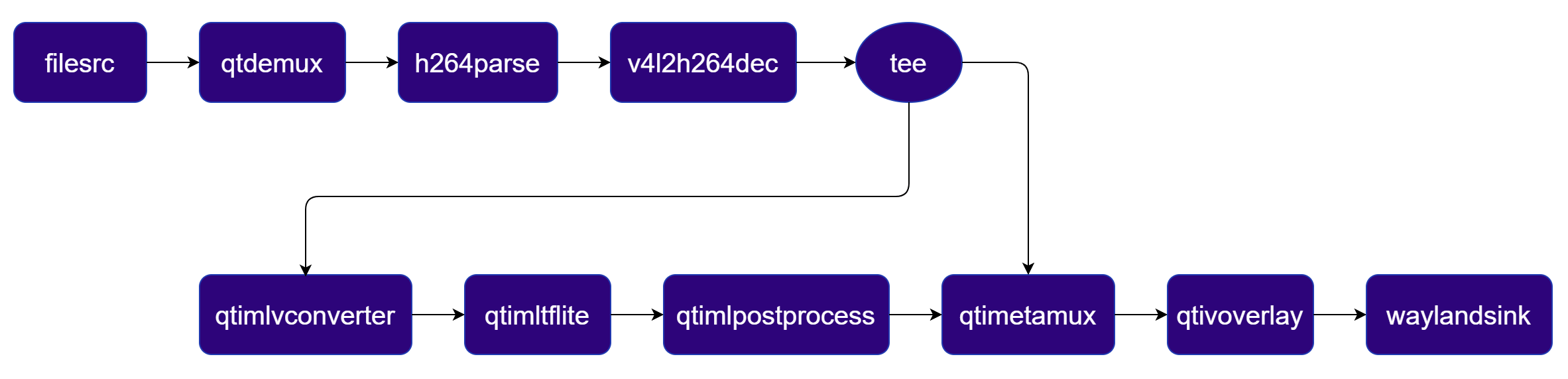
The pipeline reads an H.264 video file, hardware-decodes it, branches the decoded stream, runs YOLO-X inference on the Qualcomm® AI Engine (HTP backend), post-processes the bounding-box results, blends the annotations back onto the original frame using a hardware compositor, and displays the output to a screen.
**Pipeline Diagram**
 ***
## Next Steps
You've run an object detection pipeline in three different ways on Qualcomm® hardware. Here's where to go next:
Ready-to-run GStreamer pipelines for classification, segmentation, pose estimation, super resolution, and more.
Real-world examples built by the QIM SDK community — covering object detection, PPE compliance, security cameras, and more.
Full catalogue of quantized TFLite models tested on Qualcomm® hardware, with pipeline commands for each.
API-level documentation for every QIM SDK GStreamer plugin — properties, caps, and usage examples.
***
## Next Steps
You've run an object detection pipeline in three different ways on Qualcomm® hardware. Here's where to go next:
Ready-to-run GStreamer pipelines for classification, segmentation, pose estimation, super resolution, and more.
Real-world examples built by the QIM SDK community — covering object detection, PPE compliance, security cameras, and more.
Full catalogue of quantized TFLite models tested on Qualcomm® hardware, with pipeline commands for each.
API-level documentation for every QIM SDK GStreamer plugin — properties, caps, and usage examples.