> ## Documentation Index
> Fetch the complete documentation index at: https://imsdkdocs.qualcomm.com/llms.txt
> Use this file to discover all available pages before exploring further.
# Preprocessing
> Converting captured frames into tensors for inferencing
# Converting video frames to tensors
Video sources frequently deliver frames in diverse formats, resolutions, and color spaces that may not align with the requirements of machine learning models. Since models are typically trained on data with fixed resolution, format, and normalization parameters, it is essential to preprocess incoming frames to ensure compatibility with the model's expectations.
Common preprocessing steps include:
* **Cropping**: Select a specific region of the input frame to focus on. This uses provided ROI metadata to determine the crop region for each frame.
* **Rescaling**: Adjusts the spatial dimensions of input frames to match the expected tensor size for the target model to ensure compatibility and consistent performance.
* **Format Conversion**: Translates pixel data between supported formats (e.g., YUV to RGB) to meet the input requirements of the target model.
* **Batching**: Aggregates multiple frames or images into batches to optimize inference throughput and leverage parallel processing capabilities.
* **Normalization**: Applies pixel value scaling and normalization techniques (such as mean subtraction and standard deviation division) to standardize input data for improved model accuracy.
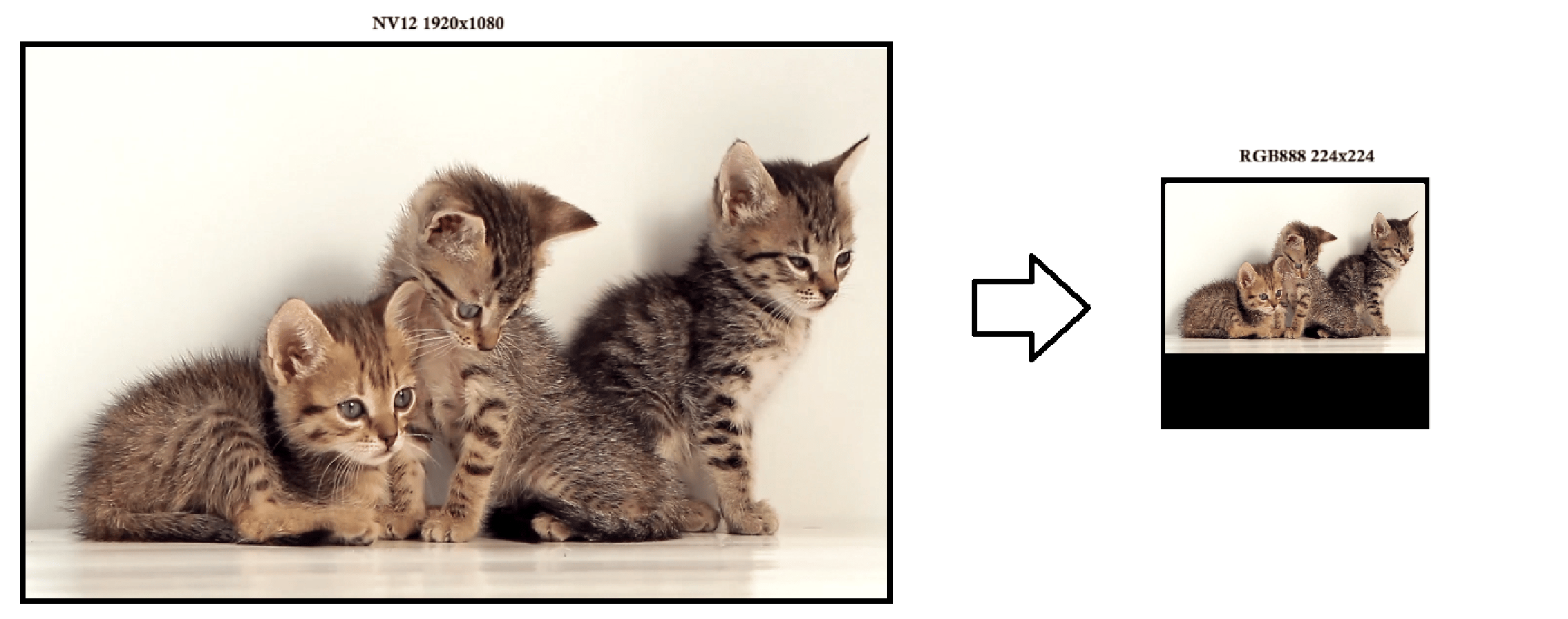
To perform efficient transformation the [qtimlvconverter](../plugin-reference/qtimlvconverter) runs on GPU and executes these steps in a chain. It resizes the entire input frame or the cropped region to fit the target tensor dimensions while preserving the full field of view. In this step, only the resolution changes, while the format and data range remain the same. By default it maintains the original aspect ratio, ensuring that geometric shapes of the objects remain undistorted in the output. If the input frame's aspect ratio differs from that of the target tensor, the resized frame is positioned in the top-left corner, and any remaining area is filled with a black background. This method ensures that the entire tensor is populated, preserves the integrity of the original image content, and avoids cropping or distortion. This makes it well-suited for models that require consistent spatial representation.
 ### Displacement Modes
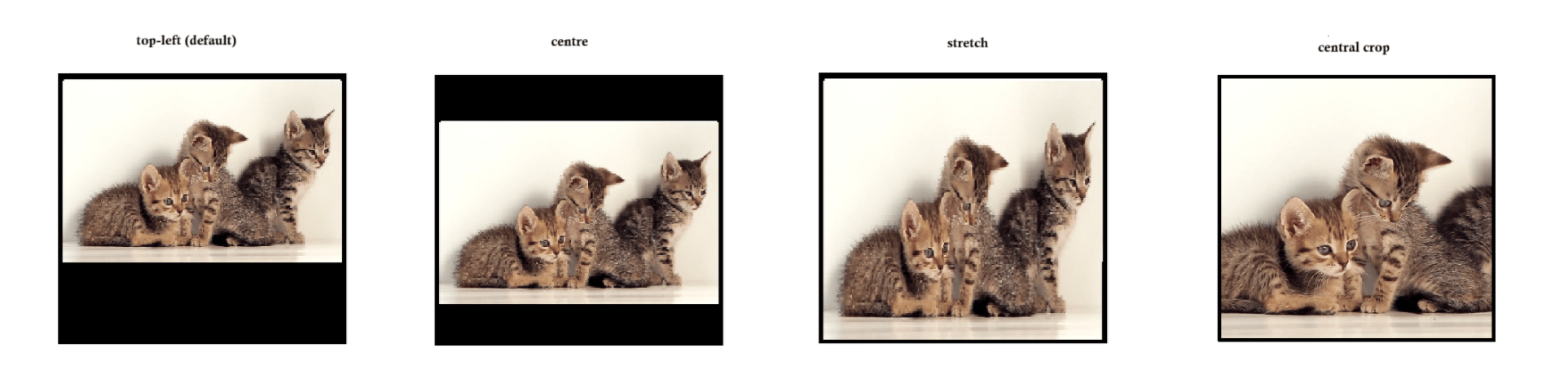
[qtimlvconverter](../plugin-reference/qtimlvconverter) support three displacment modes:
* **top-left** (default) - Keeps the original aspect ratio of the image and places it in the **top-left corner** of the output tensor.
* **centre** - Also preserves the aspect ratio, but **centers the image within the tensor**. This is a common choice for models that expect the main object to be in the middle.
* **stretch** - Ignores the original aspect ratio and **stretches** the image to completely fill the tensor. This can introduce distortion but ensures full coverage, which some models require.
* **centre-crop** - Ignore the source image AR (Aspect Ratio) and if required crop the source around its center to fit completely inside the output tensor.
### Displacement Modes
[qtimlvconverter](../plugin-reference/qtimlvconverter) support three displacment modes:
* **top-left** (default) - Keeps the original aspect ratio of the image and places it in the **top-left corner** of the output tensor.
* **centre** - Also preserves the aspect ratio, but **centers the image within the tensor**. This is a common choice for models that expect the main object to be in the middle.
* **stretch** - Ignores the original aspect ratio and **stretches** the image to completely fill the tensor. This can introduce distortion but ensures full coverage, which some models require.
* **centre-crop** - Ignore the source image AR (Aspect Ratio) and if required crop the source around its center to fit completely inside the output tensor.
 ### Supported Tensor Layouts
At the final stage of preprocessing, the output tensor must be arranged in a specific layout format. The [qtimlvconverter](../plugin-reference/qtimlvconverter) element supports the following tensor dimension layouts:
* **NHWC** — most commonly used by the **QIM SDK** for video AI models
* **NCHW** - contains the same data as **NHWC** but organized differently
* **NDHWC** - represent sequences of video frames, where each tensor includes multiple consecutive frames processed together for temporal analysis
Each letter in these layouts represents a specific dimension:
* **N** — Batch size (number of frames or images on which inference is performed)
* **D** — Depth (e.g., number of consecutive frames in a video stream)
* **H** — Height
* **W** — Width
* **C** — Channels (e.g., 3 for RGB/BGR, 1 for grayscale)
These layouts define how data is organized in memory and are crucial for ensuring compatibility with machine learning models.
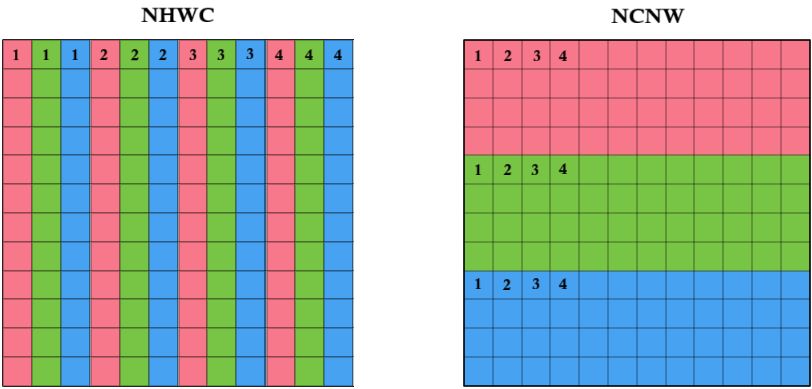
**NCHW** and **NHWC** formats contain the same data but organize it differently. Let's take the **RGB color format** as an example:
* In **NHWC** layout, the **Red, Green, and Blue** values for each pixel are stored **sequentially** in the buffer — one pixel at a time.
* In **NCHW** layout, all **Red** pixel values are stored first, followed by all **Green** values, and then all **Blue** values.
This difference in memory arrangement can affect performance and compatibility depending on the model architecture and hardware.
### Supported Tensor Layouts
At the final stage of preprocessing, the output tensor must be arranged in a specific layout format. The [qtimlvconverter](../plugin-reference/qtimlvconverter) element supports the following tensor dimension layouts:
* **NHWC** — most commonly used by the **QIM SDK** for video AI models
* **NCHW** - contains the same data as **NHWC** but organized differently
* **NDHWC** - represent sequences of video frames, where each tensor includes multiple consecutive frames processed together for temporal analysis
Each letter in these layouts represents a specific dimension:
* **N** — Batch size (number of frames or images on which inference is performed)
* **D** — Depth (e.g., number of consecutive frames in a video stream)
* **H** — Height
* **W** — Width
* **C** — Channels (e.g., 3 for RGB/BGR, 1 for grayscale)
These layouts define how data is organized in memory and are crucial for ensuring compatibility with machine learning models.
**NCHW** and **NHWC** formats contain the same data but organize it differently. Let's take the **RGB color format** as an example:
* In **NHWC** layout, the **Red, Green, and Blue** values for each pixel are stored **sequentially** in the buffer — one pixel at a time.
* In **NCHW** layout, all **Red** pixel values are stored first, followed by all **Green** values, and then all **Blue** values.
This difference in memory arrangement can affect performance and compatibility depending on the model architecture and hardware.
 **Supported Tensors by** [qtimlvconverter](../plugin-reference/qtimlvconverter):
| | |
| ------------ | ----------------------------------------------------------- |
| Tensor Shape | NHWC, NCHW, NDNWC |
| Data Format | uint8, int8, uint16, int16, uint32, int32, float32, float16 |
| Data Range | any |
| Color Format | RGB, BGR, Grayscale |
For more technical details and advanced features, please refer to the [qtimlvconverter documentation](../plugin-reference/qtimlvconverter).
# Preprocessing Sample
This example demonstrates how [qtimlvconverter](../plugin-reference/qtimlvconverter) can be used in Python to convert video frames into tensors.
**Supported Tensors by** [qtimlvconverter](../plugin-reference/qtimlvconverter):
| | |
| ------------ | ----------------------------------------------------------- |
| Tensor Shape | NHWC, NCHW, NDNWC |
| Data Format | uint8, int8, uint16, int16, uint32, int32, float32, float16 |
| Data Range | any |
| Color Format | RGB, BGR, Grayscale |
For more technical details and advanced features, please refer to the [qtimlvconverter documentation](../plugin-reference/qtimlvconverter).
# Preprocessing Sample
This example demonstrates how [qtimlvconverter](../plugin-reference/qtimlvconverter) can be used in Python to convert video frames into tensors.
 Here's how each component works:
* The video source supplies frames in NV12 (YUV) format at a resolution of 1920×1080 (1080p).
* The [qtimlvconverter](../plugin-reference/qtimlvconverter) element is configured to generate a quantized tensor of type uint8 with shape \[1, 224, 224, 3], corresponding to an RGB888 image. By default, [qtimlvconverter](../plugin-reference/qtimlvconverter) preserves the aspect ratio of the input frame. In this scenario, the original 16:9 frame is downscaled to 224×126 pixels to fit within the target tensor dimensions, ensuring that the field of view remains intact and free from cropping or distortion. The frame is then converted from NV12 to RGB888 format. As the model in this example will be quantized to accept uint8 data, no further normalization is necessary; the RGB888 format directly matches the model's input requirements. The resulting RGB888 frame, with a resolution of 224×126, is positioned in the top-left corner of the output tensor. The remaining area—unused rows beneath the image—is filled with black pixels, ensuring the tensor is fully populated while maintaining the original aspect ratio.
* To access the tensor within a python application, the **appsink** element is utilized.
* In this example, the Python script receives tensors for further processing. However, for demonstration purposes, we simply store the tensor as a file in the file system. The script does not save each tensor to a separate file—instead, it overwrites the same file repeatedly to avoid memory flooding and excessive disk usage.
### Run example on device
| File | Download | Save as |
| ------------ | ------------------------------------------------------------------------------------------------------------------------------------------------------ | -------------------- |
| Sample video | Input video | `ai_demo_sample.mp4` |
If any downloaded file is a `.zip` archive, extract it on your host machine before copying:
`unzip filename.zip`
```bash SCP (SSH) theme={null}
# Replace $HOME to the appropriate device path before running the commands.
# For QLI: /root
# For Ubuntu: /home/ubuntu
# Modify this based on your platform and ensure files are copied to the correct location on the device.
# Run from your host machine — replace and
ssh @ "mkdir -p $HOME/{media,media/output}"
scp ai_demo_sample.mp4 @:$HOME/media/
```
```bash SCP (SSH) theme={null}
ssh @
```
```bash theme={null}
export SRC_VIDEO_NAME=ai_demo_sample.mp4
export VIDEO_SOURCE="filesrc location=$HOME/media/$SRC_VIDEO_NAME ! qtdemux ! h264parse ! v4l2h264dec capture-io-mode=4 output-io-mode=4 ! video/x-raw,format=NV12"
```
```bash theme={null}
gst-launch-1.0 -e \
qticamsrc camera=0 ! \
video/x-raw,width=1920,height=1080 ! queue ! \
qtimlvconverter name=preprocess ! \
"neural-network/tensors,type=INT8,dimensions=<<1,224,224,3>>" ! queue ! \
filesink location=$HOME/media/tensor.bin sync=false
```
* **Python source code:** [gst-ai-video-preprocess.py](https://github.com/qualcomm/gst-plugins-imsdk/tree/main/gst-python-examples/gst-ai-video-preprocess.py)
* **Run:**
```bash theme={null}
python3 gst-ai-video-preprocess.py -s "$VIDEO_SOURCE"
```
* **Application source code:** [gst-ai-video-preprocess](https://github.com/qualcomm/gst-plugins-imsdk/tree/main/gst-sample-apps/gst-ai-video-preprocess)
* **Build your application:**
Steps to build custom application
Steps to build custom application
* **Run:**
```bash theme={null}
gst-ai-video-preprocess -s "$VIDEO_SOURCE"
```
### Expected output
During execution, timing information is displayed in the console to provide insight into processing performance. The Python script saves the output tensor to the file \$HOME/media/tensor.bin.
Given that the tensor has a shape of \[1, 224, 224, 3] and a data type of uint8, it effectively represents an RGB888 image. As a result, the tensor can be opened and viewed using any image viewer that supports the RGB888 format.
# AI preprocessing with custom crop
In some cases, instead of resizing or repositioning the entire image within the input tensor, you may need to crop a specific region and feed only that portion to the model. This approach is useful when we are interested in analyzing only a specific part of the field of view (FOV), rather than the entire image.
While the **image-disposition** property of [qtimlvconverter](../plugin-reference/qtimlvconverter) helps with placement and aspect ratio handling, cropping is a separate preprocessing step that gives you more control over which part of the image the model processes.
To perform cropping, you can insert a [qtivtransform](../plugin-reference/qtivtransform) step before [qtimlvconverter](../plugin-reference/qtimlvconverter). This element allows you to crop the input image before it reaches the converter, giving you **precise control** over the region of interest used for inference.
Here's how each component works:
* The video source supplies frames in NV12 (YUV) format at a resolution of 1920×1080 (1080p).
* The [qtimlvconverter](../plugin-reference/qtimlvconverter) element is configured to generate a quantized tensor of type uint8 with shape \[1, 224, 224, 3], corresponding to an RGB888 image. By default, [qtimlvconverter](../plugin-reference/qtimlvconverter) preserves the aspect ratio of the input frame. In this scenario, the original 16:9 frame is downscaled to 224×126 pixels to fit within the target tensor dimensions, ensuring that the field of view remains intact and free from cropping or distortion. The frame is then converted from NV12 to RGB888 format. As the model in this example will be quantized to accept uint8 data, no further normalization is necessary; the RGB888 format directly matches the model's input requirements. The resulting RGB888 frame, with a resolution of 224×126, is positioned in the top-left corner of the output tensor. The remaining area—unused rows beneath the image—is filled with black pixels, ensuring the tensor is fully populated while maintaining the original aspect ratio.
* To access the tensor within a python application, the **appsink** element is utilized.
* In this example, the Python script receives tensors for further processing. However, for demonstration purposes, we simply store the tensor as a file in the file system. The script does not save each tensor to a separate file—instead, it overwrites the same file repeatedly to avoid memory flooding and excessive disk usage.
### Run example on device
| File | Download | Save as |
| ------------ | ------------------------------------------------------------------------------------------------------------------------------------------------------ | -------------------- |
| Sample video | Input video | `ai_demo_sample.mp4` |
If any downloaded file is a `.zip` archive, extract it on your host machine before copying:
`unzip filename.zip`
```bash SCP (SSH) theme={null}
# Replace $HOME to the appropriate device path before running the commands.
# For QLI: /root
# For Ubuntu: /home/ubuntu
# Modify this based on your platform and ensure files are copied to the correct location on the device.
# Run from your host machine — replace and
ssh @ "mkdir -p $HOME/{media,media/output}"
scp ai_demo_sample.mp4 @:$HOME/media/
```
```bash SCP (SSH) theme={null}
ssh @
```
```bash theme={null}
export SRC_VIDEO_NAME=ai_demo_sample.mp4
export VIDEO_SOURCE="filesrc location=$HOME/media/$SRC_VIDEO_NAME ! qtdemux ! h264parse ! v4l2h264dec capture-io-mode=4 output-io-mode=4 ! video/x-raw,format=NV12"
```
```bash theme={null}
gst-launch-1.0 -e \
qticamsrc camera=0 ! \
video/x-raw,width=1920,height=1080 ! queue ! \
qtimlvconverter name=preprocess ! \
"neural-network/tensors,type=INT8,dimensions=<<1,224,224,3>>" ! queue ! \
filesink location=$HOME/media/tensor.bin sync=false
```
* **Python source code:** [gst-ai-video-preprocess.py](https://github.com/qualcomm/gst-plugins-imsdk/tree/main/gst-python-examples/gst-ai-video-preprocess.py)
* **Run:**
```bash theme={null}
python3 gst-ai-video-preprocess.py -s "$VIDEO_SOURCE"
```
* **Application source code:** [gst-ai-video-preprocess](https://github.com/qualcomm/gst-plugins-imsdk/tree/main/gst-sample-apps/gst-ai-video-preprocess)
* **Build your application:**
Steps to build custom application
Steps to build custom application
* **Run:**
```bash theme={null}
gst-ai-video-preprocess -s "$VIDEO_SOURCE"
```
### Expected output
During execution, timing information is displayed in the console to provide insight into processing performance. The Python script saves the output tensor to the file \$HOME/media/tensor.bin.
Given that the tensor has a shape of \[1, 224, 224, 3] and a data type of uint8, it effectively represents an RGB888 image. As a result, the tensor can be opened and viewed using any image viewer that supports the RGB888 format.
# AI preprocessing with custom crop
In some cases, instead of resizing or repositioning the entire image within the input tensor, you may need to crop a specific region and feed only that portion to the model. This approach is useful when we are interested in analyzing only a specific part of the field of view (FOV), rather than the entire image.
While the **image-disposition** property of [qtimlvconverter](../plugin-reference/qtimlvconverter) helps with placement and aspect ratio handling, cropping is a separate preprocessing step that gives you more control over which part of the image the model processes.
To perform cropping, you can insert a [qtivtransform](../plugin-reference/qtivtransform) step before [qtimlvconverter](../plugin-reference/qtimlvconverter). This element allows you to crop the input image before it reaches the converter, giving you **precise control** over the region of interest used for inference.
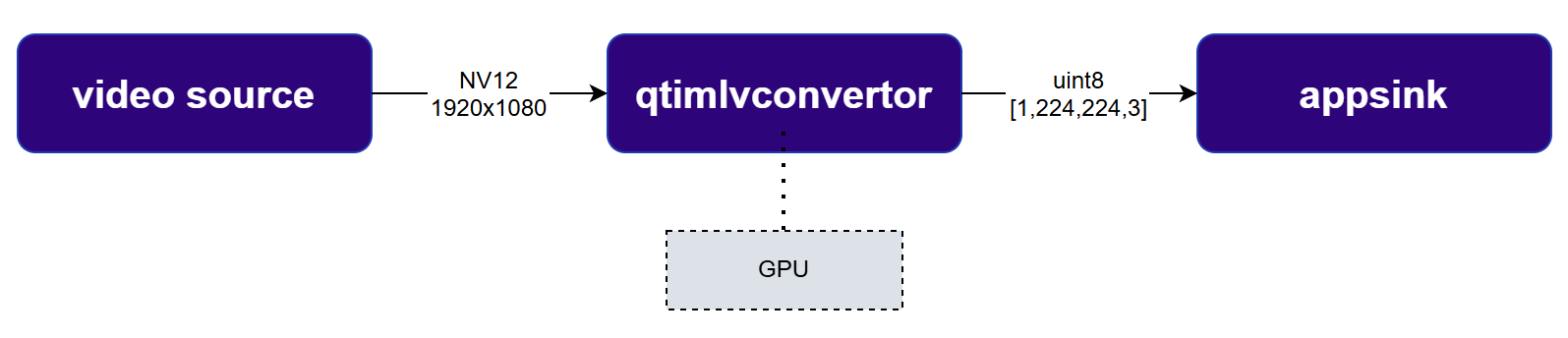 Here's how each component works:
* **source** - this is your input stream.
* [qtivtransform](../plugin-reference/qtivtransform) - this stage allows you to apply transformations to the image, such as cropping, resizing, or rotating. In this context, you can define a crop region via properties passed directly to [qtivtransform](../plugin-reference/qtivtransform), enabling you to extract a specific part of the input image before it reaches the model.
* [qtimlvconverter](../plugin-reference/qtimlvconverter) - After cropping, this element prepares the image for inference. It handles scaling, color convert, normalization and positioning based on the image-disposition property (e.g., top-left, centre, stretch).
* **appsink** - This is the final stage where the tensor is passed to the application
The output resolution of [qtivtransform](../plugin-reference/qtivtransform) must be specified manually. To avoid stretching or distortion, **the aspect ratio of the output resolution must match the aspect ratio of the crop window**. If you're unsure what resolution to choose, you can simply set the **crop width and height as the output resolution** — this ensures a 1:1 mapping without scaling.
By combining input cropping via [qtivtransform](../plugin-reference/qtivtransform) with placement control via image-disposition in [qtimlvconverter](../plugin-reference/qtimlvconverter), you can achieve any desired transformation—whether it's focusing on a specific region, preserving aspect ratio, or aligning the image within the tensor. This flexibility is especially valuable when adapting to different model requirements or optimizing inference performance.
The image below demonstrate how specific region in input image could be converted into a tensor:
Here's how each component works:
* **source** - this is your input stream.
* [qtivtransform](../plugin-reference/qtivtransform) - this stage allows you to apply transformations to the image, such as cropping, resizing, or rotating. In this context, you can define a crop region via properties passed directly to [qtivtransform](../plugin-reference/qtivtransform), enabling you to extract a specific part of the input image before it reaches the model.
* [qtimlvconverter](../plugin-reference/qtimlvconverter) - After cropping, this element prepares the image for inference. It handles scaling, color convert, normalization and positioning based on the image-disposition property (e.g., top-left, centre, stretch).
* **appsink** - This is the final stage where the tensor is passed to the application
The output resolution of [qtivtransform](../plugin-reference/qtivtransform) must be specified manually. To avoid stretching or distortion, **the aspect ratio of the output resolution must match the aspect ratio of the crop window**. If you're unsure what resolution to choose, you can simply set the **crop width and height as the output resolution** — this ensures a 1:1 mapping without scaling.
By combining input cropping via [qtivtransform](../plugin-reference/qtivtransform) with placement control via image-disposition in [qtimlvconverter](../plugin-reference/qtimlvconverter), you can achieve any desired transformation—whether it's focusing on a specific region, preserving aspect ratio, or aligning the image within the tensor. This flexibility is especially valuable when adapting to different model requirements or optimizing inference performance.
The image below demonstrate how specific region in input image could be converted into a tensor:
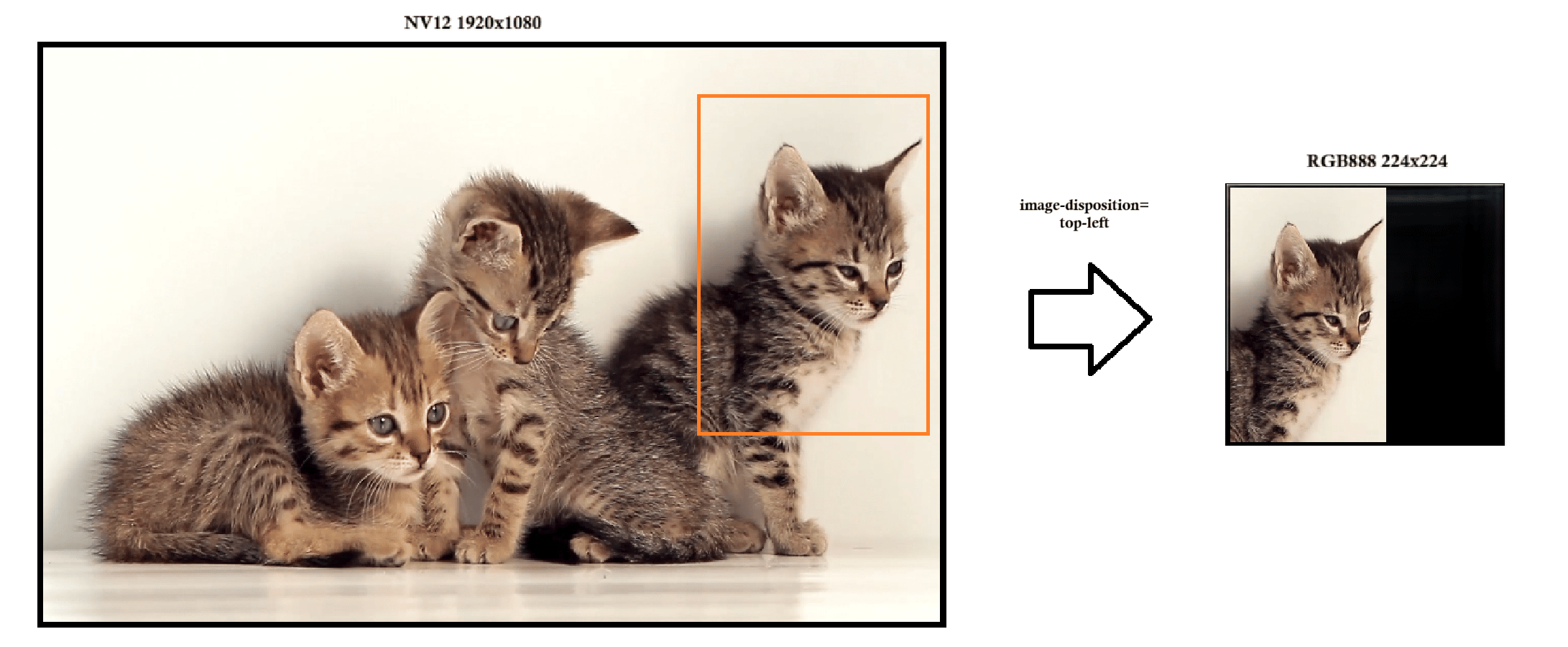 The next example demonstrates how to create a tensor with a custom crop
### Run example on device
| File | Download | Save as |
| ------------ | ------------------------------------------------------------------------------------------------------------------------------------------------------ | -------------------- |
| Sample video | Input video | `ai_demo_sample.mp4` |
If any downloaded file is a `.zip` archive, extract it on your host machine before copying:
`unzip filename.zip`
```bash SCP (SSH) theme={null}
# Replace $HOME to the appropriate device path before running the commands.
# For QLI: /root
# For Ubuntu: /home/ubuntu
# Modify this based on your platform and ensure files are copied to the correct location on the device.
# Run from your host machine — replace and
ssh @ "mkdir -p $HOME/{media,media/output}"
scp ai_demo_sample.mp4 @:$HOME/media/
```
```bash SCP (SSH) theme={null}
ssh @
```
```bash theme={null}
export SRC_VIDEO_NAME=ai_demo_sample.mp4
export VIDEO_SOURCE="filesrc location=$HOME/media/$SRC_VIDEO_NAME ! qtdemux ! h264parse ! v4l2h264dec capture-io-mode=4 output-io-mode=4 ! video/x-raw,format=NV12"
```
```bash theme={null}
gst-launch-1.0 \
filesrc location=$HOME/media/$SRC_VIDEO_NAME ! qtdemux ! h264parse ! \
v4l2h264dec capture-io-mode=4 output-io-mode=4 ! video/x-raw,format=NV12 ! queue ! \
qtivtransform crop="<960,0,960,1080>" ! \
qtimlvconverter ! \
"neural-network/tensors,type=INT8,dimensions=<<1,224,224,3>>" ! queue ! \
filesink location=$HOME/media/tensor.bin
```
* **Python source code:** [gst-ai-video-preprocess.py](https://github.com/qualcomm/gst-plugins-imsdk/tree/main/gst-python-examples/gst-ai-video-preprocess.py)
* **Run:**
```bash theme={null}
python3 gst-ai-video-preprocess-crop.py -s "$VIDEO_SOURCE"
```
* **Application source code:** [gst-ai-video-preprocess](https://github.com/qualcomm/gst-plugins-imsdk/tree/main/gst-sample-apps/gst-ai-video-preprocess)
* **Build your application:**
Steps to build custom application
Steps to build custom application
* **Run:**
```bash theme={null}
gst-ai-video-preprocess-crop -s "$VIDEO_SOURCE"
```
### Expected output
This example showcases how to convert a predefined region. During execution, timing information is displayed in the console to provide insight into processing performance. The Python script saves the output tensor to the file `$HOME/media/tensor.bin`. Given that the tensor has a shape of \[1, 224, 224, 3] and a data type of uint8, it effectively represents an RGB888 image. As a result, the tensor can be opened and viewed using any image viewer that supports the RGB888 format.
While [qtivtransform](../plugin-reference/qtivtransform) supports runtime crop window updates, this solution is not always scalable. In more advanced use cases, [qtimlvconverter](../plugin-reference/qtimlvconverter) can perform cropping on its own, without relying on [qtivtransform](../plugin-reference/qtivtransform). For instance, if you have two models working sequentially (ex. a detection model followed by a pose estimation model) [qtimlvconverter](../plugin-reference/qtimlvconverter) can automatically crop and generate a tensor for each bounding box detected by the first stage.
For more technical details and advanced features, please refer to the [qtimlvconverter documentation](../plugin-reference/qtimlvconverter).
Having established the process for converting video frames to tensors, the next step involves executing Inference on these tensors.