> ## Documentation Index
> Fetch the complete documentation index at: https://imsdkdocs.qualcomm.com/llms.txt
> Use this file to discover all available pages before exploring further.
# Postprocessing
> Postprocessing of AI inference results
Output tensors produced by inference models typically require post-processing to render results usable for downstream components or interpretable by applications. For instance:
* **Classification outputs** are arrays of confidence scores that must be interpreted, such as by selecting the top classes exceeding a specified threshold.
* **Raw tensor data** may need conversion into formats expected by subsequent plugins or processing stages.
Post-processing ensures that output data is appropriately structured, filtered, and formatted for purposes such as visualization, logging, or further inference.
Within the IM SDK, the [qtimlpostprocess](../plugin-reference/qtimlpostprocess) plugin manages post-processing tasks. This plugin converts raw model outputs into **GStreamer ML metadata**, which may include:
* Label strings (e.g., "cat", "car", "person")
* Confidence scores
* Color information (for visualization overlays)
* Bounding boxes
* Key points and their connections
* Segmentation masks
* Tensors (for cases where subsequent AI stages require modified outputs from previous models)
This metadata facilitates display, logging, and decision-making in downstream components.
Given the diversity of model architectures and output tensor types, each requires specific logic to interpret and convert raw data into meaningful results. To accommodate this, parsing logic is not embedded directly within the plugin; instead, it is provided as loadable modules tailored to individual models.
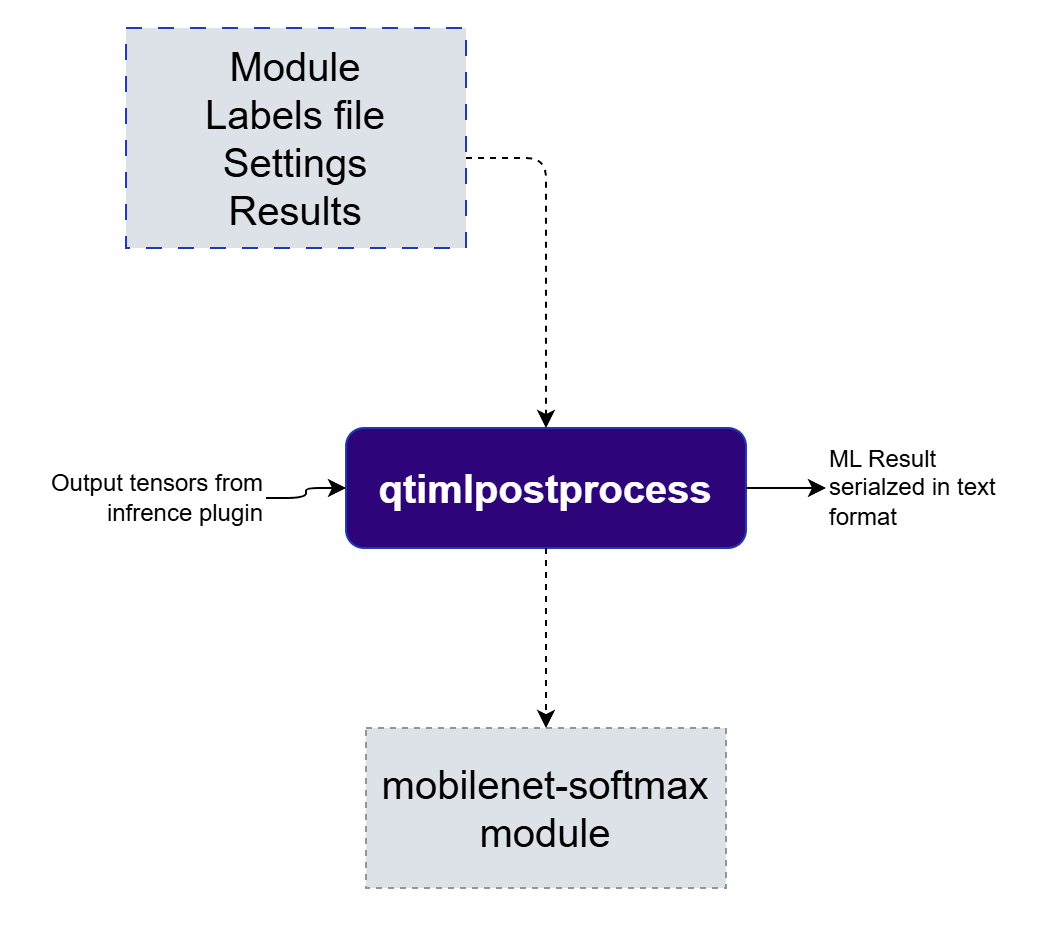 Each post-processing module implements parsing logic tailored to a specific class of models. For example, dedicated modules are available for MobileNet, YOLOv5, YOLOv8, and others. The IM SDK provides a comprehensive set of modules supporting object detection, image classification, semantic segmentation, super resolution, audio classification and pose estimation models.
The list of supported post-processing modules:
* `mobilenet-softmax`
* `mobilenet`
* `ocr-recognizer`
* `ocr`
* `qfr-softmax`
* `qfr`
* `easy-textdt`
* `easy-ocr-detector`
* `mediapipe-pose`
* `qfd`
* `qpd`
* `ssd-mobilenet`
* `yolo-nas`
* `yolov5`
* `yolov8`
* `palmd`
* `deeplab-argmax`
* `yolov8-seg`
* `midas-v2`
* `hrnet`
* `lite-3dmm`
* `posenet`
* `hlandmark`
* `mediapipe-pose-landmark`
* `srnet`
* `wave2vec`
* `yamnet`
* `tensor`
The supported models for all the above categories can be found in the [Supported Models](../supportedmodels/) section.
You can also list all available modules on device by running:
```bash theme={null}
gst-inspect-1.0 qtimlpostprocess | grep -E "^\s+\([0-9]+\)"
```
If a suitable pre-integrated module is not available for a particular model, developers can [create custom modules and load them into the pipeline](../plugin-reference/qtimlpostprocess#post-processing-module). These custom modules encapsulate model-specific parsing logic and can be adapted to handle unique tensor formats or specialized post-processing requirements.
The module interface is implemented in pure C++ without dependencies on GStreamer or GLib, resulting in a lightweight and easily integrable solution. To develop a custom module, only the interface header file supplied by the IM SDK and an ARM64-compatible compiler are required. Please refer to the [custom postprocessing plugin page for more details.](../plugin-reference/qtimlpostprocess#guidelines-for-writing-a-custom-post-processing-module)
### Plugin Configuration Options
The [qtimlpostprocess](../plugin-reference/qtimlpostprocess) plugin offers several configuration options to control how model outputs are interpreted and prepared for downstream use:
* **Module:** Specifies the post-processing module to load. Each module contains parsing logic for a particular model class (e.g., classification, object detection, segmentation). The actual interpretation of the output tensor occurs within the selected module.
* **Labels File:** Path to a file containing class labels. Supported formats include:
* Newline-separated labels (commonly used in the ML community)
* JSON format (supports additional metadata such as display color and class filtering)
The IM SDK includes a built-in parser capable of auto-detecting these formats.
* **Settings:** A JSON object containing module-specific configuration parameters. These settings vary by model type. An example could be `confidence_threshold` which is applicable to classification and detection models.
* **Results:** Specifies the maximum number of results to return. This option is useful for limiting the number of top predictions in classification scenarios and ensuring compatibility with downstream plugins that may only support a fixed number of results.
The diagram below shows the AI pipeline used in this example — face detection with bounding box overlay:
Each post-processing module implements parsing logic tailored to a specific class of models. For example, dedicated modules are available for MobileNet, YOLOv5, YOLOv8, and others. The IM SDK provides a comprehensive set of modules supporting object detection, image classification, semantic segmentation, super resolution, audio classification and pose estimation models.
The list of supported post-processing modules:
* `mobilenet-softmax`
* `mobilenet`
* `ocr-recognizer`
* `ocr`
* `qfr-softmax`
* `qfr`
* `easy-textdt`
* `easy-ocr-detector`
* `mediapipe-pose`
* `qfd`
* `qpd`
* `ssd-mobilenet`
* `yolo-nas`
* `yolov5`
* `yolov8`
* `palmd`
* `deeplab-argmax`
* `yolov8-seg`
* `midas-v2`
* `hrnet`
* `lite-3dmm`
* `posenet`
* `hlandmark`
* `mediapipe-pose-landmark`
* `srnet`
* `wave2vec`
* `yamnet`
* `tensor`
The supported models for all the above categories can be found in the [Supported Models](../supportedmodels/) section.
You can also list all available modules on device by running:
```bash theme={null}
gst-inspect-1.0 qtimlpostprocess | grep -E "^\s+\([0-9]+\)"
```
If a suitable pre-integrated module is not available for a particular model, developers can [create custom modules and load them into the pipeline](../plugin-reference/qtimlpostprocess#post-processing-module). These custom modules encapsulate model-specific parsing logic and can be adapted to handle unique tensor formats or specialized post-processing requirements.
The module interface is implemented in pure C++ without dependencies on GStreamer or GLib, resulting in a lightweight and easily integrable solution. To develop a custom module, only the interface header file supplied by the IM SDK and an ARM64-compatible compiler are required. Please refer to the [custom postprocessing plugin page for more details.](../plugin-reference/qtimlpostprocess#guidelines-for-writing-a-custom-post-processing-module)
### Plugin Configuration Options
The [qtimlpostprocess](../plugin-reference/qtimlpostprocess) plugin offers several configuration options to control how model outputs are interpreted and prepared for downstream use:
* **Module:** Specifies the post-processing module to load. Each module contains parsing logic for a particular model class (e.g., classification, object detection, segmentation). The actual interpretation of the output tensor occurs within the selected module.
* **Labels File:** Path to a file containing class labels. Supported formats include:
* Newline-separated labels (commonly used in the ML community)
* JSON format (supports additional metadata such as display color and class filtering)
The IM SDK includes a built-in parser capable of auto-detecting these formats.
* **Settings:** A JSON object containing module-specific configuration parameters. These settings vary by model type. An example could be `confidence_threshold` which is applicable to classification and detection models.
* **Results:** Specifies the maximum number of results to return. This option is useful for limiting the number of top predictions in classification scenarios and ensuring compatibility with downstream plugins that may only support a fixed number of results.
The diagram below shows the AI pipeline used in this example — face detection with bounding box overlay:
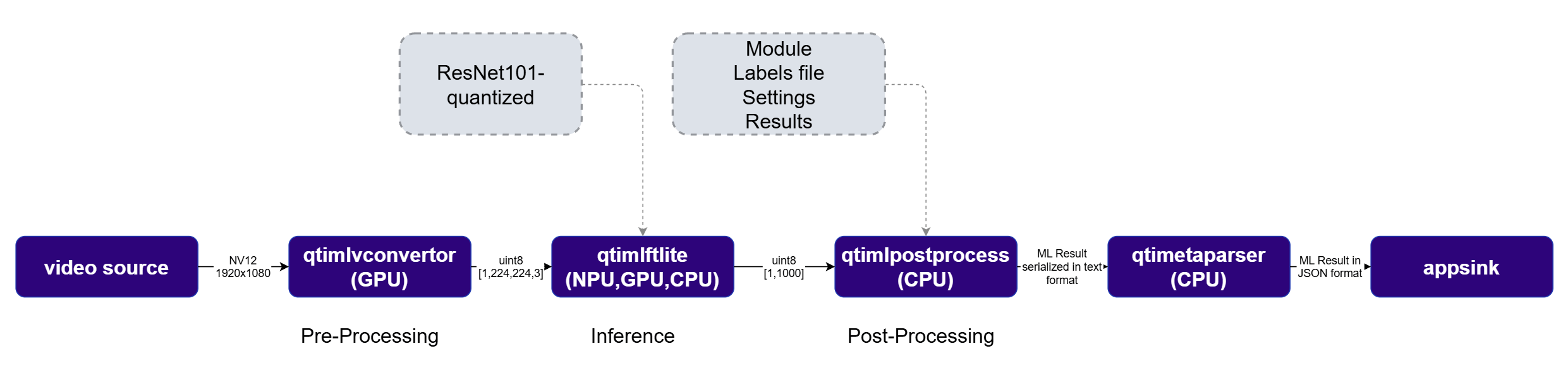 The decoded video frames pass through [`qtimlvconverter`](../plugin-reference/qtimlvconverter) (preprocessing) and [`qtimltflite`](../plugin-reference/qtimltflite) (inference), then into [`qtimlpostprocess`](../plugin-reference/qtimlpostprocess), which parses the output tensors and produces GStreamer ML metadata containing bounding boxes and confidence scores. The [`qtivoverlay`](../plugin-reference/qtivoverlay) plugin then renders those results directly onto the video frames for display.
## Run example on device
| File | Download | Save as |
| --------------------- | ------------------------------------------------------------------------------------------------------------------------------------------------------ | ------------------------ |
| ResNeXt101 W8A8 model | [Qualcomm AI Hub — ResNeXt101](https://aihub.qualcomm.com/iot/models/resnext101) | `resnext101-w8a8.tflite` |
| Classification labels | imagenet.txt | `imagenet.txt` |
| Sample video | Input video | `ai_demo_sample.mp4` |
If any downloaded file is a `.zip` archive, extract it on your host machine before copying:
`unzip filename.zip`
Create the required directories and transfer the downloaded files to your device.
```bash SCP (SSH) theme={null}
# Replace $HOME to the appropriate device path before running the commands.
# For QLI: /root
# For Ubuntu: /home/ubuntu
# Modify this based on your platform and ensure files are copied to the correct location on the device.
# Run from your host machine — replace and
ssh @ "mkdir -p $HOME/{models,labels,media,media/output}"
scp resnext101-w8a8.tflite @:$HOME/models/
scp imagenet.txt @:$HOME/labels/
scp ai_demo_sample.mp4 @:$HOME/media/
```
```bash SCP (SSH) theme={null}
ssh @
```
```bash theme={null}
export MODEL_NAME=resnext101-w8a8.tflite
export LABELS_NAME=imagenet.txt
export SRC_VIDEO_NAME=ai_demo_sample.mp4
export VIDEO_SOURCE="filesrc location=$HOME/media/$SRC_VIDEO_NAME ! qtdemux ! h264parse ! v4l2h264dec capture-io-mode=4 output-io-mode=4 ! video/x-raw,format=NV12"
```
```bash theme={null}
gst-launch-1.0 -e \
filesrc location=$HOME/media/$SRC_VIDEO_NAME ! qtdemux ! h264parse ! \
v4l2h264dec capture-io-mode=4 output-io-mode=4 ! video/x-raw,format=NV12 ! queue ! \
qtimlvconverter name=preprocess ! queue ! \
qtimltflite name=inference \
delegate=external \
external-delegate-path=libQnnTFLiteDelegate.so \
external-delegate-options="QNNExternalDelegate,backend_type=htp;" \
model=$HOME/models/$MODEL_NAME ! queue ! \
qtimlpostprocess name=postprocess \
results=1 \
module=mobilenet-softmax \
labels=$HOME/labels/$LABELS_NAME \
settings="{\"confidence\": 51.0}" ! \
text/x-raw ! queue ! \
qtimlmetaparser module=json ! queue ! \
filesink location=$HOME/media/result.json sync=false
```
* **Python source code:** [gst-ai-video-postprocess.py](https://github.com/qualcomm/gst-plugins-imsdk/tree/main/gst-python-examples/gst-ai-video-postprocess.py)
* **Run:**
```bash theme={null}
python3 gst-ai-video-postprocess.py -s "$VIDEO_SOURCE"
```
* **Application source code:** [gst-ai-video-postprocess](https://github.com/qualcomm/gst-plugins-imsdk/tree/main/gst-sample-apps/gst-ai-video-postprocess)
* **Build your application:**
Steps to build custom application
Steps to build custom application
* **Run:**
```bash theme={null}
gst-ai-video-postprocess -s "$VIDEO_SOURCE"
```
The decoded video frames pass through [`qtimlvconverter`](../plugin-reference/qtimlvconverter) (preprocessing) and [`qtimltflite`](../plugin-reference/qtimltflite) (inference), then into [`qtimlpostprocess`](../plugin-reference/qtimlpostprocess), which parses the output tensors and produces GStreamer ML metadata containing bounding boxes and confidence scores. The [`qtivoverlay`](../plugin-reference/qtivoverlay) plugin then renders those results directly onto the video frames for display.
## Run example on device
| File | Download | Save as |
| --------------------- | ------------------------------------------------------------------------------------------------------------------------------------------------------ | ------------------------ |
| ResNeXt101 W8A8 model | [Qualcomm AI Hub — ResNeXt101](https://aihub.qualcomm.com/iot/models/resnext101) | `resnext101-w8a8.tflite` |
| Classification labels | imagenet.txt | `imagenet.txt` |
| Sample video | Input video | `ai_demo_sample.mp4` |
If any downloaded file is a `.zip` archive, extract it on your host machine before copying:
`unzip filename.zip`
Create the required directories and transfer the downloaded files to your device.
```bash SCP (SSH) theme={null}
# Replace $HOME to the appropriate device path before running the commands.
# For QLI: /root
# For Ubuntu: /home/ubuntu
# Modify this based on your platform and ensure files are copied to the correct location on the device.
# Run from your host machine — replace and
ssh @ "mkdir -p $HOME/{models,labels,media,media/output}"
scp resnext101-w8a8.tflite @:$HOME/models/
scp imagenet.txt @:$HOME/labels/
scp ai_demo_sample.mp4 @:$HOME/media/
```
```bash SCP (SSH) theme={null}
ssh @
```
```bash theme={null}
export MODEL_NAME=resnext101-w8a8.tflite
export LABELS_NAME=imagenet.txt
export SRC_VIDEO_NAME=ai_demo_sample.mp4
export VIDEO_SOURCE="filesrc location=$HOME/media/$SRC_VIDEO_NAME ! qtdemux ! h264parse ! v4l2h264dec capture-io-mode=4 output-io-mode=4 ! video/x-raw,format=NV12"
```
```bash theme={null}
gst-launch-1.0 -e \
filesrc location=$HOME/media/$SRC_VIDEO_NAME ! qtdemux ! h264parse ! \
v4l2h264dec capture-io-mode=4 output-io-mode=4 ! video/x-raw,format=NV12 ! queue ! \
qtimlvconverter name=preprocess ! queue ! \
qtimltflite name=inference \
delegate=external \
external-delegate-path=libQnnTFLiteDelegate.so \
external-delegate-options="QNNExternalDelegate,backend_type=htp;" \
model=$HOME/models/$MODEL_NAME ! queue ! \
qtimlpostprocess name=postprocess \
results=1 \
module=mobilenet-softmax \
labels=$HOME/labels/$LABELS_NAME \
settings="{\"confidence\": 51.0}" ! \
text/x-raw ! queue ! \
qtimlmetaparser module=json ! queue ! \
filesink location=$HOME/media/result.json sync=false
```
* **Python source code:** [gst-ai-video-postprocess.py](https://github.com/qualcomm/gst-plugins-imsdk/tree/main/gst-python-examples/gst-ai-video-postprocess.py)
* **Run:**
```bash theme={null}
python3 gst-ai-video-postprocess.py -s "$VIDEO_SOURCE"
```
* **Application source code:** [gst-ai-video-postprocess](https://github.com/qualcomm/gst-plugins-imsdk/tree/main/gst-sample-apps/gst-ai-video-postprocess)
* **Build your application:**
Steps to build custom application
Steps to build custom application
* **Run:**
```bash theme={null}
gst-ai-video-postprocess -s "$VIDEO_SOURCE"
```