> ## Documentation Index
> Fetch the complete documentation index at: https://imsdkdocs.qualcomm.com/llms.txt
> Use this file to discover all available pages before exploring further.
# Object Detection
> Building object detection pipelines with QIM SDK
In this example, the pipeline systematically analyzes each frame of a video stream to identify and localize multiple objects — such as people, vehicles, or other entities — within each frame. For each detected object, the pipeline provides bounding boxes and confidence scores. This example uses the [YOLOX](https://aihub.qualcomm.com/iot/models/yolox) model from Qualcomm AI Hub.
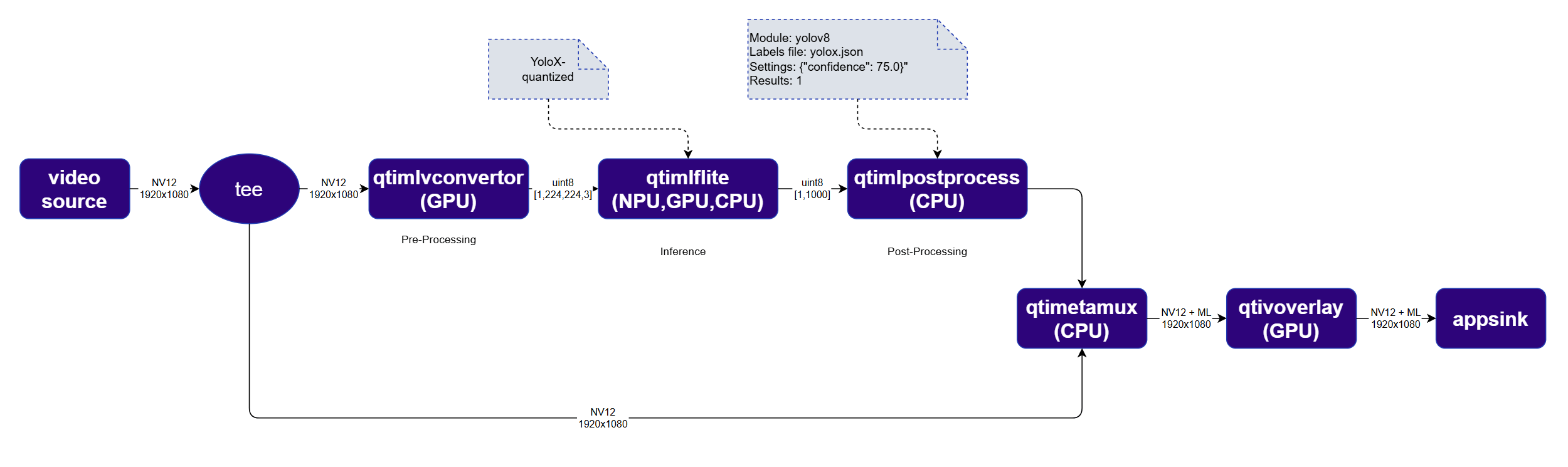 The detection pipeline is structurally identical to the classification pipeline, with two key differences:
* The inference plugin is configured with a detection model (YOLOX) instead of a classification model
* The [`qtimlpostprocess`](../plugin-reference/qtimlpostprocess) plugin uses the `yolov8` module with a higher result count to capture multiple detections per frame
## Run example on device
| File | Download | Save as |
| ---------------- | ------------------------------------------------------------------------------------------------------------------------------------------------------ | ------------------------ |
| YOLOX W8A8 model | [Qualcomm AI Hub — YOLOX](https://aihub.qualcomm.com/iot/models/yolox) | `yolox_quantized.tflite` |
| Detection labels | coco.txt | `coco.txt` |
| Sample video | Input video | `ai_demo_sample.mp4` |
If any downloaded file is a `.zip` archive, extract it on your host machine before copying:
`unzip filename.zip`
Create the required directories and transfer the downloaded files to your device.
```bash SCP (SSH) theme={null}
# Replace $HOME to the appropriate device path before running the commands.
# For QLI: /root
# For Ubuntu: /home/ubuntu
# Modify this based on your platform and ensure files are copied to the correct location on the device.
# Run from your host machine — replace and
ssh @ "mkdir -p $HOME/{models,labels,media,media/output}"
scp yolox_quantized.tflite @:$HOME/models/
scp coco.txt @:$HOME/labels/
scp ai_demo_sample.mp4 @:$HOME/media/
```
```bash SCP (SSH) theme={null}
ssh @
```
```bash theme={null}
export MODEL_NAME=yolox_quantized.tflite
export LABELS_NAME=coco.txt
export SRC_VIDEO_NAME=ai_demo_sample.mp4
export VIDEO_SOURCE="filesrc location=$HOME/media/$SRC_VIDEO_NAME ! qtdemux ! h264parse ! v4l2h264dec capture-io-mode=4 output-io-mode=4 ! video/x-raw,format=NV12"
```
```bash theme={null}
gst-launch-1.0 $VIDEO_SOURCE ! \
tee name=t \
t. ! qtimlvconverter name=preprocess ! queue ! \
qtimltflite name=inference delegate=external \
external-delegate-path=libQnnTFLiteDelegate.so \
external-delegate-options="QNNExternalDelegate,backend_type=htp;" \
model=$HOME/models/$MODEL_NAME ! queue ! \
qtimlpostprocess name=postprocess results=8 module=yolov8 \
labels=$HOME/labels/$LABELS_NAME settings='{"confidence": 51.0}' bbox-stabilization=true ! \
text/x-raw ! metamux. \
t. ! qtimetamux name=metamux ! qtivoverlay ! waylandsink sync=true fullscreen=true
```
* **Python source code:** [gst-ai-video-detection.py](https://github.com/qualcomm/gst-plugins-imsdk/tree/main/gst-python-examples/gst-ai-video-detection.py)
* **Run:**
```bash theme={null}
python3 gst-ai-video-detection.py -s "$VIDEO_SOURCE" -o display
```
* **Application source code:** [gst-ai-video-detection](https://github.com/qualcomm/gst-plugins-imsdk/tree/main/gst-sample-apps/gst-ai-video-detection)
* **Build your application:**
Steps to build custom application
Steps to build custom application
* **Run:**
```bash theme={null}
gst-ai-video-detection -s "$VIDEO_SOURCE" -o display
```
## Expected output
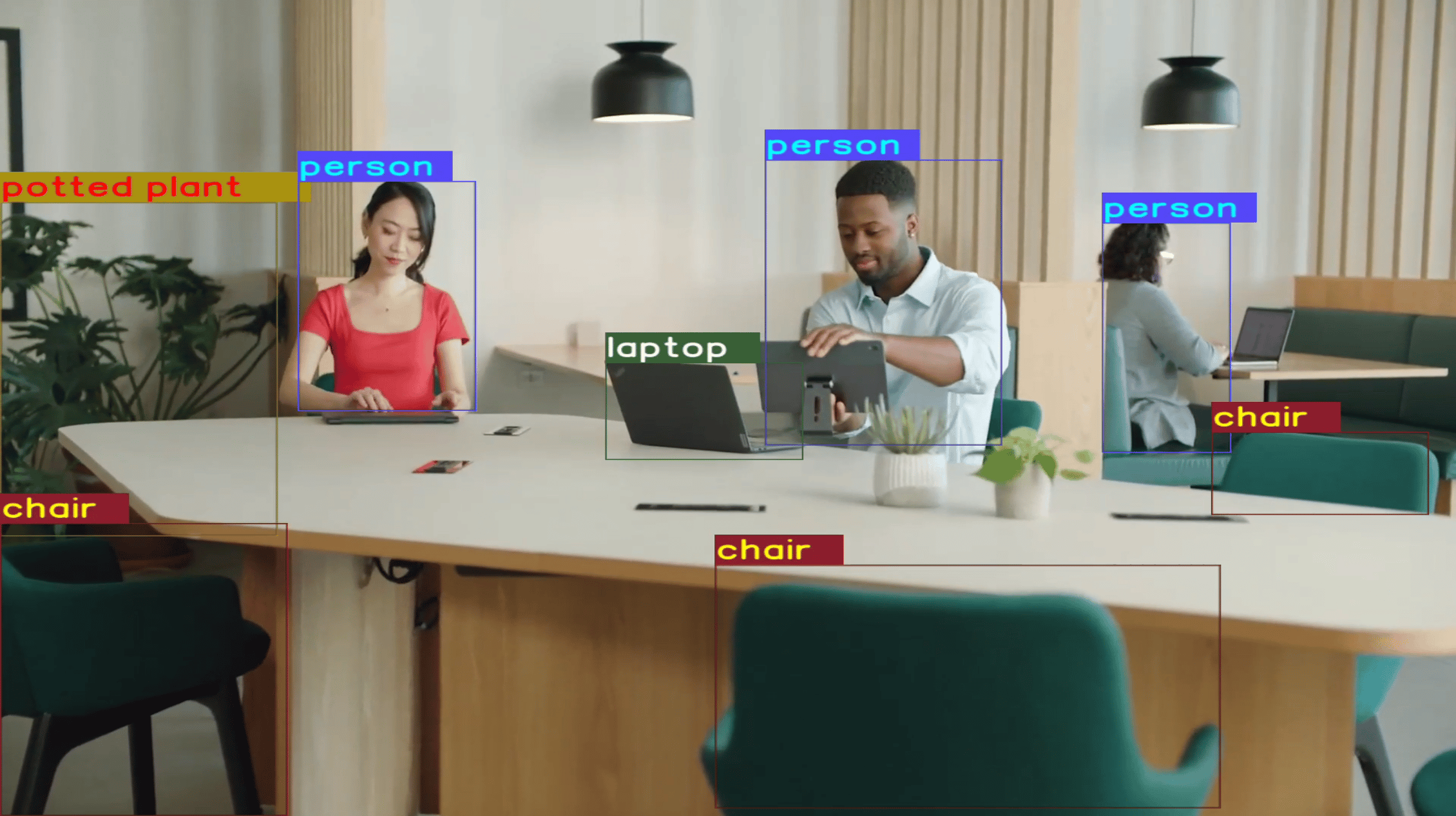
Detection results are visually overlaid on each video frame — bounding boxes and class labels are rendered on top of the original image in real time.
The detection pipeline is structurally identical to the classification pipeline, with two key differences:
* The inference plugin is configured with a detection model (YOLOX) instead of a classification model
* The [`qtimlpostprocess`](../plugin-reference/qtimlpostprocess) plugin uses the `yolov8` module with a higher result count to capture multiple detections per frame
## Run example on device
| File | Download | Save as |
| ---------------- | ------------------------------------------------------------------------------------------------------------------------------------------------------ | ------------------------ |
| YOLOX W8A8 model | [Qualcomm AI Hub — YOLOX](https://aihub.qualcomm.com/iot/models/yolox) | `yolox_quantized.tflite` |
| Detection labels | coco.txt | `coco.txt` |
| Sample video | Input video | `ai_demo_sample.mp4` |
If any downloaded file is a `.zip` archive, extract it on your host machine before copying:
`unzip filename.zip`
Create the required directories and transfer the downloaded files to your device.
```bash SCP (SSH) theme={null}
# Replace $HOME to the appropriate device path before running the commands.
# For QLI: /root
# For Ubuntu: /home/ubuntu
# Modify this based on your platform and ensure files are copied to the correct location on the device.
# Run from your host machine — replace and
ssh @ "mkdir -p $HOME/{models,labels,media,media/output}"
scp yolox_quantized.tflite @:$HOME/models/
scp coco.txt @:$HOME/labels/
scp ai_demo_sample.mp4 @:$HOME/media/
```
```bash SCP (SSH) theme={null}
ssh @
```
```bash theme={null}
export MODEL_NAME=yolox_quantized.tflite
export LABELS_NAME=coco.txt
export SRC_VIDEO_NAME=ai_demo_sample.mp4
export VIDEO_SOURCE="filesrc location=$HOME/media/$SRC_VIDEO_NAME ! qtdemux ! h264parse ! v4l2h264dec capture-io-mode=4 output-io-mode=4 ! video/x-raw,format=NV12"
```
```bash theme={null}
gst-launch-1.0 $VIDEO_SOURCE ! \
tee name=t \
t. ! qtimlvconverter name=preprocess ! queue ! \
qtimltflite name=inference delegate=external \
external-delegate-path=libQnnTFLiteDelegate.so \
external-delegate-options="QNNExternalDelegate,backend_type=htp;" \
model=$HOME/models/$MODEL_NAME ! queue ! \
qtimlpostprocess name=postprocess results=8 module=yolov8 \
labels=$HOME/labels/$LABELS_NAME settings='{"confidence": 51.0}' bbox-stabilization=true ! \
text/x-raw ! metamux. \
t. ! qtimetamux name=metamux ! qtivoverlay ! waylandsink sync=true fullscreen=true
```
* **Python source code:** [gst-ai-video-detection.py](https://github.com/qualcomm/gst-plugins-imsdk/tree/main/gst-python-examples/gst-ai-video-detection.py)
* **Run:**
```bash theme={null}
python3 gst-ai-video-detection.py -s "$VIDEO_SOURCE" -o display
```
* **Application source code:** [gst-ai-video-detection](https://github.com/qualcomm/gst-plugins-imsdk/tree/main/gst-sample-apps/gst-ai-video-detection)
* **Build your application:**
Steps to build custom application
Steps to build custom application
* **Run:**
```bash theme={null}
gst-ai-video-detection -s "$VIDEO_SOURCE" -o display
```
## Expected output
Detection results are visually overlaid on each video frame — bounding boxes and class labels are rendered on top of the original image in real time.