> ## Documentation Index
> Fetch the complete documentation index at: https://imsdkdocs.qualcomm.com/llms.txt
> Use this file to discover all available pages before exploring further.
# Inferencing
> Pipeline construction for running AI inference
The inference plugin is responsible for executing the AI model on the prepared input tensor. The QIM SDK supports multiple inference runtimes, each encapsulated within a dedicated GStreamer plugin. This architecture allows for straightforward replacement and integration of inference engines, depending on the target platform or model format.
Supported runtimes include:
* [**qtimlsnpe**](../plugin-reference/qtimltflite) — SNPE (Qualcomm Neural Processing): Executes models in DLC format on Qualcomm Snapdragon platforms.
* [**qtimlqnn**](../plugin-reference/qtimlqnn) — QNN (Qualcomm AI Engine Direct): Supports models optimized for QNN.
* [**qtimltflite**](../plugin-reference/qtimltflite) — TFLite / Lite-RT: Enables execution of TensorFlow Lite models.
* [**qtimlonnx**](../plugin-reference/qtimlonnx) — Enables execution of ONNX models.
All plugins leverage hardware acceleration provided by Qualcomm NPUs and GPUs for optimal performance.
### Run example on device
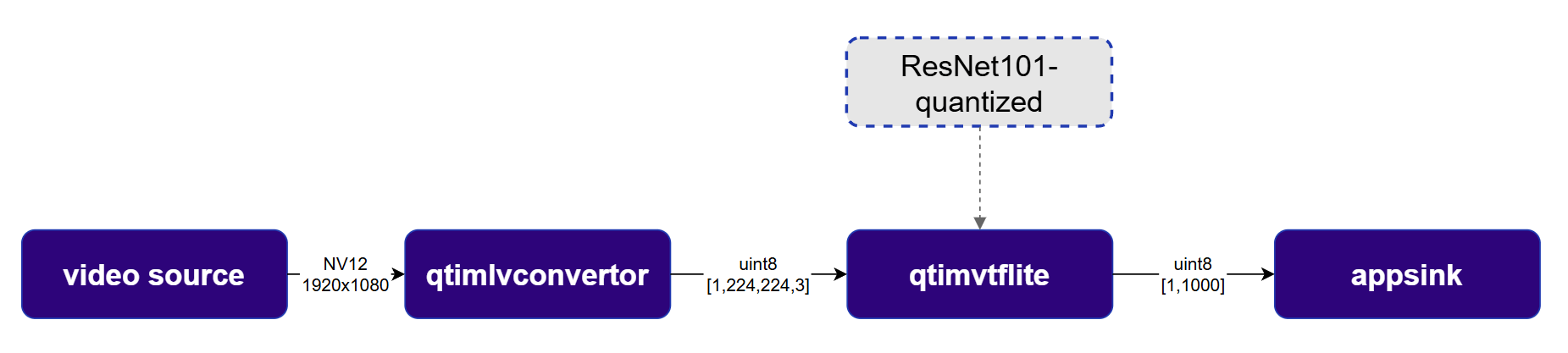
The example below uses the [ResNeXt101](https://aihub.qualcomm.com/iot/models/resnext101) model with the [`qtimltflite`](../plugin-reference/qtimltflite) plugin to classify objects in a video stream.
 | File | Download | Save as |
| --------------------- | ------------------------------------------------------------------------------------------------------------------------------------------------------ | ------------------------ |
| ResNeXt101 W8A8 model | [Qualcomm AI Hub — ResNeXt101](https://aihub.qualcomm.com/iot/models/resnext101) | `resnext101-w8a8.tflite` |
| Sample video | Input video | `ai_demo_sample.mp4` |
If any downloaded file is a `.zip` archive, extract it on your host machine before copying:
`unzip filename.zip`
Create the required directories and transfer the downloaded files to your device.
```bash SCP (SSH) theme={null}
# Replace $HOME to the appropriate device path before running the commands.
# For QLI: /root
# For Ubuntu: /home/ubuntu
# Modify this based on your platform and ensure files are copied to the correct location on the device.
# Run from your host machine — replace and
ssh @ "mkdir -p $HOME/{models,labels,media,media/output}"
scp resnext101-w8a8.tflite @:$HOME/models/
scp ai_demo_sample.mp4 @:$HOME/media/
```
```bash SCP (SSH) theme={null}
ssh @
```
```bash theme={null}
export MODEL_NAME=resnext101-w8a8.tflite
export SRC_VIDEO_NAME=ai_demo_sample.mp4
export VIDEO_SOURCE="filesrc location=$HOME/media/$SRC_VIDEO_NAME ! qtdemux ! h264parse ! v4l2h264dec capture-io-mode=4 output-io-mode=4 ! video/x-raw,format=NV12"
```
```bash theme={null}
gst-launch-1.0 -e \
filesrc location=$HOME/media/$SRC_VIDEO_NAME ! qtdemux ! h264parse ! \
v4l2h264dec capture-io-mode=4 output-io-mode=4 ! video/x-raw,format=NV12 ! queue ! \
qtimlvconverter name=preprocess ! queue ! \
qtimltflite name=inference \
delegate=external \
external-delegate-path=libQnnTFLiteDelegate.so \
external-delegate-options="QNNExternalDelegate,backend_type=htp;" \
model=$HOME/models/$MODEL_NAME ! queue ! \
multifilesink location=$HOME/media/tensor.bin sync=false
```
* **Python source code:** [gst-ai-video-inference.py](https://github.com/qualcomm/gst-plugins-imsdk/tree/main/gst-python-examples/gst-ai-video-inference.py)
* **Run:**
```bash theme={null}
python3 gst-ai-video-inference.py -s "$VIDEO_SOURCE"
```
* **Application source code:** [gst-ai-video-inference](https://github.com/qualcomm/gst-plugins-imsdk/tree/main/gst-sample-apps/gst-ai-video-inference)
* **Build your application:**
Steps to build custom application
Steps to build custom application
* **Run:**
```bash theme={null}
gst-ai-video-inference -s "$VIDEO_SOURCE"
```
### Expected output
The pipeline classifies objects in the video stream in real time. The [`qtimltflite`](../plugin-reference/qtimltflite) plugin automatically reads tensor specifications from the model and propagates them to adjacent plugins — no manual tensor configuration is required.
By default, all QIM SDK inference plugins perform dequantization on output tensors automatically.
Now that we are able to take video input from a data source and do hardware accelerated preprocessing and inferencing on each frame, let's turn our attention to the post processing of the results and generating meaningful data.
| File | Download | Save as |
| --------------------- | ------------------------------------------------------------------------------------------------------------------------------------------------------ | ------------------------ |
| ResNeXt101 W8A8 model | [Qualcomm AI Hub — ResNeXt101](https://aihub.qualcomm.com/iot/models/resnext101) | `resnext101-w8a8.tflite` |
| Sample video | Input video | `ai_demo_sample.mp4` |
If any downloaded file is a `.zip` archive, extract it on your host machine before copying:
`unzip filename.zip`
Create the required directories and transfer the downloaded files to your device.
```bash SCP (SSH) theme={null}
# Replace $HOME to the appropriate device path before running the commands.
# For QLI: /root
# For Ubuntu: /home/ubuntu
# Modify this based on your platform and ensure files are copied to the correct location on the device.
# Run from your host machine — replace and
ssh @ "mkdir -p $HOME/{models,labels,media,media/output}"
scp resnext101-w8a8.tflite @:$HOME/models/
scp ai_demo_sample.mp4 @:$HOME/media/
```
```bash SCP (SSH) theme={null}
ssh @
```
```bash theme={null}
export MODEL_NAME=resnext101-w8a8.tflite
export SRC_VIDEO_NAME=ai_demo_sample.mp4
export VIDEO_SOURCE="filesrc location=$HOME/media/$SRC_VIDEO_NAME ! qtdemux ! h264parse ! v4l2h264dec capture-io-mode=4 output-io-mode=4 ! video/x-raw,format=NV12"
```
```bash theme={null}
gst-launch-1.0 -e \
filesrc location=$HOME/media/$SRC_VIDEO_NAME ! qtdemux ! h264parse ! \
v4l2h264dec capture-io-mode=4 output-io-mode=4 ! video/x-raw,format=NV12 ! queue ! \
qtimlvconverter name=preprocess ! queue ! \
qtimltflite name=inference \
delegate=external \
external-delegate-path=libQnnTFLiteDelegate.so \
external-delegate-options="QNNExternalDelegate,backend_type=htp;" \
model=$HOME/models/$MODEL_NAME ! queue ! \
multifilesink location=$HOME/media/tensor.bin sync=false
```
* **Python source code:** [gst-ai-video-inference.py](https://github.com/qualcomm/gst-plugins-imsdk/tree/main/gst-python-examples/gst-ai-video-inference.py)
* **Run:**
```bash theme={null}
python3 gst-ai-video-inference.py -s "$VIDEO_SOURCE"
```
* **Application source code:** [gst-ai-video-inference](https://github.com/qualcomm/gst-plugins-imsdk/tree/main/gst-sample-apps/gst-ai-video-inference)
* **Build your application:**
Steps to build custom application
Steps to build custom application
* **Run:**
```bash theme={null}
gst-ai-video-inference -s "$VIDEO_SOURCE"
```
### Expected output
The pipeline classifies objects in the video stream in real time. The [`qtimltflite`](../plugin-reference/qtimltflite) plugin automatically reads tensor specifications from the model and propagates them to adjacent plugins — no manual tensor configuration is required.
By default, all QIM SDK inference plugins perform dequantization on output tensors automatically.
Now that we are able to take video input from a data source and do hardware accelerated preprocessing and inferencing on each frame, let's turn our attention to the post processing of the results and generating meaningful data.