> ## Documentation Index
> Fetch the complete documentation index at: https://imsdkdocs.qualcomm.com/llms.txt
> Use this file to discover all available pages before exploring further.
# Concepts of Building Native GStreamer Application
This guide walks through the essential steps and concepts required to build a native GStreamer application.
## Overview
A GStreamer application is built around a **pipeline** — a runtime container that organizes elements into a coherent data path and manages their execution as a single unit. Elements are linked in data-flow order to form a complete processing chain, and execution is governed by a state model that propagates lifecycle transitions across all elements simultaneously.
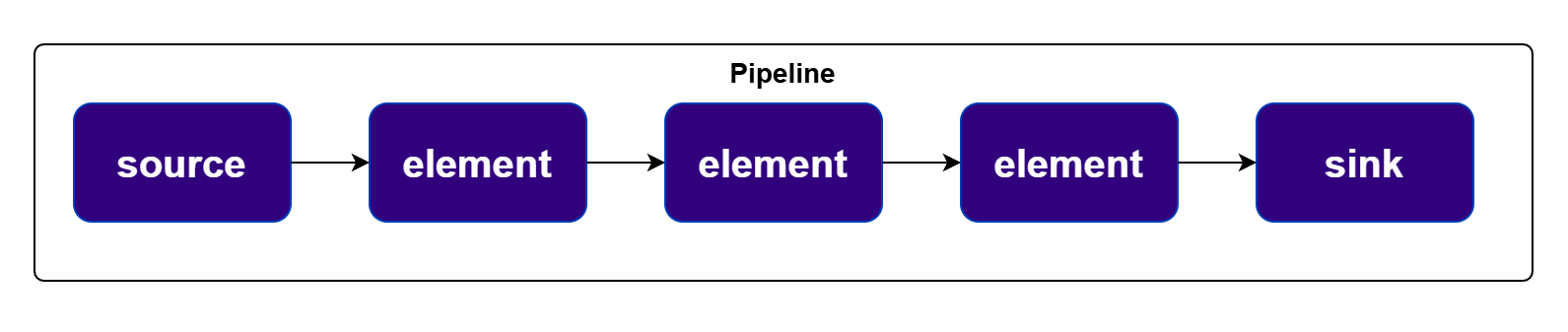 A **main loop** keeps the application alive during execution, dispatching bus messages, signals, and callbacks while keeping control logic cleanly decoupled from data processing. Shutdown is handled gracefully by sending an **End-of-Stream (EOS)** event, ensuring all in-flight data is fully processed before the pipeline transitions to a stopped state and resources are released.
### Application Lifecycle
A minimal GStreamer application follows a well-defined sequence of stages:
| Stage | Description |
| ------------------------- | ------------------------------------------------------------------------------------------------ |
| **Initialization** | Initialize the GStreamer library before any other operations. |
| **Pipeline Construction** | Create elements, add them to the pipeline, and link them in data-flow order. |
| **Configuration** | Set element properties and apply caps filters to define runtime behavior and format constraints. |
| **Execution** | Transition the pipeline to `PLAYING` to start data flow. |
| **Runtime Operation** | Run the main loop to keep the application alive and process events. |
| **Shutdown** | Stop the pipeline gracefully, release resources, and clean up. |
***
## Concepts
The following steps and concepts are required to build a complete GStreamer application:
* **GStreamer Initialization** — Preparing the library for use before any pipeline operations are performed.
* **Pipeline and Element Instantiation** — Creating the pipeline container, instantiating individual elements, adding them to the pipeline, and linking them in the intended data-flow order.
* **Pipeline Configuration** — Setting element properties programmatically or through pipeline strings to control runtime behavior.
* **Pipeline Execution States** — Understanding the GStreamer state machine (`NULL`, `READY`, `PAUSED`, `PLAYING`), how state transitions are applied, and how they propagate to all contained elements.
* **Caps Negotiation** — How GStreamer automatically negotiates compatible data formats between linked elements, and how caps filters are used to constrain or enforce specific formats.
* **Main Loop** — Keeping the application alive during pipeline execution and serving as the event dispatcher for signals, callbacks, and bus messages.
* **Interaction with Pipeline during Runtime via Bus** — The asynchronous communication channel through which the pipeline delivers runtime notifications — including errors, state changes, and end-of-stream conditions — to the application.
* **Dynamic Pads** — Handling elements such as demuxers that expose output pads only at runtime, requiring deferred linking via the `pad-added` signal.
* **Tee and Queue** — Splitting a stream into multiple parallel branches using `tee`, and decoupling branch execution using `queue` elements to prevent blocking and enable independent threading.
* **Error Handling** — Responding to pipeline errors delivered through the bus and performing a controlled shutdown.
* **Application Shutdown and Teardown** — Handling external interrupt signals cleanly using `g_unix_signal_add()`, with support for both immediate and graceful EOS-based shutdown strategies, followed by safely transitioning the pipeline to `NULL` and releasing all allocated resources.
* **Application Interaction via appsink** — Accessing pipeline data directly from application code using the `appsink` element for custom processing, integration with external systems, or frame export.
***
## 1. GStreamer Initialization
### Simple Initialization
Include `gst/gst.h` to access GStreamer library functions, and call `gst_init(&argc, &argv)` at the start of the application to initialize the library and parse GStreamer-specific command-line options.
```c theme={null}
#include
int
main (int argc, char *argv[])
{
gst_init (&argc, &argv);
// ...
return 0;
}
```
### The GOption Interface
GOption-based initialization can be used if the application needs to parse custom-defined input parameters.
```c theme={null}
#include
int
main (int argc, char *argv[])
{
gboolean silent = FALSE;
gchar *savefile = NULL;
GOptionContext *ctx;
GError *err = NULL;
GOptionEntry entries[] = {
{ "silent", 's', 0, G_OPTION_ARG_NONE, &silent,
"do not output status information", NULL },
{ "output", 'o', 0, G_OPTION_ARG_STRING, &savefile,
"save xml representation of pipeline to FILE and exit", "FILE" },
{ NULL }
};
ctx = g_option_context_new ("- Your application");
g_option_context_add_main_entries (ctx, entries, NULL);
g_option_context_add_group (ctx, gst_init_get_option_group ());
if (!g_option_context_parse (ctx, &argc, &argv, &err)) {
g_print ("Failed to initialize: %s\n", err->message);
g_clear_error (&err);
g_option_context_free (ctx);
return 1;
}
g_option_context_free (ctx);
printf ("Run me with --help to see the Application options appended.\n");
return 0;
}
```
A `GOptionTable` can be used to define application-specific command-line options and passed to the GLib initialization function along with the option group returned from `gst_init_get_option_group()`. This ensures that application options are parsed alongside the standard GStreamer options.
***
## 2. Pipeline and Element Instantiation
Constructing a pipeline follows three sequential steps:
1. **2.1** Creating elements as independent `GstElement` objects
2. **2.2** Adding them to the pipeline container
3. **2.3** Linking them in the intended data-flow order
Since a pipeline is itself a `GstBin`, elements are added using `gst_bin_add()` or `gst_bin_add_many()`, which transfers ownership to the pipeline and enables lifecycle and state management across all contained elements.
### 2.1 Creating Elements
Elements are `GstElement` objects that form the functional building blocks of a GStreamer pipeline, each responsible for a specific role in the data flow:
* **Source** — producing data
* **Transform** — processing data
* **Sink** — consuming data
An element is created using `gst_element_factory_make("factory-name", "instance-name")`.
```c theme={null}
// Create elements
source = gst_element_factory_make ("v4l2src", "usb_camera_src");
transform = gst_element_factory_make ("qtivtransform", "video_transform");
sink = gst_element_factory_make ("filesink", "sink");
if (!source || !transform || !sink) {
g_printerr ("ERROR: Failed to create elements.\n");
}
```
### 2.2 Adding Elements to the Pipeline
```c theme={null}
gst_bin_add_many (GST_BIN (appctx->pipeline), source, transform, sink, NULL);
```
* `appctx->pipeline` is a `GstPipeline` (a subclass of `GstBin`)
* `gst_bin_add_many` transfers **ownership** of the elements to the pipeline
* After this call, the pipeline manages their lifecycle and propagates state changes
### 2.3 Linking Elements
```c theme={null}
ret = gst_element_link_many (source, transform, sink, NULL);
if (!ret) {
g_printerr ("ERROR: Failed to link the pipeline.\n");
}
```
The data path for this example is:
```
v4l2src → qtivtransform → filesink
```
* `v4l2src` — produces video data (from a camera)
* `qtivtransform` — processes or converts the data
* `filesink` — consumes and writes data to a file
### Constructing the Pipeline from a String
The entire process of creating, adding, and linking elements can also be done implicitly using a pipeline string:
```c theme={null}
gchar *pipeline_str =
"v4l2src name=usb_camera_src ! "
"qtivtransform name=video_transform ! "
"filesink name=sink";
appctx->pipeline = gst_parse_launch (pipeline_str, &error);
if (!appctx->pipeline) {
g_printerr ("ERROR: Failed to create pipeline: %s\n",
error ? error->message : "unknown error");
if (error)
g_error_free (error);
}
```
***
## 3. Pipeline and Element Configuration
Once elements are created and placed in the pipeline, they must be configured to define their runtime behavior.
### Programmatic Configuration
#### Configuring the Source
```c theme={null}
// Configure source element (camera device)
g_object_set (source, "device", "/dev/video0", NULL);
```
#### Configuring the Sink
```c theme={null}
// Configure sink element (output file)
g_object_set (sink, "location", "/tmp/output.raw", NULL);
```
### Configuration via Pipeline String
When using `gst_parse_launch()`, element configuration is embedded directly in the pipeline string using `key=value` syntax:
```c theme={null}
gchar *pipeline_str =
"v4l2src name=usb_camera_src device=/dev/video0 ! "
"qtivtransform name=video_transform ! "
"filesink name=sink location=/tmp/output.raw";
appctx->pipeline = gst_parse_launch (pipeline_str, &error);
```
### Comparison: Programmatic vs. String Configuration
| Approach | Best For | Flexibility |
| ------------------- | ----------------------------- | ---------------------------------------------------------------------- |
| **Pipeline String** | Prototyping, static pipelines | Compact, readable, single expression |
| **Programmatic** | Production applications | Dynamic, runtime-configurable, supports post-creation property changes |
In practice, many applications **combine both approaches** — using a pipeline string to define the overall structure while retrieving specific elements by name for further programmatic configuration.
***
## 4. Pipeline Execution States
Once the pipeline is constructed and configured, its execution is governed by a well-defined state model.
### 4.1 The State Model
GStreamer defines a small set of states that represent different stages in the lifecycle of a pipeline:
A **main loop** keeps the application alive during execution, dispatching bus messages, signals, and callbacks while keeping control logic cleanly decoupled from data processing. Shutdown is handled gracefully by sending an **End-of-Stream (EOS)** event, ensuring all in-flight data is fully processed before the pipeline transitions to a stopped state and resources are released.
### Application Lifecycle
A minimal GStreamer application follows a well-defined sequence of stages:
| Stage | Description |
| ------------------------- | ------------------------------------------------------------------------------------------------ |
| **Initialization** | Initialize the GStreamer library before any other operations. |
| **Pipeline Construction** | Create elements, add them to the pipeline, and link them in data-flow order. |
| **Configuration** | Set element properties and apply caps filters to define runtime behavior and format constraints. |
| **Execution** | Transition the pipeline to `PLAYING` to start data flow. |
| **Runtime Operation** | Run the main loop to keep the application alive and process events. |
| **Shutdown** | Stop the pipeline gracefully, release resources, and clean up. |
***
## Concepts
The following steps and concepts are required to build a complete GStreamer application:
* **GStreamer Initialization** — Preparing the library for use before any pipeline operations are performed.
* **Pipeline and Element Instantiation** — Creating the pipeline container, instantiating individual elements, adding them to the pipeline, and linking them in the intended data-flow order.
* **Pipeline Configuration** — Setting element properties programmatically or through pipeline strings to control runtime behavior.
* **Pipeline Execution States** — Understanding the GStreamer state machine (`NULL`, `READY`, `PAUSED`, `PLAYING`), how state transitions are applied, and how they propagate to all contained elements.
* **Caps Negotiation** — How GStreamer automatically negotiates compatible data formats between linked elements, and how caps filters are used to constrain or enforce specific formats.
* **Main Loop** — Keeping the application alive during pipeline execution and serving as the event dispatcher for signals, callbacks, and bus messages.
* **Interaction with Pipeline during Runtime via Bus** — The asynchronous communication channel through which the pipeline delivers runtime notifications — including errors, state changes, and end-of-stream conditions — to the application.
* **Dynamic Pads** — Handling elements such as demuxers that expose output pads only at runtime, requiring deferred linking via the `pad-added` signal.
* **Tee and Queue** — Splitting a stream into multiple parallel branches using `tee`, and decoupling branch execution using `queue` elements to prevent blocking and enable independent threading.
* **Error Handling** — Responding to pipeline errors delivered through the bus and performing a controlled shutdown.
* **Application Shutdown and Teardown** — Handling external interrupt signals cleanly using `g_unix_signal_add()`, with support for both immediate and graceful EOS-based shutdown strategies, followed by safely transitioning the pipeline to `NULL` and releasing all allocated resources.
* **Application Interaction via appsink** — Accessing pipeline data directly from application code using the `appsink` element for custom processing, integration with external systems, or frame export.
***
## 1. GStreamer Initialization
### Simple Initialization
Include `gst/gst.h` to access GStreamer library functions, and call `gst_init(&argc, &argv)` at the start of the application to initialize the library and parse GStreamer-specific command-line options.
```c theme={null}
#include
int
main (int argc, char *argv[])
{
gst_init (&argc, &argv);
// ...
return 0;
}
```
### The GOption Interface
GOption-based initialization can be used if the application needs to parse custom-defined input parameters.
```c theme={null}
#include
int
main (int argc, char *argv[])
{
gboolean silent = FALSE;
gchar *savefile = NULL;
GOptionContext *ctx;
GError *err = NULL;
GOptionEntry entries[] = {
{ "silent", 's', 0, G_OPTION_ARG_NONE, &silent,
"do not output status information", NULL },
{ "output", 'o', 0, G_OPTION_ARG_STRING, &savefile,
"save xml representation of pipeline to FILE and exit", "FILE" },
{ NULL }
};
ctx = g_option_context_new ("- Your application");
g_option_context_add_main_entries (ctx, entries, NULL);
g_option_context_add_group (ctx, gst_init_get_option_group ());
if (!g_option_context_parse (ctx, &argc, &argv, &err)) {
g_print ("Failed to initialize: %s\n", err->message);
g_clear_error (&err);
g_option_context_free (ctx);
return 1;
}
g_option_context_free (ctx);
printf ("Run me with --help to see the Application options appended.\n");
return 0;
}
```
A `GOptionTable` can be used to define application-specific command-line options and passed to the GLib initialization function along with the option group returned from `gst_init_get_option_group()`. This ensures that application options are parsed alongside the standard GStreamer options.
***
## 2. Pipeline and Element Instantiation
Constructing a pipeline follows three sequential steps:
1. **2.1** Creating elements as independent `GstElement` objects
2. **2.2** Adding them to the pipeline container
3. **2.3** Linking them in the intended data-flow order
Since a pipeline is itself a `GstBin`, elements are added using `gst_bin_add()` or `gst_bin_add_many()`, which transfers ownership to the pipeline and enables lifecycle and state management across all contained elements.
### 2.1 Creating Elements
Elements are `GstElement` objects that form the functional building blocks of a GStreamer pipeline, each responsible for a specific role in the data flow:
* **Source** — producing data
* **Transform** — processing data
* **Sink** — consuming data
An element is created using `gst_element_factory_make("factory-name", "instance-name")`.
```c theme={null}
// Create elements
source = gst_element_factory_make ("v4l2src", "usb_camera_src");
transform = gst_element_factory_make ("qtivtransform", "video_transform");
sink = gst_element_factory_make ("filesink", "sink");
if (!source || !transform || !sink) {
g_printerr ("ERROR: Failed to create elements.\n");
}
```
### 2.2 Adding Elements to the Pipeline
```c theme={null}
gst_bin_add_many (GST_BIN (appctx->pipeline), source, transform, sink, NULL);
```
* `appctx->pipeline` is a `GstPipeline` (a subclass of `GstBin`)
* `gst_bin_add_many` transfers **ownership** of the elements to the pipeline
* After this call, the pipeline manages their lifecycle and propagates state changes
### 2.3 Linking Elements
```c theme={null}
ret = gst_element_link_many (source, transform, sink, NULL);
if (!ret) {
g_printerr ("ERROR: Failed to link the pipeline.\n");
}
```
The data path for this example is:
```
v4l2src → qtivtransform → filesink
```
* `v4l2src` — produces video data (from a camera)
* `qtivtransform` — processes or converts the data
* `filesink` — consumes and writes data to a file
### Constructing the Pipeline from a String
The entire process of creating, adding, and linking elements can also be done implicitly using a pipeline string:
```c theme={null}
gchar *pipeline_str =
"v4l2src name=usb_camera_src ! "
"qtivtransform name=video_transform ! "
"filesink name=sink";
appctx->pipeline = gst_parse_launch (pipeline_str, &error);
if (!appctx->pipeline) {
g_printerr ("ERROR: Failed to create pipeline: %s\n",
error ? error->message : "unknown error");
if (error)
g_error_free (error);
}
```
***
## 3. Pipeline and Element Configuration
Once elements are created and placed in the pipeline, they must be configured to define their runtime behavior.
### Programmatic Configuration
#### Configuring the Source
```c theme={null}
// Configure source element (camera device)
g_object_set (source, "device", "/dev/video0", NULL);
```
#### Configuring the Sink
```c theme={null}
// Configure sink element (output file)
g_object_set (sink, "location", "/tmp/output.raw", NULL);
```
### Configuration via Pipeline String
When using `gst_parse_launch()`, element configuration is embedded directly in the pipeline string using `key=value` syntax:
```c theme={null}
gchar *pipeline_str =
"v4l2src name=usb_camera_src device=/dev/video0 ! "
"qtivtransform name=video_transform ! "
"filesink name=sink location=/tmp/output.raw";
appctx->pipeline = gst_parse_launch (pipeline_str, &error);
```
### Comparison: Programmatic vs. String Configuration
| Approach | Best For | Flexibility |
| ------------------- | ----------------------------- | ---------------------------------------------------------------------- |
| **Pipeline String** | Prototyping, static pipelines | Compact, readable, single expression |
| **Programmatic** | Production applications | Dynamic, runtime-configurable, supports post-creation property changes |
In practice, many applications **combine both approaches** — using a pipeline string to define the overall structure while retrieving specific elements by name for further programmatic configuration.
***
## 4. Pipeline Execution States
Once the pipeline is constructed and configured, its execution is governed by a well-defined state model.
### 4.1 The State Model
GStreamer defines a small set of states that represent different stages in the lifecycle of a pipeline:
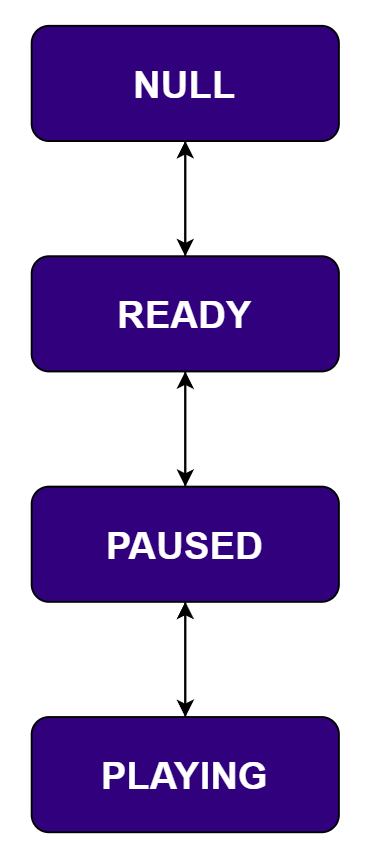 | State | Description |
| --------- | ------------------------------------------------------------------------------------------------------ |
| `NULL` | Initial and final state. No resources are allocated; pipeline is completely inactive. |
| `READY` | Elements have prepared necessary resources (e.g., opened devices/files), but no data is flowing. |
| `PAUSED` | Pipeline is prepared for processing and may pre-roll initial buffers, but is not running in real time. |
| `PLAYING` | Fully active state — data flows continuously and all elements perform their intended processing. |
### 4.2 State Transitions
Pipeline execution is controlled through state transitions:
```c theme={null}
gst_element_set_state (pipeline, GST_STATE_PLAYING);
```
Transitioning from `NULL` to `PLAYING` implicitly passes through `READY` and `PAUSED`. The pipeline manages state propagation to all child elements automatically.
***
## 5. Caps Negotiation
Beyond configuring element properties, building a functional pipeline requires that linked elements agree on the format of the data they exchange. GStreamer handles this automatically through **caps negotiation**.
### Role of Caps
Caps (short for **capabilities**) describe the structure of the data flowing between elements. They typically include:
* Media type (e.g., `video`, `audio`)
* Encoding format
* Resolution or sample rate
* Pixel format or layout
### Negotiation Process
When the pipeline transitions to `PAUSED` or `PLAYING`, GStreamer initiates the negotiation process:
1. Upstream elements propose their supported output formats.
2. Downstream elements select formats they can accept.
3. A final format agreement is established for each pad link.
### Influencing Negotiation with Caps Filters
Caps filters are used in the following scenarios:
| Scenario | Description |
| --------------------------------- | ----------------------------------------------------------------------------- |
| **Format selection** | Ensures a specific format is selected when multiple compatible formats exist. |
| **Pipeline consistency** | Enforces a uniform format across all processing stages. |
| **Format validation / debugging** | Explicitly defines expected upstream output for analysis. |
#### Setting Caps Programmatically
```c theme={null}
capsfilter = gst_element_factory_make ("capsfilter", "input_capsfilter");
caps = gst_caps_new_simple ("video/x-raw",
"format", G_TYPE_STRING, "NV12",
"width", G_TYPE_INT, 1920,
"height", G_TYPE_INT, 1080,
"framerate", GST_TYPE_FRACTION, 30, 1,
NULL);
g_object_set (G_OBJECT (capsfilter), "caps", caps, NULL);
gst_caps_unref (caps);
```
#### Setting Caps via Pipeline String
```c theme={null}
gchar *pipeline_str =
"v4l2src name=usb_camera_src device=/dev/video0 ! "
"video/x-raw,format=NV12,width=1920,height=1080,framerate=30/1 ! "
"qtivtransform name=video_transform ! "
"filesink name=sink location=/tmp/output.raw";
appctx->pipeline = gst_parse_launch (pipeline_str, &error);
```
***
## 6. Main Loop
Once the pipeline is transitioned to `PLAYING`, the application must remain active for the duration of execution using `g_main_loop_run()`:
```c theme={null}
g_main_loop_run (appctx.mloop);
```
The main loop serves two purposes:
* **Thread synchronization** — blocks the main thread, keeping the application alive.
* **Event dispatching** — processes and routes events including signals, callbacks, and pipeline notifications.
### Exiting the Main Loop
```c theme={null}
g_main_loop_quit (appctx.mloop);
```
The loop is typically stopped under one of the following conditions:
| Condition | Description |
| ---------------------------------- | ------------------------------------------------------------------------------------- |
| **End-of-stream** | Triggered when a source reaches its natural end or after an explicit EOS event. |
| **External signal** | Such as `Ctrl+C`, used to initiate teardown in console-based applications. |
| **Application-specific condition** | Any internal logic that determines the pipeline has completed its intended operation. |
***
## 7. Interaction During Runtime
While the pipeline is running, the application interacts through:
1. State change requests
2. Bus messages
3. Callbacks
### Bus
The **GStreamer bus** provides an asynchronous communication channel from the pipeline to the application.
#### Accessing the Bus
```c theme={null}
GstBus *bus = gst_pipeline_get_bus (GST_PIPELINE (pipeline));
gst_bus_add_signal_watch (bus);
g_signal_connect (bus, "message::eos", G_CALLBACK (eos_cb), user_data);
```
#### Types of Messages
| Message Type | Description |
| ----------------------- | -------------------------------------------------------------------------------------- |
| **End-Of-Stream (EOS)** | All data has been fully processed; pipeline has reached the natural end of the stream. |
| **Error** | A failure has occurred inside the pipeline, requiring stop and cleanup. |
| **State Changes** | Informs the application of transitions between pipeline states; useful for debugging. |
#### Integration with the Main Loop
When a signal watch is registered, incoming bus messages are dispatched as callbacks through the main loop, allowing the application to react to pipeline events as part of the same event-driven model.
***
## 8. Dynamic Pads
Some elements do not expose all their pads at creation time — their pads appear **dynamically during runtime**. The most common example is a **demuxer** (e.g., `qtdemux`).
### Static vs. Dynamic Pads
| Type | Description |
| ---------------- | -------------------------------------------------------------------------------------- |
| **Static Pads** | Available immediately after creation; can be linked directly via `gst_element_link()`. |
| **Dynamic Pads** | Created at runtime based on the actual data being processed; signaled via `pad-added`. |
### Linking Strategy
1. Create and add all relevant elements to the pipeline.
2. Link all statically available elements.
3. Register a callback for the `pad-added` signal on the dynamic element.
4. Perform the remaining links inside the callback when the pad becomes available.
```c theme={null}
g_signal_connect (demux, "pad-added", G_CALLBACK (on_pad_added), downstream_element);
```
```c theme={null}
static void
on_pad_added (GstElement *element, GstPad *pad, gpointer user_data)
{
GstElement *next = (GstElement *) user_data;
GstPad *sinkpad = gst_element_get_static_pad (next, "sink");
if (!gst_pad_is_linked (sinkpad))
gst_pad_link (pad, sinkpad);
gst_object_unref (sinkpad);
}
```
### Behavior in Pipeline Strings
Higher-level elements like `decodebin` handle dynamic pads internally:
```
filesrc ! decodebin ! autovideosink
```
When working with lower-level or specialized elements such as explicit demuxers, manual pad handling is required.
Care must be taken to avoid linking the same pad more than once, particularly in callbacks that may be invoked multiple times.
***
## 9. Tee and Queue — Branching the Pipeline
Many real-world applications require the same data to be processed in multiple ways simultaneously. GStreamer supports this through **`tee`** and **`queue`**.
### Tee — Splitting the Stream
The `tee` element duplicates an incoming stream and forwards it to multiple output branches:
```
tee name=t
t. ! branch1
t. ! branch2
```
### Queue — Decoupling Branch Execution
A `queue` element must be inserted at the start of each branch:
```
tee name=t
t. ! queue ! branch1
t. ! queue ! branch2
```
A `queue` element introduces two key behaviors:
* **Buffering** — holds incoming buffers in internal storage, decoupling production and consumption rates.
* **Thread boundary** — data is pushed and consumed on separate threads, allowing each branch to execute independently.
### Queue Usage Beyond Branching
The `queue` element also benefits linear pipelines:
```
element1 ! queue ! element2
```
This pattern is particularly beneficial for:
| Scenario | Benefit |
| ------------------------------- | ------------------------------------------------------------------------------- |
| **Mixed HW/SW processing** | Prevents faster hardware components from being stalled by slower software ones. |
| **Variable processing latency** | Absorbs transient slowdowns and smooths out data flow. |
| **Backpressure isolation** | Prevents backpressure from propagating across pipeline boundaries. |
***
## 10. Error Handling
Errors are delivered via the **GStreamer bus** as `GST_MESSAGE_ERROR` messages. Typical causes include:
| Cause | Description |
| ----------------------------- | ----------------------------------------------------------- |
| **Input/Source failures** | Cannot open or access a file, device, or network stream. |
| **Data integrity issues** | Decoders/parsers encounter malformed or unsupported input. |
| **Resource limitations** | Required hardware or software dependencies are unavailable. |
| **Caps negotiation failures** | Elements cannot agree on a compatible data format. |
| **Internal element failures** | An element encounters an unexpected condition. |
### Handling Error Messages
```c theme={null}
g_signal_connect (bus, "message::error", G_CALLBACK (error_cb), user_data);
```
```c theme={null}
static void
error_cb (GstBus *bus, GstMessage *msg, gpointer userdata)
{
GError *err = NULL;
gchar *debug_info = NULL;
gst_message_parse_error (msg, &err, &debug_info);
g_printerr ("ERROR: %s\n", err->message);
if (debug_info)
g_printerr ("Debug details: %s\n", debug_info);
g_clear_error (&err);
g_free (debug_info);
g_main_loop_quit ((GMainLoop *) userdata);
}
```
### Recommended Error Response Sequence
Record both the error message and debug information for troubleshooting.
Terminate the event loop to halt further message processing.
Stops all elements, terminates internal threads, and releases all allocated resources.
Free application-level resources, destroy pipeline objects, and exit gracefully.
Errors are **asynchronous** and can arrive at any time. They are typically **fatal** — in most cases, a current pipeline instance cannot continue execution. Recovery requires explicit design at the application level.
***
## 11. Application Shutdown and Teardown
Properly shutting down a GStreamer application involves two coordinated steps: handling the signal that initiates shutdown and stopping the pipeline in a controlled manner.
### Shutdown Strategies
Quit the main loop directly — fast but does not guarantee all in-flight buffers are processed.
```c theme={null}
g_main_loop_quit (appctx.mloop);
```
**Use case:** Live previews or non-persistent data streams.
Send an EOS event to the pipeline, allowing all in-flight data to be fully processed before stopping.
```c theme={null}
gst_element_send_event (appctx.pipeline, gst_event_new_eos ());
```
**Use case:** File-based outputs such as video recording.
### Comparison
| | Immediate Stop | Graceful Shutdown (EOS) |
| ------------------ | ----------------------------------- | --------------------------------- |
| **Speed** | Fast | Slower |
| **In-flight data** | May be discarded | Fully processed |
| **Use case** | Live previews, non-critical streams | File recording, persistent output |
### Typical Signal Handler
```c theme={null}
gboolean
handle_interrupt_signal (gpointer userdata)
{
GstAppContext *appctx = (GstAppContext *) userdata;
g_print ("Received Ctrl+C, sending EOS...\n");
if (appctx && appctx->pipeline)
gst_element_send_event (appctx->pipeline, gst_event_new_eos ());
else if (appctx && appctx->mloop)
g_main_loop_quit (appctx->mloop);
return G_SOURCE_CONTINUE;
}
```
The main loop is then exited from the EOS bus message callback:
```c theme={null}
g_signal_connect (bus, "message::eos", G_CALLBACK (eos_cb), appctx->mloop);
```
### Teardown
Once the main loop exits, transition the pipeline to `NULL` and release all resources:
```c theme={null}
gst_element_set_state (pipeline, GST_STATE_NULL);
```
### Handling Ctrl+C
```c theme={null}
g_unix_signal_add (SIGINT, handle_interrupt_signal, &appctx);
```
### Complete Graceful Shutdown Sequence
SIGINT is triggered.
`g_unix_signal_add()` routes SIGINT to the signal handler via the main loop.
`gst_event_new_eos()` is sent to the pipeline.
All remaining in-flight data is processed.
The pipeline notifies the application via the bus.
`g_main_loop_quit()` is called.
All resources are released and the application exits gracefully.
***
## 12. Application Interaction via appsink
The `appsink` element acts as a bridge between the pipeline's internal data flow and application-level code, enabling direct access to individual buffers as they are produced.
### How appsink Works
Register a callback for incoming samples:
```c theme={null}
g_signal_connect (appsink, "new-sample", G_CALLBACK (on_new_sample), user_data);
```
Inside the callback, retrieve and process the sample:
```c theme={null}
g_signal_emit_by_name (appsink, "pull-sample", &sample, &ret);
buffer = gst_sample_get_buffer (sample);
gst_buffer_map (buffer, &mapinfo, GST_MAP_READ);
// Process raw bytes from mapinfo.data ...
gst_buffer_unmap (buffer, &mapinfo);
gst_sample_unref (sample);
```
| API | Description |
| ------------------------- | ----------------------------------------------------------------------------- |
| `pull-sample` | Retrieves the next available `GstSample` from the appsink. |
| `gst_sample_get_buffer()` | Extracts the underlying `GstBuffer` from the sample. |
| `gst_buffer_map()` | Maps the buffer memory into the application's address space with read access. |
### Use Cases
| Use Case | Description |
| ------------------------------- | --------------------------------------------------------------------------------------------------- |
| **Frame export** | Capturing individual video frames for encoding, storage, or display outside GStreamer. |
| **External system integration** | Forwarding processed data to third-party libraries, inference engines, or custom rendering systems. |
| **Custom post-processing** | Applying application-specific logic not expressible as a standard GStreamer element. |
**Resource management:** Always unmap buffers with `gst_buffer_unmap()` and unreference samples with `gst_sample_unref()` after processing. Failing to do so causes memory leaks or buffer pool exhaustion.
**Callback efficiency:** The `new-sample` callback is invoked from within the pipeline's streaming thread. Avoid heavy or blocking operations inside the callback — offload long-running tasks to a separate thread.
**Pipeline independence:** If the application cannot consume samples fast enough, the `appsink` queue may fill up. Control this behavior via `appsink` properties such as `max-buffers` and `drop`.
| State | Description |
| --------- | ------------------------------------------------------------------------------------------------------ |
| `NULL` | Initial and final state. No resources are allocated; pipeline is completely inactive. |
| `READY` | Elements have prepared necessary resources (e.g., opened devices/files), but no data is flowing. |
| `PAUSED` | Pipeline is prepared for processing and may pre-roll initial buffers, but is not running in real time. |
| `PLAYING` | Fully active state — data flows continuously and all elements perform their intended processing. |
### 4.2 State Transitions
Pipeline execution is controlled through state transitions:
```c theme={null}
gst_element_set_state (pipeline, GST_STATE_PLAYING);
```
Transitioning from `NULL` to `PLAYING` implicitly passes through `READY` and `PAUSED`. The pipeline manages state propagation to all child elements automatically.
***
## 5. Caps Negotiation
Beyond configuring element properties, building a functional pipeline requires that linked elements agree on the format of the data they exchange. GStreamer handles this automatically through **caps negotiation**.
### Role of Caps
Caps (short for **capabilities**) describe the structure of the data flowing between elements. They typically include:
* Media type (e.g., `video`, `audio`)
* Encoding format
* Resolution or sample rate
* Pixel format or layout
### Negotiation Process
When the pipeline transitions to `PAUSED` or `PLAYING`, GStreamer initiates the negotiation process:
1. Upstream elements propose their supported output formats.
2. Downstream elements select formats they can accept.
3. A final format agreement is established for each pad link.
### Influencing Negotiation with Caps Filters
Caps filters are used in the following scenarios:
| Scenario | Description |
| --------------------------------- | ----------------------------------------------------------------------------- |
| **Format selection** | Ensures a specific format is selected when multiple compatible formats exist. |
| **Pipeline consistency** | Enforces a uniform format across all processing stages. |
| **Format validation / debugging** | Explicitly defines expected upstream output for analysis. |
#### Setting Caps Programmatically
```c theme={null}
capsfilter = gst_element_factory_make ("capsfilter", "input_capsfilter");
caps = gst_caps_new_simple ("video/x-raw",
"format", G_TYPE_STRING, "NV12",
"width", G_TYPE_INT, 1920,
"height", G_TYPE_INT, 1080,
"framerate", GST_TYPE_FRACTION, 30, 1,
NULL);
g_object_set (G_OBJECT (capsfilter), "caps", caps, NULL);
gst_caps_unref (caps);
```
#### Setting Caps via Pipeline String
```c theme={null}
gchar *pipeline_str =
"v4l2src name=usb_camera_src device=/dev/video0 ! "
"video/x-raw,format=NV12,width=1920,height=1080,framerate=30/1 ! "
"qtivtransform name=video_transform ! "
"filesink name=sink location=/tmp/output.raw";
appctx->pipeline = gst_parse_launch (pipeline_str, &error);
```
***
## 6. Main Loop
Once the pipeline is transitioned to `PLAYING`, the application must remain active for the duration of execution using `g_main_loop_run()`:
```c theme={null}
g_main_loop_run (appctx.mloop);
```
The main loop serves two purposes:
* **Thread synchronization** — blocks the main thread, keeping the application alive.
* **Event dispatching** — processes and routes events including signals, callbacks, and pipeline notifications.
### Exiting the Main Loop
```c theme={null}
g_main_loop_quit (appctx.mloop);
```
The loop is typically stopped under one of the following conditions:
| Condition | Description |
| ---------------------------------- | ------------------------------------------------------------------------------------- |
| **End-of-stream** | Triggered when a source reaches its natural end or after an explicit EOS event. |
| **External signal** | Such as `Ctrl+C`, used to initiate teardown in console-based applications. |
| **Application-specific condition** | Any internal logic that determines the pipeline has completed its intended operation. |
***
## 7. Interaction During Runtime
While the pipeline is running, the application interacts through:
1. State change requests
2. Bus messages
3. Callbacks
### Bus
The **GStreamer bus** provides an asynchronous communication channel from the pipeline to the application.
#### Accessing the Bus
```c theme={null}
GstBus *bus = gst_pipeline_get_bus (GST_PIPELINE (pipeline));
gst_bus_add_signal_watch (bus);
g_signal_connect (bus, "message::eos", G_CALLBACK (eos_cb), user_data);
```
#### Types of Messages
| Message Type | Description |
| ----------------------- | -------------------------------------------------------------------------------------- |
| **End-Of-Stream (EOS)** | All data has been fully processed; pipeline has reached the natural end of the stream. |
| **Error** | A failure has occurred inside the pipeline, requiring stop and cleanup. |
| **State Changes** | Informs the application of transitions between pipeline states; useful for debugging. |
#### Integration with the Main Loop
When a signal watch is registered, incoming bus messages are dispatched as callbacks through the main loop, allowing the application to react to pipeline events as part of the same event-driven model.
***
## 8. Dynamic Pads
Some elements do not expose all their pads at creation time — their pads appear **dynamically during runtime**. The most common example is a **demuxer** (e.g., `qtdemux`).
### Static vs. Dynamic Pads
| Type | Description |
| ---------------- | -------------------------------------------------------------------------------------- |
| **Static Pads** | Available immediately after creation; can be linked directly via `gst_element_link()`. |
| **Dynamic Pads** | Created at runtime based on the actual data being processed; signaled via `pad-added`. |
### Linking Strategy
1. Create and add all relevant elements to the pipeline.
2. Link all statically available elements.
3. Register a callback for the `pad-added` signal on the dynamic element.
4. Perform the remaining links inside the callback when the pad becomes available.
```c theme={null}
g_signal_connect (demux, "pad-added", G_CALLBACK (on_pad_added), downstream_element);
```
```c theme={null}
static void
on_pad_added (GstElement *element, GstPad *pad, gpointer user_data)
{
GstElement *next = (GstElement *) user_data;
GstPad *sinkpad = gst_element_get_static_pad (next, "sink");
if (!gst_pad_is_linked (sinkpad))
gst_pad_link (pad, sinkpad);
gst_object_unref (sinkpad);
}
```
### Behavior in Pipeline Strings
Higher-level elements like `decodebin` handle dynamic pads internally:
```
filesrc ! decodebin ! autovideosink
```
When working with lower-level or specialized elements such as explicit demuxers, manual pad handling is required.
Care must be taken to avoid linking the same pad more than once, particularly in callbacks that may be invoked multiple times.
***
## 9. Tee and Queue — Branching the Pipeline
Many real-world applications require the same data to be processed in multiple ways simultaneously. GStreamer supports this through **`tee`** and **`queue`**.
### Tee — Splitting the Stream
The `tee` element duplicates an incoming stream and forwards it to multiple output branches:
```
tee name=t
t. ! branch1
t. ! branch2
```
### Queue — Decoupling Branch Execution
A `queue` element must be inserted at the start of each branch:
```
tee name=t
t. ! queue ! branch1
t. ! queue ! branch2
```
A `queue` element introduces two key behaviors:
* **Buffering** — holds incoming buffers in internal storage, decoupling production and consumption rates.
* **Thread boundary** — data is pushed and consumed on separate threads, allowing each branch to execute independently.
### Queue Usage Beyond Branching
The `queue` element also benefits linear pipelines:
```
element1 ! queue ! element2
```
This pattern is particularly beneficial for:
| Scenario | Benefit |
| ------------------------------- | ------------------------------------------------------------------------------- |
| **Mixed HW/SW processing** | Prevents faster hardware components from being stalled by slower software ones. |
| **Variable processing latency** | Absorbs transient slowdowns and smooths out data flow. |
| **Backpressure isolation** | Prevents backpressure from propagating across pipeline boundaries. |
***
## 10. Error Handling
Errors are delivered via the **GStreamer bus** as `GST_MESSAGE_ERROR` messages. Typical causes include:
| Cause | Description |
| ----------------------------- | ----------------------------------------------------------- |
| **Input/Source failures** | Cannot open or access a file, device, or network stream. |
| **Data integrity issues** | Decoders/parsers encounter malformed or unsupported input. |
| **Resource limitations** | Required hardware or software dependencies are unavailable. |
| **Caps negotiation failures** | Elements cannot agree on a compatible data format. |
| **Internal element failures** | An element encounters an unexpected condition. |
### Handling Error Messages
```c theme={null}
g_signal_connect (bus, "message::error", G_CALLBACK (error_cb), user_data);
```
```c theme={null}
static void
error_cb (GstBus *bus, GstMessage *msg, gpointer userdata)
{
GError *err = NULL;
gchar *debug_info = NULL;
gst_message_parse_error (msg, &err, &debug_info);
g_printerr ("ERROR: %s\n", err->message);
if (debug_info)
g_printerr ("Debug details: %s\n", debug_info);
g_clear_error (&err);
g_free (debug_info);
g_main_loop_quit ((GMainLoop *) userdata);
}
```
### Recommended Error Response Sequence
Record both the error message and debug information for troubleshooting.
Terminate the event loop to halt further message processing.
Stops all elements, terminates internal threads, and releases all allocated resources.
Free application-level resources, destroy pipeline objects, and exit gracefully.
Errors are **asynchronous** and can arrive at any time. They are typically **fatal** — in most cases, a current pipeline instance cannot continue execution. Recovery requires explicit design at the application level.
***
## 11. Application Shutdown and Teardown
Properly shutting down a GStreamer application involves two coordinated steps: handling the signal that initiates shutdown and stopping the pipeline in a controlled manner.
### Shutdown Strategies
Quit the main loop directly — fast but does not guarantee all in-flight buffers are processed.
```c theme={null}
g_main_loop_quit (appctx.mloop);
```
**Use case:** Live previews or non-persistent data streams.
Send an EOS event to the pipeline, allowing all in-flight data to be fully processed before stopping.
```c theme={null}
gst_element_send_event (appctx.pipeline, gst_event_new_eos ());
```
**Use case:** File-based outputs such as video recording.
### Comparison
| | Immediate Stop | Graceful Shutdown (EOS) |
| ------------------ | ----------------------------------- | --------------------------------- |
| **Speed** | Fast | Slower |
| **In-flight data** | May be discarded | Fully processed |
| **Use case** | Live previews, non-critical streams | File recording, persistent output |
### Typical Signal Handler
```c theme={null}
gboolean
handle_interrupt_signal (gpointer userdata)
{
GstAppContext *appctx = (GstAppContext *) userdata;
g_print ("Received Ctrl+C, sending EOS...\n");
if (appctx && appctx->pipeline)
gst_element_send_event (appctx->pipeline, gst_event_new_eos ());
else if (appctx && appctx->mloop)
g_main_loop_quit (appctx->mloop);
return G_SOURCE_CONTINUE;
}
```
The main loop is then exited from the EOS bus message callback:
```c theme={null}
g_signal_connect (bus, "message::eos", G_CALLBACK (eos_cb), appctx->mloop);
```
### Teardown
Once the main loop exits, transition the pipeline to `NULL` and release all resources:
```c theme={null}
gst_element_set_state (pipeline, GST_STATE_NULL);
```
### Handling Ctrl+C
```c theme={null}
g_unix_signal_add (SIGINT, handle_interrupt_signal, &appctx);
```
### Complete Graceful Shutdown Sequence
SIGINT is triggered.
`g_unix_signal_add()` routes SIGINT to the signal handler via the main loop.
`gst_event_new_eos()` is sent to the pipeline.
All remaining in-flight data is processed.
The pipeline notifies the application via the bus.
`g_main_loop_quit()` is called.
All resources are released and the application exits gracefully.
***
## 12. Application Interaction via appsink
The `appsink` element acts as a bridge between the pipeline's internal data flow and application-level code, enabling direct access to individual buffers as they are produced.
### How appsink Works
Register a callback for incoming samples:
```c theme={null}
g_signal_connect (appsink, "new-sample", G_CALLBACK (on_new_sample), user_data);
```
Inside the callback, retrieve and process the sample:
```c theme={null}
g_signal_emit_by_name (appsink, "pull-sample", &sample, &ret);
buffer = gst_sample_get_buffer (sample);
gst_buffer_map (buffer, &mapinfo, GST_MAP_READ);
// Process raw bytes from mapinfo.data ...
gst_buffer_unmap (buffer, &mapinfo);
gst_sample_unref (sample);
```
| API | Description |
| ------------------------- | ----------------------------------------------------------------------------- |
| `pull-sample` | Retrieves the next available `GstSample` from the appsink. |
| `gst_sample_get_buffer()` | Extracts the underlying `GstBuffer` from the sample. |
| `gst_buffer_map()` | Maps the buffer memory into the application's address space with read access. |
### Use Cases
| Use Case | Description |
| ------------------------------- | --------------------------------------------------------------------------------------------------- |
| **Frame export** | Capturing individual video frames for encoding, storage, or display outside GStreamer. |
| **External system integration** | Forwarding processed data to third-party libraries, inference engines, or custom rendering systems. |
| **Custom post-processing** | Applying application-specific logic not expressible as a standard GStreamer element. |
**Resource management:** Always unmap buffers with `gst_buffer_unmap()` and unreference samples with `gst_sample_unref()` after processing. Failing to do so causes memory leaks or buffer pool exhaustion.
**Callback efficiency:** The `new-sample` callback is invoked from within the pipeline's streaming thread. Avoid heavy or blocking operations inside the callback — offload long-running tasks to a separate thread.
**Pipeline independence:** If the application cannot consume samples fast enough, the `appsink` queue may fill up. Control this behavior via `appsink` properties such as `max-buffers` and `drop`.