> ## Documentation Index
> Fetch the complete documentation index at: https://imsdkdocs.qualcomm.com/llms.txt
> Use this file to discover all available pages before exploring further.

# Touchless Smart Board — Transforming Digital Learning with QIM SDK

> A two-stage palm detection and hand landmark pipeline turns hand gestures into a real-time, touchless virtual whiteboard, built with QIM SDK.

<div
  style={{
width: "100%", borderRadius: "14px", overflow: "hidden",
position: "relative", marginBottom: "1.5rem"
}}
>
  <video src="https://mintcdn.com/qimsdk/r-TZaZ_dVnWf6vBB/blogs/images/smart-board-expected-output.mp4?fit=max&auto=format&n=r-TZaZ_dVnWf6vBB&q=85&s=492219b534a3f64e0c0cad52036903e6" alt="Smart Board Application" autoPlay muted loop playsInline style={{ width: "100%", height: "auto", display: "block" }} data-path="blogs/images/smart-board-expected-output.mp4" />

  <div
    style={{
position: "absolute", bottom: "16px", left: "50%", transform: "translateX(-50%)",
background: "rgba(255,255,255,0.15)", border: "1px solid rgba(255,255,255,0.4)",
color: "#fff", fontSize: "0.75rem", fontWeight: 700, letterSpacing: "1px",
padding: "5px 14px", borderRadius: "20px", textTransform: "uppercase", whiteSpace: "nowrap",
zIndex: 1
}}
  >
    QIM SDK · Qualcomm
  </div>
</div>

<div style={{ marginBottom: "2rem" }}>
  <div
    style={{
fontSize: "0.72rem", fontWeight: 700, color: "var(--primary, #31017D)",
letterSpacing: "1.5px", textTransform: "uppercase", marginBottom: "0.5rem"
}}
  >
    Gesture Recognition
  </div>

  <p style={{ fontSize: "0.95rem", color: "var(--muted-foreground, #555)", lineHeight: 1.7, margin: "0 0 0.75rem" }}>
    A touchless virtual whiteboard controlled entirely by hand gestures, built on a two-stage
    palm detection and hand landmark pipeline running on Qualcomm QIM SDK with QNN HTP acceleration.
  </p>

  <div style={{ fontSize: "0.85rem", color: "var(--muted-foreground, #888)", display: "flex", gap: "0.5rem", flexWrap: "wrap", alignItems: "center" }}>
    <span>QIM SDK Team</span>
    <span>·</span>
    <span>Aug 3, 2026</span>
    <span>·</span>
    <a href="/blogs" target="_self" style={{ color: "var(--primary, #31017D)", fontWeight: 600, textDecoration: "none" }}>← All posts</a>
  </div>
</div>

<hr style={{ border: "none", borderTop: "1px solid var(--border, rgba(128,128,128,0.15))", margin: "0 0 2rem" }} />

## Introduction

Touchless interaction is becoming increasingly important in edge AI applications. Smart classrooms, conference rooms, digital collaboration platforms, and accessibility tools can all benefit from interfaces that eliminate the need for physical controls. The Smartboard Application demonstrates this concept by transforming a live USB camera feed into a real-time virtual whiteboard that users can write on, erase, and manipulate entirely through hand gestures.

The application uses the same two-stage hand-tracking architecture found in the QIM SDK's gesture pipelines. A palm detection model first identifies the hand, after which the detected region is processed by a hand-landmark model that extracts 21 keypoints. Both models run through the QNN HTP delegate, keeping AI inference off the CPU and maintaining a responsive, real-time whiteboard experience.

Unlike a conventional detection demo focused primarily on visual overlays, Smartboard uses landmark metadata to support a broad range of interactive features. Finger positions are analyzed frame by frame to enable mode switching, freehand drawing, shape recognition, erasing, and even grabbing and repositioning existing content on the board.

## Use Case Overview

<Steps>
  <Step title="Two-Stage Hand Tracking">
    Palm detection locates the hand in the frame; the detected region is converted into a region of interest and passed to the hand-landmark model, which extracts 21 keypoints including the fingertips and wrist.
  </Step>

  <Step title="Gesture Interpretation">
    Finger positions determine the active mode and action. An open palm enters Letter mode, a closed fist enters Shape mode, the index finger draws, the pinky erases, and a thumb-to-index pinch grabs existing content.
  </Step>

  <Step title="Persistent Canvas">
    A Cairo-rendered canvas accumulates freehand strokes and recognized shapes across frames, so drawn content persists on screen rather than being redrawn from scratch each frame.
  </Step>

  <Step title="Shape Recognition">
    Rough hand-drawn strokes made in Shape mode are analyzed and, when they match a supported pattern, converted into cleaner circles, rectangles, lines, or arrows.
  </Step>

  <Step title="Object Movement">
    A pinch gesture near an existing word or shape grabs that object, letting the user drag it to a new position on the board before releasing the pinch.
  </Step>
</Steps>

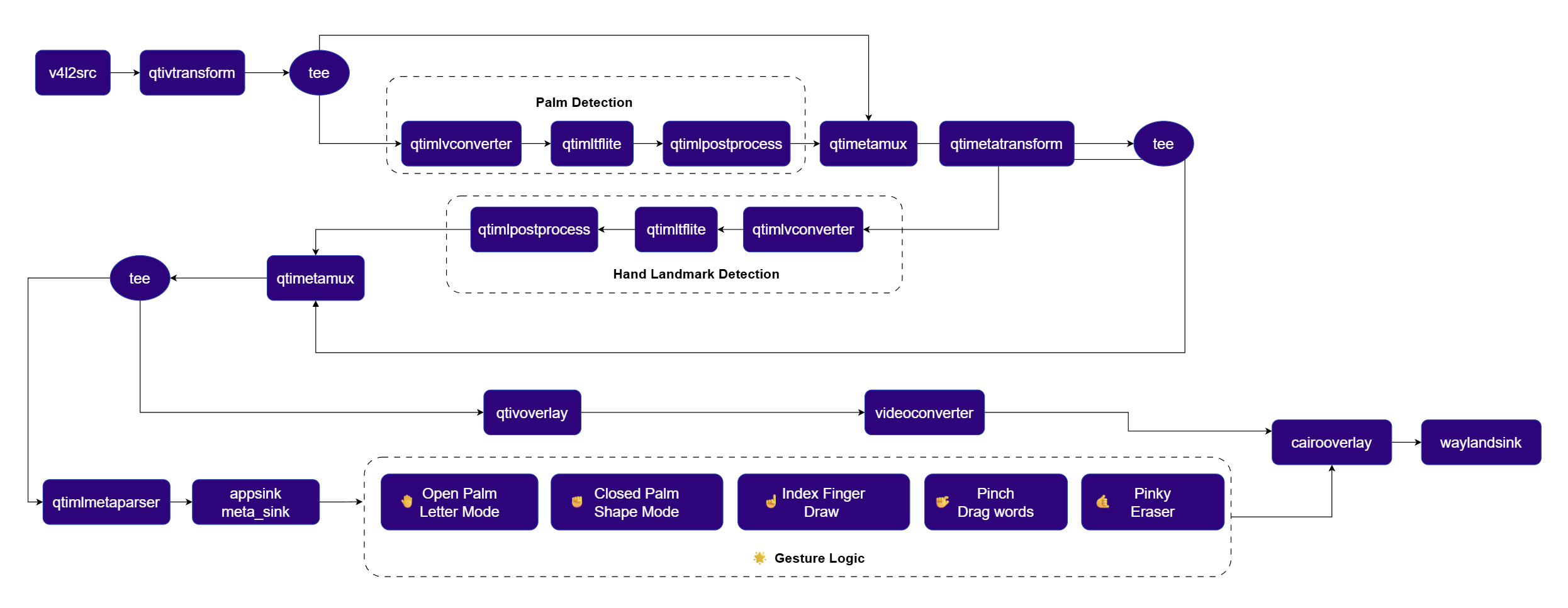
## Pipeline diagram

<img src="https://mintcdn.com/qimsdk/r-TZaZ_dVnWf6vBB/blogs/images/smart-board-pipeline.png?fit=max&auto=format&n=r-TZaZ_dVnWf6vBB&q=85&s=2d5cfc715744d9abd23062d6ccdb6bd6" alt="Smart Board Pipeline" width="2492" height="967" data-path="blogs/images/smart-board-pipeline.png" />

## Elements used in pipeline

| Element                                                    | Description                                                                                                                                                                              |
| ---------------------------------------------------------- | ---------------------------------------------------------------------------------------------------------------------------------------------------------------------------------------- |
| `v4l2src`                                                  | Captures raw frames from the USB camera.                                                                                                                                                 |
| [`qtivtransform`](../plugin-reference/qtivtransform)       | Applies a horizontal flip so the camera feed behaves like a mirror, matching the player's natural hand motion.                                                                           |
| [`qtimlvconverter`](../plugin-reference/qtimlvconverter)   | Hardware-accelerated resize, color-space conversion, and normalization ahead of each inference stage, used in image-batch mode for palm detection and ROI-batch mode for hand landmarks. |
| [`qtimltflite`](../plugin-reference/qtimltflite)           | Runs the palm detection and hand landmark TFLite models on the QNN HTP delegate.                                                                                                         |
| [`qtimlpostprocess`](../plugin-reference/qtimlpostprocess) | Decodes raw model output into structured detections, using the `palmd` module for palm detection and `hlandmark` for hand landmarks.                                                     |
| [`qtimetamux`](../plugin-reference/qtimetamux)             | Synchronizes inference metadata from each stage with the corresponding video frame, used once after palm detection and again after hand landmark detection.                              |
| `qtimetatransform`                                         | Converts palm-detection metadata into a hand region of interest via the `roi-palmd` module, so the landmark model focuses only on the detected hand.                                     |
| [`qtivoverlay`](../plugin-reference/qtivoverlay)           | Draws the QIM SDK ML metadata overlay onto the video stream.                                                                                                                             |
| [`qtimlmetaparser`](../plugin-reference/qtimetaparser)     | Parses the final hand landmark metadata into JSON and exposes it to the application through an `appsink` callback.                                                                       |
| `cairooverlay`                                             | Renders the persistent Smartboard canvas, including freehand strokes, recognized shapes, live previews, eraser cursor, drag indicators, and board-mode status.                           |
| [`waylandsink`](../plugin-reference/waylandsink)           | Displays the final composited output.                                                                                                                                                    |

## How it works
<Steps>
  <Step title="Capture and Mirror">
    The USB camera feed is flipped horizontally and normalized to a fixed resolution and frame rate, so on-screen motion matches the user's real-world hand movement.
  </Step>

  <Step title="Palm Detection and ROI Transform">
    A `tee` splits the stream so one branch runs palm detection while the other carries the raw video into a metadata muxer. Once merged, `qtimetatransform` uses the `roi-palmd` module to turn the detected palm region into a focused crop for the next stage.
  </Step>

  <Step title="Hand Landmark Detection">
    The stream splits again after the ROI transform. The landmark branch preprocesses the cropped region in ROI-batch mode and runs the hand-landmark model through the QNN HTP delegate, producing 21 keypoints per detected hand.
  </Step>

  <Step title="Metadata Parsing and Gesture Handling">
    After a second metadata mux merges the landmark data with the video stream, the pipeline splits into a display branch and a metadata branch. The metadata branch parses the landmarks to JSON and delivers them to an application-side gesture handler through an `appsink` callback.
  </Step>

  <Step title="Gesture-to-Action Mapping">
    The gesture handler tracks which fingers are extended to decide the active mode and action: an open palm switches to Letter mode, a closed fist switches to Shape mode, the index finger draws, the pinky erases nearby strokes, and a thumb-to-index pinch grabs the nearest word or shape for dragging.
  </Step>

  <Step title="Canvas Rendering">
    The display branch draws the QIM SDK metadata overlay first, then hands off to a Cairo drawing callback that renders the persistent whiteboard canvas, including committed strokes, recognized shapes, live drawing previews, the eraser cursor, and drag indicators, before the composited frame reaches the display.
  </Step>
</Steps>

## Setup Requirements

### Hardware

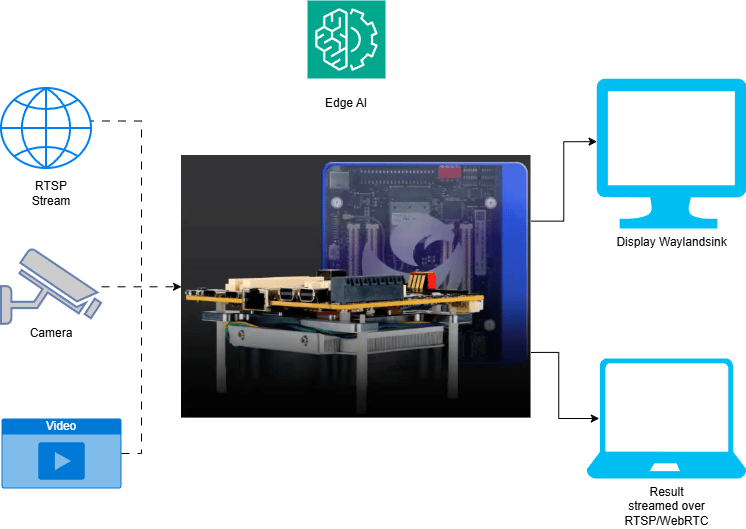
<img src="https://mintcdn.com/qimsdk/r-TZaZ_dVnWf6vBB/blogs/images/smart-board-hw.png?fit=max&auto=format&n=r-TZaZ_dVnWf6vBB&q=85&s=88f56550ab556fbd3232cfa8f92d35f8" alt="HW Setup" width="746" height="529" data-path="blogs/images/smart-board-hw.png" />

| Component                | Description                                                                 |
| ------------------------ | --------------------------------------------------------------------------- |
| **Edge Device**          | RB3 Gen 2, IQ8, or IQ9. Runs the hand-tracking inference and gesture logic. |
| **Camera Source**        | USB camera positioned to capture the user's hand and drawing surface area.  |
| **HDMI Display Monitor** | Connected to the edge device to show the live whiteboard output.            |

### Software

Flash your Qualcomm Edge device by following the device setup and flashing instructions [here](../installation), then install the Python and GStreamer prerequisites (`python3`, `gstreamer1.0`, `python3-gi`) needed to run the pipeline.

The palm detection and hand landmark TFLite models, along with their label and settings files, are the same assets used by the [hand gesture recognition pipeline](/blogs/smart-hand-gesture-recognition). See that post's model download steps for the palm and hand landmark model files. The application performs a runtime validation check for all required model and config files before starting the pipeline, and prints a clear error if any path is missing.

<Accordion title="Try me">
  <Tabs sync={false}>
    <Tab title="C++">
      <Info>
        Check application source code on GitHub: [`demo_smartboard/main.cc`](https://github.com/qualcomm/qimsdk/blob/main/cpp/examples/demo-apps/demo_smartboard/main.cc)

        Pre-built application on device: `/usr/bin/qimsdk_demo_smartboard`
      </Info>

      #### Download Required Files

      Download the gesture recognizer task bundle from Google MediaPipe to obtain the palm detection and hand landmark models:

      ```bash theme={null}
      # Download the gesture recognizer task bundle
      wget https://storage.googleapis.com/mediapipe-models/gesture_recognizer/gesture_recognizer/float16/latest/gesture_recognizer.task

      # Extract the top-level task
      unzip gesture_recognizer.task

      # Extract hand landmarker models
      unzip hand_landmarker.task
      # save hand_detector.tflite as palm_detection_full.tflite
      # save hand_landmarks_detector.tflite as hand_landmark_full.tflite
      ```

      | File                                                                                                        | Save as                      |
      | ----------------------------------------------------------------------------------------------------------- | ---------------------------- |
      | Palm detection model (see steps above)                                                                      | palm\_detection\_full.tflite |
      | Hand landmark model (see steps above)                                                                       | hand\_landmark\_full.tflite  |
      | <a href="../labels/palmd_labels.json" download="palmd_labels.json">palmd\_labels.json</a>                   | palmd\_labels.json           |
      | <a href="../labels/palmd_settings.json" download="palmd_settings.json">palmd\_settings.json</a>             | palmd\_settings.json         |
      | <a href="../labels/hlandmarks.json" download="hlandmarks.json">hlandmarks.json</a>                          | hlandmarks.json              |
      | <a href="../labels/hlandmark_settings.json" download="hlandmark_settings.json">hlandmark\_settings.json</a> | hlandmark\_settings.json     |

      <Note>
        If a downloaded model file is a `.zip` archive, extract it on your host machine before copying: `unzip filename.zip`
      </Note>

      <Steps>
        <Step title="Copy Files to Device">
          <CodeGroup>
            ```bash SCP (SSH) theme={null}
            # Replace <user> and <device-ip> with your device credentials.
            ssh <user>@<device-ip> "mkdir -p ~/Downloads/qimsdk_samples/{models,labels}"
            scp palm_detection_full.tflite <user>@<device-ip>:~/Downloads/qimsdk_samples/models/
            scp hand_landmark_full.tflite  <user>@<device-ip>:~/Downloads/qimsdk_samples/models/
            scp palmd_labels.json          <user>@<device-ip>:~/Downloads/qimsdk_samples/labels/
            scp palmd_settings.json        <user>@<device-ip>:~/Downloads/qimsdk_samples/labels/
            scp hlandmarks.json            <user>@<device-ip>:~/Downloads/qimsdk_samples/labels/
            scp hlandmark_settings.json    <user>@<device-ip>:~/Downloads/qimsdk_samples/labels/
            ```
          </CodeGroup>
        </Step>

        <Step title="Connect a USB camera">
          Connect a USB (UVC) camera to the target device and verify it is exposed as `/dev/video2` (update the `--input-config` value below if your camera is exposed on a different node).
        </Step>

        <Step title="Run the application">
          ```bash theme={null}
          /usr/bin/qimsdk_demo_smartboard --input-config /dev/video2
          ```

          The application tracks hand and fingertip position from the live USB camera feed, letting the user draw, recognize shapes, erase, and drag/move strokes on a virtual whiteboard overlaid on the camera feed.

          To stop the application, press **CTRL + C**.
        </Step>
      </Steps>
    </Tab>

    <Tab title="Python">
      <Info>
        Check application source code on GitHub: [`qimsdk_demo_smartboard.py`](https://github.com/qualcomm/qimsdk/blob/main/python/examples/demo-apps/qimsdk_demo_smartboard.py)

        Pre-built application on device: `/usr/bin/qimsdk_demo_smartboard.py`
      </Info>

      #### Download Required Files

      Download the gesture recognizer task bundle from Google MediaPipe to obtain the palm detection and hand landmark models:

      ```bash theme={null}
      # Download the gesture recognizer task bundle
      wget https://storage.googleapis.com/mediapipe-models/gesture_recognizer/gesture_recognizer/float16/latest/gesture_recognizer.task

      # Extract the top-level task
      unzip gesture_recognizer.task

      # Extract hand landmarker models
      unzip hand_landmarker.task
      # save hand_detector.tflite as palm_detection_full.tflite
      # save hand_landmarks_detector.tflite as hand_landmark_full.tflite
      ```

      | File                                                                                                        | Save as                      |
      | ----------------------------------------------------------------------------------------------------------- | ---------------------------- |
      | Palm detection model (see steps above)                                                                      | palm\_detection\_full.tflite |
      | Hand landmark model (see steps above)                                                                       | hand\_landmark\_full.tflite  |
      | <a href="../labels/palmd_labels.json" download="palmd_labels.json">palmd\_labels.json</a>                   | palmd\_labels.json           |
      | <a href="../labels/palmd_settings.json" download="palmd_settings.json">palmd\_settings.json</a>             | palmd\_settings.json         |
      | <a href="../labels/hlandmarks.json" download="hlandmarks.json">hlandmarks.json</a>                          | hlandmarks.json              |
      | <a href="../labels/hlandmark_settings.json" download="hlandmark_settings.json">hlandmark\_settings.json</a> | hlandmark\_settings.json     |

      <Note>
        If a downloaded model file is a `.zip` archive, extract it on your host machine before copying: `unzip filename.zip`
      </Note>

      <Steps>
        <Step title="Copy Files to Device">
          <CodeGroup>
            ```bash SCP (SSH) theme={null}
            # Replace <user> and <device-ip> with your device credentials.
            ssh <user>@<device-ip> "mkdir -p ~/Downloads/qimsdk_samples/{models,labels}"
            scp palm_detection_full.tflite <user>@<device-ip>:~/Downloads/qimsdk_samples/models/
            scp hand_landmark_full.tflite  <user>@<device-ip>:~/Downloads/qimsdk_samples/models/
            scp palmd_labels.json          <user>@<device-ip>:~/Downloads/qimsdk_samples/labels/
            scp palmd_settings.json        <user>@<device-ip>:~/Downloads/qimsdk_samples/labels/
            scp hlandmarks.json            <user>@<device-ip>:~/Downloads/qimsdk_samples/labels/
            scp hlandmark_settings.json    <user>@<device-ip>:~/Downloads/qimsdk_samples/labels/
            ```
          </CodeGroup>
        </Step>

        <Step title="Connect a USB camera">
          Connect a USB (UVC) camera to the target device and verify it is exposed as `/dev/video2` (update the `--input-config` value below if your camera is exposed on a different node).
        </Step>

        <Step title="Run the application">
          ```bash theme={null}
          python3 /usr/bin/qimsdk_demo_smartboard.py --input-config /dev/video2
          ```

          The application tracks hand and fingertip position from the live USB camera feed, letting the user draw, recognize shapes, erase, and drag/move strokes on a virtual whiteboard overlaid on the camera feed.

          To stop the application, press **CTRL + C**.
        </Step>
      </Steps>
    </Tab>
  </Tabs>
</Accordion>

## Application Function Breakdown

The Smartboard application is organized into a handful of function groups, each responsible for one stage of the gesture-to-canvas flow:

* **Runtime and state management**: validates that the palm and hand-landmark models, labels, and settings files are present before the pipeline starts, and maintains a state object tracking freehand strokes, recognized shapes, board mode, and active drag/erase state.
* **Metadata parsing**: extracts the 21 hand landmark points from the raw metadata stream and converts them into a simple keypoint map that the gesture logic can consume without caring about the underlying JSON structure.
* **Gesture detection**: inspects which fingers are extended to classify the current hand pose as an open palm, closed fist, or pinch, and applies stability checks so the board doesn't flicker between modes from noisy frame-to-frame landmark jitter.
* **Drawing and shape recognition**: turns index-finger movement into smoothed freehand strokes, and analyzes completed strokes in Shape mode to snap them into clean circles, rectangles, lines, or arrows when they match a recognized pattern.
* **Erasing**: measures the pinky tip's distance to existing strokes and shapes, and removes anything that falls within the eraser radius.
* **Drag and move**: checks whether a pinch point lands near an existing shape or word, groups nearby stroke segments so a whole word moves together, and updates the object's position as the hand moves until the pinch releases.
* **Rendering**: draws the committed strokes, clean shapes, live previews, eraser cursor, drag indicator, and board-mode status onto the canvas each frame.
* **Pipeline setup**: assembles the full two-stage QIM SDK pipeline (camera capture, palm detection, ROI transform, hand landmark detection, metadata parsing, and the display/canvas branches) and verifies that all required GStreamer and QIM SDK plugins are available before launch.

## Expected Output

<video src="https://mintcdn.com/qimsdk/r-TZaZ_dVnWf6vBB/blogs/images/smart-board-expected-output.mp4?fit=max&auto=format&n=r-TZaZ_dVnWf6vBB&q=85&s=492219b534a3f64e0c0cad52036903e6" alt="Smart Board Application" autoPlay muted loop playsInline style={{ width: "100%", height: "auto", display: "block", borderRadius: "14px", marginBottom: "1.5rem" }} data-path="blogs/images/smart-board-expected-output.mp4" />

Running the application opens a live view on the connected monitor:

* The camera feed is shown with hand tracking overlaid, including the palm detection box and hand landmark points.
* On top of that, the Smartboard canvas renders drawing strokes, shape previews, finalized clean shapes, the eraser cursor, drag indicators, and the current board mode.

The Smartboard supports the following real-time interactions:

* **Letter mode**: an open palm switches the board to freehand writing with the index finger.
* **Shape mode**: a closed fist switches the board to shape drawing, converting rough strokes into circles, rectangles, lines, or arrows.
* **Erasing**: the pinky finger removes nearby strokes or shapes.
* **Object movement**: a pinch gesture near existing content grabs and repositions it.

Press `Ctrl+C` to stop the application; the pipeline transitions to the `NULL` state and releases the camera and display cleanly.

## Conclusion

The Smartboard Application demonstrates how metadata-driven application logic can extend well beyond traditional overlay rendering. Instead of using hand-landmark keypoints solely to draw bounding boxes, it transforms them into the primary control mechanism for a real-time, interactive whiteboard. QNN HTP acceleration keeps both inference stages efficient enough to support smooth freehand writing and responsive interaction.

This approach can be adapted to a wide range of touchless interfaces, including smart classrooms, meeting-room collaboration tools, accessibility solutions, and applications where natural hand gestures replace a mouse, stylus, or touchscreen.
