> ## Documentation Index
> Fetch the complete documentation index at: https://imsdkdocs.qualcomm.com/llms.txt
> Use this file to discover all available pages before exploring further.

# Multi Stream IP Camera application

> A real-time object detection pipeline built with IM SDK using a YOLOv8 TensorFlow Lite model, supporting multiple input sources and RTSP/WebRTC output.

<div
  style={{
width: "100%", borderRadius: "14px", overflow: "hidden",
backgroundImage: "url('https://mintcdn.com/qimsdk/p8bRJ_K0_Mx14HV0/blogs/images/onj-detect.png?fit=max&auto=format&n=p8bRJ_K0_Mx14HV0&q=85&s=e3adb0c3238b479c62afd4f4c3bfb95d')",
backgroundSize: "cover", backgroundPosition: "center",
height: "260px", display: "flex", alignItems: "center", justifyContent: "center",
position: "relative", marginBottom: "1.5rem"
}}
>
  <div
    style={{
position: "absolute", bottom: "16px", left: "50%", transform: "translateX(-50%)",
background: "rgba(255,255,255,0.15)", border: "1px solid rgba(255,255,255,0.4)",
color: "#fff", fontSize: "0.75rem", fontWeight: 700, letterSpacing: "1px",
padding: "5px 14px", borderRadius: "20px", textTransform: "uppercase", whiteSpace: "nowrap",
zIndex: 1
}}
  >
    QIMSDK · Qualcomm
  </div>
</div>

<div style={{ marginBottom: "2rem" }}>
  <div
    style={{
fontSize: "0.72rem", fontWeight: 700, color: "#31017D",
letterSpacing: "1.5px", textTransform: "uppercase", marginBottom: "0.5rem"
}}
  >
    Computer Vision
  </div>

  <p style={{ fontSize: "0.95rem", color: "#555", lineHeight: 1.7, margin: "0 0 0.75rem" }}>
    A real-time object detection pipeline built with IM SDK using a YOLOv8 TensorFlow Lite model,
    supporting USB cameras, ISP cameras, RTSP streams, and video files — with RTSP/WebRTC output.
  </p>

  <div style={{ fontSize: "0.85rem", color: "#888", display: "flex", gap: "0.5rem", flexWrap: "wrap", alignItems: "center" }}>
    <span>QIMSDK Team</span>
    <span>·</span>
    <span>Apr 10, 2026</span>
    <span>·</span>
    <a href="/blogs" style={{ color: "#31017D", fontWeight: 600, textDecoration: "none" }}>← All posts</a>
  </div>
</div>

<hr style={{ border: "none", borderTop: "1px solid #eee", margin: "0 0 2rem" }} />

## Introduction

Managing video feeds from multiple IP cameras simultaneously is a core requirement in modern surveillance, retail analytics, smart city, and industrial monitoring deployments. Processing each stream independently on a CPU is costly and difficult to scale — but with the QIM SDK, multiple concurrent RTSP streams can be decoded, processed through AI inference, and rendered or streamed out in real time, all using Qualcomm's dedicated hardware accelerators.

The QIM SDK's GStreamer-based plugin architecture offloads compute-intensive tasks — including multi-stream hardware H.264/H.265 decoding, frame preparation, AI inference via the Neural Processing Unit (NPU), and re-encoding — entirely from the CPU to purpose-built hardware blocks. This enables low-latency, power-efficient processing of multiple simultaneous IP camera feeds directly on Qualcomm edge devices.

At the core of this use case is a **parallel multi-stream pipeline**, where each incoming RTSP stream is independently decoded and processed through its own AI inference chain. Results from all streams are then composited into a unified output — either for display, recording, or network streaming. The pipeline supports flexible input configurations, from a single RTSP source up to multiple concurrent streams, making it suitable for scalable, real-world deployments.

The complete application source code is available [here](https://github.com/qualcomm/gst-plugins-imsdk/tree/main/gst-sample-apps/gst-ip-camera/).

## Use Case Overview

<Steps>
  <Step title="Video Input">
    Accepts multiple concurrent RTSP streams from IP cameras, each decoded independently using hardware-accelerated H.264/H.265 decoding.
  </Step>

  <Step title="AI Inference">
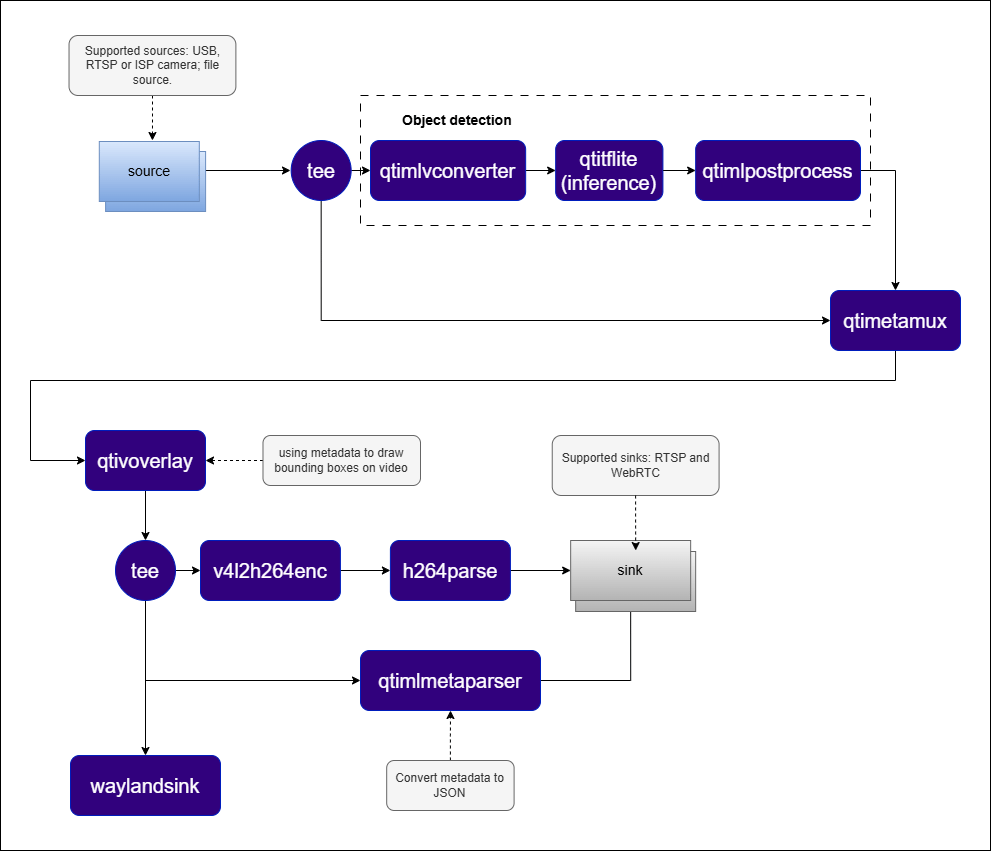
    Each decoded stream is passed through a dedicated AI inference chain — including preprocessing (`qtimlvconverter`), model execution (`qtimltflite`), and post-processing (`qtimlpostprocess`) — for per-stream object detection.
  </Step>

  <Step title="Metadata Attachment">
    Inference results are attached to each stream as structured per-frame metadata via `qtimetamux`, maintaining stream–detection correspondence.
  </Step>

  <Step title="Visualization">
    Bounding boxes and labels are rendered onto each stream's frames via `qtivoverlay` for real-time visual feedback.
  </Step>

  <Step title="Composition">
    Annotated frames from all streams are composited into a unified output layout using `qtivcomposer`.
  </Step>

  <Step title="Output">
    The composited stream is delivered to a local Wayland display, encoded and saved to file, or streamed over RTSP/WebRTC.
  </Step>
</Steps>

## Pipeline diagram

<img src="https://mintcdn.com/qimsdk/p8bRJ_K0_Mx14HV0/blogs/images/multi-stream-ip-camera_pipelines.png?fit=max&auto=format&n=p8bRJ_K0_Mx14HV0&q=85&s=1c2d1c34e75da35e627a6de1f53788d1" alt="Pipeline Diagram" width="991" height="851" data-path="blogs/images/multi-stream-ip-camera_pipelines.png" />

## Elements used in pipeline

| Element                                       | Description                                                                                                         |
| --------------------------------------------- | ------------------------------------------------------------------------------------------------------------------- |
| `rtspsrc`                                     | Receives an RTSP stream from an IP camera over the network.                                                         |
| `rtph264depay / h264parse`                    | Depayloads and parses the incoming RTP/H.264 bitstream.                                                             |
| `v4l2h264dec`                                 | Hardware-accelerated H.264 video decoder.                                                                           |
| `tee`                                         | Splits each decoded stream into parallel branches for simultaneous AI inference and output.                         |
| `qtimlvconverter`                             | Prepares video frames for inference — handles resizing, YUV-to-RGB color space conversion, and pixel normalization. |
| `qtimltflite`                                 | Executes the TFLite inference model on each frame using the Qualcomm NPU.                                           |
| `qtimlpostprocess`                            | Decodes raw output tensors into structured bounding boxes and class labels via a dynamically loaded module.         |
| `qtimetamux`                                  | Synchronizes inference results with the original video stream and attaches them as per-frame structured metadata.   |
| `qtivoverlay`                                 | Renders bounding boxes and labels directly onto video frames for real-time visualization.                           |
| `qtivcomposer`                                | Composes multiple annotated video streams into a single unified output frame.                                       |
| `waylandsink`                                 | Renders the composited output to a local Wayland display.                                                           |
| `v4l2h264enc / h264parse / mp4mux / filesink` | Encodes and saves the output to a local file.                                                                       |
| `qtirtspbin`                                  | Streams the output over RTSP for remote viewing.                                                                    |

## How it works
<Steps>
  <Step title="Stream Ingestion">
    Each `rtspsrc` element receives an RTSP stream from an IP camera. The RTP/H.264 payload is depayloaded and parsed, then passed to a hardware-accelerated decoder (`v4l2h264dec`) to produce raw NV12 frames.
  </Step>

  <Step title="Parallel AI Processing">
    A `tee` splits each decoded stream into two branches. The first branch feeds `qtimlvconverter` → `qtimltflite` → `qtimlpostprocess` for AI inference. The second branch feeds `qtimetamux` as the reference video.
  </Step>

  <Step title="Metadata Synchronization">
    `qtimetamux` attaches inference results from the AI branch to the corresponding reference video frames, maintaining per-stream temporal alignment.
  </Step>

  <Step title="Visualization">
    `qtivoverlay` draws bounding boxes and labels onto each annotated stream.
  </Step>

  <Step title="Composition">
    `qtivcomposer` tiles the annotated streams side-by-side (or in a configurable grid layout) into a single output frame.
  </Step>

  <Step title="Output Delivery">
    The composited frame is delivered to a Wayland display, saved to file, or streamed over RTSP.
  </Step>
</Steps>

## Run application on device

### Setup Requirements

#### Hardware

<img src="https://mintcdn.com/qimsdk/p8bRJ_K0_Mx14HV0/blogs/images/security-camera_hw-setup.png?fit=max&auto=format&n=p8bRJ_K0_Mx14HV0&q=85&s=09c59b6a9fbbd9b51c039e6f5d8f399e" alt="HW Setup" width="871" height="421" data-path="blogs/images/security-camera_hw-setup.png" />

| Component                | Description                                                                                              |
| ------------------------ | -------------------------------------------------------------------------------------------------------- |
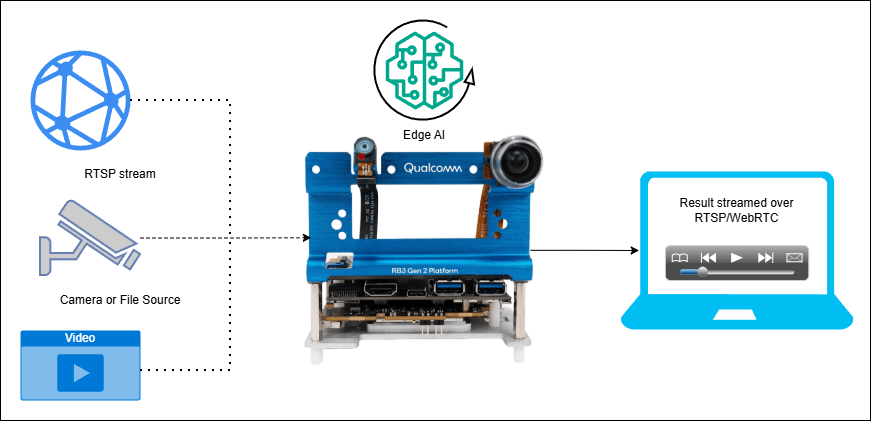
| **Edge Device**          | RB3 Gen 2, IQ8, or IQ9 — Primary processing unit for AI inference and video composition.                 |
| **IP/RTSP Cameras**      | One or more IP cameras accessible over the local network via RTSP.                                       |
| **HDMI Display Monitor** | Connected to the edge device for rendering the composited output.                                        |
| **PoE Switch**           | Powers IP cameras and provides network connectivity over Ethernet. (Required for IP/RTSP camera setups.) |
| **Local Network**        | Ensures the edge device, IP cameras, and host machine are reachable on the same network.                 |

#### Software

**Flash your Qualcomm Edge device** by following the device setup and flashing instructions here: `<provide QLI device setup and flash instruction link>`

**Once your device is ready**, follow the instructions below to set up the Multi-Stream IP Camera pipeline.

##### AI Model and config files

| File              | Download                                                                                                                                               | Save as                       |
| ----------------- | ------------------------------------------------------------------------------------------------------------------------------------------------------ | ----------------------------- |
| YOLOv8 W8A8 model | [Qualcomm AI Hub — YOLOv8 Detection](https://aihub.qualcomm.com/iot/models/yolov8_det)                                                                 | `yolov8_det_quantized.tflite` |
| Detection labels  | <a href="../labels/yolov8.json" download="yolov8.json">yolov8.json</a>                                                                                 | `yolov8.json`                 |
| Sample video      | <a href="https://github.com/qualcomm/sample-apps-for-qualcomm-linux/raw/refs/heads/main/qualcomm-linux/artifacts/videos/demo_samples/">Input video</a> | `video.mp4`                   |

**Copy files to device**

<CodeGroup>
  ```bash SCP (SSH) theme={null}
  # Replace $HOME to the appropriate device path before running the commands.
  # For QLI:    /root
  # For Ubuntu: /home/ubuntu
  # Modify this based on your platform and ensure files are copied to the correct location on the device.
  # Run from your host machine — replace <user> and <device-ip>

  ssh <user>@<device-ip> "mkdir -p $HOME/{models,labels,media,media/output}"
  scp yolov8_det_quantized.tflite   <user>@<device-ip>:$HOME/models/
  scp yolov8.json          <user>@<device-ip>:$HOME/labels/
  scp video.mp4            <user>@<device-ip>:$HOME/media/
  ```
</CodeGroup>

**Connect to device**

```bash theme={null}
ssh <user>@<device-ip>
```

**Run the Multi-Stream IP Camera Application**

<Note>
  A display must be connected to the device. If no display is available, use the `--no-display` flag to run in headless mode.
</Note>

Use the following base path for model and label files based on your OS:

<AccordionGroup>
  <Accordion title="File input (offline test)">
    ```bash theme={null}
    gst-multi-stream-ip-camera \
      --input-type=file \
      --input-config=$HOME/media/video.mp4 \
    ```
  </Accordion>

  <Accordion title="WebRTC">
    ```bash theme={null}
    gst-ip-camera \
      --input-type=file \
      --input-config=$HOME/media/video.mp4 \
      --output-type=webrtc \
      --output-config=wss://webrtc.nirbheek.in:8443 \
      --webrtc-id=1010
    ```
  </Accordion>

  <Accordion title="Display (multi-stream)">
    ```bash theme={null}
    gst-multi-stream-ip-camera \
      --input-type=rtsp \
      --input-config=rtsp://<camera1-ip>:<port>/stream,rtsp://<camera2-ip>:<port>/stream \
    ```
  </Accordion>

  <Accordion title="RTSP output">
    ```bash theme={null}
    gst-multi-stream-ip-camera \
      --input-type=rtsp \
      --input-config=rtsp://<camera-ip>:<port>/stream \
      --output-type=rtsp \
      --output-config=8900
    ```
  </Accordion>
</AccordionGroup>

> **Note:** This example uses an offline video file as input. To use an IP/RTSP camera or USB camera instead, update the `--input-type` argument accordingly — refer to the **Command-Line Options** section below for details.

## Visualize the Results - Host-Side Visualization (Windows + WSL)

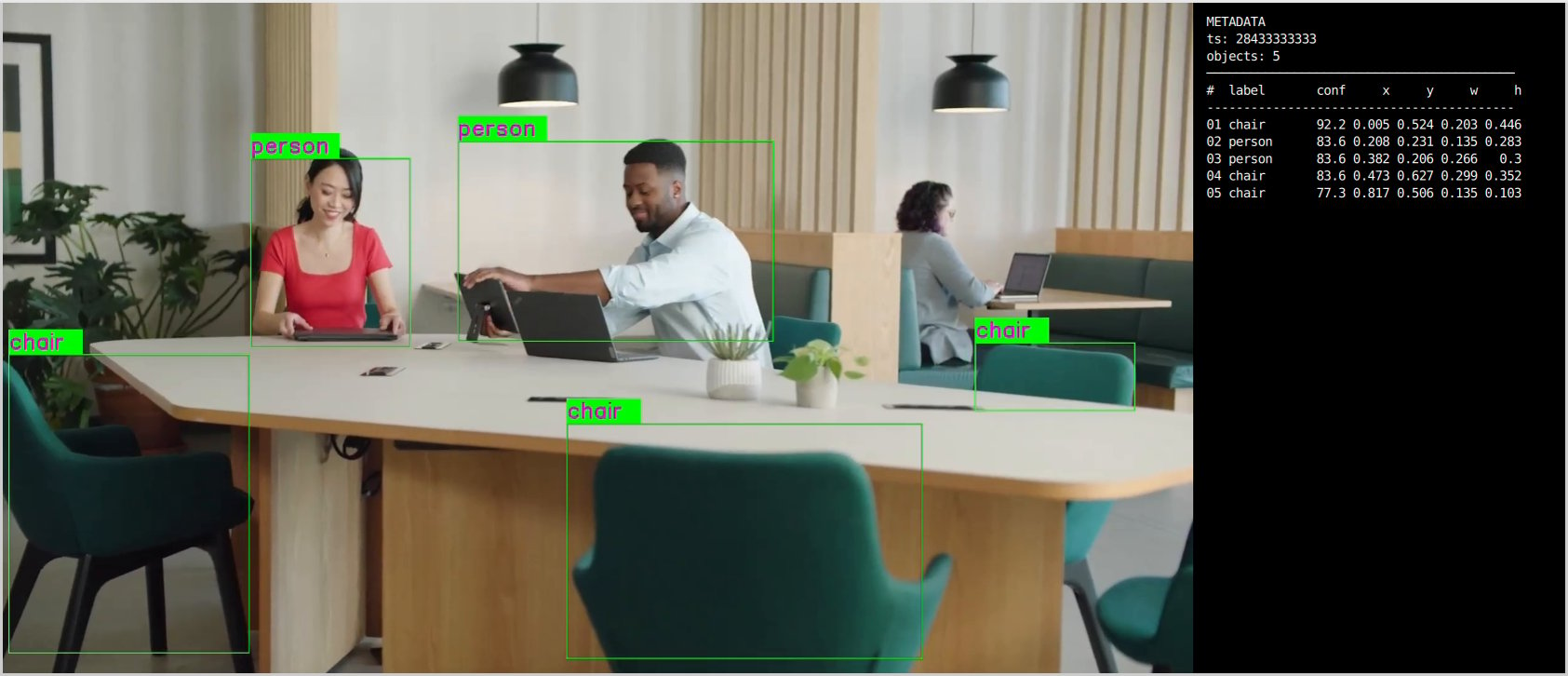
This section describes how to run the visualization client on a Windows host machine using **WSL (Windows Subsystem for Linux)**. The client renders the live composited video stream alongside a real-time AI metadata panel.

📥 The visualization client script can be downloaded here: <a href="../labels/rtsp_webrtc_client.zip" download="rtsp_webrtc_client.zip">rtsp\_webrtc\_client.zip</a>

It displays:

* **Left panel** — Live composited video stream with AI overlays from all camera inputs.
* **Right panel** — Real-time AI metadata (JSON): object detections, bounding boxes, and confidence scores per stream.

**Step 1 — Install WSL and Ubuntu**

If WSL is not already installed, run the following from a Windows terminal:

```bash theme={null}
wsl --install Ubuntu-24.04
```

Once installed, open the Ubuntu terminal and update the system:

```bash theme={null}
sudo apt update && sudo apt upgrade -y
```

**Step 2 — Install System Dependencies**

```bash theme={null}
sudo apt install -y \
  python3 python3-pip python3-gi python3-gi-cairo \
  gir1.2-gstreamer-1.0 \
  gir1.2-gst-plugins-base-1.0 \
  gir1.2-gst-plugins-bad-1.0 \
  gstreamer1.0-tools \
  gstreamer1.0-plugins-base \
  gstreamer1.0-plugins-good \
  gstreamer1.0-plugins-bad \
  gstreamer1.0-plugins-ugly \
  gstreamer1.0-libav \
  python3-websocket \
  libnice10 \
  libnice-dev \
  gstreamer1.0-nice
```

**Step 3 — Run the Visualization Client Script**

<AccordionGroup>
  <Accordion title="RTSP">
    ```bash theme={null}
    python3 rtsp_webrtc_client.py rtsp://<DEVICE_IP>:8900/live
    ```
  </Accordion>

  <Accordion title="WebRTC">
    ```bash theme={null}
    python3 rtsp_webrtc_client.py --source webrtc --signalling-server wss://webrtc.nirbheek.in:8443 --peer-id 1010
    ```
  </Accordion>
</AccordionGroup>

**Step 4 — Expected Output**

| Panel Content | Description                                                                                      |
| ------------- | ------------------------------------------------------------------------------------------------ |
| Left          | Real-time composited video — all streams tiled into a single view with bounding boxes and labels |
| Right         | Live AI metadata panel — per-stream object detections, bounding boxes, and confidence scores     |

<img src="https://mintcdn.com/qimsdk/p8bRJ_K0_Mx14HV0/blogs/images/multi-stream-ip-camera_expected-output.png?fit=max&auto=format&n=p8bRJ_K0_Mx14HV0&q=85&s=2e569cf4af45f5614c850532091c5330" alt="Expected Output" width="1685" height="726" data-path="blogs/images/multi-stream-ip-camera_expected-output.png" />

## Command-Line Options

<AccordionGroup>
  <Accordion title="--input-type">
    Selects the video input source for the pipeline.

    | Value  | Description                                                                             |
    | ------ | --------------------------------------------------------------------------------------- |
    | `rtsp` | IP/RTSP camera stream. Requires `--input-config=rtsp://...`.                            |
    | `file` | Local H.264-encoded video file. Requires `--input-config=/path/to/video.mp4`.           |
    | `usb`  | USB camera. Requires `--input-config=/dev/video0`.                                      |
    | `isp`  | Built-in ISP (on-device) camera. Optionally specify a camera ID via `--input-config=0`. |
  </Accordion>

  <Accordion title="--input-config">
    Specifies the input source configuration corresponding to the selected `--input-type`.

    | Input Type | Value                                                       |
    | ---------- | ----------------------------------------------------------- |
    | RTSP       | `rtsp://<ip-or-url>` (comma-separated for multiple streams) |
    | File       | `/path/to/video.mp4`                                        |
    | USB        | `/dev/videoX`                                               |
    | ISP        | `<camera ID>`                                               |
  </Accordion>

  <Accordion title="--output-type">
    Defines how the processed output video stream is delivered.

    | Value     | Description                                                                 |
    | --------- | --------------------------------------------------------------------------- |
    | `display` | Renders composited output on a local Wayland display.                       |
    | `file`    | Saves the encoded composited output to a file. Requires `--output-config`.  |
    | `rtsp`    | Streams composited output over RTSP. Requires `--output-config=<port>`.     |
    | `webrtc`  | Streams composited output over WebRTC. Requires `--output-config=ws://...`. |
    | `none`    | No video output (headless mode).                                            |
  </Accordion>

  <Accordion title="--output-config">
    Specifies the output destination configuration corresponding to the selected `--output-type`.

    | Output Type | Value                             |
    | ----------- | --------------------------------- |
    | File        | `/path/to/output.mp4`             |
    | RTSP        | `<port>`                          |
    | WebRTC      | `ws://<signalling-server>:<port>` |
  </Accordion>

  <Accordion title="--no-display">
    Disables local on-screen rendering. Recommended for headless deployments and remote streaming setups.
  </Accordion>

  <Accordion title="--model-base-path">
    Specifies the root directory for AI model, label, and configuration files.

    | Asset Type                      | Resolved Path                      |
    | ------------------------------- | ---------------------------------- |
    | Model files (`*.tflite`)        | `<base-path>/models/<model_file>`  |
    | Label/settings files (`*.json`) | `<base-path>/labels/<labels_file>` |
  </Accordion>

  <Accordion title="--width / --height / --framerate">
    Sets the raw input video resolution and frame rate. Applicable only to ISP and USB inputs.

    ```bash theme={null}
    --width=1920 --height=1080 --framerate=30
    ```
  </Accordion>
</AccordionGroup>

## Build the Application

* **Source code:** [gst-multi-stream-ip-camera](https://github.com/qualcomm/gst-plugins-imsdk/tree/main/gst-sample-apps/gst-ip-camera)
* **Build instructions:** [Steps to build custom application](../advanced/ubuntu-build#steps-to-build-custom-application)

## Conclusion

The QIM SDK enables developers to build scalable multi-stream IP camera applications without sacrificing performance or flexibility. By leveraging Qualcomm's dedicated hardware accelerators for decoding, inference, composition, and encoding — and by attaching structured AI metadata directly to each video frame — the SDK delivers a complete, production-ready foundation for multi-camera AI analytics at the edge. Whether the target use case is surveillance, retail analytics, or industrial monitoring, the pipeline can be configured to scale from a single stream to many concurrent feeds with minimal code changes.
