> ## Documentation Index
> Fetch the complete documentation index at: https://imsdkdocs.qualcomm.com/llms.txt
> Use this file to discover all available pages before exploring further.

# Monitoring PPE Compliance with AI-Powered Computer Vision

> Build a real-time PPE detection pipeline using Qualcomm IM SDK with daisy-chained ML models for person detection and protective equipment recognition.

<div
  style={{
width: "100%", borderRadius: "14px", overflow: "hidden",
backgroundImage: "url('https://mintcdn.com/qimsdk/p8bRJ_K0_Mx14HV0/blogs/images/monoppe0.png?fit=max&auto=format&n=p8bRJ_K0_Mx14HV0&q=85&s=a544000847f4404cf22ae6a7c3e6c205')",
backgroundSize: "cover", backgroundPosition: "center",
height: "260px", display: "flex", alignItems: "center", justifyContent: "center",
position: "relative", marginBottom: "1.5rem"
}}
>
  <div
    style={{
position: "absolute", bottom: "16px", left: "50%", transform: "translateX(-50%)",
background: "rgba(255,255,255,0.15)", border: "1px solid rgba(255,255,255,0.4)",
color: "#fff", fontSize: "0.75rem", fontWeight: 700, letterSpacing: "1px",
padding: "5px 14px", borderRadius: "20px", textTransform: "uppercase", whiteSpace: "nowrap",
zIndex: 1
}}
  >
    QIMSDK · Qualcomm
  </div>
</div>

<div style={{ marginBottom: "2rem" }}>
  <div
    style={{
fontSize: "0.72rem", fontWeight: 700, color: "#31017D",
letterSpacing: "1.5px", textTransform: "uppercase", marginBottom: "0.5rem"
}}
  >
    Computer Vision
  </div>

  <p style={{ fontSize: "0.95rem", color: "#555", lineHeight: 1.7, margin: "0 0 0.75rem" }}>
    Build a real-time PPE detection pipeline using Qualcomm IM SDK with daisy-chained ML models
    for person detection and protective equipment recognition — running entirely on-device with
    hardware-accelerated inference via Qualcomm HTP.
  </p>

  <div style={{ fontSize: "0.85rem", color: "#888", display: "flex", gap: "0.5rem", flexWrap: "wrap", alignItems: "center" }}>
    <span>QIMSDK Team</span>
    <span>·</span>
    <span>May 12, 2026</span>
    <span>·</span>
    <a href="/blogs" style={{ color: "#31017D", fontWeight: 600, textDecoration: "none" }}>← All posts</a>
  </div>
</div>

<hr style={{ border: "none", borderTop: "1px solid #eee", margin: "0 0 2rem" }} />

## Introduction

Ensuring worker safety in industrial and construction environments demands continuous, real-time monitoring at scale — a challenge that traditional manual approaches cannot meet efficiently. The QIM SDK addresses this directly by delivering a hardware-accelerated, end-to-end AI pipeline that automates PPE compliance monitoring at the edge, with minimal operational overhead.

Leveraging Qualcomm's dedicated hardware accelerators through the SDK's GStreamer plugin architecture, compute-intensive tasks — including video decoding, frame preparation (resizing, color format conversion, and pixel normalization), multi-stage AI inference, and encoding — are offloaded entirely from the CPU to purpose-built hardware blocks. This enables low-latency, power-efficient AI execution directly on Qualcomm edge devices, making continuous, real-world safety monitoring both practical and scalable.

At the core of this use case is a **multi-stage daisy-chain AI pipeline**, where models operate sequentially and build upon each other's outputs. A person detection model first identifies individuals within the full frame; a second model then performs per-person PPE compliance analysis — detecting helmets, vests, gloves, and masks — using dynamically cropped regions derived from the initial detections. This approach enables fine-grained, per-person analysis with high accuracy, while keeping compute focused on regions of interest rather than the full frame.

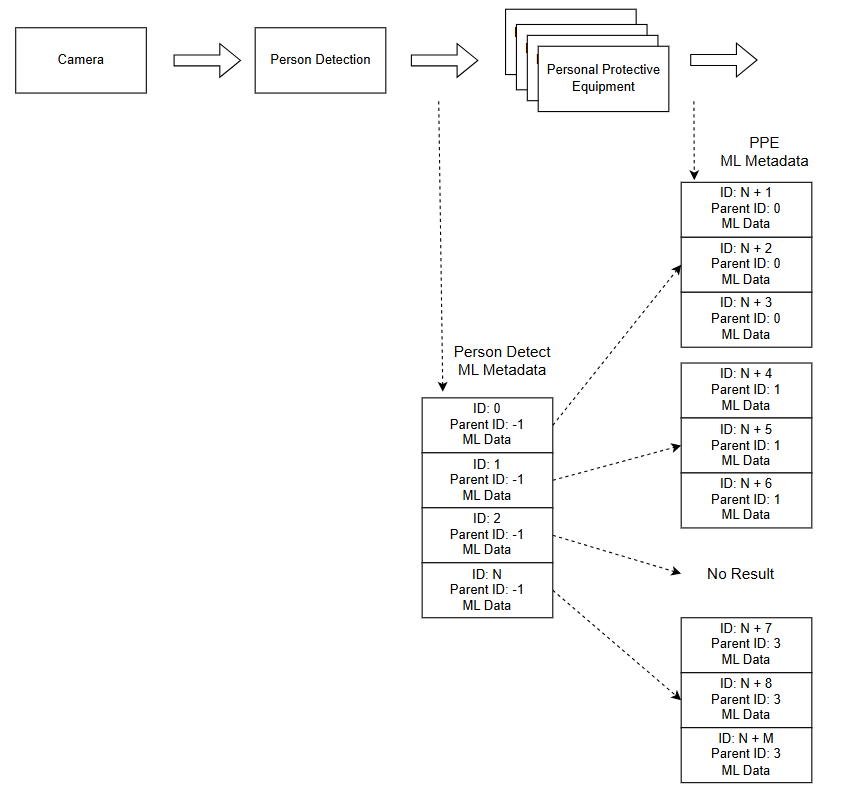
The metadata produced by this pipeline is **hierarchically structured**: base detections (persons) from the first model serve as parent entries, with PPE detection results from the second model attached as child metadata linked to each individual. This context-aware structure ensures that every detected safety item is explicitly associated with a specific person — enabling precise visualization, tracking, and downstream analytics.

The QIM SDK further accelerates visualization through **hardware-accelerated overlay rendering and blitting**, where bounding boxes, labels, and compliance indicators are composited directly onto video frames using optimized hardware operations — delivering smooth, real-time visualization without additional CPU load or pipeline latency.

Beyond visualization, the SDK provides native support for **AI metadata streaming**, synchronizing structured inference results with the video stream and transmitting them alongside the media pipeline. This transforms raw video into actionable, structured data — enabling external monitoring and alerting systems to consume real-time PPE compliance insights without re-running inference.

Integration with **Qualcomm AI Hub** further accelerates development by providing access to optimized, production-ready models for both person detection and PPE analysis, significantly reducing the effort required to move from prototype to production deployment.

The pipeline supports multiple input sources — USB, RTSP, ISP camera, and file-based video — and delivers results through real-time on-screen visualization, RTSP streaming, or WebRTC, with inference metadata transmitted in parallel. The result is a scalable, efficient edge AI system that transforms raw video into actionable safety intelligence — empowering organizations to proactively enforce compliance and mitigate risk in real time.

The complete application source code is available [here](https://github.com/qualcomm/gst-plugins-imsdk/tree/main/gst-sample-apps/gst-ppe-detection).

## Use Case Overview

<Steps>
  <Step title="Video Input">
    The pipeline accepts continuous video input from multiple source types — RTSP streams, ISP camera feeds, USB cameras, and file-based video.
  </Step>

  <Step title="Person Detection">
    Each frame is submitted to a person detection model that identifies individuals and their locations within the scene.
  </Step>

  <Step title="PPE Detection">
    For each detected person, a dedicated PPE detection model analyzes the dynamically cropped region to identify the presence or absence of safety equipment — including helmets, vests, gloves, and masks.
  </Step>

  <Step title="Metadata Generation">
    Detection results are attached to the video stream as hierarchically structured metadata, explicitly linking each PPE detection to its corresponding individual.
  </Step>

  <Step title="Visualization">
    Bounding boxes and labels are rendered directly onto video frames in real time using hardware-accelerated overlay, providing intuitive interpretation of detection results.
  </Step>

  <Step title="Metadata Synchronization">
    [`qtimetamux`](../plugin-reference/qtimetamux) synchronizes all inference results with the original video frames, maintaining per-frame consistency throughout the pipeline.
  </Step>

  <Step title="Output">
    The annotated stream is delivered via RTSP or WebRTC. Structured PPE compliance data is transmitted in parallel as a JSON metadata stream — enabling seamless integration with external monitoring, alerting, and analytics systems.
  </Step>
</Steps>

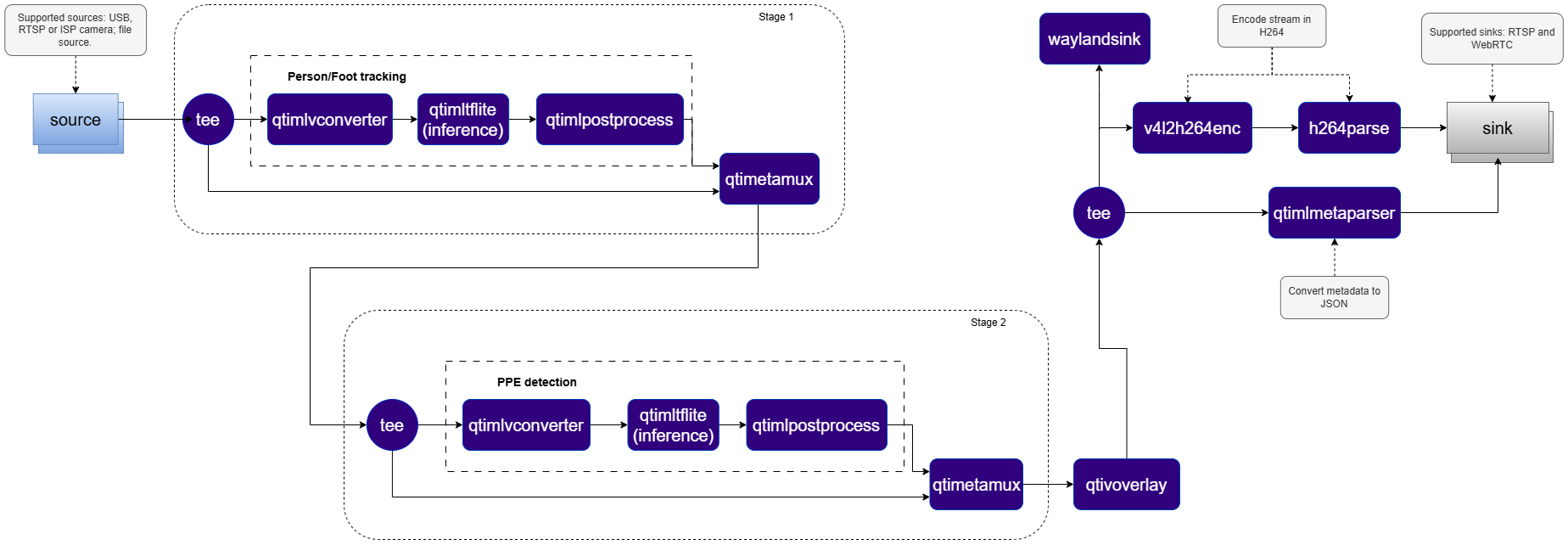
## Pipeline diagram

<img src="https://mintcdn.com/qimsdk/p8bRJ_K0_Mx14HV0/blogs/images/monppe1.png?fit=max&auto=format&n=p8bRJ_K0_Mx14HV0&q=85&s=f59bea354681096328bdcbb8ec0e4ec2" alt="" width="1848" height="642" data-path="blogs/images/monppe1.png" />

## Elements used in pipeline

| Element                                                        | Description                                                                                                                                                                                                           |
| -------------------------------------------------------------- | --------------------------------------------------------------------------------------------------------------------------------------------------------------------------------------------------------------------- |
| `source`                                                       | Accepts input from an RTSP camera, ISP camera, USB camera, or a local file.                                                                                                                                           |
| `tee`                                                          | Splits the incoming stream into multiple parallel branches for simultaneous downstream processing.                                                                                                                    |
| [`qtimlvconverter`](../plugin-reference/qtimlvconverter)       | Prepares video frames for inference by performing resizing, YUV-to-RGB color space conversion, and pixel normalization to match the model's input requirements.                                                       |
| [`qtimltflite`](../plugin-reference/qtimltflite)               | Executes the TFLite inference model for person/feet detection on each incoming frame.                                                                                                                                 |
| [`qtimlpostprocess`](../plugin-reference/qtimlpostprocess)     | Decodes raw output tensors into structured bounding boxes and labels. Post-processing logic is implemented as a dynamically loaded module, enabling model-specific strategies to be swapped without pipeline changes. |
| [`qtimetamux`](../plugin-reference/qtimetamux)                 | Synchronizes inference results with the original video stream and attaches them as per-frame structured metadata.                                                                                                     |
| [`qtivoverlay`](../plugin-reference/qtivoverlay)               | Renders bounding boxes, labels, and the restricted zone polygon directly onto video frames for real-time visual feedback.                                                                                             |
| [`qtimetaparser`](../plugin-reference/qtimetaparser)           | Serializes per-frame ML metadata into JSON format for integration with external monitoring and analytics systems.                                                                                                     |
| [`v4l2h264enc`](../plugin-reference/v4l2h264enc) / `h264parse` | Encodes the processed video stream into H.264 format for downstream transmission or storage.                                                                                                                          |
| `sink`                                                         | Streams the encoded video and associated metadata over RTSP or WebRTC via the `rtspbin` or `webrtcbin` plugins respectively, enabling remote clients to consume results in real time.                                 |
| [`waylandsink`](../plugin-reference/waylandsink)               | Renders the annotated video stream to a local Wayland display.                                                                                                                                                        |

## How it works

The PPE detection pipeline implements a **two-stage daisy-chain architecture**, where two sequential AI models operate in tandem — the output of the first model directly driving the execution of the second.

* **Stage 1 — Person Detection:** The first AI model processes the full video frame and produces bounding boxes identifying the location of each individual in the scene.
* **Crop Generation:** Since the second PPE detection model requires image crops — not bounding boxes — as input, a second instance of [`qtimlvconverter`](../plugin-reference/qtimlvconverter) operates in crop generation mode, receiving the bounding boxes produced by the first model and dynamically generating a cropped image region from the original frame for each detected person.
* **Stage 2 — PPE Detection:** The PPE detection model is invoked once per detected person, analyzing each cropped region independently to identify the presence or absence of safety equipment — including helmets, vests, gloves, and masks.
* **Metadata Re-attachment:** A second [`qtimetamux`](../plugin-reference/qtimetamux) instance re-attaches the PPE detection results to the original video stream, ensuring all detections are synchronized with the corresponding frame and person.
* **Hierarchical Metadata:** To preserve logical relationships across both model stages, the pipeline employs a **hierarchical metadata model** based on unique IDs and parent IDs — explicitly linking each PPE detection to its corresponding individual, enabling accurate per-person visualization, tracking, and downstream analytics.
<img src="https://mintcdn.com/qimsdk/p8bRJ_K0_Mx14HV0/blogs/images/monppe2.png?fit=max&auto=format&n=p8bRJ_K0_Mx14HV0&q=85&s=83be2ccc053b9a3b6d4bef73ebd72953" alt="" width="845" height="810" data-path="blogs/images/monppe2.png" />

## Run application on device

### Setup Requirements

#### Hardware
<img src="https://mintcdn.com/qimsdk/p8bRJ_K0_Mx14HV0/blogs/images/monppe3.png?fit=max&auto=format&n=p8bRJ_K0_Mx14HV0&q=85&s=bf38657dd1dd33dae0d93aa4f8cae5f8" alt="" width="712" height="411" data-path="blogs/images/monppe3.png" />

| Component                | Description                                                                                                                                                                |
| ------------------------ | -------------------------------------------------------------------------------------------------------------------------------------------------------------------------- |
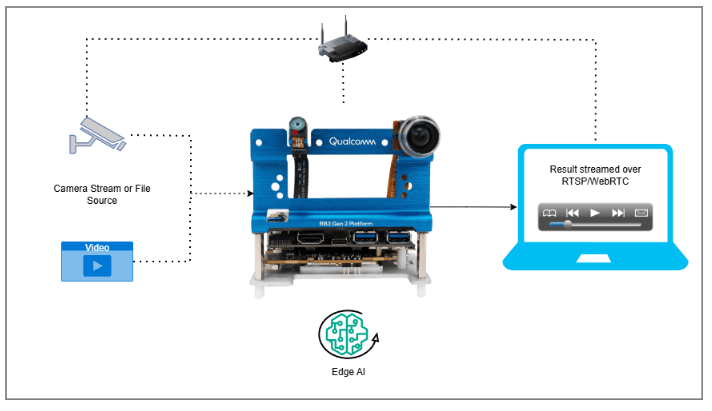
| **Edge Device**          | RB3 Gen 2, IQ8, or IQ9 — Primary processing unit for AI inference and video composition.                                                                                   |
| **Camera Source**        | IP/RTSP camera, ISP (on-device) camera, or USB camera. A local file source may be substituted if no physical camera is available.                                          |
| **HDMI Display Monitor** | Connected to the edge device for rendering and visualizing pipeline output.                                                                                                |
| **PoE Switch**           | Powers IP/RTSP cameras and provides network connectivity over a single Ethernet cable per camera. (Required for IP/RTSP camera setups only.)                               |
| **Local Network**        | Ensures the edge device, RTSP camera, and host machine are reachable on the same network. (Required when using RTSP camera input or streaming results via RTSP or WebRTC.) |

#### Software

**Flash your Qualcomm Edge device** by following the device setup and flashing instructions [here](../installation)

**Once your device is ready**, follow the instructions below to set up the PPE AI Pipeline:

##### AI Model and config files

| File                        | Download                                                                                                                                               | Save as                           |
| --------------------------- | ------------------------------------------------------------------------------------------------------------------------------------------------------ | --------------------------------- |
| Person Foot Detection model | [Qualcomm AI Hub — FootTrackNet](https://aihub.qualcomm.com/models/foot_track_net)                                                                     | `foot_track_net_quantized.tflite` |
| PPE Detection model         | [Qualcomm AI Hub — GearGuardNet](https://aihub.qualcomm.com/models/gear_guard_net)                                                                     | `gear_guard_net.tflite`           |
| Foot track labels           | <a href="../labels/foot_track_net.json" download="foot_track_net.json">foot\_track\_net.json</a>                                                       | `foot_track_net.json`             |
| Foot track net settings     | <a href="../labels/foot_track_net_settings.json" download="foot_track_net_settings.json">foot\_track\_net\_settings.json</a>                           | `foot_track_net_settings.json`    |
| Gear guard labels           | <a href="../labels/gear_guard_net.json" download="gear_guard_net.json">gear\_guard\_net.json</a>                                                       | `gear_guard_net.json`             |
| PPE sample video            | <a href="https://github.com/qualcomm/sample-apps-for-qualcomm-linux/raw/refs/heads/main/qualcomm-linux/artifacts/videos/demo_samples/">Input video</a> | `ppe_sample.mp4`                  |

**Copy files to device**

<CodeGroup>
  ```bash SCP (SSH) theme={null}
  # Replace $HOME to the appropriate device path before running the commands.
  # For QLI:    /root
  # For Ubuntu: /home/ubuntu
  # Modify this based on your platform and ensure files are copied to the correct location on the device.

  ssh <user>@<device-ip> "mkdir -p $HOME/{models,labels,media,media/output}"
  scp foot_track_net_quantized.tflite   <user>@<device-ip>:$HOME/models/
  scp gear_guard_net.tflite             <user>@<device-ip>:$HOME/models/
  scp foot_track_net.json               <user>@<device-ip>:$HOME/labels/
  scp foot_track_net_settings.json      <user>@<device-ip>:$HOME/labels/
  scp gear_guard_net.json               <user>@<device-ip>:$HOME/labels/
  scp ppe_sample.mp4                     <user>@<device-ip>:$HOME/media/
  ```
</CodeGroup>

**Connect to device**

```bash theme={null}
ssh <user>@<device-ip>
```

**Run the PPE Application**

<Note>
  A display must be connected to the device. If no display is available, use the `--no-display` flag to run in headless mode.
</Note>

Use the following base path for model and label files based on your OS:

<AccordionGroup>
  <Accordion title="RTSP">
    ```bash theme={null}
    gst-ppe-detection \
      --input-type=file \
      --input-config=$HOME/media/ppe_sample.mp4 \
      --output-type=rtsp \
      --output-config=8900
    ```
  </Accordion>

  <Accordion title="WebRTC">
    ```bash theme={null}
    gst-ppe-detection \
      --input-type=file \
      --input-config=$HOME/media/ppe_sample.mp4 \
      --output-type=webrtc \
      --output-config=wss://webrtc.nirbheek.in:8443 \
      --webrtc-id=1010
    ```
  </Accordion>

  <Accordion title="Display only">
    ```bash theme={null}
    gst-ppe-detection \
      --input-type=file \
      --input-config=$HOME/media/ppe_sample.mp4
    ```
  </Accordion>
</AccordionGroup>

> **Note:** This example uses an offline video file as input. To use an IP/RTSP camera or USB camera instead, update the `--input-type` argument accordingly — refer to the **Command-Line Options** section below for details.

It produces two key output results: an AI-annotated video stream and a JSON metadata stream. To visualize these results, refer to the **Host-Side Visualization** section below. To configure alternative input sources or output destinations, refer to the Command-Line Options section.

## Visualize the Results - Host-Side Visualization (Windows + WSL)

This section describes how to run the visualization client on a Windows host machine using **WSL (Windows Subsystem for Linux)**. The client renders the live video stream alongside a real-time AI metadata panel.

📥 The visualization client script can be downloaded here: <a href="../labels/rtsp_webrtc_client.zip" download="rtsp_webrtc_client.zip">rtsp\_webrtc\_client.zip</a>

It displays:

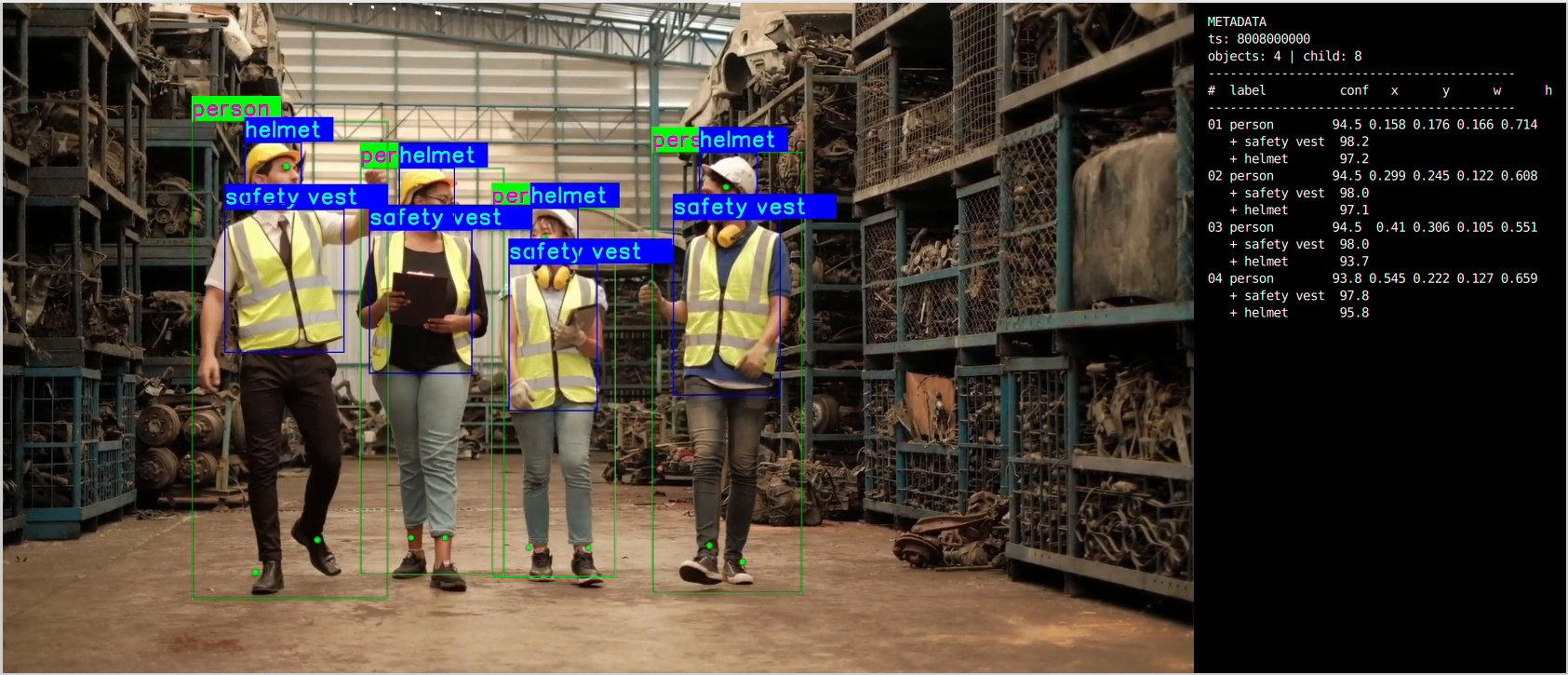
* **Left panel** — Live video stream. (Output Video stream with AI overlays)
* **Right panel** — Real-time AI metadata (JSON): object detections, bounding boxes, and confidence scores.

**Step 1 — Install WSL and Ubuntu**

If WSL is not already installed, run the following from a Windows terminal:

```bash theme={null}
wsl --install Ubuntu-24.04
```

Once installed, open the Ubuntu terminal and update the system:

```bash theme={null}
sudo apt update && sudo apt upgrade -y
```

**Step 2 — Install System Dependencies**

The visualization script requires GStreamer and Python GObject Introspection (GI) bindings. Install all required packages with:

```bash theme={null}
sudo apt install -y \
  python3 python3-pip python3-gi python3-gi-cairo \
  gir1.2-gstreamer-1.0 \
  gir1.2-gst-plugins-base-1.0 \
  gir1.2-gst-plugins-bad-1.0 \
  gstreamer1.0-tools \
  gstreamer1.0-plugins-base \
  gstreamer1.0-plugins-good \
  gstreamer1.0-plugins-bad \
  gstreamer1.0-plugins-ugly \
  gstreamer1.0-libav \
  python3-websocket \
  libnice10 \
  libnice-dev \
  gstreamer1.0-nice
```

**Step 3 — Run the Visualization Client Script**

Navigate to the directory containing the script and run:

<AccordionGroup>
  <Accordion title="RTSP">
    ```bash theme={null}
    python3 rtsp_webrtc_client.py rtsp://<DEVICE_IP>:8900/live
    ```
  </Accordion>

  <Accordion title="WebRTC">
    ```bash theme={null}
    python3 rtsp_webrtc_client.py --source webrtc --signalling-server wss://webrtc.nirbheek.in:8443 --peer-id 1010
    ```
  </Accordion>
</AccordionGroup>

**Step 4 — Expected Output**

Once the client connects, the UI will display:

| Panel Content | Description                                                                       |
| ------------- | --------------------------------------------------------------------------------- |
| Left          | Real-time decoded video stream                                                    |
| Right         | Live AI metadata panel — object detections, bounding boxes, and confidence scores |

After following the steps, the video and metadata streams should be up and running.

<img src="https://mintcdn.com/qimsdk/p8bRJ_K0_Mx14HV0/blogs/images/monppe4.png?fit=max&auto=format&n=p8bRJ_K0_Mx14HV0&q=85&s=6ab9636a3c63abf896ecc761bd0fac74" alt="" width="1685" height="725" data-path="blogs/images/monppe4.png" />

The pipeline generates structured JSON metadata in the following format:

```json theme={null}
{
  "object_detection": [
    {
      "label": "person",
      "confidence": 76.62,
      "color": 16711935,
      "rectangle": {
        "x": 0.58,
        "y": 0.05,
        "width": 0.28,
        "height": 0.90
      },
      "landmarks": {
        "nose": {
          "x": 0.71,
          "y": 0.21
        }
      },
      "object_detection": [
        {
          "label": "helmet",
          "confidence": 97.79,
          "color": 65535,
          "rectangle": {
            "x": 0.64,
            "y": 0.05,
            "width": 0.13,
            "height": 0.29
          }
        }
      ]
    }
  ],
  "parameters": {
    "timestamp": "11341424121"
  }
}
```

## Command-Line Options

<AccordionGroup>
  <Accordion title="--input-type">
    Selects the video input source for the pipeline.

    | Value  | Description                                                                             |
    | ------ | --------------------------------------------------------------------------------------- |
    | `usb`  | USB camera. Requires `--input-config=/dev/video0`.                                      |
    | `isp`  | Built-in ISP (on-device) camera. Optionally specify a camera ID via `--input-config=0`. |
    | `rtsp` | External IP/RTSP camera or stream. Requires `--input-config=rtsp://...`.                |
    | `file` | Local H.264-encoded video file. Requires `--input-config=/path/to/ppe_sample.mp4`.      |
  </Accordion>

  <Accordion title="--input-config">
    Specifies the input source configuration corresponding to the selected `--input-type`.

    | Input Type | Value                     |
    | ---------- | ------------------------- |
    | USB        | `/dev/videoX`             |
    | ISP        | `<camera ID>`             |
    | RTSP       | `rtsp://<ip-or-url>`      |
    | File       | `/path/to/ppe_sample.mp4` |
  </Accordion>

  <Accordion title="--output-type">
    Defines how the processed output video stream is delivered.

    | Value    | Description                                                                                                        |
    | -------- | ------------------------------------------------------------------------------------------------------------------ |
    | `none`   | No video output (headless mode). Display output is controlled separately via `--no-display`.                       |
    | `file`   | Saves the encoded output video stream to a file. Requires `--output-config`.                                       |
    | `rtsp`   | Streams the output video over RTSP. Requires `--output-config=<port>`. Access at `rtsp://<device-ip>:<port>/live`. |
    | `webrtc` | Streams the output video over WebRTC. Requires `--output-config=ws://...`.                                         |
  </Accordion>

  <Accordion title="--output-config">
    Specifies the output destination configuration corresponding to the selected `--output-type`.

    | Output Type | Value                             |
    | ----------- | --------------------------------- |
    | File        | `/path/to/output.mp4`             |
    | RTSP        | `<port>`                          |
    | WebRTC      | `ws://<signalling-server>:<port>` |
  </Accordion>

  <Accordion title="--model-base-path">
    Root directory where the application looks for AI model, label, and configuration files. Assets are resolved automatically:

    | Asset Type                      | Resolved Path                      |
    | ------------------------------- | ---------------------------------- |
    | Model files (`*.tflite`)        | `<base-path>/models/<model_file>`  |
    | Label/settings files (`*.json`) | `<base-path>/labels/<labels_file>` |

    ```bash theme={null}
    --model-base-path=$HOME      # QLI: /root, Ubuntu: /home/ubuntu
    ```
  </Accordion>

  <Accordion title="--no-display">
    Disables local on-screen rendering of the output video stream. Recommended for:

    * Headless deployments
    * Remote streaming setups (RTSP/WebRTC)
    * Performance optimization where display overhead is undesirable
  </Accordion>

  <Accordion title="--width / --height / --framerate">
    Sets the raw input video resolution and frame rate. Applicable only to ISP and USB inputs.

    ```bash theme={null}
    --width=1920 --height=1080 --framerate=30
    ```
  </Accordion>

  <Accordion title="--webrtc-id">
    Specifies the local WebRTC signaling client ID used for peer connection setup with the signaling server.

    ```bash theme={null}
    --webrtc-id=1010
    ```
  </Accordion>
</AccordionGroup>

## Implementation Deep-Dive

<AccordionGroup>
  <Accordion title="1. Application Configuration and Runtime Context">
    The application cleanly separates user configuration from runtime state — organizing command-line parameters, GStreamer objects, dynamic pad tracking, WebRTC signaling, and shutdown handling into predictable, well-defined locations.

    ```c theme={null}
    typedef struct GstAppConfig {
      gchar *input_type;
      gchar *input_location;
      gchar *input_format;
      gchar *output_type;
      gchar *output_location;
      gboolean no_display;
      gint width, height, framerate, rtsp_latency_ms, webrtc_id;
    } GstAppConfig;

    typedef struct GstAppContext {
      GstAppConfig config;
      GstElement *pipeline;
      GMainLoop  *mloop;
      GstElement *webrtc;
      gboolean    is_shutting_down;
    } GstAppContext;
    ```
  </Accordion>

  <Accordion title="2. Pipeline Assembly">
    The pipeline is composed of three branches: common input, common output, and application-specific processing. Construction order is deliberate — input first, output second, processing last.

    ```c theme={null}
    static gboolean gst_app_create_pipe (GstAppContext *appctx) {
      GstElement *input_tail = NULL, *output_head = NULL, *meta_head = NULL;
      appctx->pipeline = gst_pipeline_new ("gst-ppe-detection");

      if (!gst_app_create_input_pipe  (appctx, &input_tail))  return FALSE;
      if (!gst_app_create_output_pipe (appctx, &output_head, &meta_head)) return FALSE;
      if (!gst_app_create_user_pipe   (appctx, input_tail, output_head, meta_head)) return FALSE;
      return TRUE;
    }
    ```
  </Accordion>

  <Accordion title="3. Two-Stage Inference Element Creation">
    Dedicated `qtimlvconverter`, `qtimltflite`, `qtimlpostprocess`, and `qtimetamux` elements are allocated for each inference stage.

    ```c theme={null}
    qtimlvconverter_stage1 = gst_app_make_element ("qtimlvconverter", "qtimlvconverter_stage1");
    qtimlvconverter_stage2 = gst_app_make_element ("qtimlvconverter", "qtimlvconverter_stage2");
    qtimltflite_stage1     = gst_app_make_element ("qtimltflite",     "qtimltflite_stage1");
    qtimltflite_stage2     = gst_app_make_element ("qtimltflite",     "qtimltflite_stage2");
    qtimlpostprocess_stage1 = gst_app_make_element ("qtimlpostprocess", "qtimlpostprocess_stage1");
    qtimlpostprocess_stage2 = gst_app_make_element ("qtimlpostprocess", "qtimlpostprocess_stage2");
    qtimetamux_stage1      = gst_app_make_element ("qtimetamux",      "qtimetamux_stage1");
    qtimetamux_stage2      = gst_app_make_element ("qtimetamux",      "qtimetamux_stage2");
    qtivoverlay            = gst_app_make_element ("qtivoverlay",     "qtivoverlay");
    qtimlmetaparser        = gst_app_make_element ("qtimlmetaparser", "qtimlmetaparser");
    ```
  </Accordion>

  <Accordion title="4. ROI Batching and Accelerated Inference Configuration">
    Stage 2 uses cumulative ROI batching. Both models execute via the QNN external delegate. Each post-processing stage is configured with dedicated labels and settings.

    ```c theme={null}
    gst_element_set_enum_property (qtimlvconverter_stage2, "mode", "roi-batch-cumulative");

    g_object_set (G_OBJECT (qtimlpostprocess_stage1),
      "results", 10, "labels", STAGE1_LABELS_PATH,
      "bbox-stabilization", TRUE, "settings", STAGE1_SETTINGS_PATH, NULL);
    gst_element_set_enum_property (qtimlpostprocess_stage1, "module", "qpd");

    g_object_set (G_OBJECT (qtimlpostprocess_stage2),
      "results", 10, "labels", STAGE2_LABELS_PATH,
      "bbox-stabilization", TRUE, NULL);
    gst_element_set_enum_property (qtimlpostprocess_stage2, "module", "yolov8");

    delegate_options = gst_structure_from_string ("QNNExternalDelegate,backend_type=htp;", NULL);
    g_object_set (G_OBJECT (qtimltflite_stage1),
      "external-delegate-path", "libQnnTFLiteDelegate.so",
      "external-delegate-options", delegate_options,
      "model", STAGE1_MODEL_PATH, NULL);
    gst_element_set_enum_property (qtimltflite_stage1, "delegate", "external");
    g_object_set (G_OBJECT (qtimltflite_stage2),
      "external-delegate-path", "libQnnTFLiteDelegate.so",
      "external-delegate-options", delegate_options,
      "model", STAGE2_MODEL_PATH, NULL);
    gst_element_set_enum_property (qtimltflite_stage2, "delegate", "external");
    gst_structure_free (delegate_options);
    ```
  </Accordion>

  <Accordion title="5. Linking Stage 1 into Stage 2">
    Stage 1 attaches person detection metadata to the stream; Stage 2 consumes the resulting ROIs, runs PPE inference, overlays results, and forwards the annotated stream to the output branch.

    ```c theme={null}
    gst_element_link_many (input_tail, tee[0], queue[0], qtimetamux_stage1, NULL);
    gst_element_link_many (tee[0], queue[1], qtimlvconverter_stage1, queue[2],
      qtimltflite_stage1, queue[3], qtimlpostprocess_stage1, postprocess_caps_stage1,
      queue[4], qtimetamux_stage1, NULL);
    gst_element_link_many (qtimetamux_stage1, queue[5], tee[1], NULL);
    gst_element_link_many (tee[1], queue[6], qtimetamux_stage2, NULL);
    gst_element_link_many (tee[1], queue[7], qtimlvconverter_stage2, queue[8],
      qtimltflite_stage2, queue[9], qtimlpostprocess_stage2, postprocess_caps_stage2,
      queue[10], qtimetamux_stage2, queue[11], qtivoverlay, queue[12], tee[2], NULL);
    if (output_head != NULL)
      gst_element_link_many (tee[2], queue[13], output_head, NULL);
    if (meta_head != NULL)
      gst_element_link_many (tee[2], queue[14], qtimlmetaparser, meta_head, NULL);
    ```
  </Accordion>

  <Accordion title="6. Metadata over RTSP / WebRTC">
    Metadata is handled through a dedicated branch and optionally exported.

    * **RTSP** — metadata linked via sink pad on [`qtirtspbin`](../plugin-reference/qtirtspbin)
    * **WebRTC** — metadata sent via a dedicated data channel

    ```c theme={null}
    if (meta_head != NULL)
      gst_element_link_many (tee[1], queue[7], qtimlmetaparser, meta_head, NULL);
    ```

    **WebRTC metadata callback:**

    ```c theme={null}
    static GstFlowReturn
    gst_app_webrtc_meta_new_sample_cb (GstElement *appsink, gpointer userdata) {
      GstSample *sample = NULL;
      GstBuffer *buffer = NULL;
      g_signal_emit_by_name (appsink, "pull-sample", &sample);
      buffer = gst_sample_get_buffer (sample);
      gst_buffer_map (buffer, &mapinfo, GST_MAP_READ);
      metadata = g_strndup ((const gchar *) mapinfo.data, mapinfo.size);
      // send via WebRTC data channel
    }
    ```

    **Key WebRTC signaling callbacks:**

    | Callback           | Responsibility                                         |
    | ------------------ | ------------------------------------------------------ |
    | `on_offer_created` | Constructs and sends the SDP offer to the remote peer  |
    | `on_ice_candidate` | Transmits ICE candidates to the signaling server       |
    | `on_ws_message`    | Handles incoming signaling messages from the WebSocket |
  </Accordion>
</AccordionGroup>

## Build the Application

* **Source code:** [gst-ppe-detection](https://github.com/qualcomm/gst-plugins-imsdk/tree/main/gst-sample-apps/gst-ppe-detection)
* **Build instructions:** [Steps to build custom application](../advanced/ubuntu-build#steps-to-build-custom-application)

## Conclusion

The QIM SDK's modular, plugin-based architecture enables developers to rapidly build scalable multi-stage AI video analytics pipelines without sacrificing flexibility. By attaching each model's output directly to the corresponding video frame as structured metadata, the SDK preserves inference context across pipeline stages and enables accurate downstream processing. Results can be delivered through on-screen overlays, network streams, or as independently transmitted metadata — giving developers full control over how and where AI-driven insights are consumed.
