> ## Documentation Index
> Fetch the complete documentation index at: https://imsdkdocs.qualcomm.com/llms.txt
> Use this file to discover all available pages before exploring further.

# Quick start guide

> A Quick demonstration of Python SDK for building AI application on Qualcomm platforms

## What is the QIM SDK Python App Builder?

### Overview

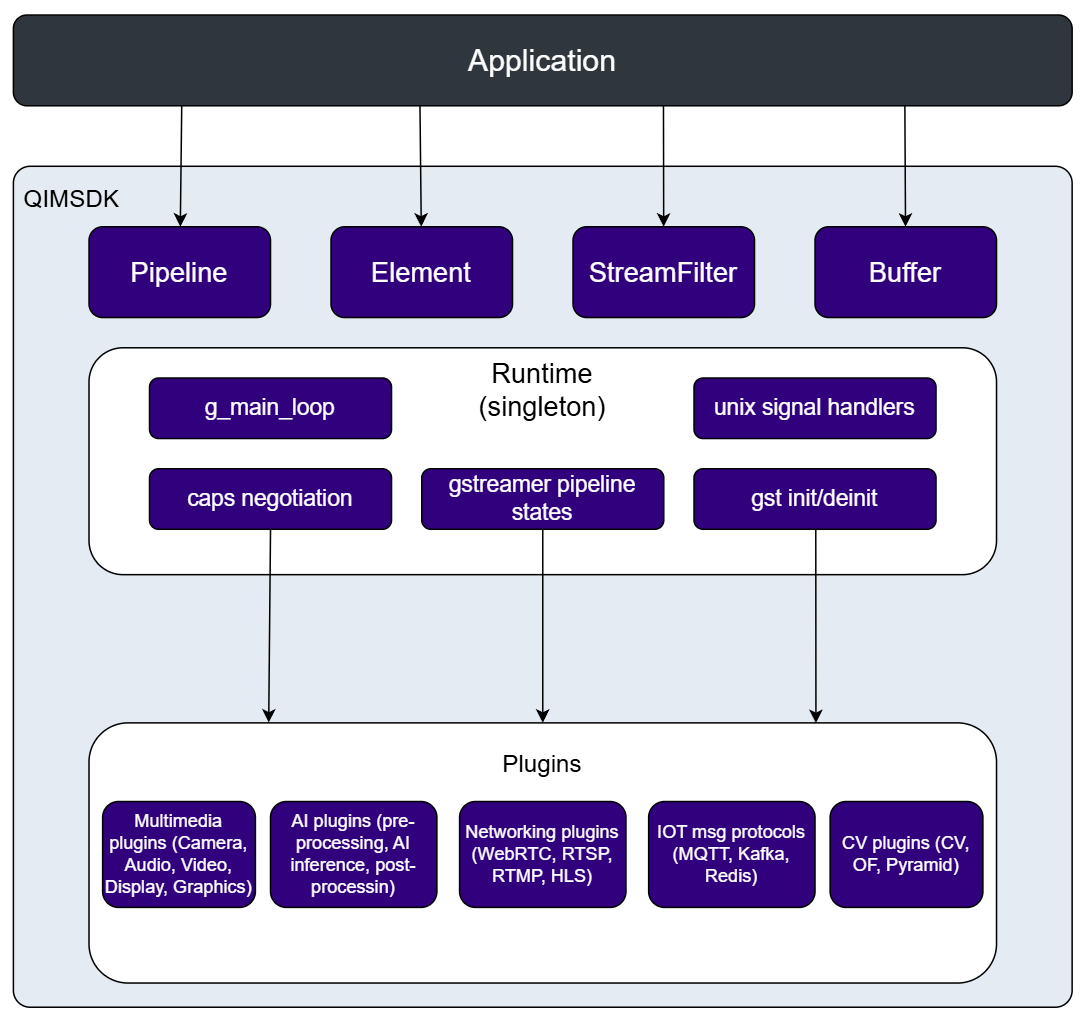
The **QIM SDK Python App Builder** is a modern Python SDK for building, running, and managing multimedia and AI pipelines on Qualcomm platforms. It provides a high-level abstraction layer over GStreamer, handling framework-level complexity such as element negotiation, pad linking, signal management, event loops, and state transitions. This lets developers focus on application logic rather than framework boilerplate.

<img src="https://mintcdn.com/qimsdk/QarSxH4rrv0vwi-l/app-builder/images/cpp_introduction.png?fit=max&auto=format&n=QarSxH4rrv0vwi-l&q=85&s=07b77e6ae0d127da4fa22400fe5e8f93" alt="Introduction" width="1086" height="1021" data-path="app-builder/images/cpp_introduction.png" />

### Key Capabilities

* **No GStreamer expertise required** — the SDK manages all underlying GStreamer mechanics internally, with no dependency on GStreamer Python bindings.
* **Fast pipeline development** — a functional camera-to-display pipeline can be written in just a few lines of Python.
* **AI inference support** — built-in ML bins for TFLite, QNN, SNPE, and ONNX models, with support for custom pre/post-processing.
* **Two pipeline definition styles** — pipelines can be defined programmatically using the Python fluent API (`add()` / `link()` calls), or declaratively using a YAML configuration file passed to the `Pipeline` constructor.
* **Broad multimedia support** — video capture, signal processing, ML inference, overlay rendering, and display output.

### API Reference
<table className="api-code-table">
  <colgroup>
    <col style={{width: "12%"}} />

    <col style={{width: "28%"}} />

    <col style={{width: "60%"}} />
  </colgroup>

  <thead>
    <tr>
      <th>API</th>
      <th>Description</th>
      <th>API Code Reference</th>
    </tr>
  </thead>

  <tbody>
    <tr>
      <td>
        **Pipeline**
      </td>

      <td>
        Builds, links, and manages the full lifecycle of a GStreamer pipeline. Supports both programmatic (Python fluent API) and declarative (YAML) pipeline definition. Key methods: `add()`, `link()`, `add_stream_filter()`, `execute()`, `prepare()`, `start()`, `stop()`, `get()`.
      </td>

      <td>
        ```python theme={null}
        p = Pipeline("cam-pipeline")
        p.add("qtiqmmfsrc", "src").add("waylandsink", "sink").execute()
        ```
      </td>
    </tr>

    <tr>
      <td>
        **Element**
      </td>

      <td>
        Generic wrapper around a GStreamer element. Supports fluent property setting at create time or at runtime to update a live pipeline.
      </td>

      <td>
        ```python theme={null}
        sink = Element("waylandsink", "display")
        sink.set("fullscreen", True)
        sink.set("sync", False)
        ```
      </td>
    </tr>

    <tr>
      <td>
        **Buffer**
      </td>

      <td>
        Unified buffer abstraction over native GStreamer memory. Provides read/write access, timestamp metadata, and zero-copy transfer paths. Key methods: `data()`, `size()`, `resize()`, `pts()`, `dts()`, `duration()`.
      </td>

      <td>
        ```python theme={null}
        def consume_buffer(buf):
            data = buf.data()
            pts = buf.pts()

        sink.set_buffer_consumer(consume_buffer)
        ```
      </td>
    </tr>

    <tr>
      <td>
        **AppSrc**
      </td>

      <td>
        App-facing source. Feeds buffers from application code into the pipeline using callbacks or a push API.
      </td>

      <td>
        ```python theme={null}
        def produce_buffer(buf):
            # fill buf.data()
            return True

        src = AppSrc(pipeline.get("src"))
        src.set_buffer_producer(produce_buffer)
        ```
      </td>
    </tr>

    <tr>
      <td>
        **AppSink**
      </td>

      <td>
        App-facing sink. Delivers pipeline output buffers to application code with zero-copy.
      </td>

      <td>
        ```python theme={null}
        def consume_buffer(buf):
            # consume buf.data()
            pass

        sink = AppSink(pipeline.get("sink"))
        sink.set_buffer_consumer(consume_buffer)
        ```
      </td>
    </tr>

    <tr>
      <td>
        **CamSrc**
      </td>

      <td>
        Built-in ISP camera source. Exposes an API for runtime image capture and snapshots.
      </td>

      <td>
        ```python theme={null}
        cam = CamSrc(pipeline.get("source"))
        cam.capture_image("snapshot.jpg")
        ```
      </td>
    </tr>

    <tr>
      <td>
        **MLPreProcess**
      </td>

      <td>
        Attaches a custom Python handler for pre-processing input frames before ML inference.
      </td>

      <td>
        ```python theme={null}
        def preprocess(buf):
            # transform input frame
            pass

        pre = MLPreProcess(pipeline.get("preproc"))
        pre.set_handler(preprocess)
        ```
      </td>
    </tr>

    <tr>
      <td>
        **MLPostProcess**
      </td>

      <td>
        Attaches a custom Python handler for post-processing raw inference tensor output.
      </td>

      <td>
        ```python theme={null}
        def postprocess(buf):
            # parse inference output
            pass

        pp = MLPostProcess(pipeline.get("postproc"))
        pp.set_handler(postprocess)
        ```
      </td>
    </tr>

    <tr>
      <td>
        **MLVideoTFLiteBin** / **MLVideoQNNBin** / **MLVideoSNPEBin** / **MLVideoONNXBin**
      </td>

      <td>
        All-in-one preprocess + inference + postprocess bins. Supports TFLite, QNN, SNPE, and ONNX models.
      </td>

      <td>
        ```python theme={null}
        pipeline.add("MLVideoTFLiteBin", "ml", "model", "/models/model.tflite", "delegate", "htp")
        ```
      </td>
    </tr>

    <tr>
      <td>
        **VideoFilter** / **AudioFilter** / **ImageFilter** / **H264Filter** / **TensorFilter** / **TextFilter**
      </td>

      <td>
        Fluent caps builders for `add_stream_filter()`. Describes stream characteristics for caps negotiation between pipeline stages.
      </td>

      <td>
        ```python theme={null}
        pipeline.add_stream_filter("vf", VideoFilter().format("NV12").resolution(1920, 1080).framerate(30))
        ```
      </td>
    </tr>
  </tbody>
</table>

***

## Build your application

### Built-in Camera Source

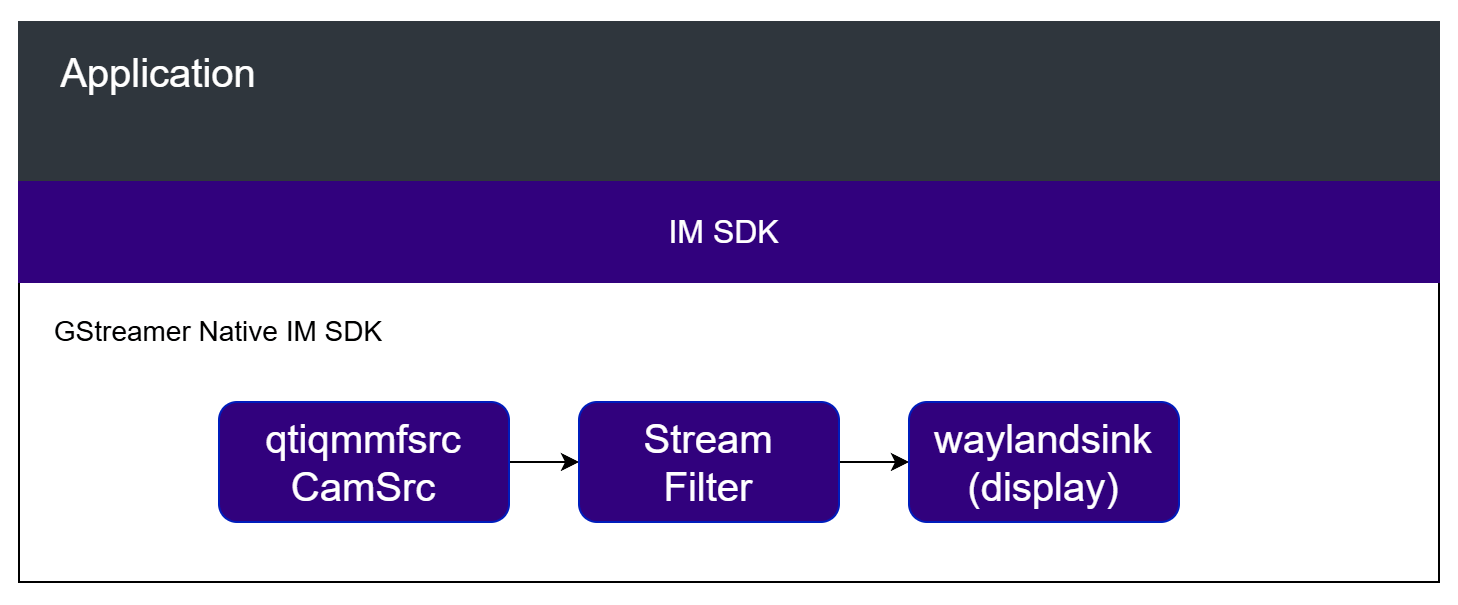
This pipeline includes a built-in camera node, a stream filter, and a display node. If the device has more than one built-in camera, you can specify which one to use by providing the camera's unique ID. The stream filter defines the camera's output format, resolution, and framerate. You can also configure the display settings, such as enabling fullscreen rendering.

<img src="https://mintcdn.com/qimsdk/QarSxH4rrv0vwi-l/app-builder/images/build-in_camsrc.png?fit=max&auto=format&n=QarSxH4rrv0vwi-l&q=85&s=61361716ee9b6cd03b1b012f3eea0ab2" alt="Introduction" width="1458" height="605" data-path="app-builder/images/build-in_camsrc.png" />

<Info>
  Check application source code on GitHub: [`qimsdk_ref_camera.py`](https://github.com/qualcomm/qimsdk/blob/main/python/examples/reference-apps/qimsdk_ref_camera.py)

  Pre-built application on device: `/usr/bin/qimsdk_ref_camera.py`
</Info>

**Minimal pipeline builder (Python):**

```python theme={null}
pipeline = Pipeline("cam-pipeline")
pipeline.add("qtiqmmfsrc", "source") \
    .add_stream_filter("videostream", VideoFilter().format("NV12").resolution(1920, 1080).framerate(30)) \
    .add("waylandsink", "display", "sync", False, "fullscreen", True) \
    .execute()
```

<Info>
  Check application source code on GitHub: [`qimsdk_ref_camera_impl.py`](https://github.com/qualcomm/qimsdk/blob/main/python/examples/reference-apps/qimsdk_ref_camera_impl.py)

  Pre-built application on device: `/usr/bin/qimsdk_ref_camera_impl.py`
</Info>

**Element-based builder (Python):**

```python theme={null}
source = Element("qtiqmmfsrc", "source")

display = Element("waylandsink", "display")
display.set("sync", False)
display.set("fullscreen", True)

videostream = VideoFilter().format("NV12").resolution(1920, 1080).framerate(30)

pipeline = Pipeline("cam-pipeline")
pipeline.add(source) \
    .add_stream_filter("videostream", videostream) \
    .add(display) \
    .execute()
```

### Object Detection

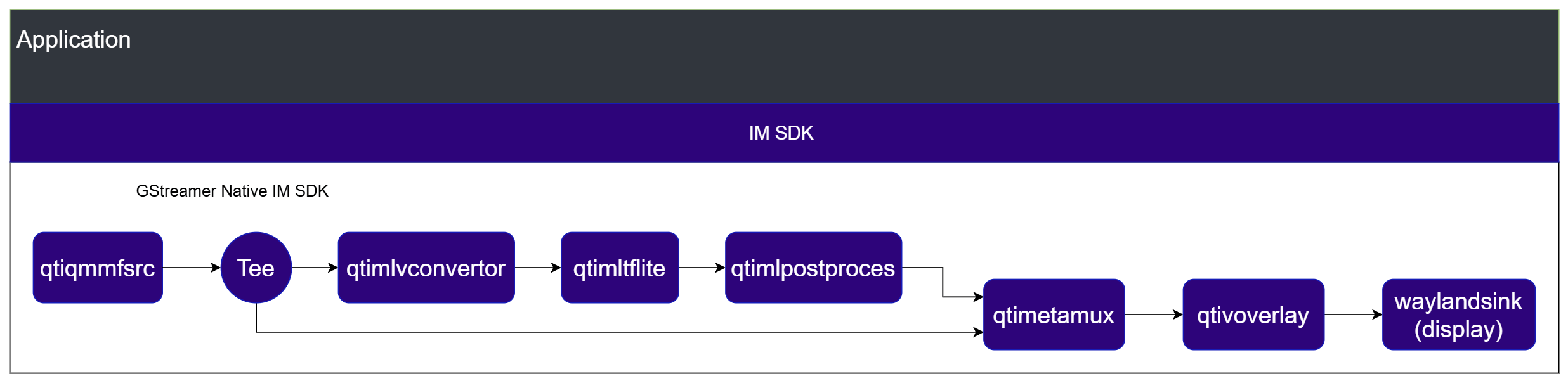
This pipeline captures from a built-in camera, runs an object detection model through an ML inference bin, renders bounding box overlays on the output frames, and displays the result. The ML bin handles preprocessing, inference, and postprocessing internally. The stream filter pins the input video format expected by the model. The overlay element draws detection results on each frame before display.

<img src="https://mintcdn.com/qimsdk/QarSxH4rrv0vwi-l/app-builder/images/obj-detect.png?fit=max&auto=format&n=QarSxH4rrv0vwi-l&q=85&s=60a7316860578f7b1251a29c4bb591bf" alt="Introduction" width="2472" height="604" data-path="app-builder/images/obj-detect.png" />

<Info>
  Check application source code on GitHub: [`qimsdk_ref_camera_yolov8.py`](https://github.com/qualcomm/qimsdk/blob/main/python/examples/reference-apps/qimsdk_ref_camera_yolov8.py)

  Pre-built application on device: `/usr/bin/qimsdk_ref_camera_yolov8.py`
</Info>

**Minimal pipeline builder (Python):**

```python theme={null}
pipeline = Pipeline("ml-cam-pipeline")
pipeline.add("qtiqmmfsrc", "source", "camera", 0) \
    .add_stream_filter("videostream", VideoFilter().format("NV12").resolution(1920, 1080).framerate(30)) \
    .add("tee", "split") \
    .add("queue", "q2") \
    .add("qtimlvconverter", "preprocessing") \
    .add("queue", "q3") \
    .add("qtimltflite", "inferencing",
         "delegate", "external",
         "external-delegate-path", "libQnnTFLiteDelegate.so",
         "external-delegate-options", "QNNExternalDelegate,backend_type=htp;",
         "model", HOME_PATH + "/models/yolov8_det_quantized.tflite") \
    .add("queue", "q4") \
    .add("qtimlpostprocess", "postprocessing", "results", 5, "module", "yolov8",
         "labels", HOME_PATH + "/labels/yolov8.json", "settings", '{"confidence": 70.0}') \
    .add_stream_filter("mlf", TextFilter()) \
    .add("qtimetamux", "mlmuxer") \
    .add("queue", "q5") \
    .add("qtivoverlay", "overlay") \
    .add("waylandsink", "display", "sync", False, "fullscreen", True) \
    .link("split", "mlmuxer") \
    .link("source", "videostream", "split", "q2", "preprocessing", "q3",
          "inferencing", "q4", "postprocessing", "mlf", "mlmuxer", "q5", "overlay", "display") \
    .execute()
```

**Element-based builder (Python):**

```python theme={null}
source = Element("qtiqmmfsrc", "source")
source.set("camera", 0)

split = Element("tee", "split")
q2 = Element("queue", "q2")
preprocessing = Element("qtimlvconverter", "preprocessing")
q3 = Element("queue", "q3")

inferencing = Element("qtimltflite", "inferencing")
inferencing.set("delegate", "external")
inferencing.set("external-delegate-path", "libQnnTFLiteDelegate.so")
inferencing.set("external-delegate-options", "QNNExternalDelegate,backend_type=htp;")
inferencing.set("model", HOME_PATH + "/models/yolov8_det_quantized.tflite")

postprocessing = Element("qtimlpostprocess", "postprocessing")
postprocessing.set("results", 5)
postprocessing.set("module", "yolov8")
postprocessing.set("labels", HOME_PATH + "/labels/yolov8.json")
postprocessing.set("settings", '{"confidence": 70.0}')

mlmuxer = Element("qtimetamux", "mlmuxer")
q5 = Element("queue", "q5")
overlay = Element("qtivoverlay", "overlay")

display = Element("waylandsink", "display")
display.set("sync", False)
display.set("fullscreen", True)

videostream = VideoFilter().format("NV12").resolution(1920, 1080).framerate(30)
mlf = TextFilter()

pipeline = Pipeline("ml-cam-pipeline")
pipeline.add(source) \
    .add_stream_filter("videostream", videostream) \
    .add(split) \
    .add(q2) \
    .add(preprocessing) \
    .add(q3) \
    .add(inferencing) \
    .add("queue", "q4") \
    .add(postprocessing) \
    .add_stream_filter("mlf", mlf) \
    .add(mlmuxer) \
    .add(q5) \
    .add(overlay) \
    .add(display) \
    .link("split", "mlmuxer") \
    .link("source", "videostream", "split", "q2", "preprocessing", "q3",
          "inferencing", "q4", "postprocessing", "mlf", "mlmuxer", "q5", "overlay", "display") \
    .execute()
```

<Steps>
  <Step title="Download Required Files">
    | File                   | Download                                                                     | Save as                       |
    | ---------------------- | ---------------------------------------------------------------------------- | ----------------------------- |
    | YOLOv8 detection model | [Qualcomm AI Hub — YOLOv8](https://aihub.qualcomm.com/iot/models/yolov8_det) | `yolov8_det_quantized.tflite` |
    | Detection labels       | <a href="../labels/yolov8.json" download="yolov8.json">yolov8.json</a>       | `yolov8.json`                 |

    <Note>
      If the downloaded model file is a `.zip` archive, extract it on your host machine before copying: `unzip filename.zip`
    </Note>
  </Step>

  <Step title="Copy the assets to the device">
    The model and labels must be present on the device before running. Copy them to the paths the application expects:

    ```bash theme={null}
    # Replace <user> and <device-ip> with your device credentials.
    ssh <user>@<device-ip> "mkdir -p ~/models ~/labels"

    # Copy the assets to device
    scp yolov8_det_quantized.tflite <user>@<device-ip>:~/Downloads/qimsdk_samples/models/
    scp yolov8.json <user>@<device-ip>:~/Downloads/qimsdk_samples/labels/
    ```
  </Step>

  <Step title="Run the application">
    ```bash theme={null}
    python3 /usr/bin/qimsdk_ref_camera_yolov8.py
    ```

    To stop the application, press **CTRL + C**.
  </Step>
</Steps>

### Custom Post-Processing

The QIM SDK implements AI model post-processing through dedicated modules that take tensors as input and produce predictions. All underlying complexity — batching, daisy-chaining, image mask support, and ML metadata handling — is encapsulated within the post-processing plugin. This makes `MLPostProcess` the ideal integration point for application-specific logic, since the application does not need to handle any of that complexity directly. A specialized post-processing module manages the bindings between the pipeline and the application.

<img src="https://mintlify.s3.us-west-1.amazonaws.com/qimsdk/app-builder/images/custom-post.png" alt="Introduction" />

<Info>
  Check application source code on GitHub: [`qimsdk_ref_external_postprocess_mlbin_yolov8.py`](https://github.com/qualcomm/qimsdk/blob/main/python/examples/reference-apps/qimsdk_ref_external_postprocess_mlbin_yolov8.py)

  Pre-built application on device: `/usr/bin/qimsdk_ref_external_postprocess_mlbin_yolov8.py`
</Info>

**Minimal pipeline builder (Python):**

```python theme={null}
pipeline = Pipeline("mlbin-external-detection")
labels = load_labels(HOME_PATH + "/labels/yolov8.json")

mlbin = MLVideoTFLiteBin("mlbin")
mlbin.set("inference-delegate", "external",
          "inference-external-delegate-path", "libQnnTFLiteDelegate.so",
          "inference-external-delegate-options",
          "QNNExternalDelegate,backend_type=htp;",
          "inference-model", HOME_PATH + "/models/yolov8_det_quantized.tflite")
mlbin.set_postprocess_handler(
    lambda frame, params, detections: decode_detection(
        frame, detections, params, labels, confidence_threshold=0.70))

pipeline \
    .add("filesrc", "src", "location", HOME_PATH + "/media/video.mp4") \
    .add("qtdemux", "demux") \
    .add("h264parse", "parse") \
    .add("v4l2h264dec",
         "decoder",
         "output-io-mode", 4,
         "capture-io-mode", 4) \
    .add_stream_filter("vf", VideoFilter().format("NV12")) \
    .add(mlbin) \
    .add("qtivoverlay", "overlay") \
    .add("waylandsink", "display", "fullscreen", True)
pipeline.execute()
```

**Element-based builder (Python):**

```python theme={null}
# Reads the input media file as raw bytes.
src = Element("filesrc", "src")
src.set("location", HOME_PATH + "/media/video.mp4")

# Extracts elementary streams from the MP4 container.
demux = Element("qtdemux", "demux")

# Prepares the H.264 bitstream for the decoder.
parse = Element("h264parse", "parse")

# Decodes the compressed H.264 stream into raw video frames.
#
# The I/O mode is configured to enforce DMA buffer usage,
# avoiding unnecessary buffer copies.
decoder = Element("v4l2h264dec", "decoder")
decoder.set("output-io-mode", 4)
decoder.set("capture-io-mode", 4)

vf = VideoFilter().format("NV12")

# Renders ML metadata over the video frame.
overlay = Element("qtivoverlay", "overlay")

# Render video stream on display.
#
# async=False enforce state transition to ensure the buffers are returned on time.
# sync=True keeps rendering synchronized to the pipeline clock.
# fullscreen=True renders the output fullscreen on the target display.
display = Element("waylandsink", "display")
display.set("fullscreen", True)

# Read Labels used by the external postprocess callback for class decoding.
labels = load_labels(HOME_PATH + "/labels/yolov8.json")

# Runs preprocessing, inference, and external postprocessing inside mlbin.
mlbin = MLVideoTFLiteBin("mlbin")
mlbin.set("inference-delegate", "external")
mlbin.set("inference-external-delegate-path", "libQnnTFLiteDelegate.so")
mlbin.set("inference-external-delegate-options",
          "QNNExternalDelegate,backend_type=htp;")
mlbin.set("inference-model", HOME_PATH + "/models/yolov8_det_quantized.tflite")
mlbin.set_postprocess_handler(
    lambda frame, params, detections: decode_detection(
        frame, detections, params, labels, confidence_threshold=0.70))

# Creates the pipeline, adds and links elements, and executes it.
#
# Explicit linking is applied
pipeline = Pipeline("mlbin-external-detection")
pipeline \
    .add(src) \
    .add(demux) \
    .add(parse) \
    .add(decoder) \
    .add_stream_filter("vf", vf) \
    .add(mlbin) \
    .add(overlay) \
    .add(display)
pipeline.execute()
```

<Steps>
  <Step title="Download Required Files">
    | File                   | Download                                                                                                                                               | Save as                       |
    | ---------------------- | ------------------------------------------------------------------------------------------------------------------------------------------------------ | ----------------------------- |
    | YOLOv8 detection model | [Qualcomm AI Hub — YOLOv8](https://aihub.qualcomm.com/iot/models/yolov8_det)                                                                           | `yolov8_det_quantized.tflite` |
    | Detection labels       | <a href="../labels/yolov8.json" download="yolov8.json">yolov8.json</a>                                                                                 | `yolov8.json`                 |
    | Sample video           | <a href="https://github.com/qualcomm/sample-apps-for-qualcomm-linux/raw/refs/heads/main/qualcomm-linux/artifacts/videos/demo_samples/">Input video</a> | `video.mp4`                   |

    <Note>
      If the downloaded model file is a `.zip` archive, extract it on your host machine before copying: `unzip filename.zip`
    </Note>
  </Step>

  <Step title="Copy the assets to the device">
    The input video, model, and labels must be present on the device before running. Copy them to the paths the application expects:

    ```bash theme={null}
    # Replace <user> and <device-ip> with your device credentials.
    ssh <user>@<device-ip> "mkdir -p ~/media ~/models ~/labels"

    # Copy the assets to device
    scp video.mp4 <user>@<device-ip>:~/Downloads/qimsdk_samples/media/
    scp yolov8_det_quantized.tflite <user>@<device-ip>:~/Downloads/qimsdk_samples/models/
    scp yolov8.json <user>@<device-ip>:~/Downloads/qimsdk_samples/labels/
    ```
  </Step>

  <Step title="Run the application">
    ```bash theme={null}
    python3 /usr/bin/qimsdk_ref_external_postprocess_mlbin_yolov8.py
    ```

    To stop the application, press **CTRL + C**.
  </Step>
</Steps>

***